Are you stuck with the “Microsoft Excel cannot paste the data” error message? This error occurs under different scenarios, like:
- Copying data from one Excel file to another
- Transferring data between Excel & other applications
- Pasting large datasets.
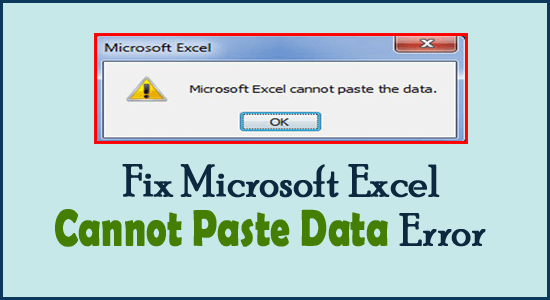
Are you stuck with the “Microsoft Excel cannot paste the data” error message? This error occurs under different scenarios, like:

No one can afford the loss of formatting done in the Excel spreadsheet. But sometimes the situation may arise where Excel won’t save formatting changes and due to this whole formatting is lost when reopening the Excel worksheet. Well, in this blog, I will explore the common causes and some of the working solutions to fix Excel not saving formatting issues in no time.

Is your online Excel spreadsheet not loading or responding? If you’re stuck trying to access your spreadsheet without success, you’re not alone. As per many users, while trying to open the Excel online document on their browsers, they receive peculiar messages or face Excel for web not working problems. Fortunately, this blog will help you & other users troubleshoot the Excel online not working issue and will allow you to edit the online workbook effortlessly.
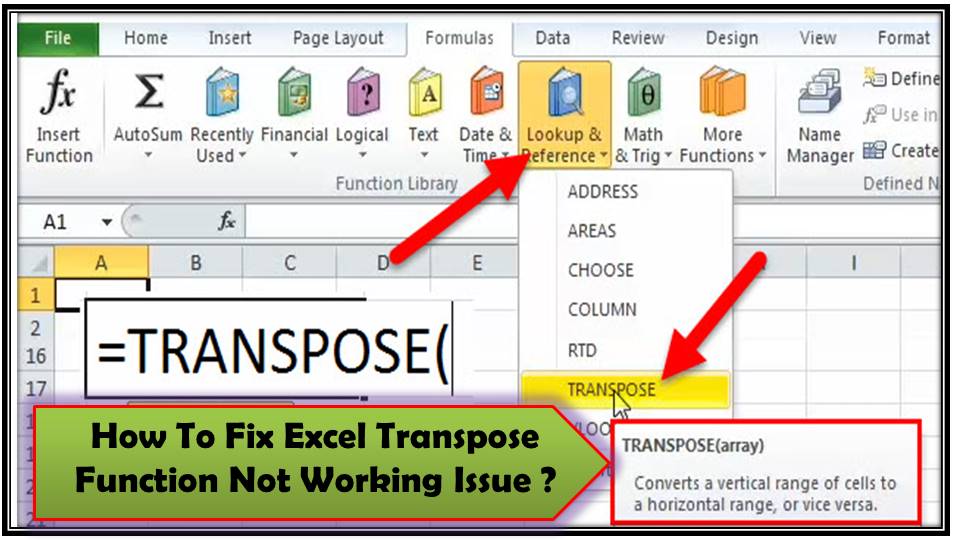
Have you ever tried to use the TRANSPOSE function in Microsoft Excel only to find it doesn’t work as expected? It can be extremely frustrating, especially when you’re on a tight deadline. Don’t worry; you’re in the right place. In this helpful blog, I’ll explore why Excel TRANSPOSE not working for you and provide clear, step-by-step methods to get things back on track.
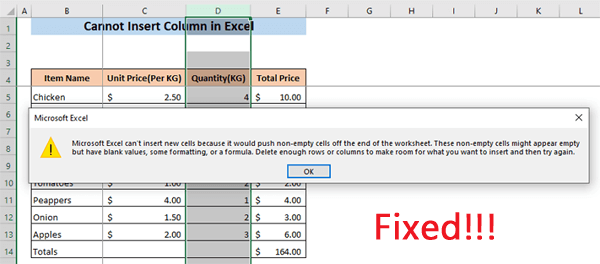
Isn’t it frustrating when you’re working on a critical Excel project, and out of nowhere, you can’t insert new cells? This common issue can disrupt your workflow and cause unnecessary stress. Understanding why this happens and how to fix it is crucial for maintaining your productivity. In this optimized post, you will find a few feasible ways to fix the Microsoft Excel can’t insert new cells error along with the major factors behind it.

While handling Excel spreadsheets for managing & analyzing data, it is common to encounter errors, which can be frustrating. One such message that users often encounter is – “This cell contains a formula and is not locked to protect it from being changed inadvertently.”. It arises when you try to apply or edit the formulas like in an Excel spreadsheet cell. However, it is important to fix this Microsoft Excel unprotected formula error to ensure the integrity of your data. From causes to solutions, all we have covered in this blog.

Imagine, you’re working on an important Excel workbook, and suddenly, you can’t open it. Instead, you get the error message: “The workbook cannot be opened or repaired by Microsoft Excel because it is corrupt.” Annoying, right? Don’t worry, in this useful guide, you will learn the major factors of this error and how you can fix it step by step.

When clicking on the hyperlinks stored within the Excel spreadsheet, you may encounter various errors instead of opening the link on the webpage. One such frustrating message is “Microsoft Excel unable to open hyperlink cannot download the information you requested.” This error can disturb your workflow & cause delays in accessing significant information. But don’t worry, we are here to help you understand & fix it.

Excel is all about formulas and functions, they are the key part of this application and make the work easy for the users. One of its most powerful functions is VLOOKUP, designed to search for a value in the first column of a table and return a value in the same row from a specified column. Despite its utility, users often face the “Invalid Cell Reference Error“. In this blog, we’ll dive into the causes and solutions for VLOOKUP invalid cell reference error in Excel, ensuring your VLOOKUP functions run smoothly.

In Microsoft Excel, macros are excellent tools that can automate repetitive tasks, save time, and increase efficiency. However, working with Excel macros isn’t always smooth sailing. One of the common stumbling blocks users encounter is the “Cannot edit a macro on a hidden workbook. unhide the workbook using the unhide command” error. This warning can be frustrating, but don’t worry! We’ll walk you through why this happens and, more importantly, how to fix it.