
Stuck with the peculiar error message “Microsoft Excel: The file could not be accessed. Try one of the following.”? If so, you’re not alone. This error can stop you from opening, saving, or sharing important files. Fortunately, by applying some workable solutions mentioned in this blog, you can fix it quickly.

So, without wasting any further time, let’s check out this blog!
To fix corrupted Excel files, we recommend this tool:
This software will prevent Excel workbook data such as BI data, financial reports & other analytical information from corruption and data loss. With this software you can rebuild corrupt Excel files and restore every single visual representation & dataset to its original, intact state in 3 easy steps:
- Try Excel File Repair Tool rated Excellent by Softpedia, Softonic & CNET.
- Select the corrupt Excel file (XLS, XLSX) & click Repair to initiate the repair process.
- Preview the repaired files and click Save File to save the files at desired location.
Why This Error Occur?
This error typically appears when Excel can’t find or access the file’s location. Besides, there are some other reasons as well that can trigger this error:
- The document is stored in a disconnected network or an external hard drive.
- There’s a permission issue with the folder.
- The file is blocked or read-only.
- Incorrect file path or name is too long.
- The workbook is open in another program.
- Corrupted Excel workbook or worksheet.
- Excel’s add-ins are interfering.
After extracting the major factors, it’s time to know the possible ways to tackle this situation.
Solve The File Could Not Be Accessed Try One of the Following Excel Error
Solution 1- Shorten the File Name & Path
Many of you are unaware of the fact that Excel has a character limit for file paths of around 218 characters. So, if your file’s location is too long and the folder/file has a long name, the file cannot be accessed.
All you need to do is rename the file with a short name or move the file to a folder with a shorter path, like C:\ExcelFiles.
Also Read: Fix Cannot Be Accessed the File May Be Corrupted Excel Error!
Solution 2- Update Excel
If you are running an outdated version of Excel software, this could be the reason behind Microsoft Excel the file could not be accessed try one of the following error.
Try updating the Excel application to the latest version, which will get the security patches, bug fixes, and other improvements, along with the error.
- Open Excel application.
- Navigate to File>> select
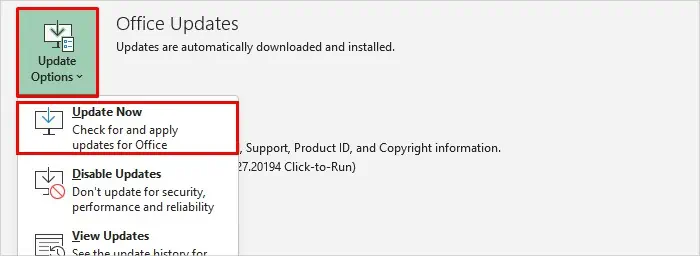
- In the Product information, you have to click on Update Options>> click the Update Now.
Solution 3- Verify the Folder Permissions
Insufficient permission to access the file can restrict you from opening or editing the file. Simply get the required permissions to access the file effectively.
Here are the complete steps to do so:
- Open the Windows Explorer.
- Next, find an affected Excel document & right-click on it >> click Properties.

- Under Properties window, you have to click on Securities >> Edit.
- Under the opened windows, choose user names in the ‘Group or users name’

- Now, check and allow the required file permissions. Enable the write option >> click Apply>> OK.
Solution 4- Disable The Faulty Add-Ins
Now that all this blunder is arising because of installed plugins or add-ins. Therefore, remove or disable the faulty add-ins one by one to get rid of the error.
- Click File > Options from the menu bar.
- Under Excel options window, click ‘Add-ins’.
- Now, expand the ‘Manage’ >> choose the Excel Add-ins.
- Then, click Go.
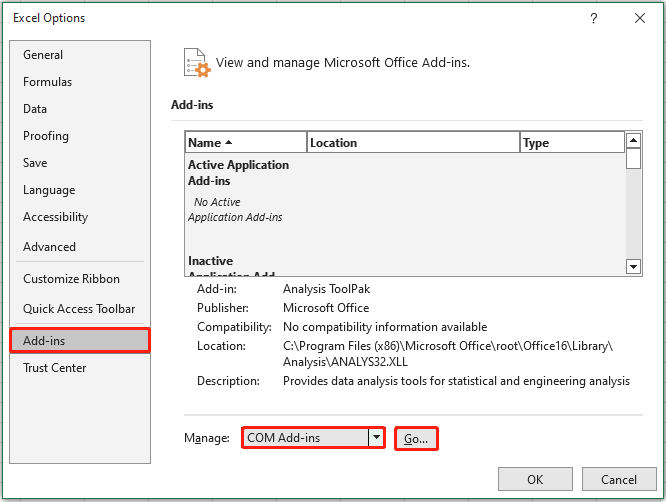
- Uncheck each add-in >> click OK to complete the process.

Also Read: Excel Cannot Access Read-Only or Encrypted Error? Here’s Your Solution!
Solution 5- Fix The File Could Not Be Accessed Try One of the Following Excel Error by Clearing Excel Cache & Temp Files
Sometimes, corrupted cache or temp files can cause such unexpected access errors. Consider clearing the cache or temp files to tackle the situation.
Here are the complete instructions to be followed:
- Press Win + R keys >> type %temp% >> hit Enter.
- Then, delete needless temporary files.
- Restart your PC & open Excel again.
This simple cleanup can resolve many access problems.
Solution 6- Reinstall the Microsoft Excel
If none of the above solutions work to fix the file could not be accessed try one of the following error, the Excel software itself may be corrupted.
Try repairing the Office files by following the steps below:
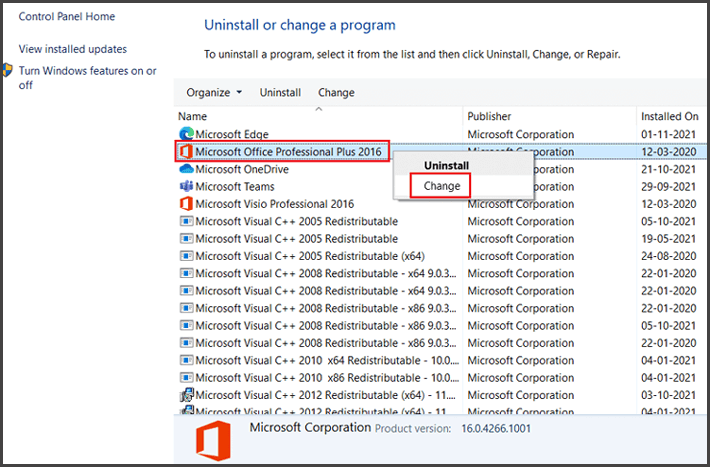
- Go to the Control Panel >> Programs and Features.

- Choose Microsoft Office >> Change >> Quick Repair.
Use the Urbane MS Excel Repair Tool
Facing this error due to file corruption? Don’t fret, use the MS Excel Repair Tool. It is an excellent software that helps fix a corrupt Excel workbook & recover all its data, including charts, worksheet properties, cell comments, etc., with 100% integrity.
You can even download the free demo version of this program.
Frequently Asked Questions:
To fix ‘Microsoft Excel cannot access the file’ error, try the below tricks:
It might be possible that your file was revised in some way (if you are opening it from Excel). File permissions are stopping your access.
To share an Excel file, click File > Share and then either add people's email addresses & set permissions for them to edit or view, or generate a shareable link to send to others. How to Fix Microsoft Excel Cannot Access the File?
Why Is My Excel File Not Currently Accessible?
How Do I Give Permission to Access an Excel File?
Don’t Miss: Solve “Microsoft Excel Cannot Access the File” Error!
Closure Time
So, it’s time to wrap up
From simple to more advanced solutions, this post has covered a range of methods for solving the “Microsoft Excel the file could not be accessed try one of the following” error. Follow them one by one & check which one works best for you
Note: Always keep your Excel software updated & regularly back up your files to prevent future issues.

Priyanka Sahu

Priyanka is a content marketing expert. She writes tech blogs and has expertise in MS Office, Excel, and other tech subjects. Her distinctive art of presenting tech information in the easy-to-understand language is very impressive. When not writing, she loves unplanned travels.