
While working on an Excel spreadsheet, it is common to encounter errors. We’re having trouble connecting to the server Excel error is one such obstacle that appears when trying to access an Excel spreadsheet from Microsoft SharePoint. It can stem from countless factors, disrupting users’ workflow. However, it is vital to understand this error and its common triggers before addressing it.

Today, I have come up with this blog, here you will learn some effective solutions to get past the we’re having trouble connecting to the server. if this keeps happening contact your help desk error along with the common culprits responsible for the error.
To repair corrupted Excel file, we recommend this tool:
This software will prevent Excel workbook data such as BI data, financial reports & other analytical information from corruption and data loss. With this software you can rebuild corrupt Excel files and restore every single visual representation & dataset to its original, intact state in 3 easy steps:
- Try Excel File Repair Tool rated Excellent by Softpedia, Softonic & CNET.
- Select the corrupt Excel file (XLS, XLSX) & click Repair to initiate the repair process.
- Preview the repaired files and click Save File to save the files at desired location.
What is Microsoft SharePoint and Why It Is Used?
Microsoft SharePoint is an efficient document management & collaboration platform. Organizations use it to manage their files & create websites for their team to easily access. The best part is- it’s a secure place to organize, store, access, or share data from any device. It only requires to have a web browser for easy access.
Moreover, you can access MS Excel, Word, or any other files using the details you’re given in that web browser via Microsoft SharePoint.
What Causes Excel We’re Having Trouble Connecting To The Server Error?
Here are the common causes of this error message:
- Temporary Bugs in Browser: There can be bugs in your browser that are causing this issue.
- Connected Services: If there are a ton of services connected with the file can also trigger the issue.
- Sharepoint Connection: Check if the file is connected to SharePoint or not.
- Site Settings: The settings of the site can be improper which can also trigger the issue.
Fixes to Solve We’re Having Trouble Connecting to The Server Excel Error
Let’s explore the working solutions to troubleshoot it:
Fix 1: Clear Browser History and Cache
The browser’s corrupted cache can also conflict with the importing process and is likely to cause problems in this case clearing the browser data and cache files of your browser and solving the issue. To clear the browser data and cache follow the steps underneath:
Chrome:
- Launch Chrome and click on the 3 dots available at the top right.
- Now click on the Settings option and click on the 3 lines available at the top left and then click on the Privacy and security option.
- Then scroll down and click on the Clear Browsing data option.
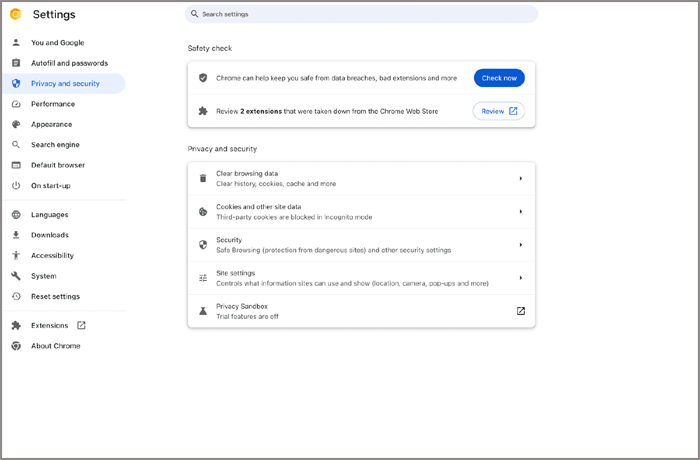
- Click on Clear Data option.

Edge
- Launch Microsoft Edge and click on the 3 dots available at the top right and click on the Settings option.
- Now click on the 3 lines available at the top left and click on the Privacy, search and Services option.
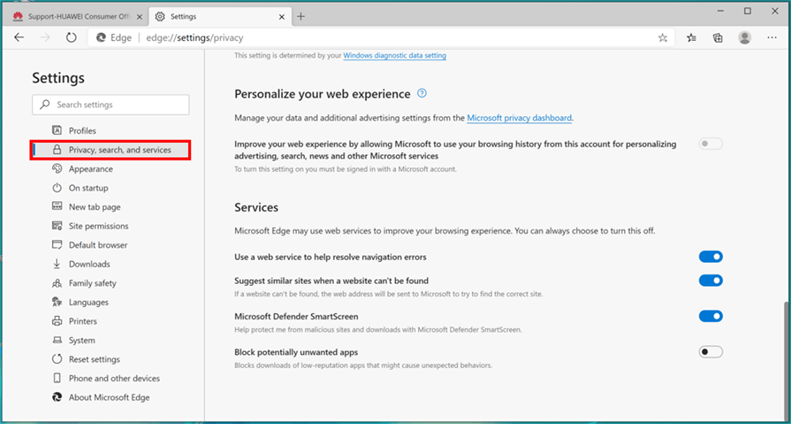
- Then click on the Clear browsing data now option and clear the data and cache files.
- Now restart the browser and check if the issue is resolved or not.
Firefox
- Launch the browser and click on the 3 dots available at the top right.
- Now click on the Settings option and click on the Privacy and Security option.
- Then click on the Clear browsing data option and then click on the clear data button to clear the data.

- Now restart the browser and check if the issue is resolved or not.
Also Read: Fix Unable To Save Excel File To Shared Network Drives Error
Fix 2: Delete Cache Files of Office Upload Center
All the online processes of Microsoft Office are done by Office Upload Center, so it is recommended to clear the cache files of the Office Upload Center and check if it helps you to solve the issue. To clear the cache files of the Office upload centre follow the steps underneath:
- Click on the Windows Start icon and search for Office Upload Center in the search bar.
- Now click on the Settings option available at the top.
- Then click on the Delete cache files button and then click on the Delete cache information button.
- Now check if the issue is resolved or not.
Fix 3: Remove Connected Services
If there are a lot of services connected to the Excel file you are trying to open then the services can trigger the issue. So it is recommended to remove the useless services and check if it helps you to solve the issue. To remove the services follow the steps underneath:
- Open the problematic file and click on the Files option available at the top left.

- Now click on the Account option available on the left side and then under the connected services remove the services that are not required. Now save the changes and close the file.
- Then check if the issue is resolved or not.
Fix 4: Remove Saved Credentials for Office
Many users reported (on Microsoft’s official forum) that removing the saved credentials of Office helped them to solve the issue. So give it a try and check if it helps you to solve the issue. To remove the saved credentials follow the steps underneath:
- Click on the Windows Start icon and search for Control Panel in the search bar.
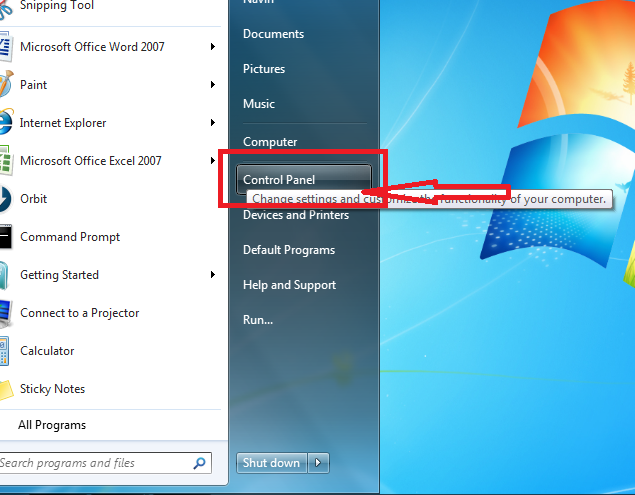
- Now click on the User accounts option and then click on the Credential Manager option.
- Then click on the Windows Credentials option and then click on all the Office-related options and click on the remove option to remove the credentials.

- Now restart your PC and check if the issue is resolved or not.
Fix 5: Change Site Settings
If the Site settings are improper then it can trigger multiple issues regarding the website including the “we’re having trouble connecting to the server Excel 2016” issue. So it is recommended to change the site settings and check if it helps you to solve the issue. To change the site settings follow the steps underneath:
- Launch Chrome and click on the 3 dots available at the top right.
- Now click on the Settings option and click on the 3 lines available at the top left and then click on the Privacy and security option.

- Then scroll down and click on the Site Settings option.
- And scroll down and select the Cookies and site data option.
- Now click on the Add option beside the site you can always use the cookies option and add the site.

- Save the changes restart the browser and check if the issue is resolved or not.
Also Read: Fix Excel Sharing Violation Error [2023]
Fix 6: Connect SharePoint to Fix We’re Having Trouble Connecting to The Server Excel
Any issue in the SharePoint connection can trigger the “we’re having trouble connecting to the server ” error. So it is recommended to connect to SharePoint. manually and check if helps you to solve the issue. To connect to SharePoint manually follow the steps underneath:
- Open the problematic file and click on the Files option.
- Now click on the account option available on the left side.
- Under the Connected services section, click on the add service option and add SharePoint.
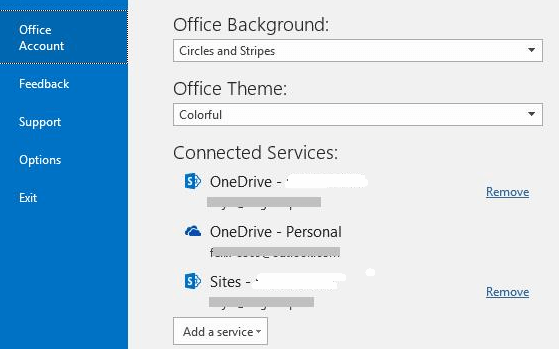
- And save the changes and check if the issue is resolved or not.
Fix 7- Open Excel in a Safe Mode
Opening Excel in a safe mode is another effective trick to solve spreadsheet errors. This will assist in disabling the add-ins that conflict with SharePoint. To learn complete steps to open Excel in a safe mode, Click Here.
Fix 8: Try Using Another Browser
This issue can be related straight to the browser you are using. So it is recommended to use a different browser and check if it helps you to solve the browser. The browser that is recommended is Edge as it is a Microsoft product and Excel is a Microsoft product too so the compatibility should be better.
Fix 9- Contact to your Team
Even after trying all the above solutions, if the error persists, you should immediately contact to the IT admin of your team & get it solved.
Best Way to Repair Corrupted Excel Workbook
If meanwhile performing the task or fixing this Excel error, unfortunately, you lose your Excel data, then you can use the Excel File Recovery Tool. This professional software is best for easily repairing corrupted, damaged, or inaccessible Excel files and recovering the entire data in the preferred location. It allows us to easily restore entire data, including charts, worksheet properties, cell comments, and other data.
You can try this tool’s free demo version.
Steps to Utilize Excel File Recovery Tool:







Also Read: Solve “Microsoft Excel Cannot Access the File” Error!
Related FAQs:
Are There Specific Antivirus Programs Known to Cause Excel Server Connection Glitches?
Yes, there are some antivirus programs that may interfere and cause Excel server connection issues.
Why Can't I Connect to Excel in SharePoint?
It might possible that the Excel file name or path does not exist and that’s why you can’t connect to Excel in SharePoint.
How Often Should I Back Up My Excel Files to Prevent Data Loss?
You should regularly backup your Excel file to minimize the risk of data loss under unexpected circumstances.
Can I Update a SharePoint List from Excel?
Yes, you can easily update a SharePoint list from Excel by using the 'Export to Excel' & 'Import from Excel' features.
Can This Error Be Resolved Without Seeking Professional Assistance?
Yes, by applying the solutions discussed in this blog, one can solve this error without expert help.
Bottom Line
Here my job is done.! I tried my best to list down the potential solutions to fix the we’re having trouble connecting to the server if this keeps happening, contact your help desk error. The Fixes mentioned are tested and worked for several users so, it is worth trying them one by one till you find the one that works for you.
I hope you have found this tutorial helpful. If you are facing any other issue related to this specific one, let us know by sharing your experience on our social media FB and Twitter Page.

Priyanka Sahu

Priyanka is a content marketing expert. She writes tech blogs and has expertise in MS Office, Excel, and other tech subjects. Her distinctive art of presenting tech information in the easy-to-understand language is very impressive. When not writing, she loves unplanned travels.