
The “Focus Cell” button helps you detect or highlight the active cell in your Excel spreadsheet. It is essential when dealing with large datasets or tables. But sometimes, this button disappears or not showing due to faulty add-ins, display settings, or corrupted Excel configurations, which can disrupt your spreadsheet work. Fortunately, focus cell button not showing in Excel can be easily solved by applying the methods mentioned in this post.
So, let’s get started…
To repair damaged Excel file, we recommend this tool:
This software will prevent Excel workbook data such as BI data, financial reports & other analytical information from corruption and data loss. With this software you can rebuild corrupt Excel files and restore every single visual representation & dataset to its original, intact state in 3 easy steps:
- Try Excel File Repair Tool rated Excellent by Softpedia, Softonic & CNET.
- Select the corrupt Excel file (XLS, XLSX) & click Repair to initiate the repair process.
- Preview the repaired files and click Save File to save the files at desired location.
Why Is the Focus Cell Not Showing in Excel?
There can be numerous reasons that can cause this problem in Excel. However, I have mentioned some of the common factors below:
- Faulty add-ins disturbing the interface.
- Inactivated gridline or highlight settings.
- Corrupted Excel profile, file or preferences.
- Outdated Excel version or system display issues.
Now, as you’re aware of these causes, you’ll be easily able to solve this issue with the effective solutions.
How to Solve Focus Cell Button Not Showing in Excel Sheet?
Just follow the below troubleshooting tricks to solve focus cell in Excel not showing problem easily.
Solution 1- Restart MS Excel and Check Display Settings
Sometimes, a quick restart is all you need to do. Simply close your Excel document and reopen it. Even after restarting the program, Focus Cell option is not visible, check your display settings.
Here is how you can check the display settings in Excel:
- Open the Excel sheet.
- Navigate to File menu >> click Options >> Advanced
- Then, scroll to the Display
- Next, make sure both the options Show gridlines and Show selection are enabled.
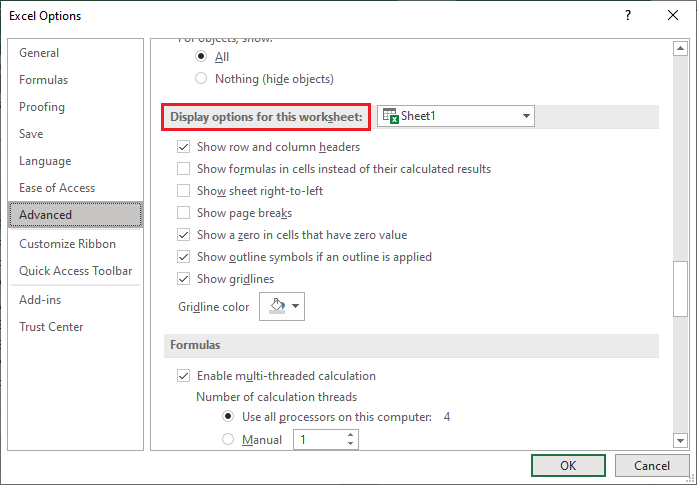
- Hit OK & restart Excel.
After completion of these steps, Excel will restore missing display elements.
Also Read: Unleash: Fix Smart View Not Showing in Excel
Solution 2- Disable Excel Add-ins
Faulty Excel add-ins can hide/block the focus cell display and causing focus cell in Excel not showing. For testing, simply disable & isolate the conflict by disabling each add-in one at a time.
Steps to be followed:
- Go to the File menu >> click Options >> Add-Ins.

- Under Manage list, choose COM Add-Ins item >> click Go.
- Then, remove the faulty add-ins one by one from the list >> click OK.
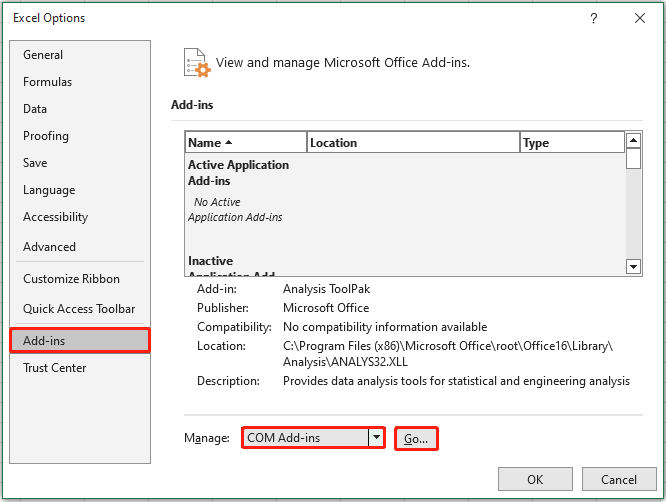
- Now, open the Excel workbook and check for the problem.
Solution 3- Resetting the Excel’s User Interface
The next working trick you can try to tackle this situation is resetting the user interface to default.
Follow the below steps:
- Close all the files and programs.
- Press the Windows + R keys to open a Run box.
- Then, type %appdata%\Microsoft\Excel >> press Enter.
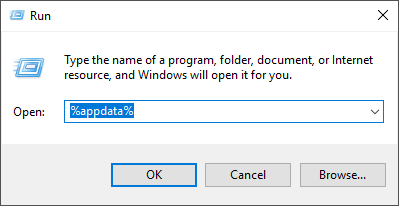
- Find the file named with Excel15.xlb or similar.
- Now, rename it to Excel15_old.xlb.
- When you open the Excel again, it will generate a new configuration file and restore missing buttons or toolbars.
Solution 4- Update Microsoft Excel
If you are using an outdated version of Excel software, it can trigger various errors and glitches in the spreadsheet. In such a situation, consider updating the Excel application to solve Focus Cell button disappeared problem.
Here are the instructions to update it:
- Open Excel program >> click on Account.
- Select the Update Options>> Update Now.
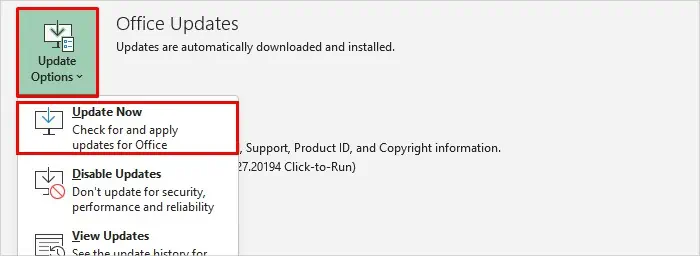
- This will immediately install all the software updates.
Also Read: Excel AutoFill Not Working – Here’s the Real Fixes!
Solution 5- Boot into Safe Mode
Many users have reported that they solved this issue by booting the Excel software in safe mode to test:
- Press Windows + R keys to open Run box.
- Then, type excel /safe >> press Enter.
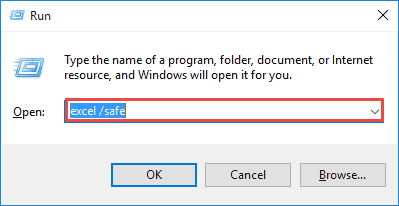
- At this time, check if the focus cell option appears in Safe Mode.
Solution 6- Fix the Focus Cell Button Not Showing in Excel by Repair the MS Office
A corrupted MS Office app installation may cause interface glitches. You can fix it easily by repairing it:
- Open Control Panel >> click on Programs and Features.

- Find the Microsoft Office in the list.
- Then, click on the Change >> select Repair.
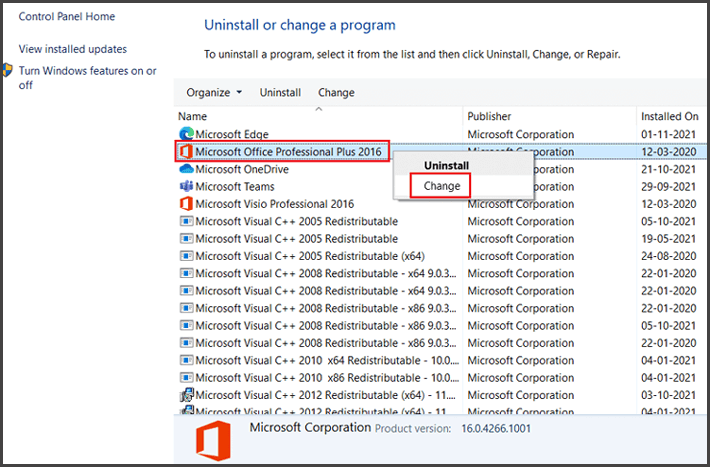
- Now, follow the on-screen instructions to get your job completed.
Solution 7- Repair Corrupt XLS or XLSV File
If all the above manuals fail to resolve this issue, it is likely your Excel file has been corrupted and you need to repair it ASAP. For easy handling of such a case, try the expert’s suggested Excel Repair Software.
It is the best trick that repairs corrupt Excel worksheets without making any changes to their original content & formatting.
Related FAQs:
Alt + W + E + F keys is the shortcut to focus a cell in Microsoft Excel. This helps to turn and
To turn ON the Focus Cell option in MS Excel, you have to go to the View tab >> click ‘Focus Cell’ feature in the Show group.
Focus Cell is available in Microsoft Excel 365 & possibly in Office 2024, not in older versions such as Office 2021.
Focus Edit is an outstanding feature in Excel for iPad that lets you edit the contents of the cell without having to tap on the formula bar. What Is the Shortcut for Focus Cell in Excel?
How Do You Enable Focus Cell in Excel?
Which Version of Excel Has Focus Cell?
What Is Focused Edit in Excel?
Time to Sum Up
The focus cell option not showing in Excel is usually easy to fix with simple methods. Above, I have specified the working tips to solve this issue and restore the missing button.
Lastly, if you want to share your experiences with us through our social media FB & Twitter pages.
I hope, you liked this post!

Priyanka Sahu

Priyanka is a content marketing expert. She writes tech blogs and has expertise in MS Office, Excel, and other tech subjects. Her distinctive art of presenting tech information in the easy-to-understand language is very impressive. When not writing, she loves unplanned travels.