
AutoFill feature in MS Excel allows users to fill cells automatically with data based on patterns/values in other cells, saving time & effort. But sometimes, this feature fails to work properly. Thus, if you are currently facing the Excel AutoFill not working issue, don’t fret. Here, you will learn the effective solutions to fix this problem and resume your work.
To fix corrupted Excel files, we recommend this tool:
This software will prevent Excel workbook data such as BI data, financial reports & other analytical information from corruption and data loss. With this software you can rebuild corrupt Excel files and restore every single visual representation & dataset to its original, intact state in 3 easy steps:
- Try Excel File Repair Tool rated Excellent by Softpedia, Softonic & CNET.
- Select the corrupt Excel file (XLS, XLSX) & click Repair to initiate the repair process.
- Preview the repaired files and click Save File to save the files at desired location.
Why Is My Excel Drag to Autofill Not Working?
Before addressing the issue, it’s important to extract the major factors. Here are common causes behind this vexing problem:
- Autofill feature is disabled.
- The AutoFill won’t work if blank cells interrupt your data.
- Corrupted workbook or worksheet.
- Improper Autofill settings
- Glitches within the Excel application.
- Due to the protected sheet.
How to Solve Microsoft Excel AutoFill Not Working Problem?
As you know, the potential causes, now, let’s explore the quick solutions to get rid of it:
Way 1- Try Some Basic Tips
Before applying any complicated or time-consuming method, it is recommended to try some basic tips, like:
- Restart MS Excel
- Try using a different range of cells.
- Clear any filters applied to the spreadsheet data.
Way 2- Enable AutoFill Option
Since you are facing AutoFill not working in Excel so, it is essential to check and ensure whether this option is enabled or not.
To check this:
- Click File menu >> Options, then Advanced.
- Then, scroll down to Editing Options.
- Now, find and make sure Enable Fill Handle and Cell Drag-and-Drop is checked.

Note: This setting is the main reason AutoFill doesn’t respond.
Also Read: Fill Handle Not Working in Excel? Here’s What You Need to Do!
Way 3- Unprotect The Sheet
Sometimes, a password-protected Excel sheet can lead to various issues in the spreadsheet, including the AutoFill failing to work.
Here are the two easy ways to unprotect your sheet and tackle the situation:
- Go to Review tab, under the Changes group, you have to click on Unprotect Sheet.
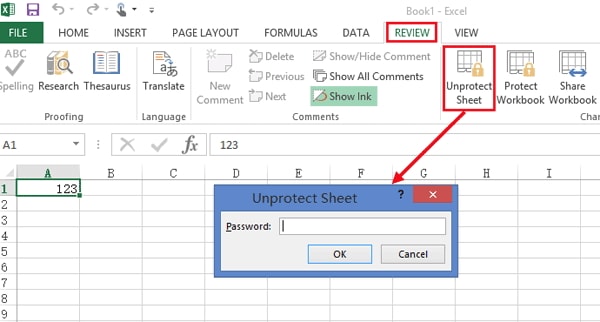
- Click on the Home tab, under the Cells group, you have to click on Format >> Unprotect Sheet from a drop-down menu.
Way 4- Check for Blank Cells
AutoFill won’t work properly if blank cells interrupt your data. All you need to do is remove the empty rows and try again. This ensures Excel recognizes the data pattern correctly.
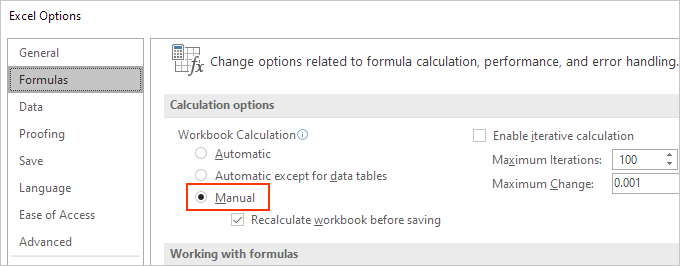
Way 5- Ensure the Calculation Mode Option Is Set to Automatic
Another quick trick you can try to deal with this issue is to make sure the calculation mode is set to automatic.
Here are the instructions to be followed:
- Open Excel sheet >> go to the Formulas
- Select the Calculation Options.
- Then, set it to the ‘Automatic’. Doing this will ensure Excel recalculates values when you use AutoFill.
Way 6- Update Excel Software
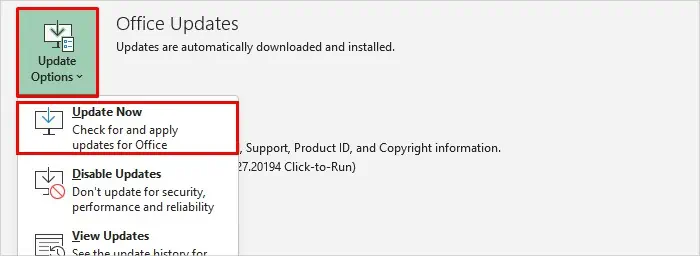
Using an outdated Excel version could be the reason for AutoFill not working in Excel. Consider updating the Excel application by following the steps below:
- Open Excel >> click File>> “Account” option.
- Click on “Product Information” >> “Updates Option.”
- Select “Update Now” option.
If this fails, try the next solution.
Way 7- Repair Workbook to Fix Excel AutoFill Not Working
Most of the errors and issues in the Excel mainly cause due to corruption in the workbook. If this is the reason, you can try Microsoft’s built-in tool- “Open and Repair”. This will help you to repair the corrupted file & tackle the situation.
Follow the steps below to learn how to use this tool:
- Open Excel >> click on the File >> Open.

- Go to the folder that contains the damaged workbook.
- In the Open dialog box, select the corrupted Excel file.
- Now, click an arrow next to the Open button >> Open and Repair.
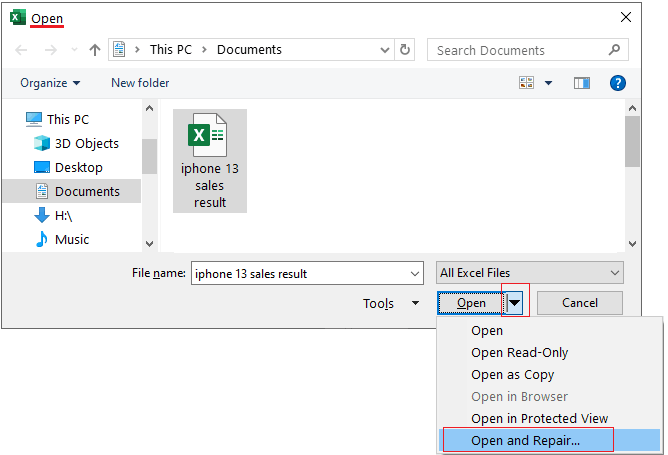
- At last, click on Repair
If this built-in tool fails to work, it is recommended that you use the most advanced and trustworthy Excel Repair and Recovery Tool. It not only repairs the corrupted workbook but also recovers all the components, such as tables, charts, formulas, macros, etc., stored within it.
Also Read: Fix Filter Not Working in Excel Issue in Seconds!
Related FAQs:
How Do I Autofill in Excel Without Dragging?
To AutoFill in Excel without dragging, follow the steps below:
- Select the cell(s) holding the formula.
- Then, hover your cursor over a small square at the bottom right corner until it turns into a black crosshair.
- After that, double-click on a fill handle.
Which Pattern Can Autofill Not Recognize?
AutoFill series or repeats in the spreadsheet can autofill not recognize.
How Do I Fix Autofill in Excel?
If you want to AutoFill in MS Excel, follow the below steps:
- Open the Excel spreadsheet, go to the File >> Options.
- Next, click Advanced >> then in Editing options, choose Enable AutoComplete for cell values checkbox to enable it.
How Do I Reset Excel Settings?
To reset MS Excel to its default settings, here’s the complete steps:
- Open Excel >> click File > Options.
- Choose Customize Ribbon from a sidebar.
- In ‘Customize the Ribbon and keyboard shortcuts’, find and click on Reset button or Reset all customizations.
- Finally, click OK to confirm.
Summing Up
So, we have at the end of this blog. I hope this post was able to assist you in troubleshooting AutoFill not working in Excel effectively. All the methods mentioned here are very easy & effective to apply for solving it without wasting valuable time.
Thanks for reading!
External References:
- https://techcommunity.microsoft.com/discussions/excelgeneral/auto-fill-notworking-despite-enable-fill-handle-and-cell-drag-and-drop-being-che/3774641
- https://techcommunity.microsoft.com/discussions/excelgeneral/issues-with-auto-fill-options-in-excel/3061274
- https://support.microsoft.com/en-us/office/repair-a-corrupted-workbook-153a45f4-6cab-44b1-93ca-801ddcd4ea53

Priyanka Sahu

Priyanka is a content marketing expert. She writes tech blogs and has expertise in MS Office, Excel, and other tech subjects. Her distinctive art of presenting tech information in the easy-to-understand language is very impressive. When not writing, she loves unplanned travels.