
Microsoft Excel stuck on processing when saving or opening the spreadsheet is a frustrating warning for many users. Though it usually appears without warning and disrupts important work.
Here’s the screenshot to better understand the error:
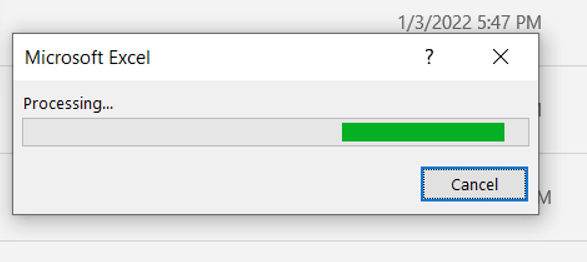
However, it can be easily fixed by using some proven methods. In this guide, I will explain all the possible solutions to fix this error in no time with less effort.
To fix corrupted Excel files, we recommend this tool:
This software will prevent Excel workbook data such as BI data, financial reports & other analytical information from corruption and data loss. With this software you can rebuild corrupt Excel files and restore every single visual representation & dataset to its original, intact state in 3 easy steps:
- Try Excel File Repair Tool rated Excellent by Softpedia, Softonic & CNET.
- Select the corrupt Excel file (XLS, XLSX) & click Repair to initiate the repair process.
- Preview the repaired files and click Save File to save the files at desired location.
Why Is Excel Taking So Long to Process?
MS Excel file saving or opening errors occur due to numerous underlying reasons. Understanding the major cause helps you apply the right solution quickly.
Here are the common causes for ‘Processing’ error:
- Large or complex documents require more system resources to save.
- An outdated version of Excel software.
- Faulty or outdated add-ins often interfere with spreadsheet operations.
- Corrupted Excel workbook or worksheet.
- Low RAM or high CPU usage affects Excel performance.
Working Fixes for MS Excel Stuck on Processing When Saving or Opening
Before moving to any advanced methods, start with basic solutions. These steps often fix the issue instantly.
Solution 1- Restart MS Excel
Many times, a temporary bug in the Excel triggers such file-saving or opening problems. Restarting the application can often clear the temporary glitches, background processes, and fix minor errors. Yet, if the Excel is stuck on processing when opening issue persists, you can explore other methods mentioned below.
Solution 2- Save the File with a New Name
Sometimes, an incorrect file name can trigger Excel stuck on opening or processing errors. If your file name contains any special characters, then it may hinder you while saving it. Try saving with a different name to bypass this glitch. Also, it creates a safe backup instantly.
Solution 3- Change the File Format
Many users have reported that they fixed the “processing” error by saving the file in a different format. So, you can do the same thing, which means changing the file format to potentially escape the problem.
Here is how you can do so:
- Open the faulty Excel file that is showing an error while saving it
- Navigate to File >> Save As.
- Choose the location to save the workbook. Also, rename the file.
- Select another Excel file type such as XLSX, XLSB or CSV temporarily to save the file >> click Save.

Solution 4- Fix Excel Stuck on Processing When Saving by Disabling the Add-ins
As already mentioned in the causes section, corrupted or faulty add-ins often interfere with Excel operations and lead to this problem. However, disabling such add-ins can help you fix this message.
Follow the steps below to do so:
- Open Excel >> click File
- Then, go to Options >> Add-ins.
- Select the Excel add-ins >> hit Go.

- At this time, uncheck all the boxes >> click OK.
Solution 5- Repair Corrupted Workbook
If your workbook becomes corrupted and showing Microsoft Excel stuck on processing error, it is recommended to use Open and Repair feature. It helps to troubleshoot various errors and issues for free if they have occurred due to Excel file corruption.
Steps to be followed to use this Excel’s built-in tool:
- Open Excel >> click File menu >> Open.

- Then, click on the Browse to select a corrupt file to repair.
- After that, click on a drop-down arrow beside the Open button >> click Open and Repair.

- Finally, hit on Repair button.
Note: This tool can only repair minor corruption in the Excel file. But if the file experiences severe corruption, use the expert-recommended Excel Repair Software.
Steps to Utilize MS Excel Repair Tool:







Solution 6- Check for Available Disk Space
Insufficient disk space is the foremost reason that blocks saving operations. So, delete the unnecessary files and programs to free up storage before saving files.
Solution 7- Update Software
You can even try updating the Excel software to the latest version to solve this issue. Updating ensures improved performance & compatibility.
Step 1- Go to File >> click Account.
Step 2- After that, click on the Update Options >> Update Now.

Solution 8- Copy Data into a New Workbook
Another quick method you can try to get rid of the Excel stuck on processing when saving or opening problem is to create a new Excel file and paste data gradually. This method isolates problematic elements effectively. But avoid copying formatting and formulas initially.
Also Read: Troubleshooting Guide: Microsoft Excel Can’t Insert New Cells!
Solution 9- Try Repairing Excel
Even after trying the above solutions, if the message persists, it is advised to repair the Excel installation & get it fixed.
- Go to Control Panel>> Programs.
- Choose Microsoft Office >> click Change.

- Now, select the Quick Repair & follow the prompts.
- At last, restart Excel and check if you will be able to save your file easily.
Frequently Asked Questions:
Why is My Excel Stuck on Saving?
When MS Excel stuck on saving the file on a network drive or local drive, it may be due to network latency or file corruption.
What to Do If My Excel File Is Stuck on Processing?
If your Excel file stuck on processing error, then you have to check and ensure Excel is not in use by another process or the workbook is not corrupted.
How Do You Unfreeze an Excel File?
To unfreeze an Excel file, navigate to View > Window > Unfreeze Panes.
Why Is Excel Stuck on Processing When Opening a File?
This might happen due to one of the following reasons:
- Outdated version of Excel
- Excel is in use by another application
- Your file is being created by a third-party app.
Verdict Time
In conclusion, the Microsoft Excel stuck on processing error might be a temporary roadblock. But if equipped with the proper knowledge & workable solutions, you can overcome it.
All you need to do is implement the techniques mentioned above in this post to fix the “Processing” error.
Happy spreadsheeting!

Priyanka Sahu

Priyanka is a content marketing expert. She writes tech blogs and has expertise in MS Office, Excel, and other tech subjects. Her distinctive art of presenting tech information in the easy-to-understand language is very impressive. When not writing, she loves unplanned travels.