
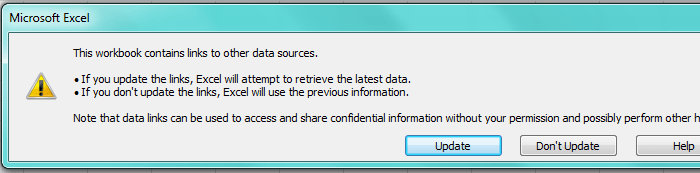
When you come across the Excel error message “This workbook contains links to other data sources.” it means that the file pulls information from other spreadsheets, databases, or web pages. Consequently, users face delays and data risks. So, understanding this error becomes essential. In this blog, I will show you how to fix this error with the best fixes in a hassle-free.
To fix corrupted Excel files, we recommend this tool:
This software will prevent Excel workbook data such as BI data, financial reports & other analytical information from corruption and data loss. With this software you can rebuild corrupt Excel files and restore every single visual representation & dataset to its original, intact state in 3 easy steps:
- Try Excel File Repair Tool rated Excellent by Softpedia, Softonic & CNET.
- Select the corrupt Excel file (XLS, XLSX) & click Repair to initiate the repair process.
- Preview the repaired files and click Save File to save the files at desired location.
What Causes Excel VBA This Workbook Contains Links to Other Data Sources Error?
This Excel warning appears when a workbook references external files. However, it occurs due to various reasons including:
- Running numerous background processes
- Moved/renamed files linked in a workbook.
- Corrupted Excel file.
- Suspicious name ranges.
- External data sources that are no longer exist.
- Corrupt links or inappropriately configured security settings.
- Running an outdated version Excel software.
So, these are the major factors for causing this VBA error. Ignoring this message can create serious issues. Let’s fix this.
How to Resolve Microsoft Excel This Workbook Contains Links to Other Data Sources Error?
Try the following methods one by one to tackle this situation.
Solution 1- Check Excel Formulas for Hidden References
Many of you are unaware of the fact that formulas often store external links unknowingly. Consequently, press Ctrl + F keys together to search. Then, type square brackets to find file paths. After that, review each formula carefully. As a result, you can eliminate needless references safely.
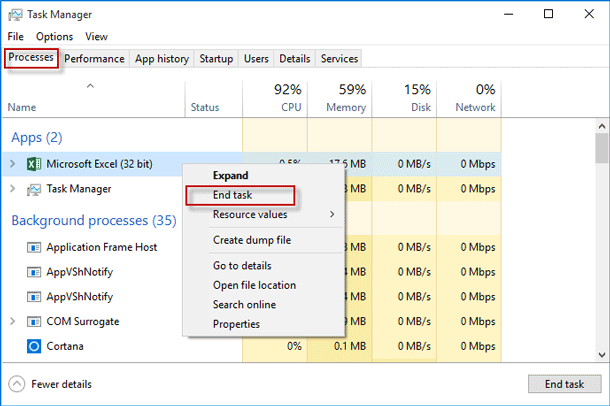
Solution 2- Close the Background Processes
Sometimes, running various background processes can disturb Excel’s performance when running VBA or trying to paste data from external sources. You can tackle this situation by following these steps:
- Initially, press the Ctrl + Shift + Enterkeys to open Task Manager.
- Under the Process tab, you have to right-click on the unfeasible apps >> hit End task.
Also Read: Excel Error: This Workbook Contains One Or More Links That Cannot Be Updated!
Solution 3- Inspect Named Ranges
As already mentioned in the causes section, named ranges sometimes include external workbook links that can trigger “Microsoft Excel this workbook contains links to other data sources.” Henceforth, open the Name Manager and review each listed range.
Also, edit or delete suspicious entries from there.
Solution 4- Remove External Links Using Edit Links Option
By removing the external hyperlinks, you can easily get rid of this error. To do this, follow the steps below:
- Select the cells that contain the links.
- After this, click “Home” tab >> click Clear on the Editing
- Under the drop-down, choose “Remove Hyperlinks.”

Solution 5- Disable Automatic Update of External Links
Most of the time, disabling updates in Excel solves recurring prompts. So, you can also do this to fix this warning message.
- Go to File >> Excel Options.
- Next, navigate to Advanced settings.
- Now, scroll to General. Consequently, uncheck Automatic Update prompts.
This method reduces interruptions significantly.
Solution 6- Modify Excel’s Security Settings
As already said, improper security settings in Excel can also lead to this problem. By changing these settings, you can overcome this situation.
Steps to be followed:
- Open Excel app >> click on “Options“.
- In the opened window, go to “Trust Center” >> “Trust Center Settings.“

- Next, click on “External Content.”
- At last, enable/disable certain settings that might be causing this error.
Also Read: Fixed- The Workbook Cannot Be Opened or Repaired by Microsoft Excel Error (8 Ways)
Solution 7- Repair Corrupted File to Fix Microsoft Excel This Workbook Contains Links to Other Data Sources
An Excel document corruption can also trigger this error message in an Excel sheet. Simply fix the file corruption by using a free Open & Repair tool.
Here is how you can use this tool:
- Open Excel >> click Open.
- Next, browse to choose a corrupted workbook.
- In an Open dialog box, select the corrupt .XLS or .XLSX file.
- After that, click Open arrow >> Open and Repair.

- Finally, click “Repair” button. This will recover as much of your Excel workbook data.
If this built-in tool fails, it is recommended to go with the most reliable Excel Repair Tool.
Frequently Asked Questions:
How to Find Links to Other Data Sources in Excel?
By using Edit Links feature, you can find the links other data sources in Excel. Simply, go to the Data tab >> Queries & Connections group >> Edit Links option. This will show the information like:
- Source - the name of the linked file.
- Type - the link type: a workbook or worksheet.
How to Check If an Excel Workbook Is Linked to Another?
By using the Workbook Relationship command in Excel, you can easily check for links between worksheets.
How to Remove Links in Excel When Source Not Found?
To remove links in Microsoft Excel when source not found, follow the below steps:
- Go to the ‘Data’ tab in the top ribbon.
- Locate the ‘Queries & Connections’ group.
- Then, click on ‘Edit Links.’
- Now, find the link that you need to remove from a ‘Source’ list.
- To choose multiple links, hold the ‘Crtl’ button on your keyboard >> click each link that you need to remove.
- Select ‘Break Link.’
Time to Takeaway
Now, it’s time to conclude…
I hope the guide has provided sufficient methods to answer your question on how to fix Excel VBA this workbook contains links to other data sources. So, go through them & apply the stated one according to your situation.
Similarly, follow us on Facebook & Twitter to stay updated on our recent posts.
References:
- https://support.microsoft.com/en-us/office/repair-a-corrupted-workbook-153a45f4-6cab-44b1-93ca-801ddcd4ea53
- google.com/search?q=this+workbook+contains+links+to+other+data+sources&rlz=1C1UEAD_enIN1020IN1020&oq=This%C2%A0workbook+contains+links+to+other+data+sources&gs_lcrp=EgZjaHJvbWUqBwgAEAAYgAQyBwgAEAAYgAQyBggBEEUYQDIHCAIQABiABDIHCAMQABiABDIICAQQABgWGB4yCAgFEAAYFhgeMgYIBhBFGDwyBggHEEUYPNIBBzgxN2owajeoAgCwAgA&sourceid=chrome&ie=UTF-8

Priyanka Sahu

Priyanka is a content marketing expert. She writes tech blogs and has expertise in MS Office, Excel, and other tech subjects. Her distinctive art of presenting tech information in the easy-to-understand language is very impressive. When not writing, she loves unplanned travels.