
In MS Excel, changing days to months can be a convenient calculation. Though it may be used if you need to keep a track of time spent on jobs, or when calculating profit & loss yearly. Well, in this blog, you will learn how to convert days to months in Excel with easy ways and enjoy seamless planning with the help of a spreadsheet.

To fix Excel file & recover its worksheet data, we recommend this tool:
This software will prevent Excel workbook data such as BI data, financial reports & other analytical information from corruption and data loss. With this software you can rebuild corrupt Excel files and restore every single visual representation & dataset to its original, intact state in 3 easy steps:
- Try Excel File Repair Tool rated Excellent by Softpedia, Softonic & CNET.
- Select the corrupt Excel file (XLS, XLSX) & click Repair to initiate the repair process.
- Preview the repaired files and click Save File to save the files at desired location.
How to Convert Days to Months in Excel using DATEDIF Function?
Well, there is no direct method in Excel for days to month conversion. Here I will show you how to use the DATEDIF Function. It works best with versions 2016/2016/mac/online.
So, let’s follow the steps below on how to convert days into months:
- Let’s take a Pivot table to use this function to change days to months. This table holds data about number of days.
- First, click the cell B2 >> click on the Insert Function via pressing an Insert Function button on keyboard.
- After that, go to the Select a Function box and click on the DATEDIF>> click OK.
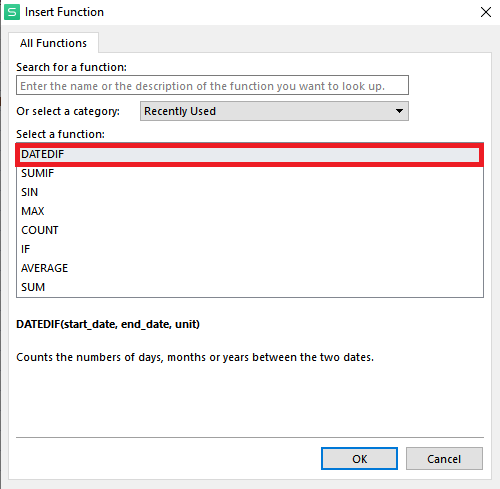
- At this time, the Function Arguments box will appear automatically.
- Now, we will take the starting date to begin calculation, in this situation, it will be 0 so we’ll simply write 0 there.
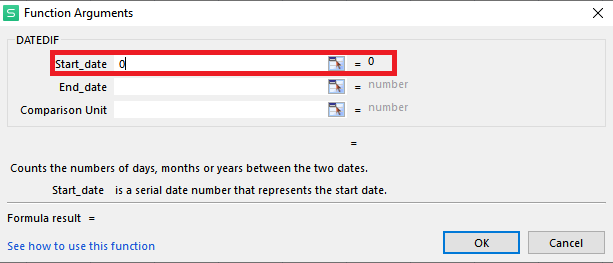
- Go to the end date segment, choose the cell(s) that holds data about the days that we need to change into months.
- Therefore, we’ll just select A2 here.
- Now, a Comparative Unit is the type of data returned by a formula. In this circumstance, the required information is represented by three parameters: Years (Y), Months(M) and Days(D). Remember to add double quotes when entering parameters. Put Months here, shown below;

- Next, you have to click enter & the no. of days will be changed to months.
- Finally, drag the selection to change rest the cells comprising information of the no. of days into months.
Also Read: How to Convert Text to Date in Excel? [6 Easy Ways]
Converting Days into Years in MS Excel via DATEDIF Function
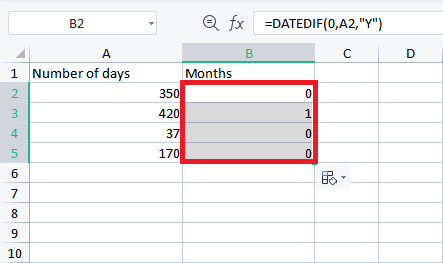
If you want to convert number of days into years, then you have to use the DATEDIF function. This technique works best with 2016/mc/online version of Excel.
- You have to repeat the same process as described above to change days to months. Only you have to replace Y with M.
- At this time, hit OK to convert the number of days to years. They will appear in the cell(s).
- Now, drag the selection to break the cells holding data of the number of days into years.
Converting Days into Years & Months in Microsoft Excel through DATEDIF function
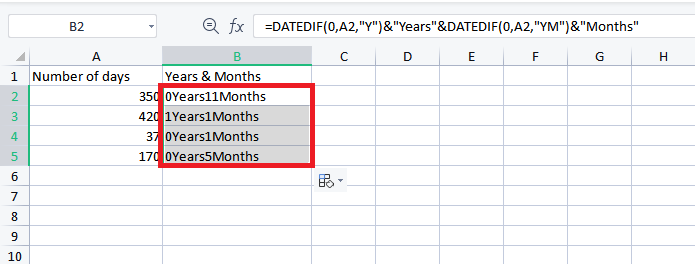
Sometimes, users want to change days to years and months. Thus, if you also want to do so, it is recommended to use the DATEDIF formula of Excel:
- Firstly, click B2 cell >> type the following formula.
- After that, press OK & the no. of days will be changed into years & months will display in the cell(s).
- In the last step, you have to drag a selection down to change the rest of the cells holding data of the no. of days into years & months.
Unique FAQs:
=DAY(EOMONTH(B4,0)) formula can be used for number of days in a month in Excel.
Taking 1 month to be 30 days. So, 342 days is- 11 months 12 days.
Pivot Table may not show months if the source data doesn’t contain information in that month.
If you want to display months instead of days, right click on date range >> go to the Group By >> choose Months and Years. And ensure Days is unchecked.
=DATE(year,month,day) formula can be used for year month and days in Excel. What Is the Formula for the Number of Days in a Month in Excel?
How to Convert 342 Days into Months and Days?
Why Is Pivot Table Not Showing Months?
How Do I Show Months Instead of Days in a Pivot Table?
What Is the Formula for Year Month and Days in Excel?
Wrapping Up
Microsoft Excel offers numerous ways to convert days into months. Above, I have specified step-by-step methods on how to convert days to months in Excel. Each method serves a unique purpose. So, understanding options is important to improve efficiency.
But remember that the right approach saves time and effort.
Thanks for reading!

Priyanka Sahu

Priyanka is a content marketing expert. She writes tech blogs and has expertise in MS Office, Excel, and other tech subjects. Her distinctive art of presenting tech information in the easy-to-understand language is very impressive. When not writing, she loves unplanned travels.