
Encountering “Run-time error 5: Invalid procedure call or argument” while working on an Excel spreadsheet? Well, this error message occurs when you’ve a specified value that is out of the argument range or you’re using a procedure that isn’t available in the Excel platform. Luckily, various methods can help you tackle this situation. All the possible solutions are mentioned in this post to fix it quickly.

To fix corrupted Excel files, we recommend this tool:
This software will prevent Excel workbook data such as BI data, financial reports & other analytical information from corruption and data loss. With this software you can rebuild corrupt Excel files and restore every single visual representation & dataset to its original, intact state in 3 easy steps:
- Try Excel File Repair Tool rated Excellent by Softpedia, Softonic & CNET.
- Select the corrupt Excel file (XLS, XLSX) & click Repair to initiate the repair process.
- Preview the repaired files and click Save File to save the files at desired location.
What Causes Run-Time Error 5 in Excel?
Oftentimes, the root cause of this warning message lies within the argument range or incorrect parameters. Besides, there are some other reasons as well that can cause this error; they are as follows:
- Running outdated/corrupted macros
- Using incorrect function parameters
- Faulty add-ins or 3rd-party plugins
- Due to a corrupted Excel workbook
- Outdated Excel version
- System registry errors.
Identifying the root cause helps in selecting the accurate fix.
How to Solve Run-Time Error 5 Invalid Procedure Call or Argument Excel?
Try the tips below one by one until the problem gets solved:
Fix 1- Close Background Running Apps
The very first solution you can try is closing unnecessary programs that are running in the background of your PC.
Here are the steps to do so:
- Press Ctrl + Shift + Esckeys instantaneously to open the Task Manager.
- Next, click on “Processes” tab >> look for any useless apps running in the Background.
- After that, right-click on a specific app >> click “End task”.

Also Read; Excel “You’ve Entered Too Many Arguments for This Function” Error?
Fix 2- Check Macros and Function Arguments
Corrupted macros, VBA code, or arguments can even cause run-time error 5 in Excel. All you need to do is to check the code and parameters to get rid of it.
Simply verify for missing or extra arguments, opening and closing parentheses, or misplaced commas.
Fix 3- Updating Excel Software
Running an outdated Excel version triggers various errors, including invalid procedure call or argument. Consider updating the Excel software by following the steps below:
- Launch Excel application.
- Click on File menu>> Account
- After that, click on the Update Options >> Update Now.
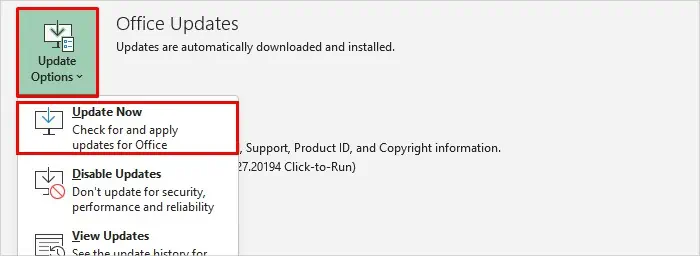
- Restart your PC
Fix 4- Disable Faulty Add-ins
Sometimes, Excel add-ins or installed plugins become corrupted and conflict with system operations. In such a situation, it is important to disable the problematic add-ins as soon as you can.
Follow the instructions below carefully:
- Open the MS Excel spreadsheet.
- Go to the File >> Options >> Add-ins

- Choose the COM Add-ins >> click Go.
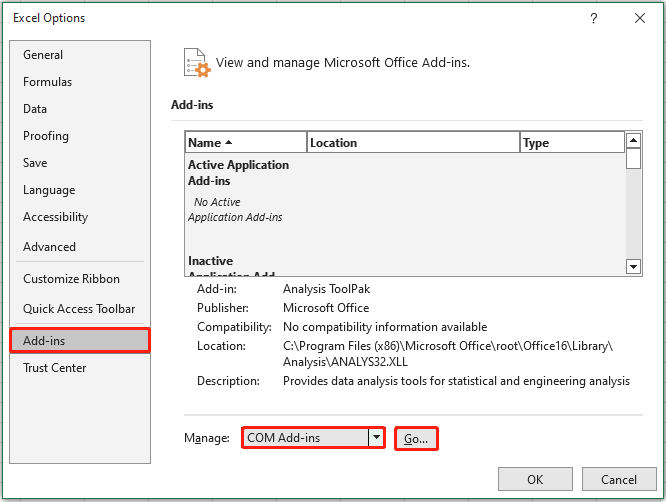
- Now, uncheck the suspicious or unused add-ins.
- Restart Excel and check for the error.
Also Read: Fixed- Excel “DataFormat.Error We Couldn’t Convert to Number” Error!
Fix 5- Run Microsoft Excel in Safe Mode
If you are facing difficulty disabling add-ins one by one, it is suggested to start your Excel application in safe mode and solve the error. Sometimes, third-party applications are the culprits and generate such problems. To know how to run Excel in safe mode, Click Here.
Fix 6- Solve Invalid Procedure Call or Argument by Cleaning Windows Registry
As already mentioned in the causes section, invalid registry entries in the Windows system can break Excel functionality and lead to such annoying errors. To overcome such situations, simply clean the registries.
- Press Start >> type Disk Cleanup in a search bar
- Click on the app
- When the app opens, select the Windows C: drive>> click OK
- As soon as the scanning process gets over, click on Clean up system files.
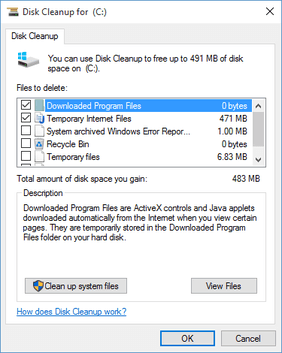
- After that, click on OK
Go With an All-in-One Solution- Excel Repair Tool
Even after trying all the above manuals, if you are still facing the same error, then try the MS Excel Repair Tool. This program is highly capable of repairing your corrupted or damaged files with 100% integrity.
Moreover, it can even help you restore entire data from a corrupted file, including charts, cell comments, worksheet properties, etc.
So, just download, install, and use this software.
How to Prevent Excel Runtime Error 5?
Follow the tips below to avoid future disruptions:
- Keep your Excel software updated.
- Use error handling in the VBA code.
- Always create backups of your important workbooks.
- Limit the number of active add-ins.
Frequently Asked Questions:
The argument error in Excel typically occurs when a function has been provided more arguments than it can handle.
Windows' system shows error 5 when you run your commands or applications without admin privileges.
To fix runtime error 5 in Microsoft Excel, follow the below tricks:
The example of an argument in Excel is the function =AVERAGE(B1:B9). This function holds only one argument. Numerous arguments must be separated by a comma.
You must use Excel's built-in ‘Open & Repair’ feature to repair a corrupted Excel file and fix the runtime error. What Is an Argument Error in Excel?
Why Am I Getting Error 5?
How to Fix Runtime Error 5 in Excel?
What Is an Example of an Argument in Excel?
How to Repair a Corrupted Excel File?
Also Read: Excel “External Table Is Not in The Expected Format.” Error!
Time to Sum Up
Run-time error 5: invalid procedure call or argument in Excel can be frustrating, but easy to solve. Above, I have specified the working solutions for this error. However, you can troubleshoot the problem efficiently by checking the VBA code, updating the Excel version, disabling faulty add-ins, and repairing a corrupted file.
If you have any queries or doubts, follow us on Facebook and Twitter.

Priyanka Sahu

Priyanka is a content marketing expert. She writes tech blogs and has expertise in MS Office, Excel, and other tech subjects. Her distinctive art of presenting tech information in the easy-to-understand language is very impressive. When not writing, she loves unplanned travels.