
When using Microsoft Excel, you may occasionally face the frustrating issue of an Excel sheet tab missing, making it challenging to navigate your workbook data. This blog explains the reasons why Excel worksheet tabs might disappear and offers step-by-step solutions for restoring them.
To repair corrupt Excel file, we recommend this tool:
This software will prevent Excel workbook data such as BI data, financial reports & other analytical information from corruption and data loss. With this software you can rebuild corrupt Excel files and restore every single visual representation & dataset to its original, intact state in 3 easy steps:
- Try Excel File Repair Tool rated Excellent by Softpedia, Softonic & CNET.
- Select the corrupt Excel file (XLS, XLSX) & click Repair to initiate the repair process.
- Preview the repaired files and click Save File to save the files at desired location.
What Is Sheet Tab in MS Excel?
In MS Excel, the sheet tab is a part that is used to display the worksheet which is currently been modified or edited by the user. At the same time, you can make changes in the one specific tab data only.
Why Did My Excel Worksheet Disappear?
Before solving the mystery of Excel worksheet tabs missing, it is important to extract the root cause behind the problem. Some of the reasons that make your Excel sheet disappear are as follows.
- Accidentally hiding the worksheet tabs.
- The screen resolution is too high and the tab vanished from the bottom of the screen.
- You may have turned off the Display options for this workbook.
- Corrupted or protected workbook.
- The workbook window is sized in a way that the tabs are hidden.
- The tabs get obscure due to the horizontal scroll bar.
- The worksheet itself is hidden.
How To Fix Excel Sheet Tab Missing Issue?
Quick Fixes:
- Change the Zoom Settings
- Check the Workbook Protection
- Check Show Sheet Tabs Setting Is Turned Off
- Unhide the Worksheet
- Open Excel in Safe Mode
- Check The Show Sheet Tabs Settings Controls
- Check Excel Windows Arrangement
- Adjust the Display Resolution
- Click the Navigation Arrow in the Excel File
- Run Open and Repair
Now it’s time to discuss each of these methods of fixing Excel Worksheet disappeared in detail. So, let’s get started….!
Method 1: Change the Zoom Settings
Change the zoom settings to some other settings. Then change the zoom settings back to the preferred settings.
Follow these steps to do this:
- Click the zoom out or zoom in on the status bar.
- On the View tab, click zoom in the zoom group, select the settings you want under Magnification, and then click OK.
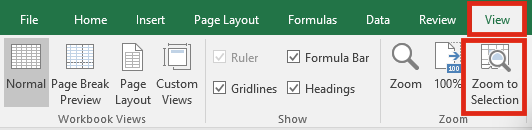
Hope by changing the zoom settings you are able to see the missing Excel sheet tabs but if not then follow method 2.
Method 2: Check the Workbook Protection
As already mentioned in the causes section, a protected workbook or worksheet can even lead to Excel worksheet tabs missing issue. If the workbook is protected, then follow the below steps carefully to unprotect it:
- In an opened Excel workbook >> go to the Review.
- Click on Unprotect Workbook and enter a password if prompted.

Method 3: Check Show Sheet Tabs Setting Is Turned Off
This might be the case that Excel sheet tabs go missing as the sheet tabs setting is turned off. To verify it, follow the steps to do so:
- Click File > Options > Advanced, then under Display options for this workbook.

- Assure that the Show sheet tab checkbox is selected.
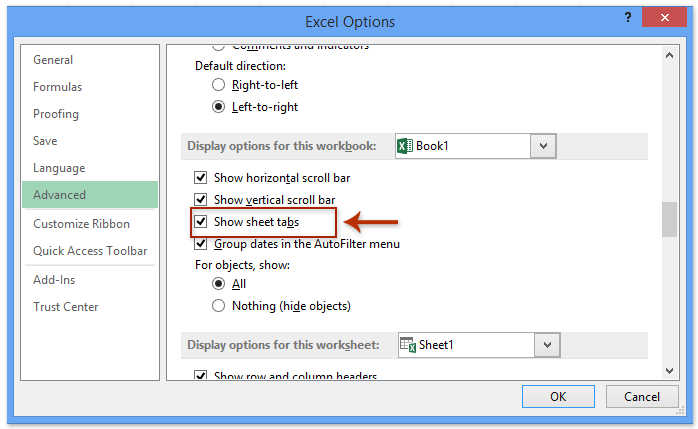
This process is the same for all Excel versions.
Method 4: Unhide the Worksheet
In many cases, the Excel sheet disappeared by itself. So to get the missing sheet tab back you must use the unhide worksheet of Excel.
Follow the steps to do so:
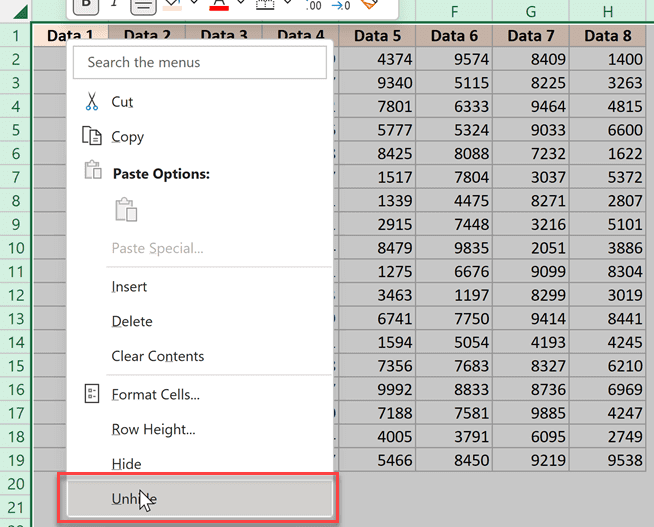
- Right-click on any visible tab on the worksheet > click Unhide
- Then in the Unhide dialog box > click sheet you desire to unhide
- Click Ok.
Method 5: Open Excel in Safe Mode to Fix the Excel Sheet Tab Missing Issue
Sometimes, running Excel in a safe mode can help you fix this problem. To do so, follow these steps:
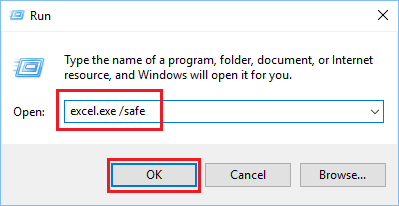
- Press Windows+R keys to open the Run box.
- Type excel.exe /safe in the Run box >> click OK.
Method 6: Check The Show Sheet Tabs Settings Controls
In Excel 2010 and former, it is comparatively easy to unintentionally organize a spreadsheet Window. Subsequently, the worksheet tabs aren’t present on the screen, even if the Show Sheet Tabs option is enabled. While this happens, double-click on the workbook’s name to maximize the Window and recover workbooks.
In Excel 2013 if you are not able to see the worksheet tabs, simply double-click on the words “Microsoft Excel” at the top of the Windows for maximizing Excel’s application window.
Also Read: Excel Gridlines Missing? Here’s How to Fix It in 9 Easy Methods!
Method 7: Check Excel Windows Arrangement
In some cases, it is found that Excel Windows get arranged in such a way so that the tabs are not visible. So check for them. Make use of the keyboard shortcut to navigate between worksheets within the workbook. And to do this, press Ctrl – Page Up for activating the adjacent worksheets to the left and, or else press Ctrl- Page Down for activating the next worksheet to the right.
In this activate menu Excel 2013 provides helpful improvements since the entire worksheets are displayed in a single dialog box and after that, you can select a worksheet by entering the first letter of the sheet name.
In Excel 2010 or the earlier version, the Activate menu very first displays up to 16 worksheets and requires selecting more sheets for displaying more lists.
Additionally, in Excel 2010 or the earlier version, you should select the desired sheet name by making use of your mouse. Because the menu cannot be accessed by way of keystrokes as it is possible in Excel 2013.
Method 8: Adjust the Display Resolution
Adjusting the screen resolution is another yet option that can help you to solve Excel worksheet tabs missing problem. This will assist if the tabs are simply off-screen due to a display glitch.
For this, follow the below instructions carefully:
- Firstly, right-click on your desktop >> go to Display settings.

- Now, choose the resolution that allows MS Excel to display all elements.
Method 9: Click the Navigation Arrow in the Excel File
In many other cases, it happens that the worksheet tabs are available, but a worksheet still appears missing. In Excel 2007 and later versions, right-click on any worksheet tab and select unhide.
Well, if the command is disabled there is most likely no hidden worksheet present in the workbook. However, there is still a way you can find out this possibility.
Follow the steps to access the unhide sheet command from Excel’s main menu:
- Excel 2007 and later: Go to the home tab > select format > click hide and unhide sheet.

- Excel 2003 and earlier: Select Format > Sheet > and Unhide.
- And Excel 2011 for Mac: From the main menu > select format option > sheet > unhide. The format command on the home tab of the ribbon doesn’t let you unhide the worksheet.
If the unhide sheet is disabled, you can’t necessarily assume that there are no hidden worksheets within a workbook.
Method 10: Run Open and Repair
If you are facing this problem due to the Excel workbook, you should use Microsoft’s built-in Open and Repair feature to repair the document for free.
To use this:
- Open Excel >> Go to the File >> Open.
- After this, click Browse and select the faulty workbook.
- Next, click on an arrow next to an Open >> click on Open and Repair.
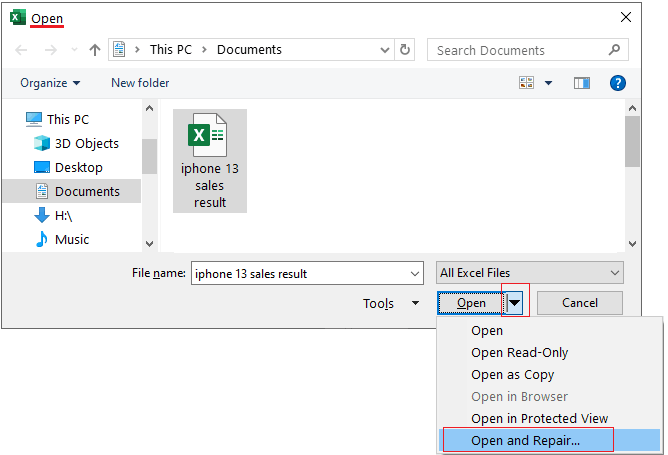
- Once the repair process is over, click Close.
Also Read: Is Your Excel Toolbar Missing? Try 7 Easy Fixes to Solve It!
Automatic Solution To Recover Missing/Disappeared Tabs In Excel
Well, if none of the above-mentioned methods help you to recover missing sheets in Excel. Then the chances are high that your Excel sheet has caught into some corruption issue. Due to the corruption of the Excel sheet, you may also find that your Excel sheet content disappeared.
In this case, you can make use of the professionally recommended MS Excel Repair Tool. This is the best tool to repair any sort of issues, corruption as well as errors in Excel files. It also restores the entire data in the preferred location. It is too easy to use.
Steps to Utilize MS Excel Repair Tool:







Related FAQs:
Why Does Excel Hide Tabs?
Excel tabs can disappear due to higher computer screen resolution or accidentally hiding the worksheet tabs.
Where Is the Sheet View Menu in Excel?
You can find the sheet View menu in Excel by opening the Excel workbook file and from the top ribbon, choose View.
How Many Sheet Tabs Are in Excel?
The maximum number of sheets in the Excel worksheet is 255 sheets.
Where Is the Worksheet Button in Excel?
By clicking the sheet tabs at the bottom of the Excel window.
How Do I Show Hidden Sheets in Excel 2007?
To unhide sheets in Excel 2007, follow these steps:
- Firstly, right-click on any visible tab.
- Choose Unhide.
- Then, mark the tabs to show >> click OK.
Bottom Line
Hopefully, this post answered all your queries regarding the Microsoft Excel sheet tab missing issue. I have tried my best to provide every possible method to get rid of this error.
Therefore, just apply them one after another until your issue gets fixed.
For further queries & doubts, visit our official Facebook & Twitter page.

Priyanka Sahu

Priyanka is a content marketing expert. She writes tech blogs and has expertise in MS Office, Excel, and other tech subjects. Her distinctive art of presenting tech information in the easy-to-understand language is very impressive. When not writing, she loves unplanned travels.