
When you encounter the Excel error message “The file couldn’t open in protected view,” it typically indicates that Excel has determined the workbook to be potentially unsafe & is stopping it from being opened to protect your PC from possible harm. It happens due to various unexpected reasons such as the file being downloaded from the internet, received as an email attachment, or residing in a location marked as untrusted.

This error can ruin the spreadsheet experience and can cause hindrance. In this blog, you will learn the possible reasons for this error and quick fixes to solve it.
To repair corrupted Excel file data, we recommend this tool:
This software will prevent Excel workbook data such as BI data, financial reports & other analytical information from corruption and data loss. With this software you can rebuild corrupt Excel files and restore every single visual representation & dataset to its original, intact state in 3 easy steps:
- Try Excel File Repair Tool rated Excellent by Softpedia, Softonic & CNET.
- Select the corrupt Excel file (XLS, XLSX) & click Repair to initiate the repair process.
- Preview the repaired files and click Save File to save the files at desired location.
Quick Solutions |
Step-By-Step Solutions Guide |
|
Fix 1- Disable Protected View Settings |
Open your Excel application >> go to File >> Options…Complete Steps |
|
Fix 2- Disable Hardware Graphics Acceleration |
Open your Excel application >> go to File >> Options>> Advanced…Complete Steps |
|
Fix 3- Rename the File |
Renaming the file is another yet option that can assist you…Complete Steps |
|
Fix 4- Unblock The Excel |
Go to File Explorer >> open that folder in which the “Protected View“error...Complete Steps |
|
Fix 5- Change The File Block Settings |
Open your Excel application >> go to File >> Options>> Excel Options…Complete Steps |
|
Fix 6- Repair Office Installation |
Go to Control Panel Home >> click Uninstall a program in Programs…Complete Steps |
|
Fix 7- Install the Latest Version of MS Office |
Getting the latest MS Office version is always a good idea…Complete Steps |
What Does “The File Couldn’t Open In Protected View” Error Mean?
A “Protected View” is a feature of Microsoft Excel that deactivates the editing capabilities & opens the files in a “read-only mode.
However, if the Excel document is saved in an unsafe location, then the file will open in the Protected View & you can’t make any changes to that file until and unless you disable that feature.
But sometimes, the file does not open even though it is in a safe location due to a Protected View feature. And when attempting to open that Excel file, you can receive a peculiar error message “Microsoft Excel: The file couldn’t open in protected view.” It simply means that you can’t open the file and make any changes to it.
Why this Error Occurs?
This error can lead to several reasons, including:
- Files downloaded from the internet are often flagged as potentially unsafe.
- Files stored in network drives may cause this error when trying to open the document.
- When documents are received through email.
- Enabled hardware graphics acceleration within Excel.
- Excel file corruption due to downloading or transferring process.
- Incorrect Trust Center settings in Excel might be configured as restrictive.
How to Fix Excel Opening In Protected View Stuck Error?
Find out the possible ways to troubleshoot this Excel error:
Fix 1- Disable Protected View Settings
The first trick that you can try to solve this error is to disable the protected view settings. But before doing that it is important to have a reliable antivirus program on your PC to protect your files against virus attacks.
So, follow the below steps to disable the protected view settings in Excel:
- Open your Excel application.
- Hit the File.

- Tap to the Options tab. This will open the Excel options settings window.

- From the left side navigation pane, choose the Trust-center tab.
- Now from the opened window hit the Trust Center Settings.

- On the left side of the Trust Center window, you have chosen the Protected View.
- After that unselect all the previously selected options present within the protected view.

- Hit the Ok button to close the window.
Also Read: Excel We Couldn’t Free Up Space On The Clipboard Error
Fix 2- Disable Hardware Graphics Acceleration
To fix this file can’t be opened in the protected view error that arises due to DisplayLink Drivers. For this, you need to disable the hardware graphics acceleration. Here is how it is to be done.
- Open your Excel application.
- Hit the File.
- Now tap to the Options.
- From the Excel options window, hit the Advanced.
- Within the Display section, make a check across ‘Disable hardware graphics acceleration‘ option.
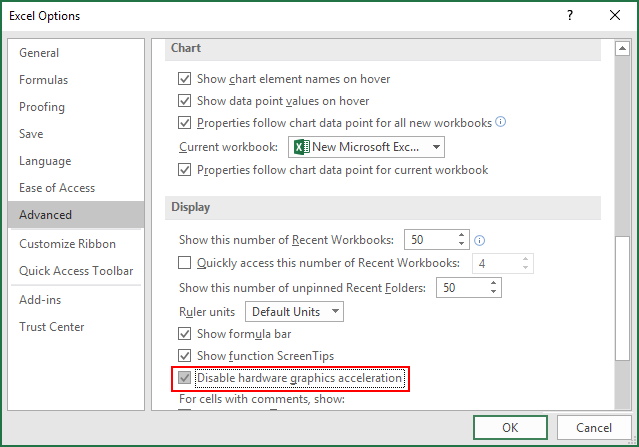
- Tap the OK button.
- Now try to open your Excel documents with the email again.
Fix 3- Rename the File to Fix Excel the File Couldn’t Open in Protected View
It is one of the basic methods that you should try once. Renaming the file is another yet option that can assist you in solving this error.
But before doing that, make sure the file you’re attempting to open is already saved in .xlsx format. Once you are confirmed, then you can proceed to rename the file and check for the issue.
Fix 4- Unblock The Excel Or Word Document
In order to tackle the situation by unblocking the file, follow these steps:
- If you are a Windows 1o user then on your taskbar, hit the File Explorer
- Now open that folder in which the “Protected View“error shows the Excel file contains.
- Make a right-click on the Excel document and then choose the Properties.
- Tap to the Unblock.
- Hit the Apply.
- Press OK to take the exit.
Also Read: Fixed: Can’t Open MS Excel Because it is Damaged Or Incomplete
Fix 5- Change The File Block Settings
For changing the File Block settings you need to enable the old Excel file types to get opened as normal. Here are the steps which you need to follow to perform this:
- Open Excel application. Now from the menu ribbon hit the File tab.
- From the opened File tab left–hand navigation pane you have to make a click on Options.
- Once the window of Excel Options opens, from the left side navigation pane tap the Trust Center.
- After that make a tap on the Trust Center Settings.
- This will open the Trust Center.
- From the left-hand navigation, the pane makes a tap on the Protected View to check out the Protected View options.
Important:
Be careful, because the Protected View potentially prevents your application and PC from being havoc by dangerous files. By disabling this Protected View feature, you are indirectly inviting PC security threats.
- In order to disable the Protected View, you need to prevent the file from getting opened in the Protected Mode. For this just unselect all the following mentioned options.
- Enable Protected View for files originating from the internet,
- Enable Protected View for files located in potentially unsafe locations,
- Enable Protected View for Outlook attachments.
- Again from the left-side side navigation pane, tap the File Block Settings.
- In the opened window of File Block Settings.
- Uncheck all the following checkboxes. This will prevent Excel from blocking those file types.
- Excel 95 Workbooks,
- Excel 4 Workbooks,
- Excel 4 Worksheets,
- Excel 3 Worksheets,
- Excel 2 Worksheets,
- Excel 4 Macrosheets and Add-in Files,
- Excel 3 Macrosheets and Add-in Files,
- Excel 2 Macrosheets and Add-in Files.
- Tap the OK button.

Now the entire older versions Excel file will easily get open. Along with that you can edit and save it just like a normal Excel file version.
Fix 6- Repair Office Installation
The corrupt Office installation is the foremost reason behind the occurrence of this file couldn’t open in protected view.
Therefore, try to repair the Office installation & check for problems. Here is how you can do this:
- Go to Control Panel Home.
- Then, click Uninstall a program in Programs
- Fins & right click on Microsoft Office program that you’ve installed >> click Change
- After this, choose Repair option >> click Continue.

After completing these steps, check whether you are able to open the file (Excel) without any errors.
Fix 7- Install the Latest Version of MS Office
Getting the latest MS Office version is always a good idea to tackle different errors related to Excel, Word, and other applications associated with MS Office.
Thus, it might possible that you are experiencing this error due to running an older version of MS Office.
So, simply proceed to check and upgrade your Office app to get rid of the error. Here’s how:
- First, open the Excel file (that shows an error) >> go to File tab.
- After this, go to Account tab which you can see on the left side bottom of your screen.
- Now, from the Office Updates, you have to expand the Update Options >> click on the Update Now.
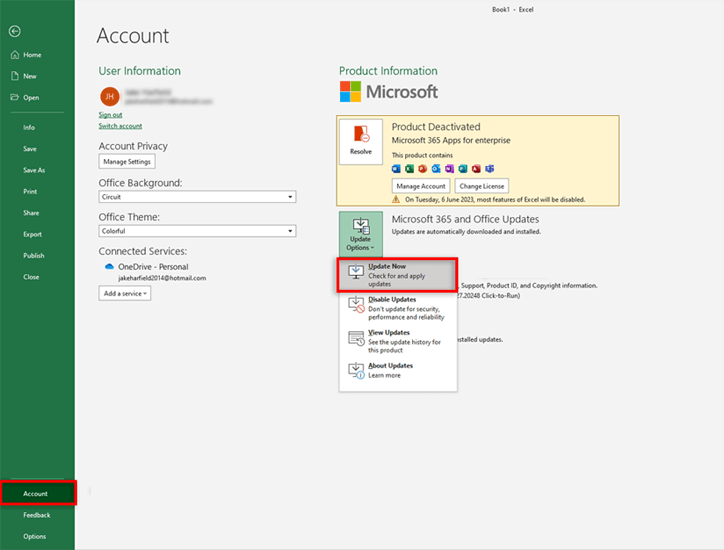
Once you are done, restart your computer & now you can open the file without any issue.
Use Excel Repair Tool to Repair Corrupted Excel Files
After getting the Excel Protected View has stopped working error users usually encounter the ‘file is corrupt and cannot be opened’ error. So if you are also dealing with the same corruption error in your Excel program then use the Excel repair tool. As it is extremely useful to repair corrupted/ damaged Excel files.
As this software offers batch file processing so you can easily recover all lost workbook stuff like charts, tables, cell comments, images, chart sheets, sorts, formulas, and filters.
This software is fully compatible with all Excel versions: 2019, 2016, 2013, 2010, 2007, 2003 & 2000.
Steps to Utilize Excel Recovery Tool:







Related FAQs:
How Do I Unlock a Protected Excel File?
If you want to unlock a protected Excel workbook, then go to the Review tab, in the Changes group, simply click on Unprotect Sheet option.
Why Excel Showing This File Type Is Not Supported in Protected View?
The Excel showing this file type is not supported in protected view is due to File Block settings is blocked in the Trust Center in Microsoft Office.
How Do I Turn Off Protected View?
To turn off protected view, you have to:
- Navigate to File >> Options >> Trust Center.
- Choose Trust Center Settings then Protected View option.
- Now, clear all the boxes for Enable Protected View for files originating from an internet.
How Do I Remove Read-Only Protection in Excel?
To remove read-only protection in Excel, right-click on the Excel document >> select ‘Properties.’ Under the ‘General’ tab, you have to check if the ‘Read-only’ attribute is marked. If it’s, uncheck it & click ‘OK.’
Bottom Line
So, these are some of the working solutions that can help you to get rid of the file couldn’t open in protected view Excel 365. You can simply disable the protected view to fix this error. But if it fails, it is recommended to try other fixes.
Moreover, always be cautious when dealing with files from untrusted sources to avoid potential security risks.

Priyanka Sahu

Priyanka is a content marketing expert. She writes tech blogs and has expertise in MS Office, Excel, and other tech subjects. Her distinctive art of presenting tech information in the easy-to-understand language is very impressive. When not writing, she loves unplanned travels.