
Excel users often encounter errors and bugs while handling spreadsheets, that can impede the smooth functioning of the sheets. One such error message, “Microsoft Excel cannot use object linking and embedding,” can leave users scratching their heads in frustration. Thus, if you are one such user who is facing the same problem, you are at the right place. In this blog, we delve into the details of this error, mention its causes, and explore effective solutions to fix it.

To fix corrupt Excel file, we recommend this tool:
This software will prevent Excel workbook data such as BI data, financial reports & other analytical information from corruption and data loss. With this software you can rebuild corrupt Excel files and restore every single visual representation & dataset to its original, intact state in 3 easy steps:
- Try Excel File Repair Tool rated Excellent by Softpedia, Softonic & CNET.
- Select the corrupt Excel file (XLS, XLSX) & click Repair to initiate the repair process.
- Preview the repaired files and click Save File to save the files at desired location.
Brief Description About Cannot Use Object Linking and Embedding Excel Error
MS Excel error object linking and embedding typically occurs when trying to open the file or working on the opened spreadsheet. When this warning message occurs, it simply means that there is a problem with the communication between Microsoft Excel & another external application.
Moreover, it prevents you to insert objects from other apps or manage existing embedded objects.
Why This Error Occurs?
Well, this message generally triggers due to a wide variety of reasons including compatibility problems, issues with the MS Office installation, or security settings.
How to Fix Excel Cannot Use Object Linking And Embedding Error?
To alleviate the frustration caused by cannot use object linking and embedding while opening Excel error, you can try several troubleshooting methods discussed below:
Method 1- Embed Object Within The Worksheet
1. On your Excel worksheet, make a tap to the cell in which you want to insert your object.
2. From the Excel Insert tab, get into the Text group and click the Object.

3. Within this opened dialog box of Object, you have to click on the Create from File
4. Hit the Browse option and after that choose the file that you need to insert.
5. Instead of showing the complete content of the file, you can place the icon in your spreadsheet. For this, you have to choose the checkbox of Display as icon.
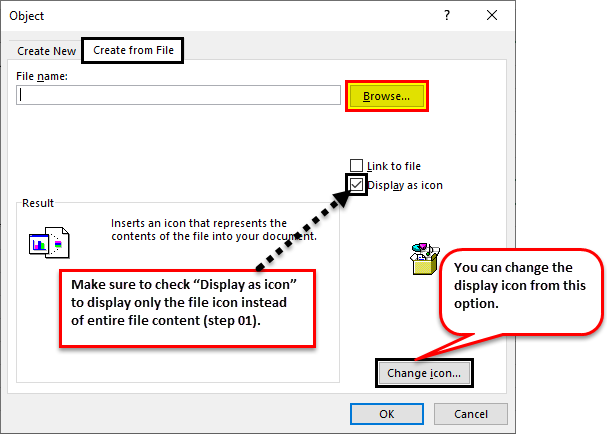
6. If this checkbox is left unselected then Excel will show the 1st page of your embedded file.
7. Whether you choose the icon form or the text form for your embedded file display; in both conditions you have to double-click to open the file.
8. At last click on to OK option to insert the embedded object successfully.
Note: After adding the icon or file, as per your need you can easily drag-drop your embedded object anywhere on your Excel worksheet. You can also resize your icon or file size.
Also Read: Excel “Run Time Error 438: Object Doesn’t Support This Property or Method”
Method 2- Insert A Link To A file to Fix Excel Cannot Use Object Linking and Embedding Error
If in case you just want to insert a link to your object instead of completely embedding it.
You can easily do this if your Excel spreadsheet and object which you want to add both saved on the shared network drive or SharePoint site or onto some similar location.
Note: if in case you shift your linked file to some other location then your link won’t work.
- On your Excel worksheet, make a tap to the cell in which you want to insert your object.
- From the Excel Insert tab, get into the Text group and click the Object.
- Within this opened dialog box of Object, you have to click on the Create from File.
- Hit the Browse option and after that choose the file which you need to insert.
- Now make a tap on the Link to file check-box.

- After that click the OK button.
Method 3- Fix Can’t Use Object Linking Error In Excel For Mac
To work around this cannot use object linking and embedding Excel 2016/2019 for Mac, just follow the below steps:
- At first, exit from all the opened MS Office applications.
- Now in the Mac system “Finder”, search for the below-mentioned location:
Users/<username>/Library/Group Containers/UBF8T346G9.Office
- Choose any one of the following folders, which you have:
ComRPC
ComRPC32
- Now from the File menu, tap option the Move to Trash option.
- After completing all this close the Finder window.
Apart from this, you can repair the corrupted Microsoft Office to successfully solve this problem.
What’s The Difference Between Linked and Embedded Objects?
The main difference between an embedded object and a linked object is that data is in the location where it data stored and how to update data after placing it on other applications. Either you put a link to an object or just copy an object in your document. In this way, you can easily insert any object from an application program that supports OLE.
Suppose, you have created a monthly report which contains information distinctly maintained in the Excel worksheet.
If the link is created between the report and the worksheet, then you will see that report data will get updated every time the source file gets updated.
If in the report you have embedded the worksheet then your report will contain one static copy of your data.
- Embedded object
- Linked object
- Source file
Linked objects
When you link an object, its information can easily get updated if any modification done in the source file.
Linked data get saved in the source file whereas the destination file only keeps the source file location. The destination file also shows the representation of your linked data. If you are concerned more about your increasing file size then a liked object is the best to minimize it.
Linking is very essential also when any user wants to comprise information that is maintained individually. Like data collected from different departments but you want to keep it updated in the document.
Embedded objects
When an Excel object is embedded, information present in other applications like MS Word won’t be changed even if you make modifications in the main source Excel file.
At that time embedded object becomes part of your Word file. Once the object is inserted into the destination application, it doesn’t have any connection with the source file. This is because the information is completely stored in your destination application.
The embedding method is too good to use when any user doesn’t want to show the data changes in their source file.
Also Read: Solve the Unfixable: Fixed Objects Will Move Excel Error!
FAQs (Frequently Asked Questions)
Why Is Excel Not Allowing Me to Insert Object?
Microsoft Excel not allowing you to insert object because your target file is corrupted or damaged.
Is It Safe to Change DCOM Settings to Fix this Error?
Frankly speaking, changing the DCOM settings should be done with caution to fix this error.
Where Has Insert Object Gone in Excel?
Insert tab has located in the menu ribbon in Excel.
Can Updating Excel Resolve This Error?
Yes, updating Microsoft Excel to the latest versions can solve this error.
How to Do Object Linking and Embedding?
Object linking and embedding (OLE) is an excellent method of exchanging data between applications.
Sum Up
Now that you know how to fix cannot use object linking and embedding error in Excel, you don’t need to deal with this. Whether this issue is encountered in your Excel Windows or Excel Mac PC you can easily fix it.
Besides this, if you are stuck into some other Excel errors or issues, ask your queries in your comment section.
So good luck with the post…………..!

Priyanka Sahu

Priyanka is a content marketing expert. She writes tech blogs and has expertise in MS Office, Excel, and other tech subjects. Her distinctive art of presenting tech information in the easy-to-understand language is very impressive. When not writing, she loves unplanned travels.