
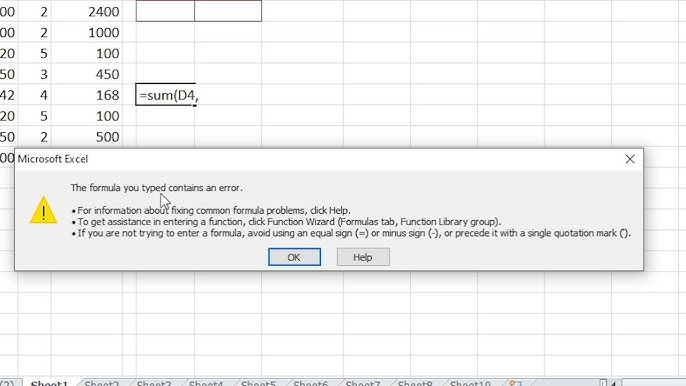
In MS Excel, formulas are powerful, but even a single mistake can throw up an error. One of the most common errors users can face while using the VLOOKUP function is: “The formula you typed contains an error.” It typically indicates a problem with the formula’s syntax, incorrect arguments, or a reference to a non-existent cell or function. Thus, if you’re frustrated by this, you’re not alone. In this blog, we’ll break down what causes this message and how to fix it quickly.
To fix corrupted Excel files, we recommend this tool:
This software will prevent Excel workbook data such as BI data, financial reports & other analytical information from corruption and data loss. With this software you can rebuild corrupt Excel files and restore every single visual representation & dataset to its original, intact state in 3 easy steps:
- Try Excel File Repair Tool rated Excellent by Softpedia, Softonic & CNET.
- Select the corrupt Excel file (XLS, XLSX) & click Repair to initiate the repair process.
- Preview the repaired files and click Save File to save the files at desired location.
What Causes the Formula You Typed Contains an Error VLOOKUP?
There are different reasons behind this Excel message. The most common ones are listed here:
- Missing Equal Sign (=)
Every formula in an Excel sheet must start with an equal sign. Forgetting this is the most common mistake.
Wrong: SUM(A1:A5)
Correct: =SUM(A1:A5)
- Using Incorrect Quotation Marks
Excel only understands straight quotes (“), not smart or curly quotes.
Wrong: =IF(A1=”Yes”,1,0)
Correct: =IF(A1=”Yes”,1,0)
- Unmatched Parentheses
All parentheses in a formula must come in pairs. If they don’t, Excel will show an error.
Wrong: =IF(A1>10,”Yes”,”No”
Correct: =IF(A1>10,”Yes”,”No”)
- Extra or Missing Arguments
Functions need a specific number of arguments. Miss one, and you’ll see an error.
Wrong: =IF(A1>10,”Yes”)
Correct: =IF(A1>10,”Yes”,”No”)
- Wrong Function Names
Excel formulas are case-insensitive, but they must be spelled correctly.
Wrong: =smm(A1:A5)
Correct: =SUM(A1:A5)
How to Fix the Formula You Typed Contains an Error Excel?
In this section, learn how to fix the formula you typed contains an error easily.
Solution 1- Verify the Entered Formula
The first method you must try is to verify the entered formula syntax. Make sure that it is correct & all the essential components are included in the formula. Similarly, check the Excel function (VLOOKUP) that you have used in a formula and ensure it is compatible by your Excel version.
Solution 2- Remove the Special Characters
While executing the formula, it is important to check if the formula contains special characters like comma (,), @, #, $, %, etc. You can replace any of them with a colon (:) in a formula to check for the error.
Also Read: Excel “Sorry We Couldn’t Find Your File. Was It Moved Renamed or Deleted” Error!
Solution 3- Disable the Auto-Correct for Formulas
Most of the time, Excel’s autocorrect feature creates new issues in the spreadsheet. If you are facing repeated error, it is recommended to turn off auto-formatting.
To do this:
- Navigate to File menu > Options > Proofing.
- After this, click on AutoCorrect Options.

- Uncheck any options that alter your typed text.
Solution 4- Enable Auto-Calculate Option
Another quick resolution you can try to solve the formula you typed contains an error VLOOKUP is to enable the Automatic calculation mode.
For this, follow the steps below:
Step 1– Go to the File tab, then head to the Options.
Step 2- Choose the Formulas tab on a left panel.
Step 3- After that, check if the calculation mode is set to Automatic or Manual. If it is selected manual, set to Automatic.

Step 4- Finally, tap Ok and continue with the work.
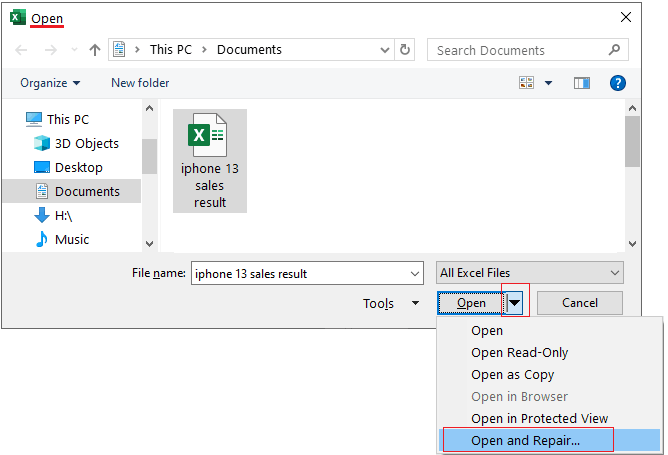
Solution 5- Use Open & Repair Utility
If you are facing this error due to Excel workbook corruption, you can opt for the Open and Repair utility. This feature can help you in repairing corrupted Excel files and solving the error.
To use this tool, follow the instructions below carefully:
- Open MS Excel.
- Navigate to File menu >> click “Open”.
- Next, browse & select the corrupted Excel document from a drop-down list.
- Click on “Open and Repair” >> “Repair”.
Solution 6- Check for the Circular References
Checking for circular references is another option you can try to overcome this situation.
You can check this by following these steps:
Step 1– Firstly, click on Formulas tab.
Step 2– Then, click on Formula Auditing >> Error Checking option.
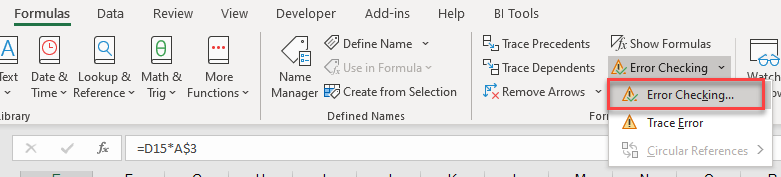
Step 3– After this, click on Circular References.
Step 4– Now, click on a cell that embraces a circular reference.
Step 5– Review the cell formula & copy the formula in another cell.
Solution 7- Fix The Formula You Typed Contains an Error By Unchecking Missing References
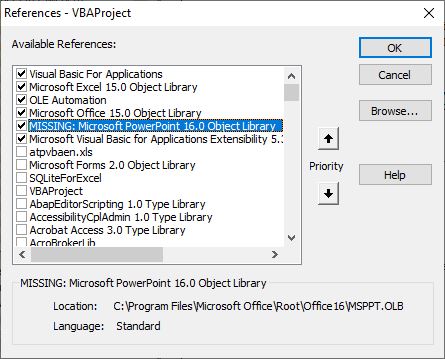
Sometimes, missing references in the Excel spreadsheet often cause formula errors. Nonetheless, you can solve this by unchecking the missing references.
To locate & uncheck the missing references, follow the steps below:
- Open Excel sheet >> press Alt+ F11 keys together to open Visual Basic Editor.
- Next, click on Tools >> References.
- Now, scroll down to the Available References section & uncheck all the boxes that begin with MISSING: >> click OK.
Also Read: Fix ‘Excel Ran Out of Resources While Attempting to Calculate’
Solution 8- Reinstall MS Office
Last but not least, if none of the above solutions worked, try the last resort, which is repairing MS Office by uninstalling and reinstalling your entire MS Office.
- Open the Control Panel >> click on Programs.
- Then, select Add/Remove Programs from the appearing list and uninstall MS Office.
- Now, use your disk to reinstall Microsoft Office or download it online from the Microsoft Website.
How to Repair and Recover Corrupt Excel Files?
If your Excel document is severely corrupted, you must try the most reliable Excel Repair & Recovery Tool. This software allows for fixing damaged Excel files & also recovering its objects such as charts, formulas, tables, images, cell comments, etc.
Therefore, download this tool on your PC & follow the user guide below:
Frequently Asked Questions:
The IsError function if a cell contains error in MS Excel.
If you enter an incorrect formula to perform calculations, Excel displays an error value, such as #####, #NAME?, #NULL!, #DIV/0!, #N/A, #NUM!, #REF!, and #VALUE!.
=ERROR.TYPE(error_val) is the formula for error type in Excel.
To disable formula errors in Excel, navigate to File tab, choose Options >> Formulas. In the Error Checking, clear the Enable background error checking check box. What Is the Formula If a Cell Contains Error in Excel?
How Do You Display an Error If You Enter a Wrong Formula in Excel?
What Is the Formula for Error Type in Excel?
How Do I Turn Off Formula Errors in Excel?
Time to Closure
Fixing the formula you typed contains an error Excel is not hard when you know what to do. With the tips in this blog, you can quickly solve this error and resume your spreadsheet task.
Moreover, it is recommended to use clean, short, and well-structured formulas. I hope you liked this post.

Priyanka Sahu

Priyanka is a content marketing expert. She writes tech blogs and has expertise in MS Office, Excel, and other tech subjects. Her distinctive art of presenting tech information in the easy-to-understand language is very impressive. When not writing, she loves unplanned travels.