
Imagine you are ready to work on your important Excel spreadsheet, and all of a sudden, a message pops up on the screen that says, “Sorry we couldn’t find your file. was it moved renamed or deleted Excel.” This perplexing error can disturb your workflow & potentially lead to data loss if not fixed promptly. Here’s the screenshot of the error:

In this blog, I will explore every aspect of this Excel error, its common causes, and provide step-by-step methods to help you fix it with less effort.
To recover Excel sheet data, we recommend this tool:
This software will prevent Excel workbook data such as BI data, financial reports & other analytical information from corruption and data loss. With this software you can rebuild corrupt Excel files and restore every single visual representation & dataset to its original, intact state in 3 easy steps:
- Try Excel File Repair Tool rated Excellent by Softpedia, Softonic & CNET.
- Select the corrupt Excel file (XLS, XLSX) & click Repair to initiate the repair process.
- Preview the repaired files and click Save File to save the files at desired location.
Quick Navigation:
- Part 1- What Does “Is It Possible It Was Moved Renamed or Deleted Excel” Mean?
- Part 2- Possible Reasons for This Error
- Part 3- How to Fix Sorry We Couldn’t Find Excel Is It Possible It Was Moved Renamed Or Deleted Error?
- Part 4- How Do You Find An Excel File That Was Moved Or Deleted?
What Does “Is It Possible It Was Moved Renamed or Deleted Excel” Mean?
This warning message is a clear indication that the Microsoft Excel program cannot be located in its predictable directory or has suffered some changes in terms of its file name or deletion. Hence, you can’t find, open, or access your Excel workbook to complete your task.
Possible Reasons for This Error
Here are the common reasons why ‘sorry we couldn’t find Excel is it possible it was moved renamed or deleted‘ error occurs.
- The Excel filename is more than 250 characters in length.
- When trying to rename the file or running an outdated version of Excel program.
- Your OneDrive is permanently or often syncing.
- File relocation or deletion
- This error mainly occurs in Excel when you are trying to download a CSV file.
- Maybe the reason is that; in Excel you have enabled the option of automatically opening the downloaded CSVs file.
How to Fix Sorry We Couldn’t Find Your File. Was It Moved Renamed Or Deleted Error?
By following the below troubleshooting workarounds you can eventually solve this problem.
Tip 1- Disable The Automatic Opening Of Excel File
Shut down the Excel application and after that disable the automatic opening of Excel file in your web browser.
After disabling the Excel file from being opened automatically, now you can download your file. After that rename the long Excel file name and then try to open it one more time.
To catch more details on how to prevent files from opening automatically in Excel, Click Here.
Tip 2- Fix Problem Having Linked cells, Buttons, Macros
The problem is with the Excel workbook having linked cells, buttons, and macros or it is linked to specific Excel worksheets.
When you are working on your Excel spreadsheet using the cloud, and then following features seem unavailable. These are the limitations of Microsoft Office.
- Linked cells between the Excel spreadsheets.
- Certain features, such as macros and buttons.
- Making links to specific worksheets in Excel spreadsheet.
If you don’t need any link exchange between Excel spreadsheets, deleting the linked values will fix the error.
If only the link is needed but its reference value doesn’t need to get updated automatically then you can make changes in the start-up setting of your workbook. Doing this will ignore the link.
- In your Excel workbook select the link and now from the Excel ribbon tap on the Data.
- Hit the Edit Links> Startup Prompt button.
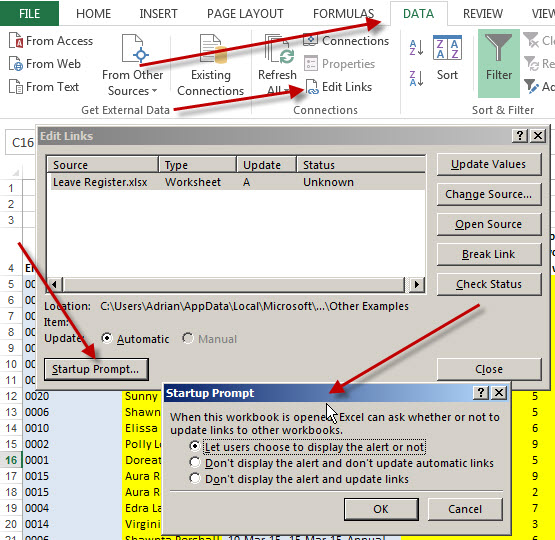
- Select the “Don’t display the alert and don’t update automatic links”.
- Press the OK button to save all the done changes.

- When the next time you will open your workbook you are asked to open the link.
Note:
If you need to update the link automatically then do this manually from the Edit links option. Apart from that, keep your linked workbook open in the Co-edit mode for updating the values.
Also Read: Fix ‘Excel Ran Out of Resources While Attempting to Calculate’
Tip 3- Delete The .lnk Folder via Registry Editor
To fix Excel sorry we couldn’t find your file error you need to delete the .ink folder related with the programs through the registry editor.
After the deletion, the operating system will recreate it.
Note: wrong tampering of the file from Windows registry leads to corruption of the operating system. This also results in system failure.
So, perform these steps at your own risk.
- Hit the Windows + R button from your keyboard, this will open the run dialog box. In which you have to type the regedit text and then press the OK button.
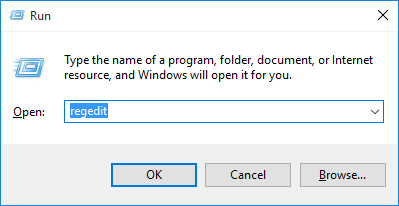
- Now visit the following location:
HKEY_CURRENT_USER\\Software\\Microsoft\\Windows\\CurrentVersion\\Explorer\\FileExts\\.lnk
- Search for the subfolder having the name UserChoice.

- After that delete the subfolder and then reboot your system.
Tip 4- Check for Updates
As mentioned in the causes, running an outdated version of Microsoft Office or operating system can trigger the “Sorry we couldn’t find your file. is it possible it was moved renamed or deleted” error. Therefore, ensure that both your OS & Microsoft Office are up-to-date. Sometimes, problems can be solved by installing the latest updates.
Tip 5- Your OneDrive Is Often Or Permanently Syncing
This message is also rendered when your OneDrive is permanently or often syncing. Mostly this situation arises when anyone tries to open Excel documents via OneDrive and you are syncing multiple numbers of Excel files.
Or the Excel file you are selecting for syncing is very large in size.
Following are the steps that you can apply to immediately fix the above problem:
- From the Windows taskbar notification area press the blue or white color OneDrive cloud icon.
- You need to tap over Show hidden icons arrow present next to notification area this will show you the OneDrive icon.

- Hit the Help & Settings>Settings.

- From the settings of Microsoft OneDrive, choose the Office.

Note: If you are unable to see the Office tab, and using MS Office with school or work account, then your IT administrator has the privilege to control these settings.
- Unselect the “Use Office applications to sync Office files that I open” option.
- Tap to the OK button to save all the change done in the setting.
Tip 6- Scan For System Errors With System File Checker
System File Checker (SFC) is the best in-built tool to fix any type of Windows system-related problems. In order to use it, just follow the below-given steps:
- Go to Start button and in the search box type cmd or Command Prompt.
- Make a right-click over the command prompt icon and then choose the option Run it as administrator.

- In the opened cmd window type the following text: sfc /scannow and press the Enter button.

- Wait until the whole process gets completed. Also, follow the upcoming on-screen instructions.
Also Read: Solving “Damage to The File Was So Extensive That Repairs Were Not Possible” Excel Error
Tip 7- Reinstall MS Excel to Fix Sorry We Couldn’t Find Your File. Was It Moved Renamed or Deleted
If none of the above solutions worked, consider uninstalling and reinstalling MS Office or Excel. It might be possible that Excel or the program files are corrupted, hence it should be fixed. To know more about this method with complete steps, Click Here.
How Do You Find An Excel File That Was Moved Or Deleted?
Method 1- Recovery From Recycle Bin
Chances are also that your Excel file is deleted from the original folder. In such case, windows shift your Excel file into the recycle bin. Well in such case data recovery is become so easy. For the recovery of deleted Excel sheets, here are the steps that you need to follow:
- Double-tap the Recycle Bin icon to open it.
- Here you have to search for the file/data you are looking for.
- Make a right-click on the file and then hit the Restore option to retrieve Excel files back.
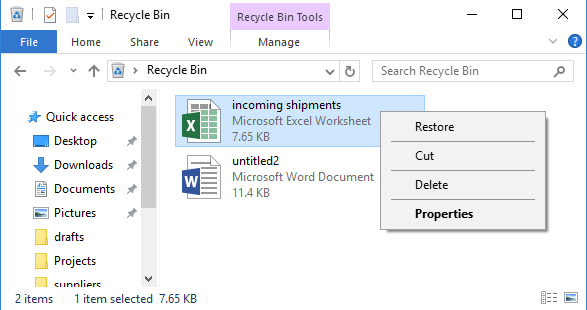
- Your Excel files will go directly into the folder where it is previously present.
[NOTE]: After completing this step you can easily access your Excel data. But be careful because this solution is not applicable in case of permanent file deletion.
So if you have permanently deleted the data from the recycle bin then try our next solution to recover permanently deleted Excel files.
Method 2- Use The Restore Function
Using the Windows restore function, you can easily recover permanently deleted Excel files. It is the default option present in your system.
- Go to the folder location in which your Excel file is present.
- Make a right-click on the folder and choose the Restore Previous Versions option.

After this, you will see that multiple versions are saved by the Windows.
- Choose your file’s latest version.
- At the end choose the restore It will recover deleted Excel file.
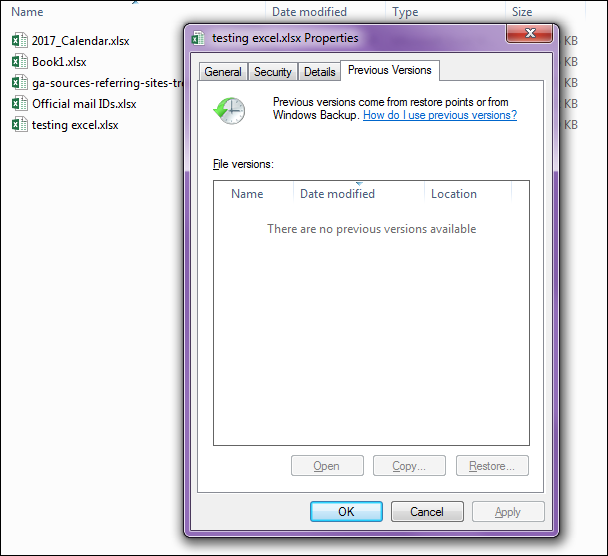
Another method involves using the System Restore function. Following steps you need to perform:
- Hit on the Control Panel.
- Tap to the “System and Security” option. If you are unable to find this tab then look for the search tab.

- On the left-hand side, there is list of options present, from which you have to tap the “System Protection” option.

- This will open a Pop-Up window of system properties. In this window switch to the System Protection tab and hit the System Restore button.
- Hit the ‘Next’ option and then select the restore point from where you want to bring back your file.
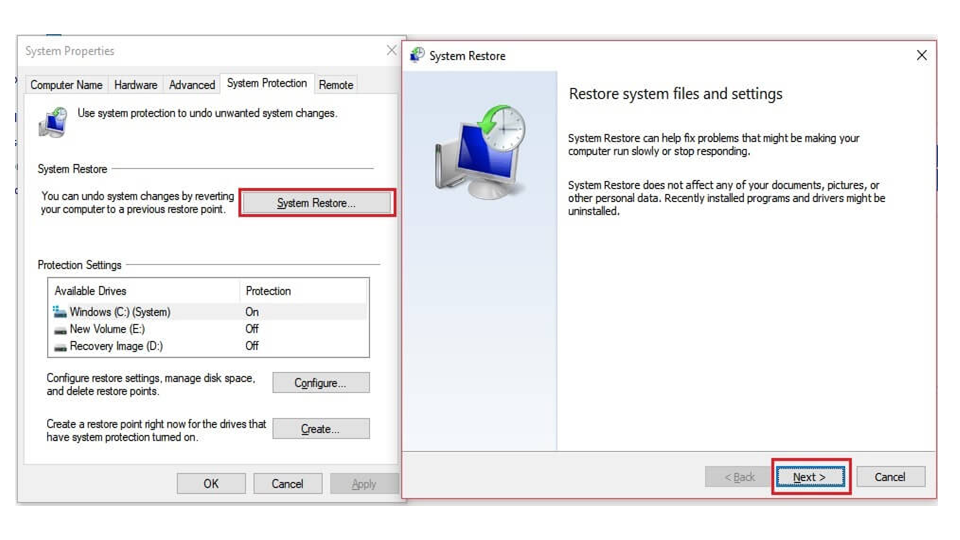
[NOTE]: Make sure you won’t choose any older restore point. As doing this will make changes in the system files.
Method 3- Best Excel Recovery Software to Recover Corrupted Excel Workbook
It doesn’t matter whether you have a backup of your corrupted Excel file or not, with the help of the Excel File Recovery Tool, you can repair your file successfully and recover all its components with ease. The components include the charts, worksheet properties cell comments, and other data. It is easy to use and supports all Excel versions.
Moreover, it is capable to fix multiple Excel workbook errors and issues. So, just give it a try once.
Steps to Utilize Excel File Recovery Tool:







Also Read: Fixing Excel You Can’t Change Part of An Array Error
Related FAQs:
Can I Undo a Rename?
Yes, by pressing Ctrl + Z keys together just after making the changes, you can undo your action,
Is The Error ‘Is It Possible It Was Moved Renamed or Deleted’ Common, And Can It Be Prevented?
Yes, it is relatively a common error. And you can avoid it in the future by implementing some preventative measures like keeping up to date your Excel application and OS, keeping backups of your file, etc.
How to Recover an Excel File That Has Been Moved Renamed or Deleted?
You can recover an Excel file that has been moved renamed or deleted from backup, Recycle bin, and previous versions.
Can I Rename an Excel File Without Triggering This Error?
Absolutely, to rename your Excel document, you have to make a single tap on the file, then type a new name that you want.
When Should I Seek Assistance from Except to Resolve ‘Sorry We Couldn't Find Excel’ Error?
After trying all the DIY methods mentioned above in this post, the error persists, then you should contact technical support or seeking assistance from experts to resolve sorry we couldn't find Excel message.
Final Verdict
Understanding & solving the error “Sorry we couldn’t find your file. was it moved renamed or deleted” is within your grasp. With the help of the above troubleshooting methods and expert tips, you can confidently solve this problem & prevent future occurrences.
That’s all…

Priyanka Sahu

Priyanka is a content marketing expert. She writes tech blogs and has expertise in MS Office, Excel, and other tech subjects. Her distinctive art of presenting tech information in the easy-to-understand language is very impressive. When not writing, she loves unplanned travels.