
While handling an Excel spreadsheet, you may face various errors and issues. One such warning message is- “This will cancel a pending data refresh. Continue.” This error appears when Excel is trying to pull data from external sources, like Power Query, pivot tables, or connected databases. If the process is interrupted, Excel warns users that ongoing data operations will be terminated. Well, this blog describes the major factors and quick solutions to fix it.

So, let’s get started…!
To fix corrupted Excel files, we recommend this tool:
This software will prevent Excel workbook data such as BI data, financial reports & other analytical information from corruption and data loss. With this software you can rebuild corrupt Excel files and restore every single visual representation & dataset to its original, intact state in 3 easy steps:
- Try Excel File Repair Tool rated Excellent by Softpedia, Softonic & CNET.
- Select the corrupt Excel file (XLS, XLSX) & click Repair to initiate the repair process.
- Preview the repaired files and click Save File to save the files at desired location.
What Causes a Pending Data Refresh Error?
Various reasons may contribute to this cryptic error; the most common causes are as follows:
- The external data source becomes unresponsive.
- Weak internet connection.
- The refresh command conflicts with existing queries.
- Due to Excel file corruption or Excel session.
- Faulty add-ins are interfering with data operations.
How to Fix Excel This Will Cancel a Pending Data Refresh Error?
Take a quick overview of the fixes mentioned here to fix this error:
Solution 1- Wait for the Refresh to Complete
The very first method you can try is to let Excel complete the refresh process. If the data source is slow, just be patient. Avoid clicking other buttons during this process.
Solution 2- Check Your Network Connection

An extremely slow internet connection may cause ‘this will cancel a pending data refresh. Continue’ error. So, if you are working with online sources such as SharePoint, make sure your device has a stable network. Reconnect if needed and try again.
Also Read: Clipboard Glitches? Fix Excel There’s a Problem with The Clipboard Error Now!
Solution 3- Disabling Background Data Refresh
Another quick solution you can try to stop Excel from refreshing data in the background is to disable background data refresh:
- Open the sheet, click on Data
- Then, click on the Queries & Connections.

- Make, right-click on query & select Properties.
- After that, uncheck the Enable background refresh >> click OK.
- This will complete the refresh immediately.
Solution 4- Fix Excel Workbook Corruption with Open & Repair
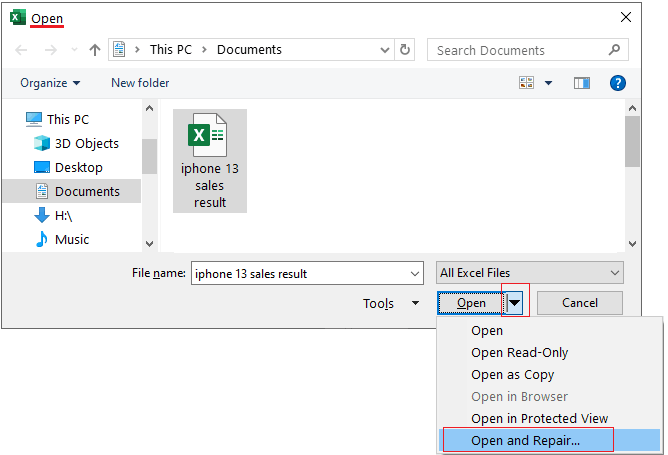
If you are facing this error message due to Excel document corruption, use Excel’s built-in Open and Repair tool:
- Open the Excel File >> go to the File>> Open.

- Go to the location where a corrupted file is stored.
- Click an arrow next to the “Open” button >> “Open and Repair.”.
In case the Open and Repair tool fails to work, opt for the MS Excel Repair Tool. This software can repair corrupt, damaged as well and errors in Excel files. It allows you to restore all the corrupt workbook components, including the charts, worksheet properties, cell comments, etc.
Solution 5- Fix Excel This Will Cancel a Pending Data Refresh Error by Opening Excel in a Safe Mode
An outdated or damaged Excel add-in can disturb the data refreshing feature and trigger this error. To solve it and make this feature work again, open the Excel in a Safe Mode. This will immediately disable all the corrupted add-ins and assist you in resuming your work.
Click here to open Excel in safe mode.
Solution 6- Update Excel Version
Using outdated software can lead to compatibility issues. Always install the latest updates for Microsoft Office to tackle the hectic situations.
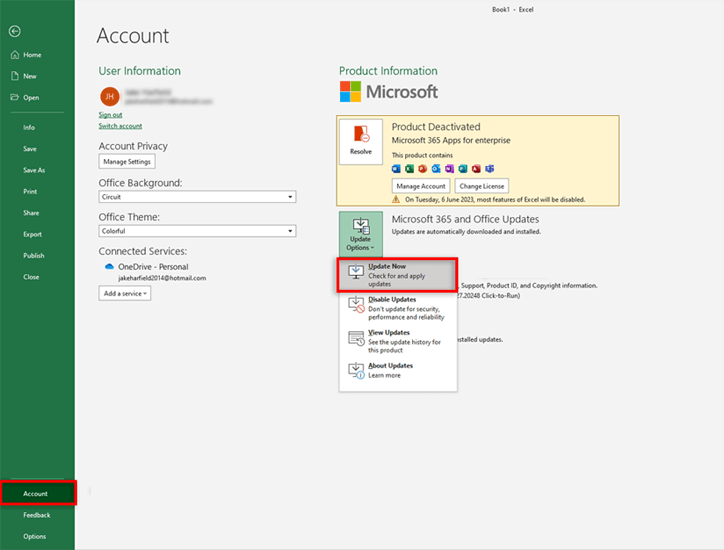
- Go to File > Account
- Then, click on Update Options > Update Now.
Also Read: Excel “Sorry We Couldn’t Find Your File. Was It Moved Renamed or Deleted” Error!
Solution 7- Repairing MS Office
If none of the aforementioned solutions fail to work, consider repairing the MS Office. Follow the beneath steps to do so:
- Initially, click on the Start menu >> choose Settings.
- Select Apps from the left pane.
- Next, click on the Apps & Features.

- Then, scroll down and locate Microsoft Office.
- Now, click on the three-dot menu.
- Go to Advanced options & then Online Repair.
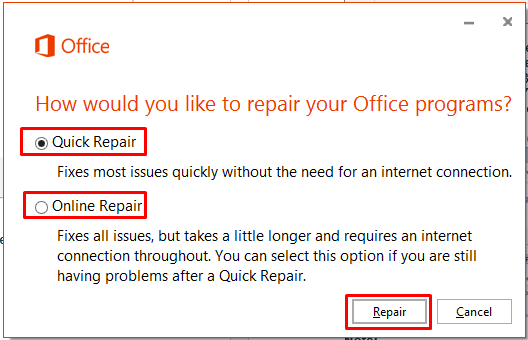
- Finally, click on Repair > Repair.
That’s it…
Advanced Fix: Use VBA to Cancel Refresh
If you are an advanced user and have knowledge about VBA coding, then well done. Excel freezes often, use a simple VBA code to cancel all pending refreshes:
vba
CopyEdit
Sub CancelAllDataRefresh()
Dim cn As WorkbookConnection
For Each cn In ThisWorkbook.Connections
cn.CancelRefresh
Next cn
End Sub
To run it:
- Press Alt + F11 to open the VBA editor.
- Insert a new module.
- Paste the code and run.
This method stops all refresh attempts instantly.
Frequently Asked Questions:
What Does It Mean to Refresh Data?
Data Refresh in Microsoft Excel contains updating/replacing current data with the most current data available.
How Do I Turn Off Refresh Data When Opening Excel?
To turn off automatic refresh in MS Excel, follow the below steps:
- Navigate to 'File' tab >> choose 'Options' >> 'Formulas'.
- Then, set the calculation options to 'Manual' >> hit 'OK' to save the changes.
How to Automatically Update Data in Excel from Another Workbook?
To automatically update data in your Excel worksheet from another workbook:
- Open your both Excel worksheets.
- Select information from your source worksheet.
- Then, copy the formula and click the corresponding area of the new spreadsheet.
- Now, enter the link and add criteria.
- Set update intervals.
- Save the workbook.
How Do I Disable Data Refresh in Excel?
To disable data refresh in Excel, follow these steps:
- Click on the Preferences ( ).
- Choose the Other tab.
- In the Automatic instance & KPI value refresh, click Disable to turn off the settings.
- Hit OK to save and exit Preferences.
How To Update Data from One Excel Sheet to Another Automatically?
To automatically transfer data from one Excel worksheet to another:
- Open two sheets holding the same simple dataset.
- Next, select a cell and type Ctrl + C / Cmd + C to copy it.
- Now, right-click on the equivalent cell & go to the Paste > Link.
Wrapping Up
The error message “This will cancel a pending data refresh. Continue” can be irritating. Nevertheless, with the right steps, you can solve this error and prevent it efficiently.
All you need to do is apply the fixes above to keep your workbooks running smoothly and avoid interruptions during important data operations.

Priyanka Sahu

Priyanka is a content marketing expert. She writes tech blogs and has expertise in MS Office, Excel, and other tech subjects. Her distinctive art of presenting tech information in the easy-to-understand language is very impressive. When not writing, she loves unplanned travels.