
Sometimes, when the user tries to copy anything from the Microsoft Excel file the Excel application throws a frustrating warning message “There’s a problem with the clipboard but you can still paste your content within this workbook.” This Excel clipboard error disturbs the entire workflow and seamless user experience. In this blog, we will unravel the mystery behind this error and how to solve it with less effort.
Here is the screenshot of the error:

Read further to know more in detail…
To Fix Corrupt Excel File, we recommend this tool:
This software will prevent Excel workbook data such as BI data, financial reports & other analytical information from corruption and data loss. With this software you can rebuild corrupt Excel files and restore every single visual representation & dataset to its original, intact state in 3 easy steps:
- Try Excel File Repair Tool rated Excellent by Softpedia, Softonic & CNET.
- Select the corrupt Excel file (XLS, XLSX) & click Repair to initiate the repair process.
- Preview the repaired files and click Save File to save the files at desired location.
Understanding There Is a Problem With The Clipboard Error in Excel
All MS Office Applications like Microsoft Excel, PPT, and others have their built-in clipboard feature. Microsoft Office allows its users to copy the same formatting or paste it as plain text.
But sometimes, the Excel user fails to copy the content of the spreadsheet because another application is using your clipboard and starts throwing Excel there’s a problem with the clipboard, but you can still paste error message.
Before fixing this issue, you have to find out which program is using your clipboard and preventing you from accessing it through Microsoft Excel.
Why Does Excel Keep Saying There’s a Problem with The Clipboard?
There are a wide variety of reasons behind Excel displaying this peculiar error. Here we have listed the most common ones:
- Disabled live preview option
- Installation of wrong plug-ins within MS Office
- Corrupted Excel file
- Outdated Excel software
- Due to corrupted MS Office.
Methods to Fix There’s a Problem with The Clipboard but You Can Still Paste Your Content
Follow the below stepwise methods to troubleshoot the clipboard error in Excel.
Quick Fixes:
- Try Some Basic Tips
- Clear Windows Clipboard History
- Enable The Live Preview Option
- Clear The Excel Clipboard
- Close Other Applications
- Enable/Disable Clipboard In Excel
- Office Plug-ins
- Repair your Corrupted Excel Sheet
- Reinstall The Microsoft Office Application
- One-Stop Solution: Use Excel Repair Tool
Method 1- Try Some Basic Tips
Before exploring advanced solutions, it is always recommended to try some basic tips first. Here you have to do the same thing and go for some quick fixes first:
- Restart the Excel program.
- Restart your computer.
- Check for software conflicts.
- Ensure your MS Office is up to date.
Method 2- Clear Windows Clipboard History
Generally, the Clipboard glitches are solved by clearing the Clipboard history. Here, you’ve to do the same thing by following the below steps:
- Press Windows + V keys together to open a Clipboard.
- Then, find and click on Clear All option to delete all the Clipboard history.

Also Read: 10 Tips for “The File Format and Extension Of Don’t Match” Error!
Method 3- Enable The Live Preview Option
Another solution that you can try to fix there is a problem with the clipboard error in Excel is to enable the live preview option. Follow the below steps:
1: First you have to open the Microsoft Excel
2: Then, navigate to the File option, present in the upper-left corner.
3: Now, click on the Options and then go to the General.

Step 4: Here, under the User Interface Options option you have to mark the Enable Live Preview.

At last, try to copy and paste the Excel content to verify the issue. This solution will help you to make your Excel clipboard error-free with ease.
Method 4- Clear The Excel Clipboard
When too much data or items are collected on the clipboard, you may start getting “clipboard storage is full” or “there’s a problem with the clipboard” like errors. So it’s important to clear the clipboard as soon as possible.
To delete entire clipboard data or any individual clipboard data, firstly you need to open the clipboard task pane.
- Open Excel >> from the Home tab, and you will get into the Clipboard. Hit the dialog box launcher icon present next to the Clipboard option.

- Well, the Clipboard task pane starts appearing on the left side of the Excel spreadsheet and shows all clips in the clipboard.
- To clear up all the data from the clipboard, hit the Clear All option.
- Now you can delete the individual clip, and place your mouse point next to the clipboard item. Hit the arrow sign present next to the clip’s right section and hit the Delete button.

Method 5- Close Other Applications
Apart from Excel, if any other applications or programs are running in the background on your PC, then also it can lead to clipboard issues. Simply close all the apps opened in parallel to Excel to solve the error.
Here’s how you can do so:
- Press the CTRL+ Shift + ESC keys together to open a Task Manager.
- Go to Processes tab.
- Now, scroll down & locate the Windows Explorer.
- Simply, right-click on the Windows Explorer & select Restart.

Also Read: Solving “Damage to The File Was So Extensive That Repairs Were Not Possible” Excel Error
Method 6- Enable/Disable Clipboard In Excel to Fix Excel There’s A Problem With The Clipboard Error
To enable/disable Clipboard In Excel, just follow the below-given steps. This solution is applicable for all MS Office 2016 or 2013 applications.
1: Open Microsoft Excel >> Go to the “Home” tab.
2: Choose the arrow present next to the “Clipboard“.
3: Choose the “Options” present at the bottom-left of the window.
Now, select or deselect options according to your requirements:

Show Office Clipboard Automatically – Through this, you can enable or disable the appearance of the Microsoft Office Clipboard sidebar.
Show Office Clipboard When CTRL + C is Pressed Twice – This is the option that will appear up the clipboard sidebar when the user presses the CTRL + C twice.
Collect Without Showing Office Clipboard – If you enable this option then it will automatically copy items without showing the clipboard sidebar.
Show Office Clipboard Icon on Taskbar – This option will enable or disable the icon present in the Windows Taskbar.
Show Status Near Taskbar When Copying – Through this, you can turn on or off the yellow box that comes into view at the lower-right corner.
Method 7- Office Plug-ins
Possibilities are also high that some wrong plug-ins are installed within MS Office and so you are getting this error. Check out the following steps to overcome this situation:
- First of all, open the MS Office application in which you are getting the Excel clipboard error. After that hit the File > Options tab.
- Now from the left panel choose the “Add-ins” tab.
- Within the Active Add-ins available list you have to check one by one which plug-in is actually causing the issue.
- If you find anything suspicious then choose the “Go…” button and uncheck that plug-in.

Method 8- Repair your Corrupted Excel Sheet
File corruption is one of the causes of Excel clipboard errors. If your Excel file is damaged, you can fix it using Excel’s built-in Open & Repair tool.
To know how to use this utility, follow the below steps:
- Open Excel >> go to the File >> Open.
- Next, click on the Browse option to choose the Excel file in which you are facing the error.
- Click on arrow next to an Open button >> select the Open and Repair.

- Finally, click on Repair to recover as much data as possible.
- If the repair option doesn’t work, click Extract Data button.

Also Read: Fix ‘Excel Ran Out of Resources While Attempting to Calculate’
Method 9- Reinstall The Microsoft Office Application
If none of the above manuals worked for you, try uninstalling and then reinstalling the MS Office package. This should fix the Office corruption or any other bug within the Office.
Follow the below instructions carefully to uninstall and reinstall the Office application.
1: Go to the Start menu, type the Control Panel >> choose Control Panel from the search results to open it.
2: Now, navigate through the Programs > Programs and Features, then right-click on your Microsoft Office product, and select Uninstall.
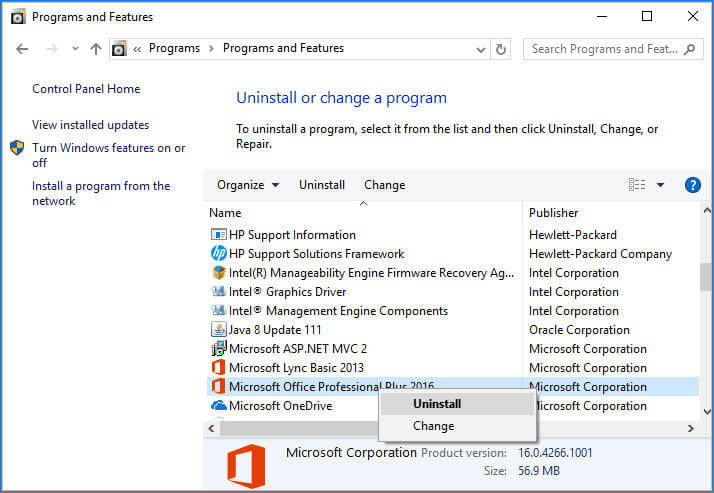
3: At last, simply follow the on-screen instructions.
After uninstalling the Microsoft Office, you have to install the Office package again.
One-Stop Solution: Use Excel Repair Tool to Fix Worbook Corruption
If the Excel file is severely corrupted and the Open and Repair tool doesn’t work, in that case, you should go with a professional MS Excel Repair Tool. It will help you to deal with several Excel errors and also recover lost Excel data without any hassle.
You don’t need any professional skills to operate this tool and deal with Excel errors, simply download – install and run this tool on your system. Add your Excel file and this tool will automatically detect & fix the issues.
Steps To Utilize MS Excel Repair Tool:







Related FAQs:
Why Can't I Paste the Data Clipboard in Excel?
It might be possible that there are wrong plug-ins installed within MS Office, so you can’t copy and paste the data clipboard in Excel.
What Is the Quickest Way to Resolve Clipboard Errors in Excel?
Restarting the MS Excel program and rebooting your PC is often the quickest solution to resolve clipboard errors in Excel.
How Often Should I Update Microsoft Office to Prevent Clipboard Problems?
You should regularly check for Office updates at least once a week to ensure you’ve the latest fixes & improvements.
Conclusion
For seamless user experience, addressing the clipboard issues in Excel is quite important. Thus, if you are facing any Excel clipboard error or there’s a problem with the clipboard but you can still paste your content within this workbook then this blog will be life savour for you. By understanding the problem and implementing the solutions outlined here, you can solve this problem and navigate Excel with confidence.

Priyanka Sahu

Priyanka is a content marketing expert. She writes tech blogs and has expertise in MS Office, Excel, and other tech subjects. Her distinctive art of presenting tech information in the easy-to-understand language is very impressive. When not writing, she loves unplanned travels.