
Encountering the “Formula Omits Adjacent Cells” error message when working on your crucial spreadsheet? Well, this error occurs when Excel detects that a nearby cell should be included in your formula. This warning protects your data, yet it can interrupt your workflow.
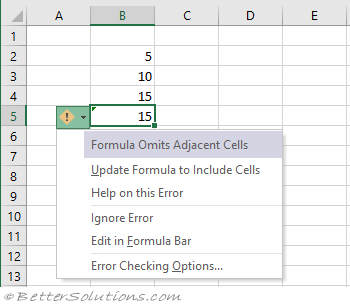
In this post, I will explore why the formula omits adjacent cells error in Excel occurs and how to fix it by applying different solutions.
To repair corrupted Excel file data, we recommend this tool:
This software will prevent Excel workbook data such as BI data, financial reports & other analytical information from corruption and data loss. With this software you can rebuild corrupt Excel files and restore every single visual representation & dataset to its original, intact state in 3 easy steps:
- Try Excel File Repair Tool rated Excellent by Softpedia, Softonic & CNET.
- Select the corrupt Excel file (XLS, XLSX) & click Repair to initiate the repair process.
- Preview the repaired files and click Save File to save the files at desired location.
What Does Excel Error Formula Omits Adjacent Cells Mean?
MS Excel causes this warning message when trying to create or edit a formula that eliminates cells directly next to a referenced range. It believes those cells should be part of your calculation. This issue happens during tasks like summing columns, calculating averages, or updating data tables.
Common Causes:
- Hidden cells or blank cells.
- When the formula doesn’t include nearby cells.
- Corrupted Excel Workbook.
- Incompatible background running applications.
- Irregular data structures.
So, these are the roots that trigger the error in MS Excel now; follow the solutions given below one by one carefully.
How to Fix the Formula Omits Adjacent Cells Error in Excel?
In this section, I’ve covered basic to advanced solutions in detail. So, let’s check them out one by one.
Method 1- Use “Update Formula to Include Cells” Option
The most effective fix to tackle this situation is to use “Update Formula to Include Cells” which you can just do next to the error. This option is an instant solution that can help you adjust your formula automatically. Also, it helps maintain consistency across your Excel worksheet & avoids missing data.
Also Read: Excel Cannot Shift Nonblank Cells Off of the Worksheet Error: Quick Fixes!
Method 2- Disable the Warning
Sometimes, this alert is unnecessary, and you may want your formula to escape adjacent cells. In such situations, you can turn off this rule.
To do so, follow the steps below:
- Open Excel >> go to File > Options.

- Next, click on the Formulas option >> locate Error Checking Rules.
- Now, uncheck both checkboxes of “Formulas referring to empty cells” or “Formulas which omit cells in a region.”
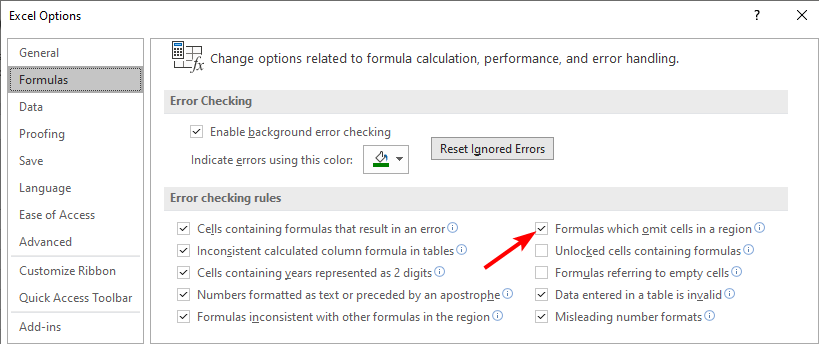
This action will help you prevent Excel from displaying the warning again.
Method 3- Close the Background Apps
As said above, the formula omits adjacent cells error in Excel can be triggered by programs that are incompatible with one another. So, consider closing the incompatible background running applications to fix the error.
Here is how you can do so:
- Press Ctrl+Alt+Del >> click Task Manager option to open it.
- Here, you will see the list of active programs.
- Then, go to the Processes tab >> choose unnecessary programs individually.
- Click the End task.
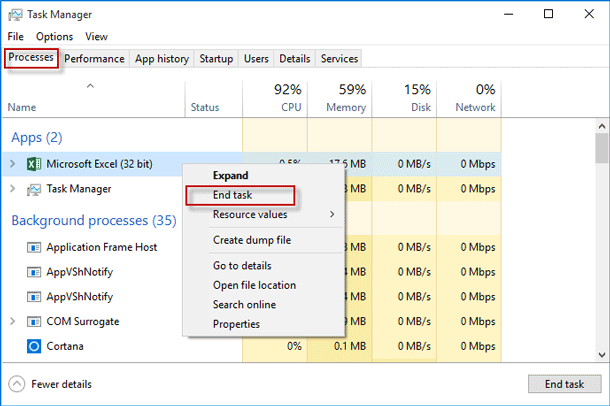
- Now, apply the formula in the cell(s) & check if the error still appears again or not.
Method 4- Review Your Cell Ranges
The next solution you can try is verifying your cell ranges. However, reviewing your formulas certifies that significant values are included. You can evade data loss & calculation errors with a quick double-check.
Method 5- Unmerge the Spreadsheet Cells
In MS Excel, unmerging the cells is an outstanding trick that can be easily applied to get rid of this error. Here is how to unmerge the cells and how to fix formula omits adjacent cells in Excel:
- Select cell(s) you need to unmerge.
- Go to Home tab, in the Alignment group, select Merge & Center.
- Or else, click on a dropdown arrow next to a Merge & Center option >> click Unmerge Cells.

Also Read: Fixing Excel Error “To Do This All Merged Cells Need to Be of the Same Size” Easily!
Method 6- Apply Dynamic Functions
Many users have conveyed in the forum sites that using the dynamic functions like FILTER, UNIQUE, or SUMIFs can automatically adapt to altering data. These functions will help you avoid range problems and expand with your dataset. As a result, Microsoft Excel rarely informs you about omitted cells.
Method 7- Repair the Corrupted Workbook to Fix the Formula Omits Adjacent Cells Error in Excel
If the error is causing due to Excel workbook or worksheet corruption, then use the MS Excel Repair Tool to fix your corrupted file. It is one of the best Excel repair software that not only helps to repair corrupt Excel files but also recovers their components like charts, worksheet properties, cells, cell comments, etc, with 100% integrity.
Therefore, just download this program from the buttons below.
Follow the user guide below for this tool:







Unique FAQs:
In Microsoft Excel, an adjacent cell is a cell that is right next to another cell, sharing the border either vertically or horizontally.
To remove error cells in Excel by using the IFERROR function.
By using an implicit intersection inside the Excel formula, you can stop a formula from spilling into the next cell in Excel.
To resolve formula error in Excel, select the worksheet you need to resolve the error. If the sheet is manually calculated, then you have to press the F9 key to recalculate. In case, the Error Checking dialog box is not shown, select Formulas >> Formula Auditing >> Error Checking. What Is an Adjacent Cell in Excel?
How Do I Remove Error Cells in Excel?
How Do You Stop a Formula from Spilling into the Next Cell in Excel?
How To Resolve Formula Error in Excel?
Time to Conclude
So, these are the fixes that work for you to troubleshoot formula omits adjacent cells error in Excel sheet. Here, I tried my best to list down the effective methods. Now, it’s your turn to follow them and solve the error easily.
I hope our guide works for you. Nevertheless, if there is anything I missed, feel free to share it with us on our social media FB & Twitter Pages.

Priyanka Sahu

Priyanka is a content marketing expert. She writes tech blogs and has expertise in MS Office, Excel, and other tech subjects. Her distinctive art of presenting tech information in the easy-to-understand language is very impressive. When not writing, she loves unplanned travels.