
Recently, many users have reported in the community sites that they faced rows won’t unhide issue while working on the Excel spreadsheet. This problem usually occurs due to hidden formatting, frozen panes, or protected sheets. Luckily, it can be easily fixed by trying some workable solutions. This guide describes the most effective methods to help you solve Microsoft Excel rows won’t unhide & restore your data without wasting time.
To repair corrupted Excel file data, we recommend this tool:
This software will prevent Excel workbook data such as BI data, financial reports & other analytical information from corruption and data loss. With this software you can rebuild corrupt Excel files and restore every single visual representation & dataset to its original, intact state in 3 easy steps:
- Try Excel File Repair Tool rated Excellent by Softpedia, Softonic & CNET.
- Select the corrupt Excel file (XLS, XLSX) & click Repair to initiate the repair process.
- Preview the repaired files and click Save File to save the files at desired location.
Why Won’t My Hidden Rows Unhide in Excel??
After exploring, I determined that the issue is most likely appear when Excel settings conflict with row visibility. However, it is important to fix this problem ASAP.
But before that, let’s extract the common culprits:
- Incorrect Excel settings
- Unnecessary active filters
- Corrupted workbook
- Due to frozen panes
- Protected Excel sheet
- When row height is set to zero, Excel may refuse to unhide rows.
As you have known the common causes, let’s proceed to the next section to learn the possible fixes for the Excel spreadsheet that won’t unhide rows.
Method to Fix Microsoft Excel Rows Won’t Unhide Problem
Follow the below step-by-step tricks to troubleshoot Excel hidden rows won’t unhide.
Way 1- Use the “Format” Option to Unhide the Rows
Since the rows in the spreadsheet are hidden so, try unhiding them by using the Excel’s Format tool. This tactic forces Excel to apply visibility settings.
Follow the below steps to do so:
- Press CTRL+A keys together to select the entire sheet.
- Go to the Home tab >> click Format in the Cells.

- Choose the Hide & Unhide
- Click on Unhide Rows.
Now, check if the hidden rows are visible to you. If not, try the further solutions.
Also Read: How to Remove Blank Rows in Excel Sheet? – 6 Ways!
Way 2- Unfreeze the Frozen Panes
As already mentioned in the causes section, frozen panes are another foremost reason for Microsoft Excel rows won’t unhide bug. This feature often prevents hidden rows from reappearing. You may think rows are hidden but they are simply locked under the frozen section.
Follow these steps:
- In the opened sheet >> click on the View

- Choose the Freeze Panes. >> Unfreeze Panes.
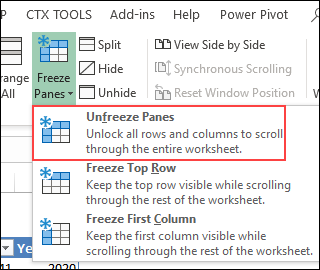
This will remove the freeze and unhide the rows again.
Way 3- Unprotect the Sheet
If your MS Excel sheet is password-protected, then you cannot modify row visibility. All you need to do is to remove the password to make it unprotected.
Here’s how you can do so:
- Open the workbook with a protected sheet.
- Then, click on the Review tab on a ribbon.
- Under the “Changes” group, you have to click on the Unprotect Sheet.

- Now, enter the password when you see a password dialog box. Click on OK, the sheet is now unprotected.

Way 4- Remove Active Filters in the Sheet
Sometimes, applied filters in the worksheet may trigger unforeseen issues including Excel spreadsheet won’t unhide rows. Active filters often hide data unintentionally. To overcome this hectic situation, follow the below instructions carefully:
- Click anywhere inside your dataset.
- After that, click on the Data
- Select Clear in the Sort & Filter.
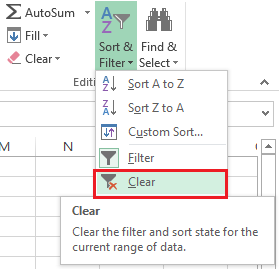
This action will remove the applied filters & restores hidden rows.
Way 5- Use Best Software to Fix Microsoft Excel Rows Won’t Unhide Problem
It might be possible that you are unable to see the spreadsheet rows or columns due to severely damaged or corrupted workbook. The file corruption can be repaired with the use of the qualified utility tool, Excel Repair.
This software can even restore the corrupted workbook components with 100% integrity. You can download the free trial version of this tool to know how it works.
Steps to Utilize MS Excel Repair Tool:







Way 6- Reset Row Height
When rows height is set to zero, they go hidden. In such a situation, it is vital to make them visible again by resetting the row height in the Excel.
Steps to be followed:
- Select the affected row range.
- Navigate to Home > Format.
- Click Row Height >> enter a value like 15.

After adjusting the height, the rows should become visible immediately.
Way 7- Resetting Excel Settings
Last but not least, if the corrupted Excel settings or temporary glitches causing the visibility issues, try resetting the sheet.
Try these steps:
- Close MS Excel & reopen the file.
- Copy the entire data to a new workbook.
- Now, reset view using View > Normal
These actions refresh the interface and clear out display problems.
Also Read: Master Spreadsheet Skills: How to Outline Columns and Rows in Excel?
Related FAQs:
Excel not responding when unhiding the rows due to frozen Panes or corrupted worksheet.
To unfreeze the hidden rows in Microsoft Excel, navigate to View tab > Freeze Panes > Unfreeze Panes.
Hide & Unhide feature in Excel is the best way to unhide all rows. You can select the entire sheet and then unhide rows by navigating to Home tab >> Cells group >> Format button >> Hide & Unhide command.
The shortcut you can use to unhide hidden rows in Excel is Ctrl + Shift + 9. Why Is Excel Not Responding When Unhiding Rows?
How Do I Unfreeze Hidden Rows in Excel?
Is There a Way to Unhide All Rows in Excel?
How to Unhide Hidden Rows in Excel Shortcut?
Time to Sum Up
Dealing with Microsoft Excel rows won’t unhide problem can be challenging, but with the correct approach, it can be fixed. However, by understanding the major factors and implementing the troubleshooting methods stated in this post, you can solve it easily and keep your spreadsheets running smoothly.
Moreover, if you have further queries & doubts, visit us on our Facebook or Twitter pages.
References:
- https://techcommunity.microsoft.com/discussions/excelgeneral/help-i-cant-unhide-my-rows/1279108
- https://learn.microsoft.com/en-us/answers/questions/5272735/i-cant-unprotect-a-protected-excel-file-even-thoug
- https://techcommunity.microsoft.com/discussions/excelgeneral/unhide-rows-doesnt-work—exxcel-365/1122787

Priyanka Sahu

Priyanka is a content marketing expert. She writes tech blogs and has expertise in MS Office, Excel, and other tech subjects. Her distinctive art of presenting tech information in the easy-to-understand language is very impressive. When not writing, she loves unplanned travels.