
You may receive the “To do this all merged cells need to be of the same size” error when attempting to sort a range that includes merged cells of different dimensions. Also, it appears when trying to do a custom sort of an EXCEL table with various records. Below, you can find the interface of this error:
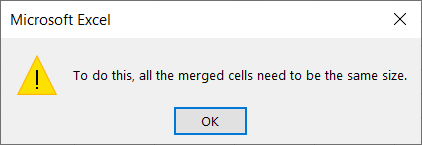
In this exclusive post, you will learn the major roots and easy methods to fix it fast and prevent it from occurring again.
To fix corrupted Excel files, we recommend this tool:
This software will prevent Excel workbook data such as BI data, financial reports & other analytical information from corruption and data loss. With this software you can rebuild corrupt Excel files and restore every single visual representation & dataset to its original, intact state in 3 easy steps:
- Try Excel File Repair Tool rated Excellent by Softpedia, Softonic & CNET.
- Select the corrupt Excel file (XLS, XLSX) & click Repair to initiate the repair process.
- Preview the repaired files and click Save File to save the files at desired location.
Why This Message Occurs?
This error message occurs when merged cells vary in column or row span. Besides, there are some other reasons for triggering this:
- Corrupted workbook or worksheet
- When there are merged cells in the data
- Glitches in the Excel program.
- Due to a corrupted MS Office suite.
As you know, the common reasons now, it’s time to know the possible ways to fix ‘to do this, all the merged cells need to be the same size copy and paste’ error.
What to Do If You Receive to Do This All Merged Cells Need to Be of the Same Size Error in Excel?
Here are the methods to be followed to get rid of this error:
Way 1- Restart the Excel Application
Before trying any advanced solutions, it’s recommended to close and reopen your Excel program. Many users have found this technique useful in their cases to resolve minor glitches or errors in Microsoft Excel.
Also Read: Excel Cannot Shift Nonblank Cells Off of the Worksheet Error: Quick Fixes!
Way 2- Adjust The Merged Cells Size
Another effective solution you can try is to adjust the size of your merged cells. This comprises choosing each merged cell & resizing them discretely.
To do so, follow the steps below:
- Select a merged cell(s) that you need to adjust.

- Take the cursor over an edge of a cell until you see a resize cursor.
- After that, click & drag to resize a cell to your chosen dimensions.
Way 3- Fix to Do This All Merged Cells Need to Be of the Same Size by Unmerging the Excel Cells
Unmerging the cells in MS Excel is an excellent trick that can be used to fix this error. Here’s how to unmerge the spreadsheet cells:
- Select cell(s) that you need to unmerge.
- Navigate to Home tab, under the Alignment group, you have to click on Merge & Center.
- Otherwise, click on the dropdown arrow next to a Merge & Center option >> choose Unmerge Cells.

Way 4- Using Format Painter
Format Painter is an outstanding tool that allows you to copy the formatting from 1 cell & apply it to others. So, you can use this feature to troubleshoot To do this all merged cells need to be of the same size error in Excel.
Here’s how you can use it:
- Select the merged cell that has a size you need.
- Next, click Format Painter tool under a Clipboard group on a ‘Home’
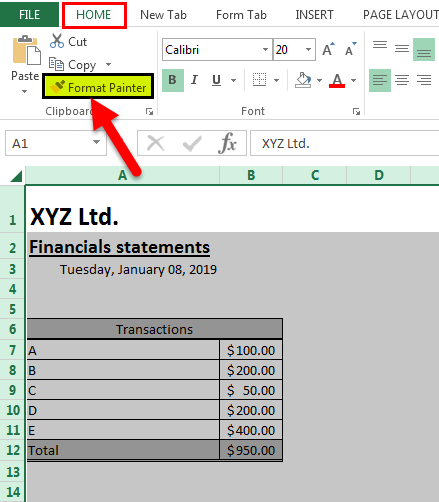
- Click on the merged cells you want to apply the same size to. You can click and drag to apply the formatting to multiple cells at once.
Way 5- Repairing MS Office
A corrupted MS Office can also trigger this message. However, you can solve it by repairing the Microsoft Office files. For this, you have to:
- Close all running MS Office programs.
- Next, open a Control Panel.

- Click Programs, then Programs and Features.
- Choose Microsoft Office. Make a right-click on it >> click Change.
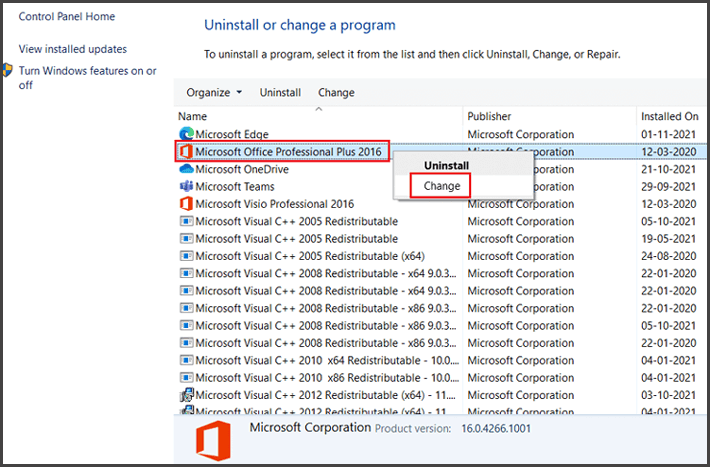
- Select between Quick Repair and Online Repair.
- After that, click Repair.
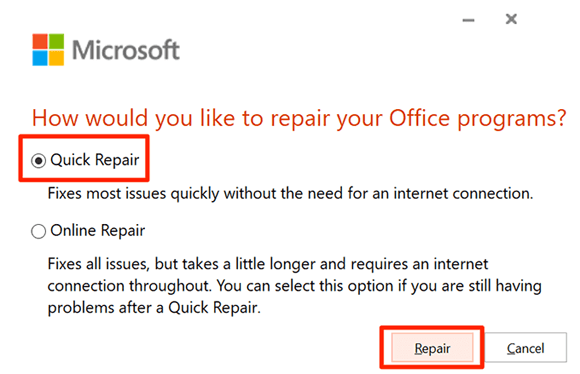
- This repair process may take some time.
- When done, check your Excel program and files for the error.
Way 6- Use Excel Repair Tool to Fix File Corruption
If you are facing this hectic error due to Excel workbook or worksheet corruption, use the professional Excel Repair Software. It is specially intended to fix any sort of corruption problem & Excel error. Likewise, recover the entire data from the corrupted workbook quickly and easily.
Frequently Asked Questions:
Frankly speaking, merged cells in an Excel spreadsheet cannot be resized individually. You will have to unmerge the cells by selecting the merged cell & then clicking on the ‘Merge & Center’ button in an ‘Alignment’ group on the ‘Home’ tab.
You can use the Center Across Selection feature instead of merging cells.
To fix this error, you can copy and paste a range of cells that matches the size of the merged cell.
It is possible that the workbook is password-protected or shared, or that the cells are in edit mode.
You can use the keyboard shortcut CTRL + M keys to copy and paste with merge formatting. How Do I Resize Merged Cells in Excel?
What to Use Instead of Merge Cells?
How to Fix We Can't Do That to a Merged Cell?
Why Is Excel Not Allowing Me to Merge Cells?
How Do I Copy and Paste with Merge Formatting?
Summing Up
Fixing the ‘to do this, all the merged cells need to be the same size copy and paste’ error is simple. All you need to do is to follow the step-by-step methods mentioned above to tackle the situation. Moreover, stick to best practices to avoid future issues.
Avoid merging for functionality—save it for formatting only.

Priyanka Sahu

Priyanka is a content marketing expert. She writes tech blogs and has expertise in MS Office, Excel, and other tech subjects. Her distinctive art of presenting tech information in the easy-to-understand language is very impressive. When not writing, she loves unplanned travels.