
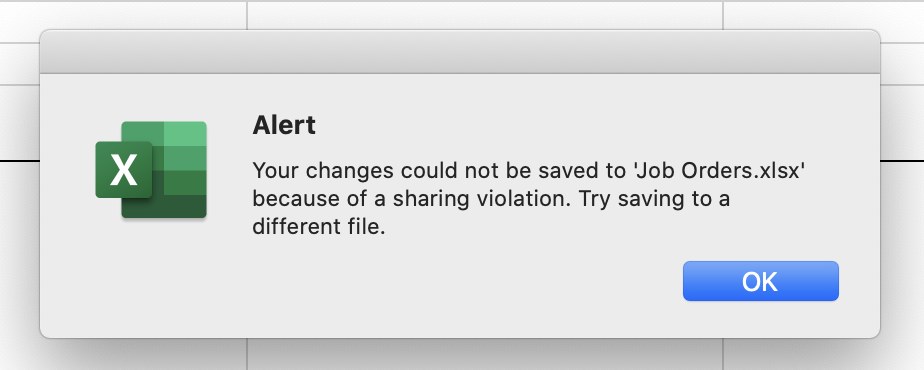
Stuck with peculiar error “Your changes could not be saved to ‘FileName’ because of a sharing violation. Try saving to a different file.”? If so, do not fret; this warning appears during saving or auto-saving; hence, you may lose recent edits.
Here is the screenshot of the complete error message:
Well, in this blog, you will learn different ways to troubleshoot this error successfully. So, let’s proceed…
To fix corrupted Excel files, we recommend this tool:
This software will prevent Excel workbook data such as BI data, financial reports & other analytical information from corruption and data loss. With this software you can rebuild corrupt Excel files and restore every single visual representation & dataset to its original, intact state in 3 easy steps:
- Try Excel File Repair Tool rated Excellent by Softpedia, Softonic & CNET.
- Select the corrupt Excel file (XLS, XLSX) & click Repair to initiate the repair process.
- Preview the repaired files and click Save File to save the files at desired location.
Why Is Excel Saying Your Changes Could Not Be Saved?
When this error appears it simply means that the program cannot write data to a file. It happens due to various reasons, including:
- Insufficient file permissions.
- Corruption in the Excel file.
- Running many applications simultaneously.
- Due to faulty add-ins.
- Corrupted MS Office program files.
- Long file names or deep folder paths
- Running an outdated Excel version.
As you have identified the common factors, now it’s time to troubleshoot the error.
Solve Your Changes Could Not Be Saved Because Of a Sharing Violation Excel Error
Here are the methods to be followed:
Solution 1- Check File Name & Path Length
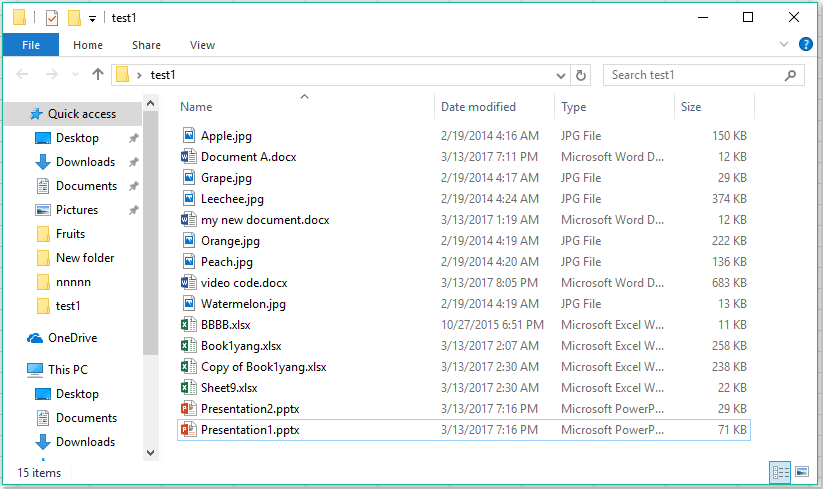
Most of the time, long file names or deep folder paths may cause saving failure issues. Thus, shortening the Excel file name and avoiding the special characters within it may help you tackle the situation. Also, move the file to a higher-level folder.
Also Read: Methods to Fix Document Not Saved Error in Excel!
Solution 2- Stop Unwanted Running Apps in the Background
Running multiple programs simultaneously can cause this Excel error message. Simply check & stop needless background processes in the Windows Task Manager.
Follow the steps below to do so:
- Press Ctrl + Shift + Esc keys to launch the Task Manager.
- Go to the Processes tab >> Memory.
- Choose the unwanted programs >> click on End Task.

Solution 3- Check the File Permissions Immediately
Insufficient file permission to access and modify it can cause Excel your changes could not be saved error. Verifying and providing the file access permissions with proper rights can assist you in fixing it.
Here are the complete steps:
- Right-click on an Excel file >> select Properties.

- Next, ensure the file isn’t marked as “Read-only”.
- If it’s, then uncheck the box & apply changes.
- After that, confirm folder permissions and ensure your account has full control.
Solution 4- Check & Disable Faulty Add-ins
Corrupted Excel add-ins and plugins are another major reason for triggering this problem. All you need to do is to check and disable the items in Excel using the steps below:
- Go to the File > Options.
- After this, click on Add-ins
- Choose Enabled Items in Manage section >> click Go.

- Now, click on the enabled item & then click Disable.
- Finally, restart Excel.
Solution 5- Save the File in a New Location
Sometimes, the current directory causes the issue. Therefore, try saving the file in another location.
- Navigate to the File >> choose Save As.
- Select a new folder, such as Desktop or another folder.
- After that, rename the file & save it again.

This trick often bypasses folder corruption problems.
Also Read: Fix “Microsoft Excel the File Could Not Be Accessed Try One of the Following” Error!
Solution 6- Fix Excel Your Changes Could Not Be Saved by Updating Excel
Using outdated software contains bugs that may lead to a ” cannot save file error. Therefore, updating Excel can fix hidden issues.
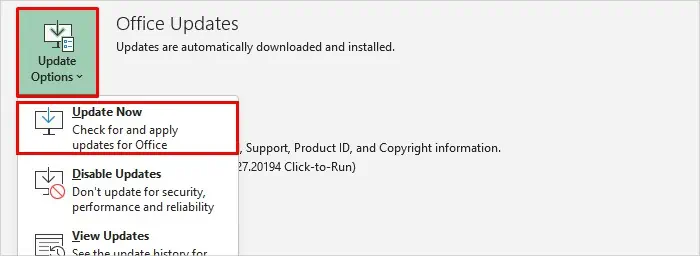
- Open Excel >> click File >> Account.
- After that, click Update Options >> choose Update Now.
- Installing the latest updates improves stability.
Solution 7- Repair MS Excel Installation
If you are facing this warning message due to corrupted program files, try repairing the Excel installation files.
- Open Control Panel >> click Programs and Features.
- Locate MS Office in the list.
- Click on Change. Then, select Quick Repair.
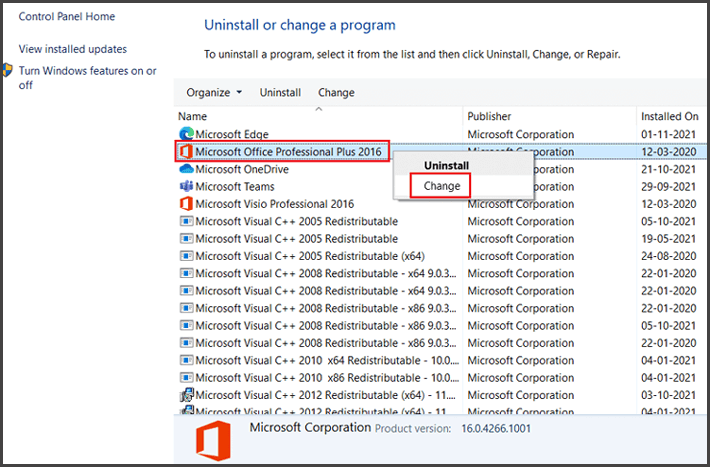
- If the problem continues, choose Online Repair.
- Repairing the installation restores missing components. Consequently, saving errors often disappear.
Solution 8- Repair the Corrupted Excel Workbook
Are you facing Excel your changes could not be saved error due to file corruption? If so, you can try repairing it by using the Open and Repair feature of Excel. Follow the steps below to use this tool:
- Open Excel application, click File tab >> Open.
- Next, click Browse to select the affected file.
- In the Open dialog box, click on the corrupted file.
- Then, click on an arrow next to the Open button >> click Open and Repair.
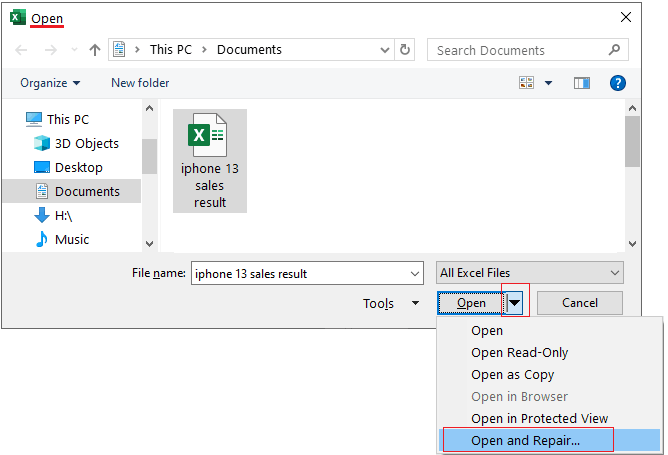
- Finally, click on Repair.
In case the open and repair tool fails, try the most versatile Excel Repair and Recovery Tool. It can repair the severely corrupted workbook and recover all the components saved within it.
Related FAQs:
It might be possible that the file may not have the necessary permissions to edit/save the file
To fix sharing violation error when saving Excel sheet, follow the below steps:
To recover Excel file changes not saved, go to File >> Info >> Manage Document >> Recover Unsaved Workbooks. Why Is My Shared Excel Sheet Not Saving Changes?
How to Fix Sharing Violation Error When Saving Excel?
How to Recover Excel File Changes Not Saved?
Time to Verdict
Above, I have discussed some proven methods to fix your changes could not be saved because of a sharing violation Excel error. Apply them accordingly to solve it successfully.
For instant resolution, you can try the best Excel Repair Software. It can repair multiple XLSX/XLS documents without affecting an original formatting.
That’s it!

Priyanka Sahu

Priyanka is a content marketing expert. She writes tech blogs and has expertise in MS Office, Excel, and other tech subjects. Her distinctive art of presenting tech information in the easy-to-understand language is very impressive. When not writing, she loves unplanned travels.