
In Microsoft Excel, the Personal Macro Workbook (Personal.xlsb) is a hidden file that saves macros you can use across any workbook. It loads automatically when the Excel application starts. However, sometimes, you may face “Microsoft Excel: Personal macro workbook in the startup folder must stay open for recording” when this file fails to load or when trying to record a macro.
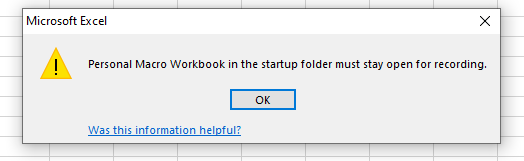
Fortunately, this error can be easily fixed by applying the solutions mentioned below in this post.
To fix corrupt Excel file, we recommend this tool:
This software will prevent Excel workbook data such as BI data, financial reports & other analytical information from corruption and data loss. With this software you can rebuild corrupt Excel files and restore every single visual representation & dataset to its original, intact state in 3 easy steps:
- Try Excel File Repair Tool rated Excellent by Softpedia, Softonic & CNET.
- Select the corrupt Excel file (XLS, XLSX) & click Repair to initiate the repair process.
- Preview the repaired files and click Save File to save the files at desired location.
What Causes Excel Error Personal Macro Workbook in the Startup Folder?
Several causes can contribute to the occurrence of this Excel error & identifying the root is vital for easy troubleshooting. Therefore, let’s see the potential culprits:
- The Excel document is corrupted or inaccessible.
- The Personal.xlsb file isn’t in the correct startup folder.
- Excel’s startup settings are misconfigured.
- The workbook is already open but hidden.
Knowing the cause helps you apply the best fix quickly.
How to Solve Excel Personal Macro Workbook in the Startup Folder Must Stay Open for Recording Error?
Follow the methods below to fix this error message in Excel.
Way 1- Unhide the Personal Macro Workbook
The very first solution you can try is unhiding the personal macro workbook. Many users have found this method helpful in their cases. So, let’s try this:
- Open Microsoft Excel.
- Click on View tab >> Unhide in the Window.

- Choose the XLSB >> click OK.
- Save & close Excel properly.
Now, check if Excel can record new macros again or not. If not, try the further tricks.
Also Read: Microsoft Has Blocked Macros from Running Error in Excel – Easy Fix Guide!
Way 2- Turn ON Personal Macro Workbook Feature
Since you are getting personal macro workbook in the startup folder must stay open for recording 365 error when trying to record a macro, so it is vital to enable the “PERSONAL MACRO WORKBOOK” feature in Excel.
Here is how you can do so:
- Open the Excel >> go to the File > Options.

- Next, click on the Add-ins.
- Under the Manage drop-down at the bottom, choose the Disabled Items >> click Go
- In Disabled Items window, locate & select personal.xlsb.
- Now, click on the “Enable” button & then Close.
Way 3- Checking the Excel’s Startup Folder
When the Personal.xlsb file isn’t in the correct startup folder, it can trigger this annoying error message. Therefore, make sure your Personal.xlsb file is stored correctly by following the instructions below:
Step 1– Press Win + R keys together to open Run box.
Step 2– Type “%appdata%\Microsoft\Excel\XLSTART”.
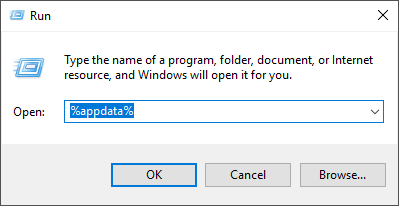
Step 3- Then, hit Enter to open the folder.
Step 4- Now, confirm the Personal.xlsb</strong> file is present.
If missing, recreate it using the previous step.
Way 4- Recreate the Personal Macro Workbook
Despite enabling the “PERSONAL MACRO WORKBOOK” feature and checking the startup folder, if you are still receiving this warning message, try recreating the personal macro workbook to overcome this situation.
Follow the steps below to do so:
- Close all the Excel instances.
- Find the XLSTART folder, which you can locate in C:\Users\<yourusername>\AppData\Roaming\Microsoft\Excel\XLSTART.

- Then, locate a personal.xlsb file there and move it to another location.
- After this, open the Excel & record the new macro.
- Proceed to save it to the “Personal Macro Workbook“. This will create a new person.xlsb file in the XLSTART folder.
Also Read: Solutions for Excel Personal Macro Workbook Not Opening Issue!
Way 5- Fix Excel Personal Macro Workbook in the Startup Folder Error by Repairing MS Office
Last but not least, if nothing works for you, try repairing your Excel installation:
- Open the Control Panel >> click Programs >> Programs and Features.

- Find and click on Microsoft Office.
- Then, click Change >> Repair.
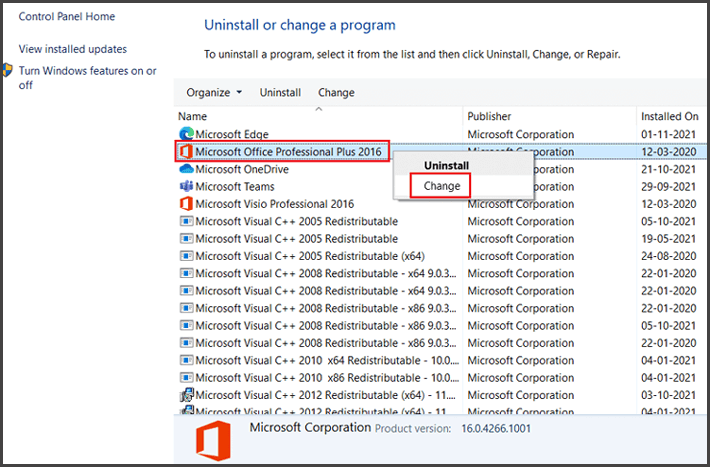
Once the repair completes, restart your computer.
One-Stop Solution: Excel Repair Tool
If you are facing this error due to file corruption, try the most reliable Excel Repair Tool. It is specially intended to repair Excel file and recover all their objects, such as macros, formulas, charts, tables, queries, etc., with 100% integrity.
Besides, it fixes multiple Excel files in a single process and even supports all Excel versions.
Steps to Use MS Excel Repair Tool:







Frequently Asked Questions:
To record a macro in your Personal Macro Workbook, follow the steps below:
Due to corrupted Excel file or an incorrect file path, you are unable to open the Personal Macro Workbook.
You can locate your Personal Macro workbook in a Project Explorer pane on the left side pane. If you don't see it, then navigate to View >> Project Explorer.
You can recover Personal Macro workbook by using Excel’s built-in Document Recovery feature. Simply navigate to ‘File’ >> ‘Open’ >> ‘Recent Documents’ > ‘Recover Unsaved Workbooks’ to see if there’re any auto-recovery files. How to Record Macros in Personal Workbook?
Why Won't My Personal Macro Workbook Open in Excel?
Where To Open Personal Macro Workbook?
How Do I Recover My Personal Macro Workbook?
Also Read: Fix Excel Cannot Edit a Macro on a Hidden Workbook Error – Easy Tutorial
Wrap Up
Now you can fix the Excel personal macro workbook in the startup folder must stay open for recording 365 on your own. Ensure to follow the given methods very carefully. Furthermore, feel free to go with the Excel Repair Tool to fix file corruption that might be causing the Excel error.
If I missed out on any resolution, then do share it with us on our Facebook page.

Priyanka Sahu

Priyanka is a content marketing expert. She writes tech blogs and has expertise in MS Office, Excel, and other tech subjects. Her distinctive art of presenting tech information in the easy-to-understand language is very impressive. When not writing, she loves unplanned travels.