
In MS Excel, VBA (Visual Basic for Applications) is generally used to automate tasks. But sometimes, while running VBA codes or macros in the worksheets, you may encounter numerous errors. One such runtime error is “Compile error: ByRef argument type mismatch.” It typically occurs when the data type of the argument doesn’t match the data type of the parameter of the code.
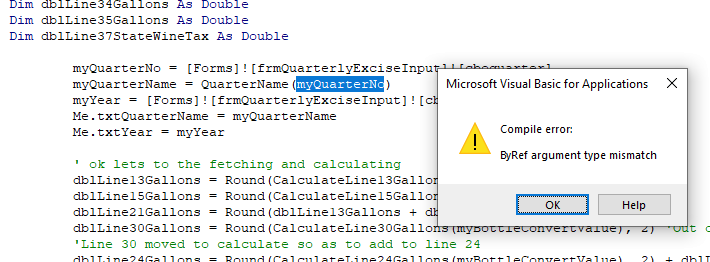
Below, I’ll explain why this error actually occurs and how to fix the issue in no time.
To fix corrupted Excel files, we recommend this tool:
This software will prevent Excel workbook data such as BI data, financial reports & other analytical information from corruption and data loss. With this software you can rebuild corrupt Excel files and restore every single visual representation & dataset to its original, intact state in 3 easy steps:
- Try Excel File Repair Tool rated Excellent by Softpedia, Softonic & CNET.
- Select the corrupt Excel file (XLS, XLSX) & click Repair to initiate the repair process.
- Preview the repaired files and click Save File to save the files at desired location.
What Causes VBA ByRef Argument Type Mismatch Worksheet Error?
This runtime error in Excel can occur due to several reasons, such as:
- Due to mismatched variable data types.
- Incorrect ByRef parameters
- Incorrectly passed arrays in the macros
- Corrupted workbook or worksheet
- Missing object references frequently cause confusion.
After knowing the major factors behind this VBA error it’s time to overcome this situation by applying the best practices.
How to Fix Excel VBA Compile Error Byref Argument Type Mismatch?
The following are the workarounds you can try to fix the compile error in Microsoft Excel.
Trick 1- Renaming the Variable
Renaming the variable is an excellent workaround that may work for you to solve the problem. Doing this can assist you in getting rid of the problem related to the same name in the module.
So, let’s rename the variable:
- Go to the menu, click on Debug.
- After that, click on Compile VBA project to allow your code to compile.

Trick 2- Verify the Mismatch Data Type
Apart from mismatched variables, a mismatched data type in procedures often trigger VBA ByRef argument type mismatch worksheet error. All you need to do is align data types wisely in the VBA code to run it properly. Additionally, use explicit declarations always.
Also Read: How to Fix Compile Error: Invalid Outside Procedure in Excel VBA?
Trick 3- Change the Macro Security Settings
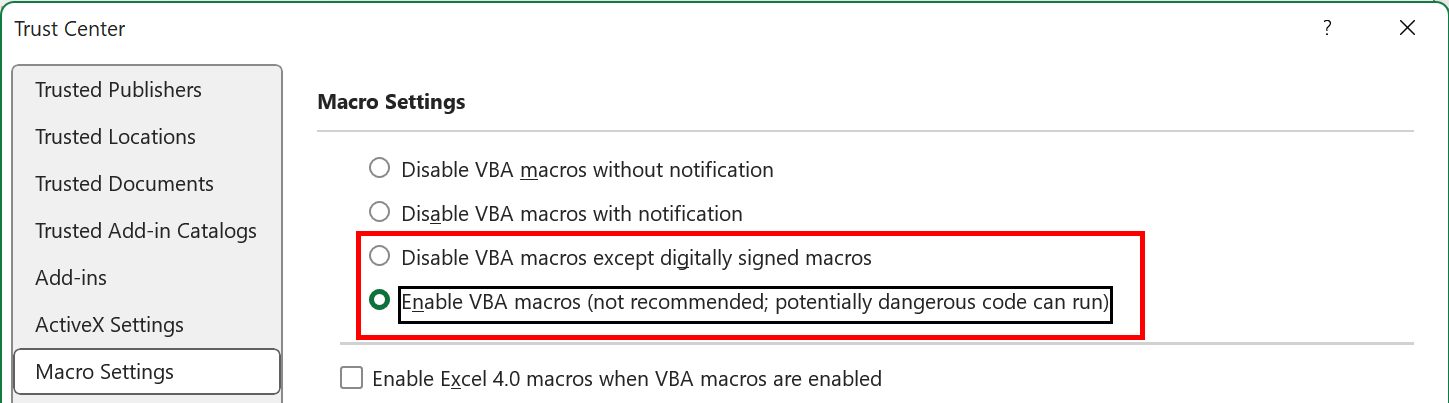
If macros are restricted in the Macro Security Settings, it can cause this error. In such a situation, you can check & change the macro settings.
Here is how you can do so:
- Open your MS Excel.
- Go to File >> Options >> Trust Center.
- After that, click on Trust Center, choose Trust Center Settings.

- Lastly, click Macro Settings >> Enable all macros, and then hit OK.
Trick 4- Use ByVal Instead ByRef
Excel VBA compile error ByRef argument type mismatch error can even occur due to incorrect ByRef parameters in the macro or syntax. You can use the ByVal instead of the ByRef function to troubleshoot the problem. Using ByVal improves the code safety.
Trick 5- Repair the Corrupted Workbook
The corrupted Excel workbook or worksheet is one of the major reasons for the occurrence of various errors, including argument type mismatch. If it has occurred due to file corruption, you can use the Open and Repair utility in Excel.
To use this tool, follow these steps:
- Open the Excel sheet, click File tab >> Open.
- Next, click Browse option to select the affected file.
- Under Open dialog box is shown. Click on the corrupted file.
- Expand the arrow next to the Open>> click Open and Repair.

- Hit the Repair button.

For a major file corruption issue, it is suggested to use the Excel Repair Software. It can repair severely corrupted XLS or XLSX files and recover all the components stored within them.
Steps to Utilize MS Excel Repair Tool:







Trick 6- Check for Deleted Objects in a VBA or Macro
Sometimes, this warning message occurs if an object you’re calling in the VBA code isn’t available, inaccessible, or deleted. Simply authenticate your VBA code with the Visual Basic Editor window for any missing or removed objects in the macro.
Though debugging in the spreadsheet can help you quickly identify & fix the VBA errors.
Also Read: Excel Macro Compile Error Can’t Find Project Or Library Error- 2025!
Trick 7- Fix Excel VBA Compile Error ByRef Argument Type Mismatch by Uninstalling Office Updates
Another effective solution you can try is uninstalling the recently installed Office updates. It might be possible that the issue has occurred due to installed updates.
Hence, to fix this, follow the below steps and uninstall the Office updates carefully:
- Open Control Panel.

- Go to the Programs >> click Program and Features.

- Look for “View Installed Updates” >> click on the chosen Office updates.
- After that, right-click on it & click Uninstall.
- Now, follow the onscreen instructions to complete the uninstallation process.
- When the process completes, restart the system.
Trick 8- Copy the Entire Data to a New Workbook
If none of the above solutions worked for you, you can try copying the entire data from an old workbook to a new one. This solution will eventually fix the by reference argument type mismatch VBA.
For this, you have to:
- Launch Excel >> create a blank or new workbook.
- Choose & copy entire data from the damaged file.
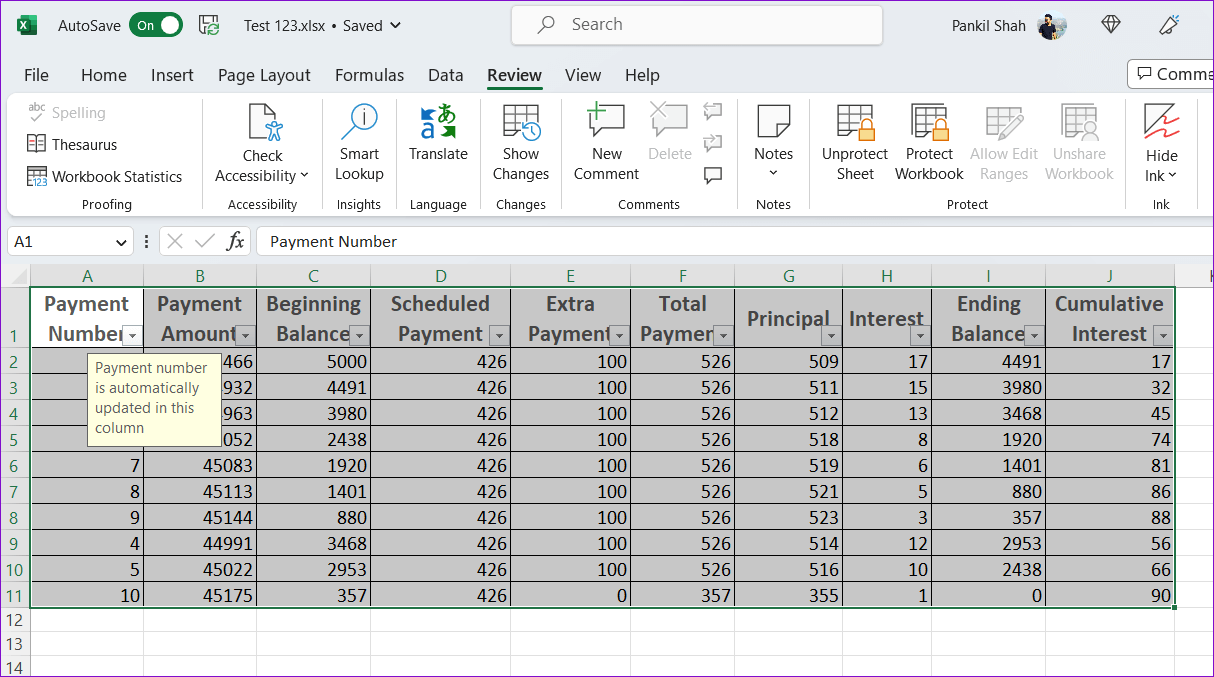
- Now, go and paste it into a new Excel document >> save the new file.
And you are done!
Unique FAQs:
What Does ByRef Mean In VBA?
ByRef stands for ‘By Reference’. It is used when passing the arguments to a procedure (Sub or Function). Moreover, it allows the method to change the original variable directly.
How Will You Pass Arguments to A VBA Function?
You can pass an argument in a VBA code by value if you contain the ‘ByVal’ keyword in a procedure's declaration. Arguments passed via value consume from 2–16 bytes in the procedure, depending on the argument's data type.
Which Is the Default Argument Passed In VBA?
ByRef is the default argument passed in VBA unlike in Visual Basic.
What Is Type Mismatch Error in VB Script?
The Type Mismatch error occurs when the function doesn’t understand the format of a number that is being cast.
How to Solve Compile Error in Excel VBA?
To solve compile error in Excel VBA, try the below tips:
- Disable & enable the Solver Add-in.
- Remove Corrupted Solver VBA Components (if they exist).
Also Read: Excel Compile Error Argument Not Optional FIX – Stop the Crash!
Summing Up
You may experience the Excel VBA compile error ByRef argument type mismatch while using a macro. However, you can try the methods discussed in this post to fix the error.
If the error appears due to Excel file corruption, use the Excel Repair Tool. It helps to repair the corrupt file and recover all the data from it without changing the original formatting.
Consequently, your VBA projects remain stable and professional.

Priyanka Sahu

Priyanka is a content marketing expert. She writes tech blogs and has expertise in MS Office, Excel, and other tech subjects. Her distinctive art of presenting tech information in the easy-to-understand language is very impressive. When not writing, she loves unplanned travels.