
When you come across the MS Excel error “This sheet is protected. Some parts may be view-only and can’t be changed.,” it typically indicates that editing is restricted and some cells remain view-only for safety. It happens due to numerous reasons, such as a protected sheet, a corrupted workbook, etc.

Regardless of the reason, this error message can be easily solved by applying the fixes outlined in this blog. So, without wasting any further ado, let’s get started…
To fix corrupted Excel files, we recommend this tool:
This software will prevent Excel workbook data such as BI data, financial reports & other analytical information from corruption and data loss. With this software you can rebuild corrupt Excel files and restore every single visual representation & dataset to its original, intact state in 3 easy steps:
- Try Excel File Repair Tool rated Excellent by Softpedia, Softonic & CNET.
- Select the corrupt Excel file (XLS, XLSX) & click Repair to initiate the repair process.
- Preview the repaired files and click Save File to save the files at desired location.
What Causes Some Parts May Be View-Only and Can’t Be Changed Error?
For better resolution, it’s always essential to identify the root of the problem. Likewise, this peculiar error can be generated due to countless reasons, including:
- Corrupted MS Excel installation
- Excel workbook corruption
- File downloaded from an unreliable source
- Using an outdated Excel program
- Faulty add-ins or a password-protected sheet
- Incorrect settings in Excel’s Trust Center.
So, these are the common causes. Let’s move on to know the best fixes.
Fixing “This Sheet Is Protected. Some Parts May Be View-Only and Can’t Be Changed” Error
Find out the possible ways to solve this Excel error:
Method 1- Check and Unprotect the Sheet
If your Excel sheet is password-protected and you know the password, youare in luck. This error can be caused due to protection. You can simply unprotect sheet by entering the password.
Here are 2 easy ways to do so:
#1: By Right-Click on Sheet
- Open your Excel document, locate a protected sheet >> right-tap on it.
- After this, select “Unprotect Sheet” and enter the password.

#2: Via Review Tab
- Click on the “Review” tab in an opened sheet.
- Then, select “Unprotect Sheet.” And enter the password to open it.

Also Read: Fix “the Cell or Chart You Are Trying to Change Is on A Protected Sheet” Excel Error!
Method 2- Check & Disable the COM Add-ins
This sheet is protected some parts may be view only and cannot be changed error can trigger due to corrupt Excel add-ins. Try disabling such Add-ins to overcome the situation.
Steps to be followed:
- Open Excel > click File >> Options
- Go to the Add-ins> click Manage at the bottom.
- Then, choose COM Add-ins>> hit the GO.
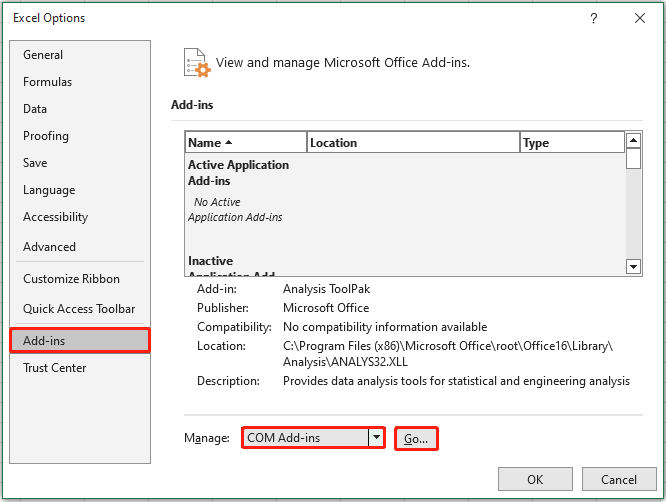
- Unselect the add-ins there.

Method 3- Turn OFF the Protected View Settings
Another way you can try is to disable the protected view settings in Microsoft Excel.
- Open Excel application.
- Go to the File >> Options. This will open the Excel options settings window.

- Now, from the left side pane, select Trust-center
- After that, from the opened window, click Trust Center Settings >> Protected View.

- At this time, unselect all the selected options existing in theprotected view >> click
Method 4- Repair File Corruption
Excel sheet corruption is one of the major factors for causing various errors in Excel, including this sheet is protected error.
In such a case, you can pick the built-in Open & Repair utility. This feature can repair the corrupt file and restore your sheet to a working condition.
Here’s how to use this tool:
- Open Excel >> Open option.
- Select a faulty file to fix it.
- Next, click on ‘Open’ >> ‘Open and Repair’ >> Repair.

- This will eventually solve the file corruption.
If the file is severely corrupted and the Open & Repair tool fails to work, you can try Excel Repair Software. It will not only repair the damaged workbook but also restore all the components saved within it.
Steps to Utilize MS Excel Repair Tool:







Method 5- Fix This Sheet Is Protected. Some Parts May Be View-Only and Can’t Be Changed by Copying the Sheet Data
Since you can only view the spreadsheet data but are unable to make any changes within the sheet, it is worth copying the entire data of the protected sheet to a new sheet.
Here are the complete instructions:
- Open a protected Excel sheet.
- Then, press CTRL+A keys together to select all the cells of a worksheet.

- Press Ctrl + C keys to copy the cells.
- Now, create a new Excel sheet in the current workbook, or you can make another workbook by pressing Ctrl + N.
- In a new empty worksheet, paste the entire copied data by pressing the Ctrl + V.
- Now, you can easily make changes in the new sheet.
Method 6- Repair MS Office Installation
It might be possible that the corrupt Office installation is the reason for displaying this error message. So, try to repair the MS Office installation and deal with the error effectively.
Here is how you can do this:
- Open Control Panel >> Programs and Features.

- Now, click on the Uninstall a program in Programs.
- Locate & right-click on the Microsoft Office program that is installed >> click Change.
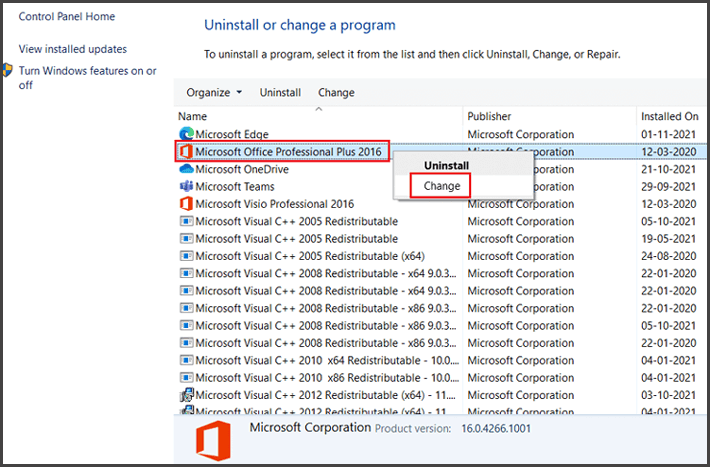
- Finally, choose Repair >> Continue.
And now you can easily access your workbook data without any warning.
Also Read: Fixed- Office Has Detected A Problem With This File Protected View Error
Related FAQs:
How Do I Remove a Protected View from a Spreadsheet?
To remove a protected view from a spreadsheet, follow the below steps:
- Open Excel and click on File > Options.
- Choose the Trust Center >> Trust Center Settings >> Protected View.
- Now, clear a box for ‘Enable Protected View for files originating from the internet’.
How Do I Unprotect a Protected Sheet?
If you want to unprotect a protected Excel sheet, navigate to Review tab >> Protect Sheet or Protect Workbook. After that, click Unprotect Sheet & enter the password >> OK. The protection removes automatically.
What Are Alternatives to Excel Protection?
Row Zero is the best alternative to Excel Protection.
How Do I Delete a File That Is Write Protected?
To delete a file that is write-protected:
- Right-click a protected file >> select Properties.
- In the Security tab >> click the Edit to modify permissions.
- Choose your user account & check the box next to Full Control.
- Now, click Apply >> OK. Now, try deleting the file again.
Closure
The Excel “This sheet is protected. Some parts may be view-only and can’t be changed” is a very annoying error. But now that you know how to solve it, you don’t need to deal with this situation anymore.
However, if you are facing this error due to Excel file corruption, you must go with the Excel Repair tool. It’s the best expert tool to repair XLS/XLSX files.
For more queries & doubts, reach us via our social media Facebook and Twitter pages.

Priyanka Sahu

Priyanka is a content marketing expert. She writes tech blogs and has expertise in MS Office, Excel, and other tech subjects. Her distinctive art of presenting tech information in the easy-to-understand language is very impressive. When not writing, she loves unplanned travels.