
The F4 key helps to repeat your last action or toggle absolute and relative cell references. When it fails, editing formulas becomes slow in Excel and frustrating. However, fixing this problem is easier than many expect. Well, in this blog, you will learn why the F4 shortcut not working Excel and how to solve it, and help you restore your efficiency fast.
To fix Excel file & recover its worksheet data, we recommend this tool:
This software will prevent Excel workbook data such as BI data, financial reports & other analytical information from corruption and data loss. With this software you can rebuild corrupt Excel files and restore every single visual representation & dataset to its original, intact state in 3 easy steps:
- Try Excel File Repair Tool rated Excellent by Softpedia, Softonic & CNET.
- Select the corrupt Excel file (XLS, XLSX) & click Repair to initiate the repair process.
- Preview the repaired files and click Save File to save the files at desired location.
Why Is the F4 Shortcut Not Working in Excel?
When you press the F4 button to toggle absolute/relative cell references on an Excel file, the function fails to work. It happens due to numerous unforeseen causes, including:
- The function key is locked
- Corrupted or damaged Excel workbook.
- Conflicting add-ins.
- The keyboard you are using is not working
- Outdated Excel software.
- System incompatibilities.
So, these are the common causes for the F4 key is not working in Excel.
How to Solve the F4 Shortcut Not Working Excel Sheet?
In this section, I’ve covered each method from basic to advanced in detail. Therefore, check them out one by one.
Method 1- Check If the Function Keys Are Locked
Since the problem is associated with the F4 key, it is vital to check if function keys are locked. Many keyboards have an Fn Lock feature. When you enable this, it forces function keys to act as multimedia buttons, and the F4 shortcut no longer works.
In such a situation, consider disabling the lock by pressing the Fn + Esc or Fn + F4, depending on your keyboard model.
Method 2- Disable Faulty Add-Ins
If add-ins are conflicting with the Excel app and triggering the F4 key not to work properly, disable them one by one and check if the problem is solved.
Here are the instructions to turn off the add-ins in Excel:
- Open Excel, go to the File >> Options >> Add-ins.
- In the opened window, choose the COM Add-ins from a drop-down menu >> hit Go.
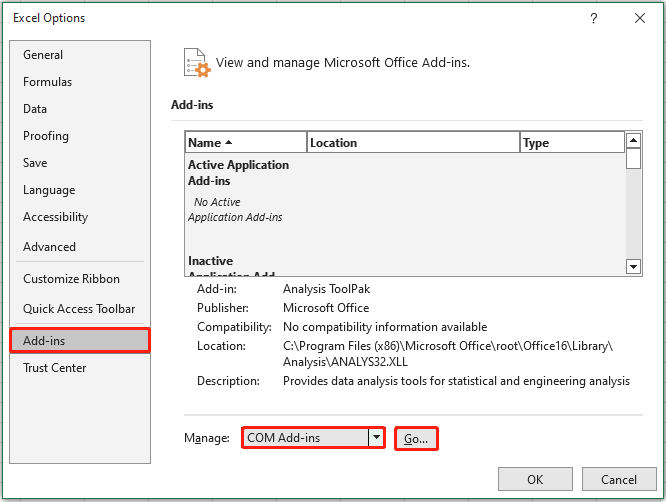
- Now, unselect all the checkboxes >> click on OK.

- Reboot your Excel file.
Method 3- Verify the Excel Settings to Fix the F4 Shortcut Not Working Excel
Sometimes, Microsoft Excel itself may not respond to the shortcut. In such circumstances, checking the Excel settings for F4 key may help you to overcome this situation. This method can help you resolve temporary glitches and restore F4 shortcut functionality.
Method 4- Repair Corrupted XLS/XLSX File
As already mentioned in the causes, file corruption can also trigger various issues while handling spreadsheets. If this problem has arisen due to a corrupted Excel document, opt for the built-in Open and Repair utility.
This tool will fix the file corruption and resolve F4 command not working in Excel in no time.
- Open an Excel then go to the File > Open option.

- Choose the faulty workbook to repair it.
- Then, click on ‘Open’ dialog box and choose ‘Open and Repair’ >> Repair.
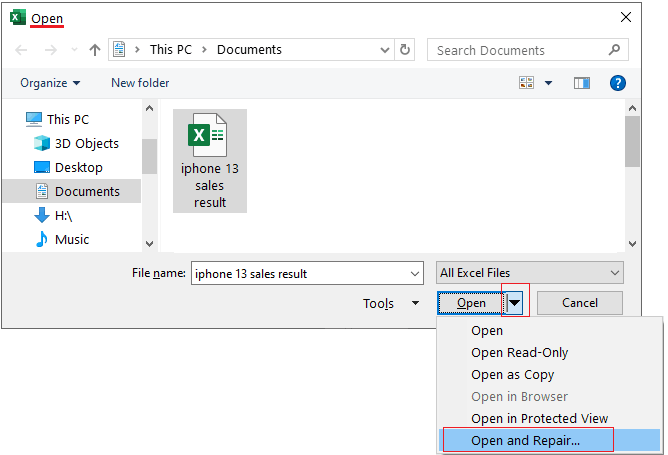
- Finally, check whether the problem is solved.
If the workbook corruption persists, it is suggested to go for Urbane Excel Repair Software. This program will not only repair the damaged workbook but also recover all its objects with ease.
Method 5- Try Using Fn + F4 in MS Excel
Using a recent version of a laptop? If so, then well done! You can press the Fn + F4 keys simultaneously instead of pressing F4 alone. This behavior depends on the manufacturer. Try both combinations to ensure you’re using the correct shortcut.
Also Read: Why Does End Mode Excel Not Working? – Get Fixes Here!
Method 6- Update Excel
Running an outdated version of MS Excel software can even cause the F4 key is not working in Excel. Therefore, follow these steps to update your Excel version and tackle the situation:
- Open the Excel app.
- Navigate to the File menu >> Account.

- Click on the Update Options >> Update Now.
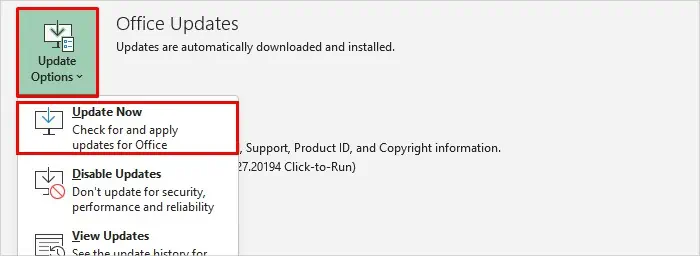
And you are done!
Method 7- Try Other Tricks
If nothing works, you can try some other workarounds like:
Frequently Asked Questions:
Pressing the F4 key in the keyboard controls the PC’s volume or screen brightness by default. But if you want to create formulas frequently, press Fn (Function) key before pressing F4 can definitely save you a lot of time.
If you're running macOS and your F4 key isn’t working, use the shortcut: ⌘ + T to toggle absolute and relative references.
To enable F4 repeat in MS Excel, press Ctrl+Y (If F4 doesn't seem to work, simply press the F-Lock key or Fn Key, then F4) on your keyboard. Instead, you can choose ‘Repeat’ on the Quick Access Toolbar. What Does Pressing F4 Do?
Why Is F4 Not Working in Excel on Mac?
How Do I Enable F4 Repeat in Excel?
Summing Up
In conclusion, the F4 key is not working in Excel sheet can be disruptive, but it can be handled with the correct solution. Nevertheless, by understanding the roots and applying the effective methods like checking keyboard locks, Excel settings, system conflicts, or other fixes mentioned above, you can restore the shortcut quickly.
I hope you liked reading this article.
References:
- https://support.microsoft.com/en-us/office/repair-a-corrupted-workbook-153a45f4-6cab-44b1-93ca-801ddcd4ea53
- https://learn.microsoft.com/en-us/answers/questions/4982475/excel-f4-key-not-working
- https://techcommunity.microsoft.com/discussions/excelgeneral/why-does-f4-cell-lock-not-work-in-excel-2016-for-windows-10/178105

Priyanka Sahu

Priyanka is a content marketing expert. She writes tech blogs and has expertise in MS Office, Excel, and other tech subjects. Her distinctive art of presenting tech information in the easy-to-understand language is very impressive. When not writing, she loves unplanned travels.