
In Microsoft Excel, End Mode is an excellent feature that helps to navigate large datasets efficiently. But sometimes, it happens that End Mode Excel not working, which delays the crucial tasks. Thus, if you are facing the same problem, don’t fret. This article describes the best resolutions to solve this problem and restore its functionality.
To fix corrupt Excel files, we recommend this tool:
This software will prevent Excel workbook data such as BI data, financial reports & other analytical information from corruption and data loss. With this software you can rebuild corrupt Excel files and restore every single visual representation & dataset to its original, intact state in 3 easy steps:
- Try Excel File Repair Tool rated Excellent by Softpedia, Softonic & CNET.
- Select the corrupt Excel file (XLS, XLSX) & click Repair to initiate the repair process.
- Preview the repaired files and click Save File to save the files at desired location.
What Causes End Mode Not Working in Excel?
There are a wide variety of reasons that can contribute to this problem. Here are the common reasons:
- If the Scroll Lock is enabled, then End Mode may not work properly.
- Sticky Keys settings can interrupt keyboard shortcuts.
- Due to a corrupted Excel document.
- Running an older version of Excel.
- Some 3rd-party add-ins hinder the Excel’s navigation features.
After knowing the major factors now, it’s time to tackle this situation with the best fixes.
How to Solve End Mode Excel Not Working Issue?
Follow the below step-by-step guide to fix this problem in no time.
Method 1- Check & Disable the Scroll Lock
Most of the users have reported that enabled scroll lock is the foremost reason for End Mode issues. Therefore, consider disabling this key to fix the problem.
Follow the below steps:
- Check a Scroll Lock key on your keyboard.
- If a Scroll Lock light is on, press the key to disable it.
Method 2- Restart MS Excel & Your PC
Another quick method you can try is restarting Excel. This will remove the temporary glitches related to the software. Besides you can even try rebooting your computer to sort out the hardware-related problems.
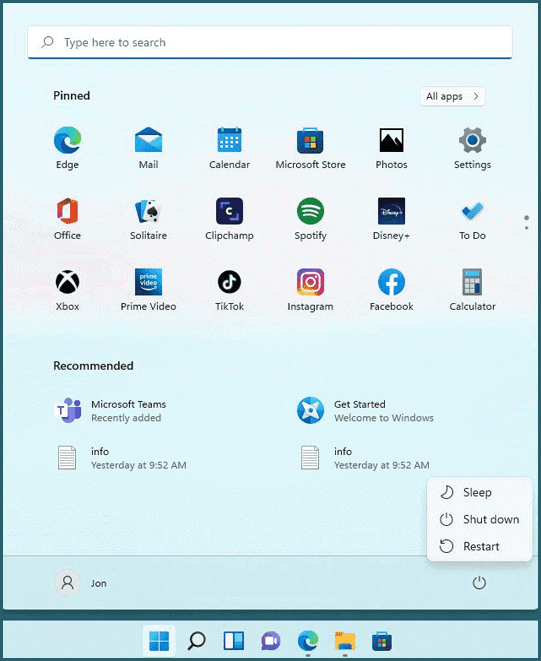
Method 3- Fix End Mode Excel Not Working by Disabling Sticky Keys
Disabling the Sticky Keys can be an effective trick. Here is how you can disable it:
- Initially, press the Shift key 5 times to open the Sticky Keys settings.
- Now, click on Disable Sticky Keys if enabled.
Method 4- Update Excel Software
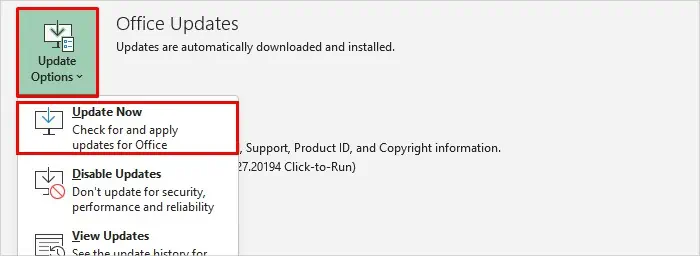
End Mode may not work due to running an older version of Microsoft Excel software. All you need to do is to update the Excel version to troubleshoot End Mode not working in Excel.
Steps to be followed:
- Open the Excel application.
- Navigate to File >> Account
- Next, click Update Options >> Update Now.
Method 5- Repairing the Excel File
If you are working on a corrupted Excel workbook or worksheet, you may face difficulty when using End Mode. Try repairing it by using the built-in Excel feature “Open and Repair”.
Follow the below instructions carefully to use this feature:
- Open Excel >> Go to File > Open.
- Next, click Browse and then select the affected file.
- After that, click on the drop-down arrow next to Open >> choose Open and Repair >> Repair.

In case, the Open and Repair tool fails to work and fix the file corruption, you can use the sophisticated MS Excel Repair Tool. This can repair the severely corrupted Excel workbook and recover all its components with 100% integrity.
You can download and install this tool on your PC by following the instructions below to run it.
Also Read: Fill Handle Not Working in Excel? Here’s What You Need to Do!
Method 6- Disable Add-ins
Sometimes, add-ins can be a problem in End Mode Excel not working. You can simply disable the faulty or problematic add-ins to tackle the current situation.
Follow the below-given steps to disable such add-ins:
- Launch Excel >> go to “File” menu.
- Find & click on the “Options” on the left side.
- Under “Excel Options”, choose “Add-Ins”.
- In the “Manage”, choose “Excel Add-ins” >> “Go”.

- Now, disable the problematic add-ins one by one & see if the problem is resolved.
That’s it.
Frequently Asked Questions:
How Do You Enter End Mode in Excel?
By pressing Ctrl+Shift+End keys, you can enter End Mode in Excel.
How Do I Get Excel Back to Normal Mode?
To get Excel back to normal mode, follow the below steps: 1. Switch to Page Layout mode by clicking on Page Layout button. select the Page Layout mode. 2. Click Normal option to return the consistent viewing mode.
Final Thoughts
If End Mode Excel not working, there are abundant ways to solve it, from disabling add-ins to updating software. By applying these workable methods mentioned above, you can fix this issue & ensure a smoother experience when working with Excel.
Moreover, for any suggestions or queries, feel free to contact us & ask on Facebook.

Priyanka Sahu

Priyanka is a content marketing expert. She writes tech blogs and has expertise in MS Office, Excel, and other tech subjects. Her distinctive art of presenting tech information in the easy-to-understand language is very impressive. When not writing, she loves unplanned travels.