
While handling the Microsoft spreadsheet, it is common to encounter a file corruption problem. By using Microsoft’s built-in Open and Repair feature, the file corruption issue can be fixed. Sometimes, Excel’s open and repair doesn’t work. In such a situation, what to do? In this blog, you will learn the details of this problem, discover its causes, and find possible solutions to fix Excel open and repair not working.
So, let’s get started…
To fix Excel file & recover its worksheet data, we recommend this tool:
This software will prevent Excel workbook data such as BI data, financial reports & other analytical information from corruption and data loss. With this software you can rebuild corrupt Excel files and restore every single visual representation & dataset to its original, intact state in 3 easy steps:
- Try Excel File Repair Tool rated Excellent by Softpedia, Softonic & CNET.
- Select the corrupt Excel file (XLS, XLSX) & click Repair to initiate the repair process.
- Preview the repaired files and click Save File to save the files at desired location.
Quick Navigation:
- What is Open and Repair & When it’s Used in Excel?
- Where Is Open and Repair in Excel?
- How to Fix MS Excel Open and Repair Not Working?
- Best Alternative to Excel Open And Repair Tool
What is Open and Repair & When it’s Used in Excel?
In Microsoft Excel, “Open and Repair” is a free built-in tool that is designed to fix damaged or corrupted Excel files and salvage their data. It is an excellent troubleshooting feature to restore data when encountering errors during file opening or working on it.
So, we can say that the Open and Repair utility is generally used in Excel when experiencing any errors due to file corruption or an inability to access the file’s content.
Where Is Open and Repair in Excel?
You can easily locate Excel’s Open and Repair feature by navigating to the File tab >> clicking on Open. In Excel 2013 or 2016, click the Browse option to locate the Excel workbook. In the Open dialog box, choose the corrupt spreadsheet that you need to open. Now, click on the arrow next to an Open button. Here, you will see the “Open and Repair” option, just click on it.

How to Fix MS Excel Open and Repair Not Working?
Well, there are two circumstances in which Excel open and repair does not work. Let’s discuss them one by one
Part 1: Methods To Repair Excel File When The Workbook Is Open
If the Excel workbook gets corrupted while working on it, you can open the corrupted Excel file and then try the given solutions one by one.
1: Revert the workbook to Last Saved Version before the Corruption
- Start Excel > click File > Open
- Now choose the corrupted file and open it
- Then click ‘Yes’ to reopen the workbook

- Now the workbook opens without any changes you made in the corrupt the Excel file.
2: Save the Corrupt File in the SYLK file format
- Open Excel > File > Save As.
- Then in the Save as Type field > choose SYLK (Symbolic Link) > click Save.

- To save only the active sheet in the workbook > click OK. A message appears that the sheet has features that are not compatible with the SYLK file format.
- Click Yes.
- And in Excel > click File > Open.
- Now choose the file saved in SYLK file format and open it.
- Then in Excel > click File > Save As.
- Now in the Save as Type field > from the drop-down menu > choose Excel Workbook
- And in the File Name field,> type a new name for your workbook > click Save
Now the SYLK file format filters out the corrupted elements from the workbook by restoring data.
Please Note: This method allows recovering the active sheet only in the workbook.
Part 2: How to Fix Corrupted Excel File That Can’t Be Open?
You need to follow the given solutions when you are unable to open the corrupted Excel file and when open and repair doesn’t work in Excel.
1: Set the Calculation Option to Manual
Here try changing the calculation setting from automatic to manual as the workbook won’t be recalculated and may get open.
Follow the steps to do so:
- Start Excel > File > New.
- And from the Available Templates window > choose blank workbook.
- Now click File > Options.

- And under Formulas > go to Calculation options section > click Manual > OK.
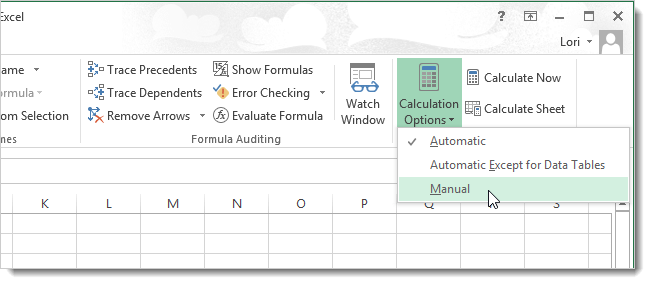
- Now click File > Open.
- Locate the corrupted file and open it.
Hope this works for you but if not then follow the second method to open the corrupt Excel workbook.
Also Read: Fix Arrow Keys Not Working in Excel
2: Link the Workbook to External References
Doing this allows you to retrieve the data only without the formulas or calculated values from the workbook.
Follow the given steps:
- In Excel > File > Open.

- Then, copy the name of corrupted file > and click Cancel.
- Click File > New > choose blank workbook
- Then in the new workbook, on cell A1, type the following: [=File Name!A1]. Note – Here the filename is the name of the corrupted file that you copied earlier > Enter
- And if the Update Values dialog box appears > choose the corrupted workbook, > click OK
- Or if the Select Sheet dialog box appears > choose the sheet > click Ok
- Select cell A1. And select the same range of rows and columns, occupied by the corrupted sheet data, including cell A1.
- Now click Home tab > click Paste.
- With the range of rows and columns are still selected > click Copy > click Paste
- And under Paste Values > click Values.
It is estimated that you can recover data only without the formulas or values from a corrupted Excel workbook.
Best Alternative to Excel Open And Repair Tool
The best alternative to the Open and Repair tool to repair corrupted, damaged, and inaccessible files is the Excel File Repair Tool. This is a professionally recommended solution that is capable of fixing various Excel errors and issues when open and repair does not work. It is also capable of restoring entire data, including the charts, worksheet properties cell comments, and other data. It is easy to use and supports all Excel versions.
So, if you are not technically skilled, then use the automatic Excel File Recovery Tool. Here check out the steps to use it.







Related FAQs:
How Do I Open and Repair a Corrupted Excel File?
To Open and Repair a corrupted Excel file, follow the steps below:
- Click on the File > Open > Browse.
- Then go to the location where the workbook is stored.
- Click on the file you want >> click the arrow next to Open >> Open and Repair.
What Can I Do If My Excel File Is Too Large?
You should try to break down the large files into smaller ones or you can use the external data sources. This will reduce the risk of file corruption & improve Excel performance.
Can An Excel File Be Restored?
Yes, an Excel file can be easily restored. Select the dropdown arrow next to the version you want to restore. Choose the Restore to replace the current version with the selected one.
Are There Free Online Tools for Excel File Repair?
Yes, there are several free & paid online Excel Repair tools are available to repair the damaged or inaccessible XLS or XLSX workbook.
Also Read: Excel AutoRecover Not Working? Here’s How to Fix It!
Wrapping Up
MS Excel Open and Repair not working causes a serious disruption. However, you can navigate this challenge by implementing the troubleshooting methods revealed in this blog. Therefore, act quickly and follow proven steps.
In case if you have any additional questions, then visit our Repair MS Excel Facebook and Twitter page.

Priyanka Sahu

Priyanka is a content marketing expert. She writes tech blogs and has expertise in MS Office, Excel, and other tech subjects. Her distinctive art of presenting tech information in the easy-to-understand language is very impressive. When not writing, she loves unplanned travels.