
When you work in a Microsoft Excel spreadsheet, you expect text to display properly. But sometimes, the text does not show in the next cell, which creates confusion. Encountering this issue is common, yet it has simple solutions that can be tried. In this post, I will mention the possible ways to solve Excel text not showing in next cell problem in no time.
To Repair & recover data from corrupt Excel file, we recommend this tool:
This software will prevent Excel workbook data such as BI data, financial reports & other analytical information from corruption and data loss. With this software you can rebuild corrupt Excel files and restore every single visual representation & dataset to its original, intact state in 3 easy steps:
- Try Excel File Repair Tool rated Excellent by Softpedia, Softonic & CNET.
- Select the corrupt Excel file (XLS, XLSX) & click Repair to initiate the repair process.
- Preview the repaired files and click Save File to save the files at desired location.
Why Is Text Not Showing Across Cells in Excel?
As we all know, cells in the MS Excel have fixed boundaries. If the text entered is longer than the cell width, it may not spill into the next cell.
However, this happens when the next cell holds data or formatting. As a result, Excel hides part of your text. You can fix this with a few layout changes.
How to Solve Excel Text Not Showing in Next Cell Issue?
Try the below step-by-step methods to fix Excel do not show text in next cell problem.
Method 1- Check If the Next Cell Has Content
The foremost reason for this issue is the content in the next cell. Even a space or a hidden character blocks text overflow. So, to check this, select the next cell & press Delete button. This action will clear the unwanted data and will let you spill into the empty cell.
Also Read: Focus Cell Button Not Showing in Excel? Stop Wasting Time, Fix It Fast!
Method 2- Check for Hidden Formatting
Another quick trick you can try is clearing the hidden formatting. Sometimes, hidden formatting may block text display and trigger such bugs.
To check and remove the hidden formatting, follow the instructions below carefully:
- Select the cells >> go to the Home
- Next, click on the Clear button (an eraser icon) >> choose Clear Formats.

Method 3- Merging Cells for Long Headings
Sometimes, it happens that the headings need more space. To make the cell wider and clear, you have to merge the cells. This will help you combine multiple cells.
To do so, here are the steps:
Step 1- Select the cell(s) you need to merge.
Step 2- Click on Home tab >> Alignment >> Merge & Center.

Step 3- Your long text will now appear properly. But remember that, merging cells feature is only usable for labels.
Method 4- Use Wrap Text for Better Visibility
Many users have reported in the community websites that wrapping the text is an excellent method that helps to fix various glitches in the Microsoft programs including Excel do not show text in next cell. Wrap Text forces content to appear on multiple lines within the same cell.
So, you can try this once to overcome your current situation. For this, follow the below steps:
- Select the cell(s) then click on Home tab in the top ribbon.
- Now, click on Wrap Text.

- Your text will now adjust automatically.
Method 5- How to Fix Excel Text Not Showing in Next Cell by Unprotecting the Protected Cells
In Microsoft Excel, worksheet protection is a security feature that helps to prevent people from accessing information in a password-protected worksheet. So, it is likely you are unable to see or access text in the cell due to protected sheet. Consider unprotecting the sheet and enable block editing.
Steps to be followed to unprotect the cells:
- Go to Review tab in the top ribbon.
- Then, click on Unprotect Sheet if needed.

- Provide the password and start access the spreadsheet data.
Method 6- Turn Off Text Overflow Restrictions
Some cells in the workbook use custom formatting. This can sometimes prevent overflow of the text and hence causing such problems. To fix them, try disabling the overflow restricts in the sheet.
- Right-click the cell(s) and open Format Cells.
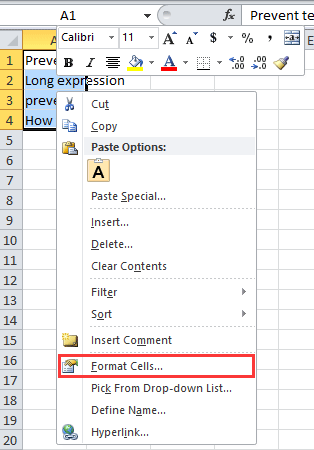
- Select General under Number.
- This resets the text behavior. Your text will appear as expected.
Also Read: Unleash: Fix Smart View Not Showing in Excel
Method 7- Use Excel Repair to Fix Workbook Corruption
If your Excel text not showing in the next cell of the worksheet, then it is likely that your XLS/XLSX file got corrupted. Therefore, use the professionally recommended Excel Repair Tool to fix corrupt, damaged, and error-prone Excel files.
This program allows you to restore all objects from corrupt workbooks, including the charts, worksheet properties cell comments, etc.
Steps to Use MS Excel Repair Tool:







Related FAQs:
How to Make Excel Text Go into Next Cell?
To make Excel text go into next cell, select the cell >> then press F2 key. In a cell, you have to select the location where you want to break the line >> press Alt + Enter.
When You Enter Text in an Excel Cell, It Also Appears in the?
When you enter text or any data into a cell in Excel, it appears in both the cell itself & the formula bar.
How To Hide Text Within a Cell in Excel?
To hide text within a cell in Excel, follow the below steps:
- Select the cell(s) that contains values you want to hide.
- Go to the Home tab, choose a Number Format button.
- Under the Category box, choose Custom.
- In a Type box, choose the existing codes.
- Type ;;; (three semicolons) and hit OK.
How Do I Stop Enter from Going to the Next Cell in Excel?
To stop entering from going to the next cell in Excel, follow the steps below:
- Open Excel >> click File tab in the ribbon.
- Then, choose Options >> click on the Advanced.
- In the Editing options, you have to uncheck the box that says ‘After pressing Enter, move selection.’
- Finally, hit OK to save the changes.
Wrapping Up
Well, I have tried my best to cover all the working methods for you to fix the Excel text not showing in next cell issue. Nevertheless, you’re suggested to try them one by one until your issue gets fixed.
Confidently, the blog clarifies the problem well & helps you to solve it using the aforementioned ways. For more queries, visit our Facebook & Twitter pages for support.
Good Luck…!

Priyanka Sahu

Priyanka is a content marketing expert. She writes tech blogs and has expertise in MS Office, Excel, and other tech subjects. Her distinctive art of presenting tech information in the easy-to-understand language is very impressive. When not writing, she loves unplanned travels.