
As we all know, shared network drives are important for collaboration, which allows multiple users to access & store files in a central location. But sometimes users are unable to save Excel file to shared network drives and receive the peculiar error “Your changes could not be saved to because of a sharing violation. try saving to a different file.”

In this post, you will learn different ways to fix this problem in no time with less effort.
To fix corrupted Excel file, we recommend this tool:
This software will prevent Excel workbook data such as BI data, financial reports & other analytical information from corruption and data loss. With this software you can rebuild corrupt Excel files and restore every single visual representation & dataset to its original, intact state in 3 easy steps:
- Try Excel File Repair Tool rated Excellent by Softpedia, Softonic & CNET.
- Select the corrupt Excel file (XLS, XLSX) & click Repair to initiate the repair process.
- Preview the repaired files and click Save File to save the files at desired location.
Why Can’t I Save Excel File to Network Share?
There are various unexpected reasons why Excel started showing this message. A few of the major causes are as follows:
- The connection to the network drive is lost.
- The file name or path does not exist.
- Insufficient file permission or faulty add-ins.
- The workbook that you are trying to save has the same name as another read-only document.
- Trying to save a large Excel file.
- The file path character has crossed the maximum limit.
After extracting the common reasons for being unable to save the Excel file, it’s time to know the workable methods to overcome it.
How to Solve Unable to Save Excel File to Shared Network Drives Error?
Quick Fixes:
Let’s know about each of these fixes in detail…..!
Method 1- Network Connection Problem
The very first solution you should try is checking for poor network connectivity. When your PC disconnects or experiences interruptions during the file-saving process to the network drive, the document may fail to save or become corrupted.
Also Read: Methods for “Unable to Open Excel Files Directly by Clicking on The File Icon” Issue
Method 2- Check the Filename and Location
It might be possible that the filename is too long or contains some special characters that trigger this error. So, ensure the filename is short, and there are no special characters added to it.
Also, ensure the file path is short and correct.
Method 3- Add Subkey In The Registry
To fix the error, add PivotTableNetworkResiliency and NetworkResiliency subkeys in the registry by making use of the following steps:
- Click on Start > Run > in the Open box > type Regedit and click “OK”.
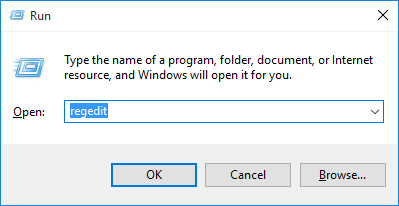
- Now expand the items present on the left panel and click the Options folder.
- Then on the Edit menu, > point to New and click DWORD Value.
- Type PivotTableNetworkResiliency, and hit ENTER.
- After that double-click on the PivotTableNetworkResiliency icon.
- Next in the Value data box, type ‘1’.
- Click ‘OK’.
Method 4- Verify Folder Permissions on Shared Drive
Lack of permission to access the file/folder commonly causes this issue. You may open the file, but cannot modify it. To allow access to the XLS/XLSX file, follow the steps below:
- Find the shared folder, then right-click on it.
- Click on the Properties & open the Security tab.

- After this, confirm you’ve Write & Modify permissions.
- If access is restricted, then contact your system administrator to allow the required permissions.
Method 5- Check for Storage
As already mentioned above, inadequate system storage can also cause ‘your changes could not be saved to because of a sharing violation.’ message. You need to ensure that your network drive has enough space to access the file properly.
Method 6- Disable Faulty Add-ins to Fix Unable to Save Excel File to Shared Network Drives
Disabling the corrupted Excel add-ins is another quick resolution to deal with this situation. Follow these steps to do so:
- Open MS Excel >> click on the Options.
- Select the Add-Ins under the ‘Excel Options’ window.
- After that, choose the COM Add-ins by expanding the ‘Manage’
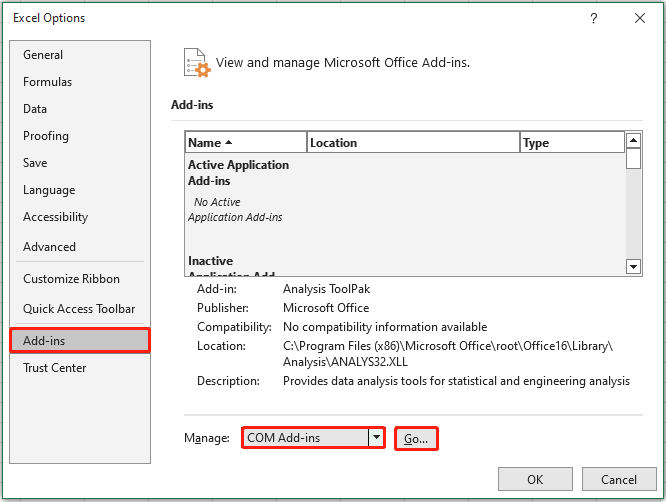
- Lastly, click on Go button and then uncheck all the COM Add-ins >> click OK.

Method 7- Disable the Protected View Settings to Fix Unable to Save Excel File to Shared Network Drives
Disabling the protected view settings is an excellent method that many Excel users found helpful in their cases. So, you must try it. Follow the steps below to change these settings in Excel:
- Open Excel application >> click File >> Options tab.
- In the opened Excel options window, select the Trust-center tab.
- From an open window, click Trust Center Settings.
- Go to the Trust Center window and choose Protected View.
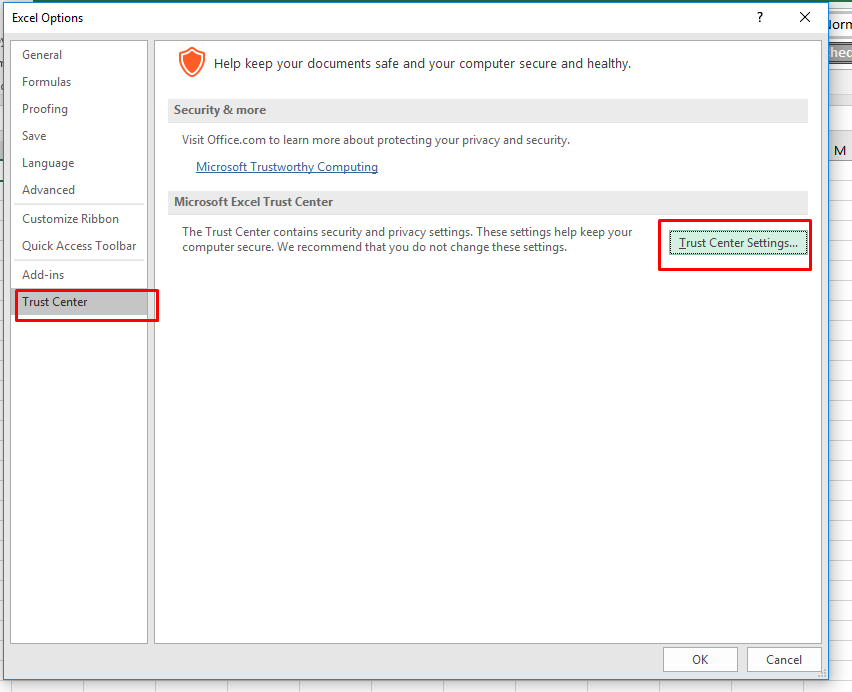
- Now, ensure to unselect all the selected options existing within the protected view.

- Finally, click Ok button to close the window.
Method 8- Contact Network Administrator
To fix this document not saved Excel network drive issue you need to notify the network administrator.
Ask the administrator to assign appropriate rights of deletion and modification to the folder present over the network drive.
Method 9- Save Workbook Over Local Hard Disk
Another option that you can try is saving the workbook file to the local hard disk or the folder. Or try to save the workbook to the folder in which you have rights for modification and deletion.
After this, you will be able to copy your Excel file on the network drive where you don’t have the rights for modification or deletion.
Method 10- Fix Excel File Corruption
Chances are also that you are unable to save Excel file to shared network drives just because your file somehow got corrupted. In such cases, Open and Repair is the best option.
Here are the steps that you can follow to use this utility:
- Launch the Excel application >> click Open.
- Select the Excel workbook in which you are getting this error.
- After this, click on the arrow next to the Open option.
- Now, choose the open and repair option >> Repair button.
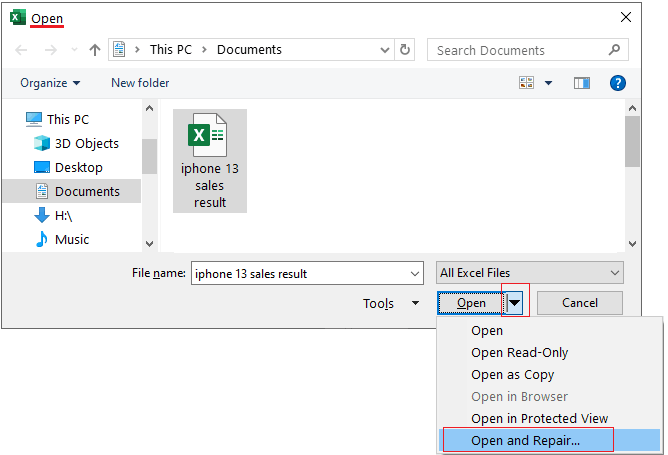
If this built-in tool fails, you can use the professionally recommended MS Excel Repair Tool. It is a special software that is specifically designed to repair corrupt Excel files and also recover everything, which includes cell comments, charts, worksheet properties, and other related data. The corrupted Excel file can be restored to a new blank Excel file.
It can recover the complete data from the file and restore it even without modifying the original formatting.
Steps to Utilize MS Excel Repair Tool:







Related FAQs:
What Does Sharing Violation Mean?
In Excel, sharing violation simply means that an application has already called in a file (spreadsheet, document, etc.), and another program tries to read it,
How to Fix Your Changes Could Not Be Saved Because Of a Sharing Violation?
To fix your changes could not be saved because of a sharing violation error in Excel by checking the file path and name, opening the Excel file in a safe mode, and moving the file to the trusted location.
Why Is Excel Not Letting Me Save Changes?
It might be possible that your Excel file got corrupted and that’s why it refuses to save the changes you have made.
How to Unlock Excel File on Shared Drive?
To unlock Excel file on shared drive, you have to:
- Open the workbook >> click ‘Review’ tab.
- Then click ‘Share Workbook’ under the ‘Changes’ group.
- Uncheck the ‘Allow changes by more than one user at the same time’ option >> hit OK button.
Also Read: Fix Excel Opens Multiple Files When Starting- The Expert’s Guide!
Summing Up
Unable to save Excel file to shared network drives issue can disrupt productivity. However, most cases relate to permissions, network stability, or file locks. By applying the solutions above, you can quickly restore normal saving functions.
Apply each step carefully. Then confirm the issue is fully resolved.
Additionally, for further assistance, follow our Facebook & Twitter pages.
External References:
- https://support.microsoft.com/en-us/office/repair-a-corrupted-workbook-153a45f4-6cab-44b1-93ca-801ddcd4ea53
- https://support.microsoft.com/en-gb/topic/you-may-receive-a-your-changes-could-not-be-saved-error-message-when-you-try-to-save-a-file-to-a-network-drive-in-excel-4257f3e1-516e-1ac4-4a2e-18833f18aa55

Priyanka Sahu

Priyanka is a content marketing expert. She writes tech blogs and has expertise in MS Office, Excel, and other tech subjects. Her distinctive art of presenting tech information in the easy-to-understand language is very impressive. When not writing, she loves unplanned travels.