
Microsoft Excel uses a wide range of functions and formulas for calculating values & correlating data purposes. One such function is- IFERROR. Many of you have asked the same question on the community websites that how to use IFERROR in Excel to handle errors while calculations/data processing.
Well, in this blog, I will cover everything you need to know about IFERROR in Excel, from its syntax to the errors monitoring by this function. I will also mention the best software to fix Excel corruption issues and answer common questions to boost your presentation skills in Excel.
To fix corrupted Excel files, we recommend this tool:
This software will prevent Excel workbook data such as BI data, financial reports & other analytical information from corruption and data loss. With this software you can rebuild corrupt Excel files and restore every single visual representation & dataset to its original, intact state in 3 easy steps:
- Try Excel File Repair Tool rated Excellent by Softpedia, Softonic & CNET.
- Select the corrupt Excel file (XLS, XLSX) & click Repair to initiate the repair process.
- Preview the repaired files and click Save File to save the files at desired location.
Quick Navigation:
- What Is IFERROR in Excel & Why It Is Used For?
- What Are the Errors Identifying by IFERROR Function?
- How to Use the IFERROR in MS Excel?
- Use a Third-Party Tool to Fix Corrupted Excel File
What Is IFERROR in Excel & Why It Is Used For?
IFERROR is an in-built function in MS Excel that helps to change the standard error returns into the custom displays, typically in a text form. In simple words, it’s designed to check whether a formula or expression results in an error, and if so, then allows you to specify an alternative value or action to take.
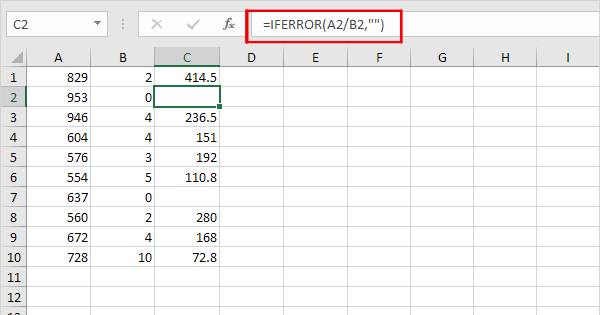
However, this function is generally used to handle the errors that might take place throughout the calculations/data processing.
The syntax of IFERROR function typically looks like this:
=IFERROR(value, value_if_error)
Value if error: It means the action that ought to be performed if the error is returned.
Value: This is what is being checked for an error. It’s typically a formula, but can also be a cell reference or a logical expression.
What Are the Errors Identifying by IFERROR Function?
The IFERROR monitors the below errors returned in the MS Excel spreadsheet:
- #N/A- The #N/A stands for the “Not Available” error. It is typically shown when a lookup function, like VLOOKUP or INDEX/MATCH, is unable to find a match in a specified range.
- #DIV/0!- The “#DIV/0!” error occurs when attempting to divide a number by zero or by an empty cell. This error indicates an invalid mathematical action.
- #VALUE!- The “#VALUE!” error typically occurs when Excel cannot understand a value in a cell as a number or when there’s a mismatch between different data types in the formula.
- #NUM!- The “#NUM!” error appears when a function or formula returns an invalid numeric value. Though, this error usually arises when you accomplish mathematical operations that are not valid.
- #REF! The “#REF!” error appears when a cell reference isn’t valid, it means that it’s referencing a cell that is moved, deleted, or contains an error itself.
- #NAME?- The “#NAME?” is a common error that occurs when Excel does not recognize a function or formula that you have entered in a cell.
- #NULL!- The “#NULL!” error takes place when you use a space character to specify the intersection of 2 ranges, nevertheless, the ranges don’t intersect or aren’t properly defined.
Also Read: How To Use Excel ISERROR Function?
How to Use IFERROR in Excel?
Here we will take a concise dataset in order to explain the steps very clearly. However, the dataset has around 7 rows & 5 columns. Firstly, we will keep all cells in the General format & the cost column in Accounting.
Please Note: Steps may vary according to the Excel version.
So, let’s proceed to know how to use the IFERROR function in Excel in 4 different ways:
1. Use IFERROR to Eliminate Basic Error
As already said, IFERROR function is used to handle the errors in Excel. So, let us see how to use this function by taking one simple example.
- First of all, go to the cell E5 >> enter the formula given below:
=D5/C5

- Next, press Enter & copy the same formula to the below cells by using the Fill Handle.
- After that, you can see the #DIV/0! Now, we will eliminate them by using the IFERROR.
- To do so, go to the cell F5 >> insert the below formula:
=IFERROR(E5,0)

- At last, press the Enter key & copy this formula to other cells below which must give 0 instead of the errors.

Also Read: Everything You Need to Know About Excel Matrix Functions
2. Use IFERROR Function with Array Formula
In Excel, you can even use the IFFERROR with an array formula to find any error.
Here are the steps to use IFFERROR with the array formula.
Step 1– Open your Excel spreadsheet, then double-click on the cell F5 & type the formula given below:
=SUM(C5:C10/D5:D10)

Step 2– Press an Enter key >> and type the formula given below in the F7 cell:
=SUM(IFERROR(C5:C10/D5:D10,0))

Step 3– Now, press Ctrl + Shift + Enter keys together to apply the array formula.

3. How to Use iferror in Excel with VLOOKUP
Well, the IFERROR function is very convenient when looking for any value by using the VLOOKUP function. It’s quite common to encounter an error if a value we’re looking for does not exist.
So, let’s see how to do so.
Step 1- In the opened document, make double-click on the F7 cell & insert the below formula:
=IFERROR(VLOOKUP(F5,B4:D10,3,0),”ID Doesn’t Exist”)
Step 2- Press the Enter & this ought to give you a message rather than an error.
4. Use IFERROR In a VBA
Since you are an Excel user then you must be aware of the VBA in MS Excel. Here you will have to write a few lines of code & apply an IFERROR function in any of the cells.
Here are the detailed steps for how to use an IFERROR function in VBA.
- Go to a Developer tab >> choose Visual Basic.

- Then, select the Insert in a VBA window >> click on the Module.
- After that, type in a formula given below in a new window:
Sub IFERROR()
Range(“F7”).Formula = “=IFERROR(VLOOKUP(F5,B4:D10,3,0),0)”
End Sub

- Next, go to a Developer tab >> click on the Macros.

- At this time, choose IFERROR macro in a Macro window >> click Run.
- Now, the VBA code will return a 0 value that means the ID is not existing instead of an error.
Also Read: HLOOKUP Vs VLOOKUP: Clear Contrast Between Excel Lookup Functions
Use a Third-Party Tool to Fix Corrupted Excel File
The Excel file corruption can cause different errors that may not be fixed by the IFERROR function. In such a case, immediately using the Excel Repair Tool can help you to repair the corrupted Excel file.
This is an expert-recommended utility that can repair various Excel errors successfully. Also helps to recover its components like charts, tables, indexes, worksheet properties, cell comments, & many more data.
Moreover, you can try a free demo version of this Excel recovery tool.
Steps to Know This Tool Works:







Related FAQs:
Can IFERROR Handle All Types of Errors in Excel?
No, IFERROR cannot handle all types of errors in Excel, it can manage the common errors only. To sort out the advanced errors, you can use other functions like IFNA & ISERROR.
What Does IFERROR Do in Spreadsheet?
IFERROR function generally handles the errors that might take place throughout the calculations/data processing.
Are There Alternatives to IFERROR In Excel?
Yes, there are a few alternatives to IFERROR in Excel like ISERROR, IF, and IFNA to handle errors, but you can use IFERROR for basic error handling.
Can I Use IFERROR In Excel for Large Datasets?
Absolutely, you can use the IFERROR function in Excel for large datasets. Though it is efficient for both large as well as small datasets.
How Do I Use IFERROR in Excel?
You can use IFERROR in Excel =IFERROR(value,value_if_error).
How Can I Trace Errors In My Excel Spreadsheet Effectively?
You can trace errors in Excel spreadsheet effectively by using Excel's ‘Trace Error’ feature. It helps to diagnose and correct errors in your spreadsheet successfully.
Final Verdict
I hope, after going through this post, you have gained enough information about what is IFERROR, why it is important, and how to use IFERROR in Excel. Besides, you have found the best Excel Repair Software that can help you fix Excel corruption and other errors successfully.
For further queries, feel free to contact us on Facebook and Twitter.
That’s all…

Priyanka Sahu

Priyanka is a content marketing expert. She writes tech blogs and has expertise in MS Office, Excel, and other tech subjects. Her distinctive art of presenting tech information in the easy-to-understand language is very impressive. When not writing, she loves unplanned travels.