
Microsoft Excel is packed with various outstanding features that help to enhance your spreadsheet. Research Pane is one of them, which offers various outstanding features such as online research, finding definitions, and translations. But sometimes, users need to disable this option to gather valuable insights from target audiences. In this blog, I will discuss step-by-step methods on how to disable research pane in Excel spreadsheet.
So, without any further ado, let’s get started…
To fix corrupt Excel files, we recommend this tool:
This software will prevent Excel workbook data such as BI data, financial reports & other analytical information from corruption and data loss. With this software you can rebuild corrupt Excel files and restore every single visual representation & dataset to its original, intact state in 3 easy steps:
- Try Excel File Repair Tool rated Excellent by Softpedia, Softonic & CNET.
- Select the corrupt Excel file (XLS, XLSX) & click Repair to initiate the repair process.
- Preview the repaired files and click Save File to save the files at desired location.
How to Disable Research Pane in Excel Sheet?
It is not a hectic task to turn off Research Pane in Microsoft Excel. This section involves various methods to get your job done quickly and effectively.
Way 1: Using the Keyboard Shortcuts
If you are looking for a quick and risk-free method, it is recommended to go for a keyboard shortcut:
- Use Ctrl + Click instead when selecting words.
Also Read: How to Remove Compatibility Mode in Excel – No Tech Skills Needed!
Way 2: Disable Research Task Pane
You can even disable the task pane via macro or VBA code. Although this method requires technical knowledge or advanced innovative skills to disable Excel’s research task pane.
- Open the Excel sheet in which you want to disable the research task pane.
- Next, right-click on your sheet name >> choose “View Code” to launch the VBA application.

- After this, you have to press CTRL + G keys together to open an Immediate window.
- Now, copy the below VBA code into a text box and hit Enter.
Application.CommandBars(“Research”).Enabled = False
- Press CTRL+ S to save the file as a macro-enabled template & close VBA windows using Alt + Q keys.
- From now on, when you press Alt & click on an Excel sheet, the research pane will not be displayed.
Way 3: How to Disable Research Pane in Excel via the Ribbon?
Another method you can try to turn off the research task pane is via Excel’s ribbon. For this, you have to follow the below instructions carefully:
- Open Microsoft Excel.
- Next, you have to click on the Review tab.
- Then, find Research option under the Proofing.
- If you found active this feature, click on it to close a Research Pane.
Way 4: Edit the Windows Registry (For Advanced Users)
Many advanced users have found this method useful in their cases. Thus, if you are a user who is comfortable with modifying system settings, you can try these steps:
- Press Windows + R keys, type regedit >> press Enter.
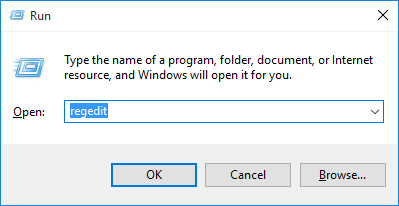
- Then, navigate to: HKEY_CURRENT_USER\Software\Microsoft\Office\16.0\Common\ResearchPane
- After that, right-click on the ResearchPane
- Choose New > DWORD (32-bit) Value.
- Now, name it NoResearchPane & set the value to 1.

- Close the Registry Editor and restart Excel.
Also Read: How to Protect Excel Sheet from Editing With 5 Ways?
Best Way to Fix Corrupted Excel Workbook & Recover Its Data
If meanwhile disabling this feature, unfortunately, you lose your Excel worksheet data, you can use the Excel File Recovery Tool. This expert tool is best for repairing corrupted or inaccessible Excel files & recovering the complete data in the chosen location. It allows us to easily recover data, including charts, worksheet properties, cell comments, etc.
You can even try the free demo version of this tool.
Frequently Asked Questions:
Research Pane in Excel is an excellent feature that offers various outstanding features such as online research, finding definitions, and translations.
You can get a research option in Excel by navigating to the Review tab > Research.
To turn off the MS Excel research pane, press Alt+F4 to close the Visual Basic Editor. Now, the Research pane shouldn't appear anymore.
There is no specific shortcut key for research in Excel
The research pane keeps appearing in Excel because this feature is accidentally enabled in your settings. What Is Research Pane?
How Do I Get the Research Option in Excel?
How Do I Turn Off the Research Pane in Excel?
What Is the Shortcut Key for Research in Excel?
Why Does Research Keep Popping Up in Excel?
Final Thoughts
So, this is all about how to disable research pane in Excel sheet. Disabling the Research Pane helps to prevent accidental activations and streamline your workflow. Depending on your needs, you can select a quick resolution or a permanent solution using Excel settings, the registry, or group policy.
Therefore, simply try the methods mentioned in this blog to disable this feature and enjoy a distraction-free Excel experience!

Priyanka Sahu

Priyanka is a content marketing expert. She writes tech blogs and has expertise in MS Office, Excel, and other tech subjects. Her distinctive art of presenting tech information in the easy-to-understand language is very impressive. When not writing, she loves unplanned travels.