
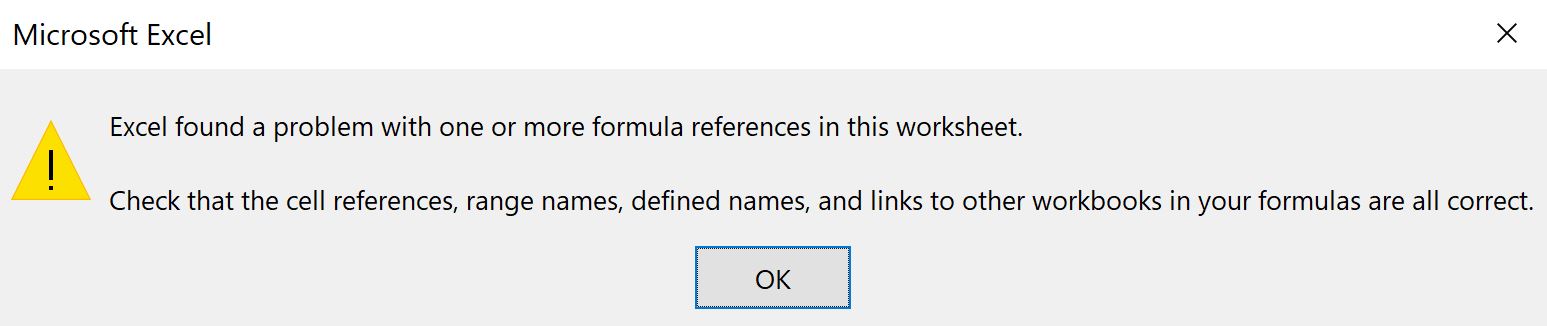
If you are a Microsoft Excel user, you might have encountered the error “Excel found a problem with one or more formula references in this worksheet.” This warning message can be baffling, especially if you are unsure why it appeared & how to fix it. Well, in this post, I will explore the intricacies of this annoying error, its causes, and methods to rectify it successfully.
Here’s the screenshot of the error:
To fix corrupt Excel file, we recommend this tool:
This software will prevent Excel workbook data such as BI data, financial reports & other analytical information from corruption and data loss. With this software you can rebuild corrupt Excel files and restore every single visual representation & dataset to its original, intact state in 3 easy steps:
- Try Excel File Repair Tool rated Excellent by Softpedia, Softonic & CNET.
- Select the corrupt Excel file (XLS, XLSX) & click Repair to initiate the repair process.
- Preview the repaired files and click Save File to save the files at desired location.
What Does Excel Found a Problem with Formula References in This Worksheet Mean?
When this error message appears, it simply means that the Excel workbook or file is partially corrupted. And you can’t get proper access to your workbook. However, it occurs due to various unforeseen reasons, like:
- When your Excel spreadsheet formula has a wrong cell reference.
- No values in the named/range cells
- maybe you have used object linking or link embedding OLE to the application which is not working.
After catching a complete idea about the root causes of this Excel error. Now it’s time to run down into the fixes section so that you can easily troubleshoot Excel found a problem with formula references keeps popping up error.
How to Fix “Excel Found A Problem With One Or More Formula References in This Worksheet” Error?
Follow the step-by-step methods to deal with this error:
Fix 1- Isolate The Specific Spreadsheet Tab
If in case you have an enormous number of files with so many tabs then start isolating some specific tab that is generating this error message. Well to perform this you just need to copy your tabs from the old workbook to a new one. Keep checking which tab in the new workbook throws the error message.
Press the save option after copying down each of the tabs. As it is seen an error message usually appears at the time of saving the event.
Also Read: Fixes for Excel There’s a Problem with This Formula Error!
Fix 2- Check External Links
The second option to fix this error message is by picking out the faulty external links. To check out the external links containing errors, you just need to follow this step:
In your Excel application, go to your Data Tab >> Queries & Connections >> Edit Links.
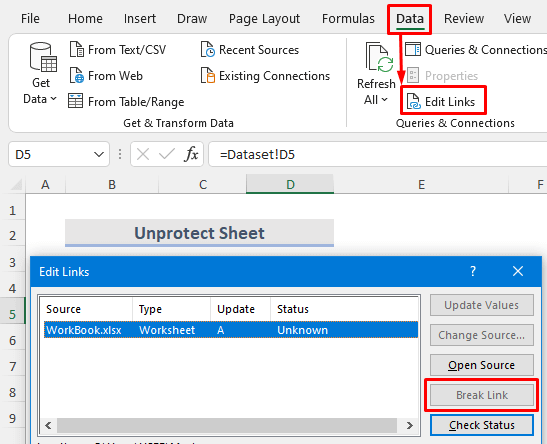
If you encounter any fault in the Excel external links then remove it.
Fix 3- Check The Name Manager
You can even check out the name manager to troubleshoot Excel found a problem with formula references in this worksheet error. For this, you just need to scroll through the Name Manager (it’s a dialog box that helps you to easily manage the entire of your named ranges). If any formula associated with your Named Ranges is having an error (ie #N/A, #REF, #VALUE!, #NAME?, #DIV/0).
Then delete all the named ranges one by one which is showing such an error. and after every deletion also check whether your action fixes the issue or not.
The second option is to filter out the Named Ranges having errors. Well, it is quite a faster way to check out the error showing Name Manager.
Fix 4- Check Your Charts
It’s quite a difficult task to track down which Excel chart object is causing this error. Mainly when you have so many charts on the given tab.
Generally, it is seen that if a chart is having some kind of error then it will pop up after you select the chart or when you insert the Select Data Source dialog box. Below here is the list of area locations where you need to check for errors.
- In the source data of the chart.
- in each of the chart series formulas present within the Select Data Source dialog box.
- Check for the errors in the horizontal axis formula which is present inside the Select Data Source dialog box.
- Also, check in the chart’s Secondary Axis.
- Also check in the linked Axis Labels, Data Labels, or in the Chart Title.
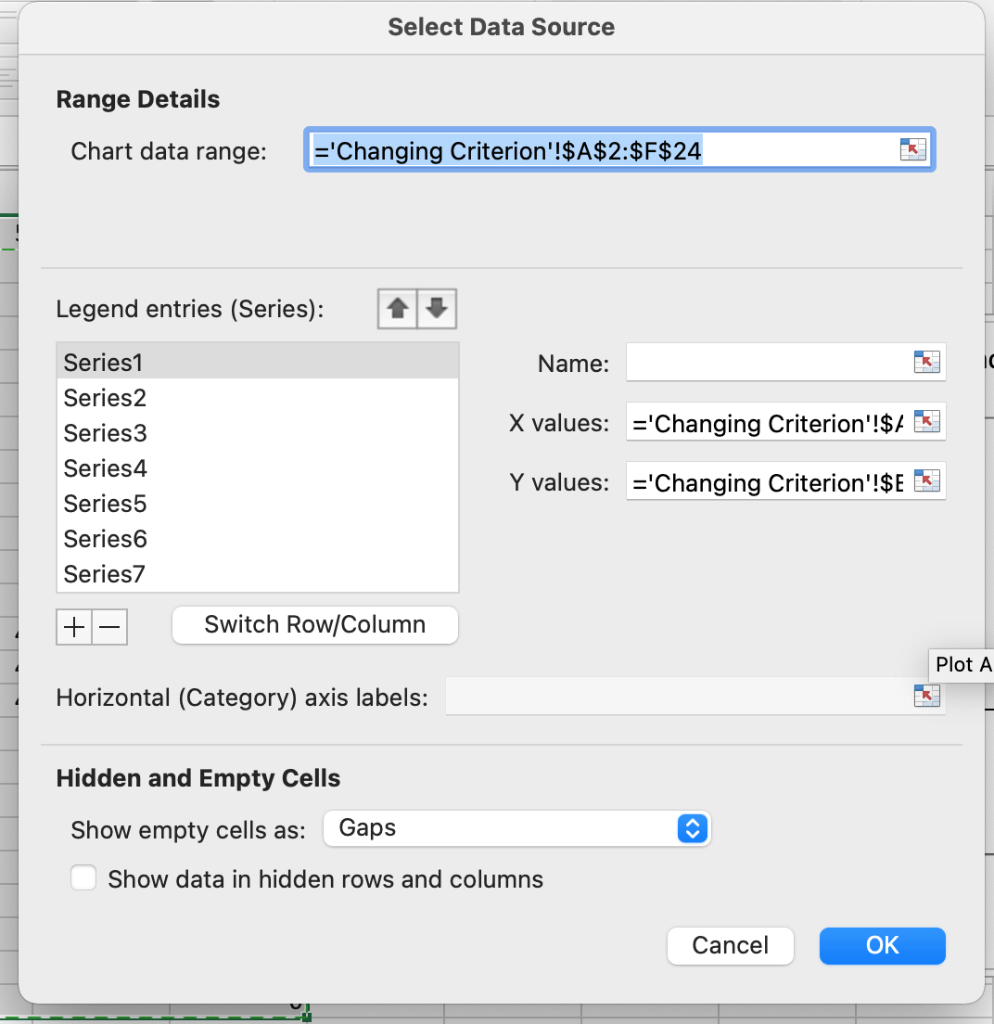
If in case all the above trick fails to identify the error-causing chart. Then in that case try Copy/Pasting the chart and watch out whether the new copy is also showing “check that the cell references, range names, defined names and links to other workbooks” error message.
Also Read: Fix Excel Formula Is Too Long Error
Fix 5- Check Your Pivot Tables to Solve Excel found a problem with one or more formula references in this worksheet
Chances are also that the problem is somewhere residing in your Pivot Table’s Data Source formula. So, choose your Pivot Table and go to the PivotTable Tools >> Analyze >> Change Data Source >> Change Data Source…
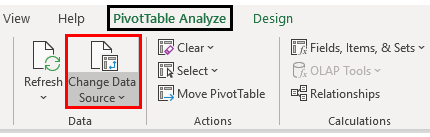
Now, here you need to check out whether any of your formulas have the error or not.
Check Formulas in Excel
Sometimes small and silly formula errors in Excel can also lead to big consequences. Whether you have misplaced the comma or entered a wrong reference; all these will severely hamper your results. So, to avoid such a situation it’s better to check your formula and make it error-free. Learn how it is to be done:
Fix 6- F2 – See formulas in Excel
For checking out the formula of some specific cells:
Firstly, you need to choose the cell after then press the F2 key from your keyboard. This will highlight the cells referenced in the formula. After that, you can make easy checks and edit your Excel formulas.
Fix 7- Control + ~ To show all Formulas
Choose any cell of your Excel spreadsheet and from your keyboard press the Ctrl and tilde ( ~ ) button simultaneously.
This will present you with all the formulas on your worksheet. To go back to the normal view just press the Ctrl and Tilde ( ~ ) button once more.
You can get this tool also from the Formula Auditing group present within the Formulas tab.

Also Read: Remove Unprotected Formula Error From Excel
Fix 8- Trace Precedents and Trace Dependents
In Excel, precedent is used for the cell referenced in the formula. Suppose you are using a formula =C6+7 then in that case C6 is a precedent.
Whereas, in Excel terms, Dependents is used for the cells that depend on the content from another cell. If the above-mentioned formula is written within the cell C9. Then in that case C9 will be dependent on C6.
For showing precedents in your workbook cell:
- choose the cell having formula and tap on the Formula
- Now from the Formula Auditing group select the Trace Precedents.
- The arrow will indicate the precedent cells. You can toggle this feature off just by tapping on the Remove Arrows option of the same Formula Auditing group.
For using the Dependents in your workbook cell:
- Choose the cells that are already referenced in some other cell’s formula.
- Now go to the formula tab and then choose the Formula Auditing Group.
- Hit the Trace Dependents option. This will figure out the cells that depend on that particular cell.
Automatic Solution: MS Excel Repair Tool
If unfortunately, none of the above solutions works to fix it. In that case, chances are also that maybe any of your Excel file or its objects somehow got corrupted. Thus, it shows such Excel formula errors.
To deal with such a situation we always recommend our users to go with reliable and professional MS Excel Repair Tool. With the help of this, the users can repair the Excel file easily and also restore the entire corrupted data including cell comments, charts, other data, and worksheet properties. it is the best professionally designed program to easily repair corrupt .xls and .xlsx files.
Steps to Utilize MS Excel Repair Tool:







Tips to Minimize The Occurrence Of Excel Formula Errors
Here are a few helpful tricks to minimize the occurrence of Excel formula errors. so, read it and do follow it.
- Start every formula in Excel by putting an equal sign in the beginning.
- Make use of the * symbol to apply multiplication, not an X.
- Check out the opening and closing parentheses that they are in pairs or not.
- Put quotation marks in formulas around the text.
FAQs (Frequently Asked Questions)
What Are The 3 Types of Cell References in Excel?
The 3 types of cell references in Excel are - relative, absolute and mixed.
Can Circular References in Excel Formulas Cause Other Problems?
Absolutely, circular references can lead to calculation errors and instability in Excel workbooks or worksheets.
How Do I Lock All Cell References in An Excel Formula?
By putting the dollar sign ($) before a cell & column references, you can lock all the cell references in an Excel formula.
How Can I Prevent External Workbook References from Triggering Formula Errors?
To prevent external workbook reference errors, make sure that the linked workbooks are accessible. Also, ensure that the file paths are properly specified in your formulas.
Final Thoughts
I have tried my level best to cover all the fixes to troubleshoot this Microsoft Excel found a problem with one or more formula references in this worksheet error. So, by understanding its causes & following the strategies outlined in this blog, you can solve this error and minimize disruptions caused by formula reference errors.
Thanks for reading!

Priyanka Sahu

Priyanka is a content marketing expert. She writes tech blogs and has expertise in MS Office, Excel, and other tech subjects. Her distinctive art of presenting tech information in the easy-to-understand language is very impressive. When not writing, she loves unplanned travels.