
Managing Excel workbook connections is vital for maintaining data integrity and performance. Whether you are linking multiple data sources or working with real-time updates, mastering connections can significantly boost productivity. In this blog, you will get every pinch of information regarding workbook connections. In addition, you will learn how to manage Excel workbook connections.
So, without wasting any further time, let’s get started…
To repair corrupted Excel file data, we recommend this tool:
This software will prevent Excel workbook data such as BI data, financial reports & other analytical information from corruption and data loss. With this software you can rebuild corrupt Excel files and restore every single visual representation & dataset to its original, intact state in 3 easy steps:
- Try Excel File Repair Tool rated Excellent by Softpedia, Softonic & CNET.
- Select the corrupt Excel file (XLS, XLSX) & click Repair to initiate the repair process.
- Preview the repaired files and click Save File to save the files at desired location.
What Is Data Connection In Excel?
Data in any Excel workbook can only be brought from different locations. Firstly, the data is directly stored in your Excel workbook. Secondly, it may be saved in an external data source, like a database, an OLAP (Online Analytical Processing cube), or a text file.
Using the data connection in Excel, external data sources are well connected with the Excel workbook. This data connection in Excel contains a set of information about how to log in, query, locate, and perfectly access the external data source.
After connecting your Excel workbook with an external data source, you can easily use the refresh option to extract the updated data from your workbook. This way, you can get the most updated version of your data, including the changes made since it was last refreshed.
Well, the Connection information can be stored in a connection file or the workbook, like Universal Data Connection (UDC) file (.udcx) or Office Data Connection (ODC) file (.odc)
These connection files are very useful to share connections regularly, also to facilitate data source administration.
If you are using the connection file to connect to the data source. Then, in that case, Excel will copy down the connection details from the connection file into your Excel workbook.
Different Ways To Perform Excel Workbook Connections
In this Excel workbook connections tutorial we will learn 3 different ways to use Data Connection In Excel 2010/2013/2016/2019:
- Workbook Connections dialog box
- Creating an Office Data Connection (ODC) file (.odc)
- Refresh external data connection
Method 1: Excel Workbook Connections Using Workbook Connections Dialog Box
Excel Workbook Connections dialog box option helps in easily managing single or multiple connections with the external data sources of your workbook. Apart from this, the Workbook Connections dialog box is helpful to perform the following tasks:
- It helps to edit, refresh, create, and delete connections which are used in an Excel workbook.
- Show the location of each connection that is already been used in the current Excel workbook.
- Easy diagnosis of error messages regarding external data connections.
- With this option, the user can either redirect the connection to different data or to a different server. Or alternatively user can easily replace the connection file with the existing connection.
- It becomes too easy to make & share connection files.
Steps To Manage Excel Workbook Connection Using Workbook Connections Dialog Box
Here is how to manage connections in your current Excel workbook i.e, by using the Workbook Connections dialog box:
Identify a connection
In the top portion of the dialog box, all connections in the workbook are displayed automatically with the following information:
| Column | Comment |
| Name | connection name is, defined within Connection Properties dialog box. |
| Description | A short description about connection, is mentioned in Connection Properties dialog box. |
| Last refreshed | when was the connection was last refreshed such as it’s date and time appears in this section. If it is blank, then it means that the connection has not refreshed yet. |
Add a connection
- Tap to the Add option to get the dialog box of Existing Connections.
Display Connection Information
- For this, you need to choose a connection from the opened Existing Connections dialog box.
- Now hit the Properties option and this will open the dialog box of Connection Properties.
Refresh The External Data.
- Hit the arrow option present next to the Refresh option. After that perform anyone of the following:
- If you want to refresh any specific connections only, then make selections of those connections. After that tap to the Refresh option.
- To refresh all connections of your workbook, just clear off all the connections. After that tap to the Refresh All option.
- If you want to get the status information about the refresh operation, then choose the connections about which you want to extract information. After that, hit the Refresh Status option.
- To stop the current running refresh operation, just tap to the Cancel Refresh option.
Remove One Or More Connections
- Choose the connections that you want to remove from your Excel workbook. After that, tap the Remove option.
Notes:
- Well, this option appears disabled to you if your workbook is protected or if it is an object, like a PivotTable report, which uses the protected connection.
- Removing the connection will only delete the connection. It will not remove any data or any objects from your Excel workbook.
Important: By removing the connection, you are actually breaking the connection with the data source which may lead to unintentional consequences, Like different formula results, or you may face difficulty in accessing Excel features.
Also Read: How to Create a Flowchart in Excel? (Step-By-Step Guide)
Method 2: Excel Workbook Connections Using Refresh External Data Connection Option

User can connect their Excel workbook with an external data source, like to another Excel workbook, SQL Server database or an OLAP cube.
Well this connection information gets displayed on your workbook as PivotTable report, PivotChart, table.
For keeping the data of your Excel workbook updated, you can make use of “Refresh” option to link the data with its source.
So whenever you will refresh your connection, you will only get the most current updated data.
Step To Use Refresh External Data Connection Option
For connections, just tap on any cell of your Excel table that uses the connection. After that, perform any of the following operations:
- Automatically refresh data when the Excel workbook is opened
- Automatically refresh data at a regular interval
Steps to Automatically Refresh Data When Excel Workbook Is Opened
- Tap on the cell present within the external data range.
- Now, on the Data tab, go to the Queries & Connections. Hit the arrow key present within the Refresh All option, and from this tap to the Connection Properties.
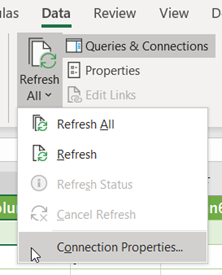
- From the opened dialog box of Connection Properties dialog tap the Usage tab, within Refresh control. After that choose the check box “Refresh data when opening the file”.
- In order to save your workbook with the complete query definition, excluding external data. You need to choose the check box “Remove data from the external data range before saving the workbook”.
Step To Automatically refresh data at a regular interval:
- Tap on the cell present within the external data range.
- Now, on the Data tab, go to the Queries & Connections. Hit the arrow key present within the Refresh All option, and from this tap, to the Connection Properties.
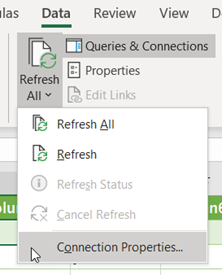
- In the opened Connection Properties dialog box. Hit Usage tab option.
- Choose the check box Refresh every. After then set the minute interval that will automatically refresh your data after certain period of time.
Method 3: Excel Workbook Connections By Creating An Office Data Connection (ODC) File
By making use of the Data Connection Wizard or Connection Properties dialog box one can easily use their Excel worksheet to create an Office Data Connection (ODC) file (.odc).
- You can perform any of the following tasks:
- Make new connection with data source. To catch more information, have a look at the following topics :
- Connect to SQL Server Analysis Services Database (Import)
- Import or export text files
- Move data from Excel to Access
- Make new connection with data source. To catch more information, have a look at the following topics :
- Or you can just make use of the existing connection. For more information, see Connect to (Import) external data.
- After that save the connection details in the connection file. For this, just make a tap to the Export Connection File option present on the Definition tab of Connection Properties dialog box. This will open the File Save dialog box, so save your current connection information into the ODC file.
Best Practices for Managing Connections
Here are the best tips that you need to follow while managing the workbook connections:
- Use Trusted Sources: Avoid uneven or unsecured locations.
- Name Connections Clearly: Use descriptive titles for easy identification.
- Limit External Links: Too many links can cause lag and confusion.
- Backup Your Workbook: Always save a version before editing connections.
- Audit Regularly: Check connections monthly for accuracy and relevance.
Frequently Asked Questions:
How Do I Remove Connections from My Excel Workbook?
To remove connections from Excel workbook, follow the steps below:
- Go to ‘Data’ tab in the top banner.
- Locate ‘Queries & Connections’ group >> click on ‘Edit Links.’
- Then, locate the link you need to remove from a ‘Source’ list.
- If you want to choose multiple links, then hold ‘Crtl’ key on your keyboard & click each link you need to remove.
- Select ‘Break Link.’
Where Is Manage Workbook Option in Excel?
On the left side, you will see the add-in pane with all the currently opened workbooks and manage workbook option.
How Do I Remove Existing Table Connections in Excel?
To remove existing table connections in Excel, follow these steps:
- Click Data tab > Relationships.
- Under Manage Relationships dialog box, choose one relationship from a list.
- Next, click on Delete.
- Under the warning dialog box, you have to verify that you need to delete the relationship >> click OK.
- Click Close.
Bottom Line
Managing workbook connections in MS Excel is crucial for efficient data operations. Above, I have specified various methods to manage Excel workbook connections. So, simply try them.
Also, regular maintenance prevents issues and ensures smooth workflows. Take time to organize, refresh, and monitor connections consistently.

Priyanka Sahu

Priyanka is a content marketing expert. She writes tech blogs and has expertise in MS Office, Excel, and other tech subjects. Her distinctive art of presenting tech information in the easy-to-understand language is very impressive. When not writing, she loves unplanned travels.