
Imagine you’re working with VBA in Excel, and suddenly you get stuck with “Can’t execute code in break mode”. Well, this warning arises during macro or VBA execution. It occurs due to numerous reasons, irrespective of the reason, it can be easily fixed. This blog explains why this peculiar error occurs & how to fix Excel error can’t execute code in break mode with less effort.

So, let’s get started…
To fix corrupted Excel files, we recommend this tool:
This software will prevent Excel workbook data such as BI data, financial reports & other analytical information from corruption and data loss. With this software you can rebuild corrupt Excel files and restore every single visual representation & dataset to its original, intact state in 3 easy steps:
- Try Excel File Repair Tool rated Excellent by Softpedia, Softonic & CNET.
- Select the corrupt Excel file (XLS, XLSX) & click Repair to initiate the repair process.
- Preview the repaired files and click Save File to save the files at desired location.
What Does “Can’t Execute Code in Break Mode” Mean in Excel?
When this Excel error occurs, it simply means that macros cannot run smoothly. This state often appears during debugging sessions or VBA code execution.
However, it happens due to various factors, including:
- Due to weak server.
- Using multiple Microsoft accounts.
- Corrupted Excel workbook.
- Incompatible Excel add-ins.
- Faulty VBA logic
- Running many applications.
Therefore, these are the most common causes of this error in Excel.
How to Fix Excel Error Can’t Execute Code in Break Mode?
Try the methods to tackle this situation:
Way 1- Remove the All Breakpoints in VBA Editor
Since the error is associated with the VBA code, it is vital to remove the all breakpoints in the VBA editor. To do so, follow the below steps:
- Open a VBA Editor
- After that, click the Debug from a menu.
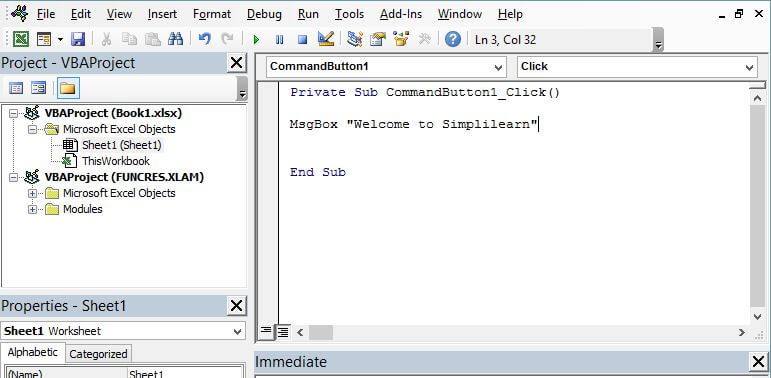
- Choose the Clear All Breakpoints.
- Instead, press the Ctrl + Shift + F9.
This step prevents future interruptions.
Also Read: Microsoft Excel Error Code 0xc004f074 – Quick & Easy Solution!
Way 2- Open & Repair in-built Utility
If you are facing an Excel macro error can’t execute code in break mode due to workbook corruption, it is vital to try the Open and Repair built-in utility. It can fix the workbook corruption as well as recover all the data saved within it.
- Open Excel >> click File >> Open.

- Navigate to the location where a corrupted file exists.
- From Open dialog box, simply choose your faulty Excel file.
- Click the arrow present next to an Open button >> click the Open and Repair.

- To recover much of your Excel workbook data, tap on the
Way 3- Disable the Break Mode Via VBA Reset Option
Another workable solution you can try is to use the VBA Reset option to clear the paused states. This will eventually help you to stop all running code and will remove breakpoints instantly.
Please Note: Save your crucial work before resetting.
Way 4- Update Excel Application
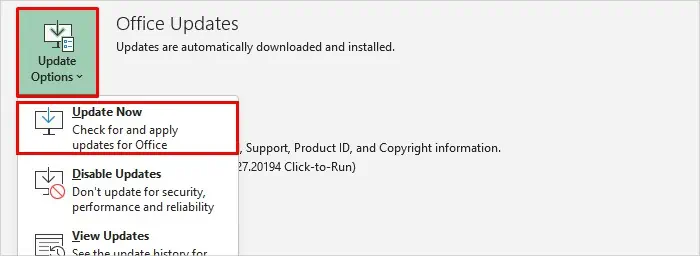
Are you using an outdated version of Microsoft Excel? If so, then this could be the reason for the occurrence of this error. Therefore, make sure to get the up-to-date version of Excel by following the steps below:
- Open Excel app.
- Navigate to File>> Account
- In the Product Information, choose Update Options >> click Update Now.
Way 5- Run Excel Without Macros to Test
Sometimes, running Excel without macros can assist you in diagnosing issues. To check and do so, follow the steps:
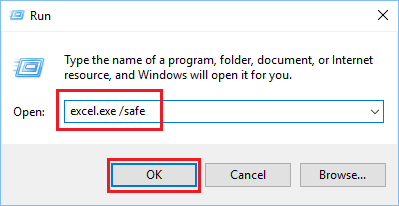
- Open MS Excel in safe mode.
- Press Windows + R to start.
- Then, type excel /safe & press Enter.
- After that, open an affected workbook.
If the error disappears, macros cause the problem.
Way 6- Disable Add-ins to Fix Excel Error Can’t Execute Code in Break Mode
As already mentioned in the causes, damaged add-ins in Excel often cause problems when handling the worksheets. Therefore, let’s check for such add-ins & disable them immediately.
Here are the steps to be followed:
- Open MS Excel >> click Options.
- Next, select Add-Ins under the ‘Excel Options’ window.
- Select the COM Add-ins by expanding the ‘Manage’

- Lastly, click the Go >> simply uncheck all the COM Add-ins >> click OK.

Also Read: Crack the Code 1004: 6 Ways for “No Cells Were Found” Excel Error!
Try the Recommended Excel Repair Tool
Even after trying the above manuals, if the Excel macro error can’t execute code from executing in break mode persists, use the MS Excel Repair Tool. It is highly capable of repairing your corrupted or damaged files.
Moreover, it can recover the entire data of the corrupt workbook, such as charts, cell comments, worksheet properties, and other data, which is recovered in the preferred location.
Steps to Utilize MS Excel Repair Tool:







Frequently Asked Questions:
To fix a broken macro in Excel, open Excel >> click ‘File’ >> ‘Options.’ Then, go to ‘Trust Center’ > ‘Macro Settings.’ Now, Enable macros, reboot Excel and test.
To remove breaks in MS Excel, follow the below steps:
To clear break mode in VBA, Open Excel VBA editor, from the Debug menu, select the Clear All Breakpoints (CTRL+SHIFT+F9). How to Fix a Broken Macro in Excel?
How Do I Remove Breaks in Excel?
How to Remove Break Mode In VBA?
Packing Up
If you’re facing an Excel macro error can’t execute code in break mode, try fixing the error by applying the techniques discussed above. Nevertheless, if the manual methods don’t work, try the Excel Repair Tool to repair your .XLS or .XLSX file successfully.
For more queries, contact us through Twitter or Facebook, and stay tuned with us for the latest articles.

Priyanka Sahu

Priyanka is a content marketing expert. She writes tech blogs and has expertise in MS Office, Excel, and other tech subjects. Her distinctive art of presenting tech information in the easy-to-understand language is very impressive. When not writing, she loves unplanned travels.