
While performing mathematical operations & calculations in Excel spreadsheets with formulas, users often encounter rounding errors that can cause significant inaccuracies in calculations. Thus, if you are one such user and want to know how to avoid rounding errors while calculating in Excel sheet, keep on reading this helpful guide.
This blog contains complete information regarding Excel rounding errors and how to deal with them.
To repair Excel file, we recommend this tool:
This software will prevent Excel workbook data such as BI data, financial reports & other analytical information from corruption and data loss. With this software you can rebuild corrupt Excel files and restore every single visual representation & dataset to its original, intact state in 3 easy steps:
- Try Excel File Repair Tool rated Excellent by Softpedia, Softonic & CNET.
- Select the corrupt Excel file (XLS, XLSX) & click Repair to initiate the repair process.
- Preview the repaired files and click Save File to save the files at desired location.
What Is a Rounding Error in Excel?
A rounding error is also known as a round-off error. It is a mathematical miscalculation error triggered by changing a number with an integer or 1 with fewer decimals. Essentially, the significance of the rounding error mainly depends on the circumstances.
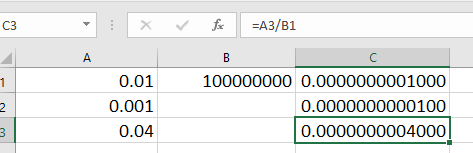
To better understand a rounding error, let’s take an example:
For example, consider a condition where a financial organization erroneously rounds off the interest rates on the mortgage loans in a certain month, resulting in its clients being charged interest rates of 4% & 5% instead of 3.60% & 4.70% respectively. In such a situation, the rounding error could disturb 10 thousand of its clients, and the magnitude of an error would result in an institution suffering thousands of dollars in outlays to correct the transactions & fix the error.
When Can Rounding Errors Occur in Excel?
As already said, when you perform mathematical calculations or use multiplication, division or exponentiation in a formula then this can cause rounding errors in Microsoft Excel. No matter what causes such errors, it is important to avoid rounding errors while calculating in Excel for seamless spreadsheet performance.
How to Avoid Rounding Errors While Calculating in Excel Sheet?
Follow the below step-by-step methods to stop rounding off in Excel easily.
Quick Navigation:
Method 1- Set Decimal Place
The very first method you can try to prevent errors while calculating is setting the decimal place. Here are the complete steps to be followed:
- Select the cell(s) which hold formulas.
- Right-click to choose Format Cells option from a context menu.
- Now, go to a Number tab, choose Number from a Category.

- After that, in a right section, you have to type the number in the Decimal places box until a correct outcome is displayed.
- At this time, hit OK. This will display calculated results correctly.
Also Read: Solving Excel Formulas Not Calculating Automatically- 5 Pro Tips
Method 2- Enable the Precision as Displayed
Microsoft Excel lets users turn ON the Precision as Displayed option, which services calculations to match the presented values.
Here are the complete instructions to follow and enable this feature:
- Navigate to File >> Options then Advanced.
- Now, scroll down to find “When calculating this workbook.”

- After this, check the checkbox named “Set precision as displayed.”
- Finally, hit on OK.
Method 3- Avoid Rounding Errors While Calculating in Excel by Using Consistent Data Formats
Another effective way you can try is to ensure that all numeric data uses a reliable format. Mixing different formats (e.g., text and numbers) can cause rounding errors.
Steps to be followed to check data format:
- Select the column.
- Go to the Home >> Number Format.
- After that, choose Number or Currency.
And you are done!
Related FAQs:
=ROUND(2.15, 1) is the formula for rounding in MS Excel.
You can fix the rounding error in Excel by setting the rounding precision and following the below steps:
In Microsoft Excel, rounding errors occur due to uncertainty in the representation of real numbers & the mathematical actions done with them.
To stop Google Sheets from rounding your numbers, you have to correct the number formatting settings by choosing ‘More Formats’ from a toolbar & then selecting ‘Number.’ Now, from there, simply select the chosen number of decimal places for your data. What Is the Formula for Rounding in Excel?
How to Fix Rounding Error in Excel?
What Causes Rounding Errors?
How to Stop Google Sheets from Rounding?
Time to Conclude
So, this is all about how to avoid rounding errors while calculating in Excel spreadsheet.
Evading rounding errors in MS Excel guarantees correct calculations & reliable data. However, increasing decimal precision, enabling precision as displayed, etc. can significantly diminish rounding issues. Apply these best practices for error-free calculations.
That’s it.

Priyanka Sahu

Priyanka is a content marketing expert. She writes tech blogs and has expertise in MS Office, Excel, and other tech subjects. Her distinctive art of presenting tech information in the easy-to-understand language is very impressive. When not writing, she loves unplanned travels.