
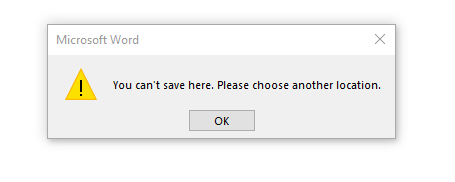
In this blog, I have discussed the “Microsoft Excel: You can’t save here. Please choose another location” error that appears when a user tries to save an XLS or XLSX file in a Windows PC. I have mentioned numerous ways that may help you fix the problem without any data loss. Though if you face Microsoft Excel you can’t save here error due to file corruption, you can use an Excel Repair Tool to fix it successfully.
To fix corrupted Excel files, we recommend this tool:
This software will prevent Excel workbook data such as BI data, financial reports & other analytical information from corruption and data loss. With this software you can rebuild corrupt Excel files and restore every single visual representation & dataset to its original, intact state in 3 easy steps:
- Try Excel File Repair Tool rated Excellent by Softpedia, Softonic & CNET.
- Select the corrupt Excel file (XLS, XLSX) & click Repair to initiate the repair process.
- Preview the repaired files and click Save File to save the files at desired location.
Major Reasons for Microsoft Excel You Can’t Save Here
There are numerous possible reasons why you might encounter this error:
- Insufficient file or folder permissions.
- Due to Excel file corruption.
- Add-ins/plugins become corrupted.
- Outdated MS Excel software or settings conflicts.
- Windows security settings.
- Corrupted MS Office installations.
Therefore, identifying the cause matters.
How to Solve Excel You Can’t Save Here Please Choose Another Location Error?
Follow the approaches below to deal with this peculiar error message:
Trick 1- Rename the File
Renaming the Excel file is a basic solution to tackle this situation. For this:
- Go to the locationwhere your damaged Excel file is stored.
- After that, right-click on the file & Rename it.

Trick 2- Check for Necessary File/Folder Permissions
Folder permissions often block Excel file saving and cause errors. So, check & ensure that you have the mandatory permissions to access the file or folder. After that, you can try saving the file and checking for the error.
To do so:
- Right-click on the folder that contains the Excel file.
- Select Properties >> Security
- After this, click on the Edit to change permissions.
- Grant Full Control to your user account.

- Lastly, apply changes & restart Excel.
As a result, Excel regains saving access.
Also Read: Unable to Save Excel File to Shared Network Drives!
Trick 3- Save the File to Another Location
Since you are facing the Microsoft Excel you can’t save here error while saving the file so, you can try saving it elsewhere.
Here are the steps to be followed:
- Open MS Excel file, click File
- Click on Save As & choose another location.
- After this, click on the Save files in this file format: drop-down.

- Now, select a supported format and hit OK to confirm
Trick 4- Disable Faulty Add-ins
Another troubleshooting method you can try is to disable the faulty Excel add-ins. Hence, let’s check for the corrupted add-ins & disable them.
- Open Excel >> click Options.
- Select the Add-Ins in the ‘Excel Options’ window.
- At this time, select the COM Add-ins by expanding the option ‘Manage’.

- Now, hit on Go button & uncheck all the COM Add-ins >> hit OK.
Trick 5- Turn OFF the “Protected View”
Disabling the protected view settings is an excellent trick that helps many to solve Excel problems, including Excel you can’t save here please choose another location error. Simply, check & disable the protected view settings to solve it:
- Open the Excel application.
- Navigate to File >> Options>> Trust Center.
- Under the opened window, click Trust Center Settings >> Protected View.
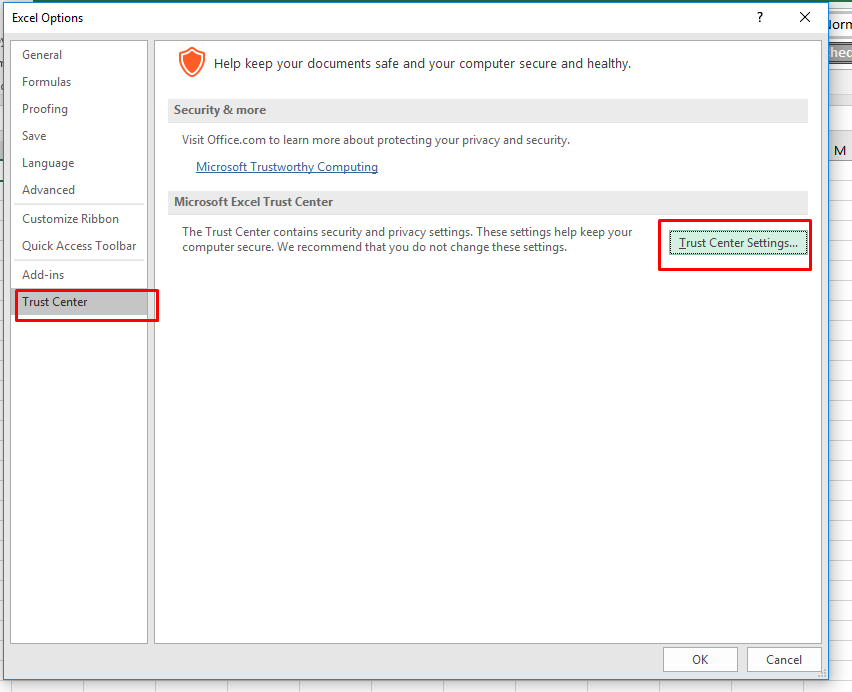
- In the opened window, deselect the following options & hit OK:
- Enable Protected View for files originating from the Internet.
- Enable Protected View for files located in potentially unsafe locations.
- Enable Protected View for Outlook attachments.

Trick 6- Corrupted Excel Workbook File
Sometimes, the corrupted Excel file refuses to open, edit, or save the document. In that case, using the ‘Open and Repair’ feature is a wise decision.
Follow the steps below to run this utility:
- Open Excel >> click Blank.
- Under a blank workbook, click File >> Open.

- Then, click on Computer> Browse.
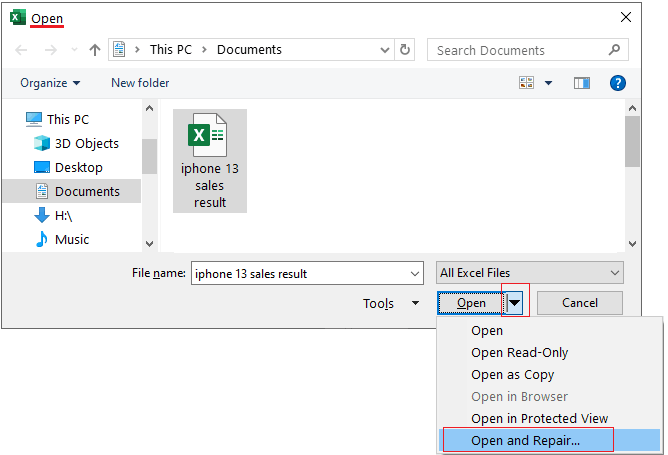
- Select the Excel file showing the error & click on the Open button arrow.
- Lastly, choose the Open and Repair >> Repair.
If the Open and Repair fail, opt for the MS Excel Repair Tool. It can fix the major corruption in the workbook and recover all the data saved within it.
Steps to Utilize MS Excel Repair Tool:







Trick 7- Update the Excel to Fix Microsoft Excel You Can’t Save Here Error
If you are using an outdated version of Excel software, you can face this error. Consider updating the software to fix it.
- Open Microsoft Excel in the search bar.
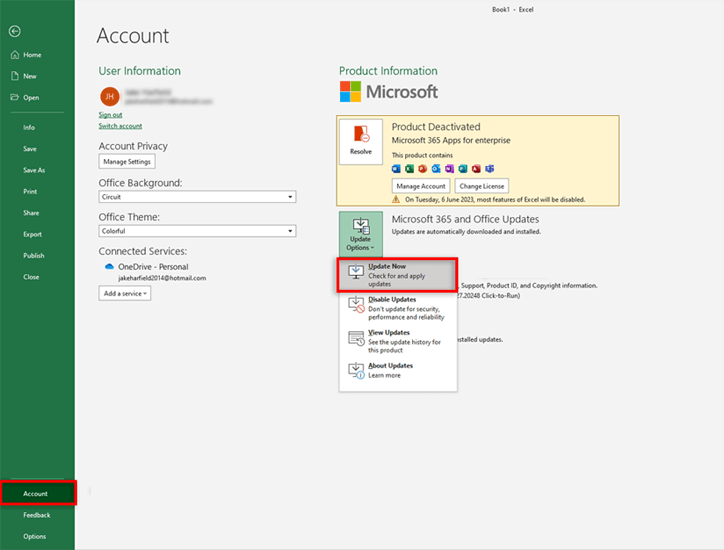
- Go to “File” tab >> choose Account
- Next, click on Update Options>> “Update Now”.
Also Read: Your Excel Lifesaver: Tips for ‘Unable to Save Excel Workbook’ Issue
Trick 8- Repair Microsoft Office Installation
Most of the time, corrupted files cause unexpected behavior. So, repairing the office is essential.
- Open Control Panel.

- Next, select Apps and Features.
- Locate the Microsoft Office in the list.
- After that, click Modify and choose Quick Repair.
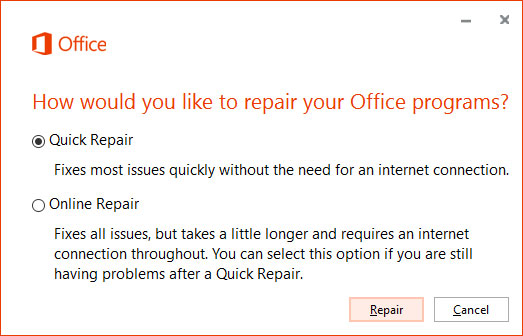
- After completion, restart the system.
If needed, use Online Repair instead.
Related FAQs:
Excel not allowing you to save an Excel workbook due to insufficient storage space or permissions.
To fix Excel document not saved error, follow the below steps:
Yes, you can recover an unsaved Excel document by using Excel's built-in AutoRecover feature. Go to the File menu > Info > Manage Workbook >> Recover Unsaved Workbooks Why Is Microsoft Excel Not Allowing Me to Save?
How to Fix Excel Document Not Saved?
Can I Recover an Excel File Not Saved?
Conclusion
Microsoft Excel you can’t save here please choose another location error can be solved with the above methods or by using an excellent Excel Repair Tool. Though there’re no standard resolutions to troubleshoot the error, as they may vary with different scenarios.
Henceforth, using an advanced recommended solution may be the best option! It extracts data from a corrupted file & saves it to a new workbook, which you can open and edit.

Priyanka Sahu

Priyanka is a content marketing expert. She writes tech blogs and has expertise in MS Office, Excel, and other tech subjects. Her distinctive art of presenting tech information in the easy-to-understand language is very impressive. When not writing, she loves unplanned travels.