
Excel users often encounter errors while copying and pasting their spreadsheet data. One such peculiar error message is- “you can’t paste this here because the copy area and paste area aren’t the same size”. It occurs when trying to copy and paste data from one Excel sheet to another or from external sources. However, the message confuses users during urgent tasks.

This blog describes every aspect of this error, along with the best fixes that take seconds, not minutes to solve it.
To fix corrupted Excel file, we recommend this tool:
This software will prevent Excel workbook data such as BI data, financial reports & other analytical information from corruption and data loss. With this software you can rebuild corrupt Excel files and restore every single visual representation & dataset to its original, intact state in 3 easy steps:
- Try Excel File Repair Tool rated Excellent by Softpedia, Softonic & CNET.
- Select the corrupt Excel file (XLS, XLSX) & click Repair to initiate the repair process.
- Preview the repaired files and click Save File to save the files at desired location.
Why Excel You Can’t Paste This Here Because the Copy Area Occurs?
Have a look over the reasons that can lead to this Excel error:
- Merged cells in a copy worksheet or destination worksheet.
- Protected sheets may not allow any pasting operations within Excel.
- Incompatible formats
- Filtered ranges also prevent proper pasting.
- Corrupted Excel workbook
- Copied data may exceed destination boundaries.
- Meanwhile, hidden rows or columns create conflicts.
So, these are major causes for Excel stopping the paste operation issues.
Workarounds to Solve Excel You Can’t Paste This Here Because the Copy Area Error
In this section, I have covered basic to advanced resolutions in detail so that you can apply them easily. Therefore, check them out one by one until the problem is resolved.
Workaround 1- Unmerge the Cells
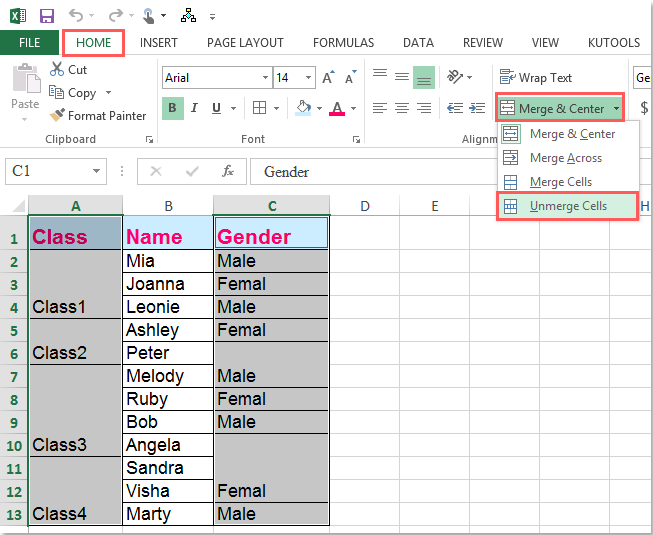
As already said, when the spreadsheet data is copied from the merged cell and gets pasted into the non-merged cells, it can show runtime error 1004 you can’t paste this here because the copy area. To troubleshoot it, consider unmerging the merged cells.
- Launch the faulty Excel document.
- Select data & press CTRL+C to copy.
- Navigate to “Home” tab >> click Merge and Center>> Unmerge Cells.
Also Read: Ways for Microsoft Excel Cannot Paste the Data Error: Easy Solutions!
Workaround 2- Clear the Conditional Formatting
Applying the conditional formatting to the spreadsheet data can slow down the Excel application and can cause runtime errors when working on it.
So, try clearing out the conditional formatting to solve such issues:
- Open Excel
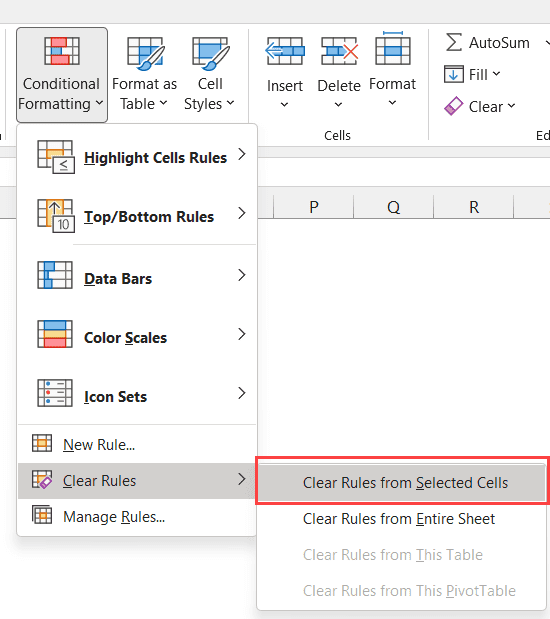
- Go to the Home tab then click on conditional formatting.
- After that, click >> clear rules >> clear rules from an entire sheet.
- Now, select any extra tab from the bottom and redo the first step.
- Next, choose File >> Save as option.
- Finally, make a new spreadsheet of the same data.
Workaround 3- Remove the Protection
By unprotecting hidden or protected sheets, you can tackle this situation. Steps to be followed to unprotect the sheet:
Step 1- Navigate to Home tab >> from the Cells group, and click format option.
Step 2- From a drop-down menu, click on Unprotect Sheet.

Step 3- Next, enter the password that you’ve given at the time of protecting your spreadsheet >> click OK button.

Workaround 4- Fix Excel You Can’t Paste This Here Because the Copy Area Error Using Paste Special
Many users have reported that they fixed this annoying error message by using the “Paste Special” instead of the “Paste” option. So, you can even try this method to paste some type of special graphics from one Excel sheet to another.
Here’s how you can use the “Paste Special” feature in Excel:
- Copy the Excel sheet data that you need to paste somewhere else.
- Next, open the target workbook where you want to paste it.
- Then, right-click over the cell to select “Paste Special” option.

And you are done!
Also Read: Fix Excel 2016 Freezes When Copying & Pasting Issue
Workaround 5- Repair a Corrupted Workbook
If you are facing “you can’t paste this here because the copy area and paste area are not the same size VBA” error due to corruption in the Excel file, you can run Excel’s built-in Open and Run feature. This utility will help you to solve Excel file corruption for free.
Follow these instructions carefully:
- Open the Excel application.
- Click on the “Open”>> select the Excel file in which you are unable to perform copy and paste operations.
- Now, click on Open dropdown menu to select Open and Repair.

- After this, hit on Repair to recover as much as data of your Excel file.
- Finally, click Extract Data button to extract values & formulas from an Excel sheet.

Sometimes, this built-in tool fails to repair the severely corrupted file. Then, in this situation, you need to try an advanced MS Excel Repair Tool. This software is specifically designed to fix corrupted, damaged, and errors within Excel files so that you can continue with your work in that file.
Steps to Utilize MS Excel Repair Tool:







Workaround 6- Remove Filters Before Pasting Data
Applied filters to the worksheet also trigger such errors and block pasted content. All you need to do is clear the activated filters to solve the problem.
Here are the steps to clear filters:
- Open the spreadsheet and select the cell(s).
- Go to the Data tab and click Filters.
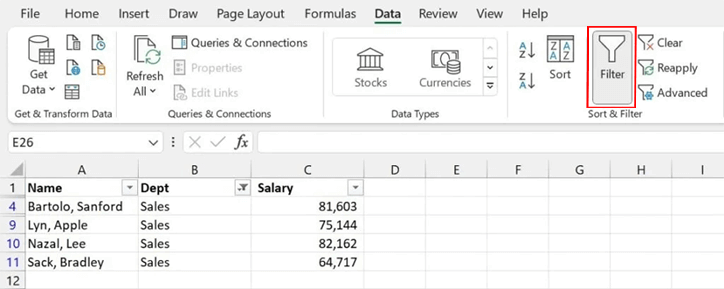
- Now, clear each activated filter from there.
As a result, the error disappears quickly.
Workaround 7- Match Copy and Paste Range Sizes
Sometimes, unequally sized copying and pasting areas can trigger you can’t paste this here because the copy area excel error. As Excel expects equal-sized copy areas otherwise, it rejects the paste command.
Simply verify selected rows and columns in the worksheet and adjust the destination range size. After that, try pasting the data carefully. Thus, Excel processes the action correctly.
Workaround 8- Check for Hidden Rows & Columns
As already mentioned in the causes section, hidden cells even interfere with paste actions. Therefore, you have to check and unhide rows and columns first.
To do this, follow the steps:
- Select the entire sheet.
- Then, choose Unhide from format option.

- Afterward, paste the data again.
As a result, Excel accepts the content.
Also Read: 9 Ways for Microsoft Excel Cannot Paste the Data Error: Easy Solutions!
Related FAQs:
You can’t copy and paste from one Excel workbook to another due to incorrect cell format or conditional formatting.
Yes, you can copy and paste a whole column in Microsoft Excel using the Cut or Copy command.
You can remove copy-and-paste restrictions in Excel by following these steps:
You can press Ctrl+D keys to fill the formula down the cell in a column. Why Can't I Copy and Paste from One Excel Workbook to Another?
Can You Copy and Paste a Whole Column in Excel?
How Do I Remove Copy and Paste Restrictions in Excel?
What Is the Shortcut Key for Copy Formula Down in Excel?
Final Verdict
The “you can’t paste this here because the copy area and paste area are not the same size VBA” error is very annoying & can hinder your workflow. However, solutions remain straightforward. By following the fixes outlined in this post, you can easily deal with this warning message and continue working efficiently.
Lastly, if you want to share your experiences with us through our social media FB & Twitter pages.
External References:
- https://answers.microsoft.com/en-us/msoffice/forum/all/how-to-resolve-you-cant-paste-this-here-because/e20f9534-c4ae-4da2-9155-ca1149e1d736
- https://support.microsoft.com/en-us/office/merge-and-unmerge-cells-5cbd15d5-9375-4540-907f-c673a93fcedf
- https://support.microsoft.com/en-us/office/i-can-t-copy-and-paste-data-on-my-sheet-f046b142-dfc1-4d33-a730-f94c45c2da13

Priyanka Sahu

Priyanka is a content marketing expert. She writes tech blogs and has expertise in MS Office, Excel, and other tech subjects. Her distinctive art of presenting tech information in the easy-to-understand language is very impressive. When not writing, she loves unplanned travels.