
Receiving the MS Excel error “This workbook cannot be shared because privacy has been enabled for this workbook” can be frustrating, especially when you try to share your workbook. Well, this article provides an in-depth exploration of this error message, mentioning its common reasons and working solutions for fixing this error for smooth calculations & operations.

To fix corrupted Excel files, we recommend this tool:
This software will prevent Excel workbook data such as BI data, financial reports & other analytical information from corruption and data loss. With this software you can rebuild corrupt Excel files and restore every single visual representation & dataset to its original, intact state in 3 easy steps:
- Try Excel File Repair Tool rated Excellent by Softpedia, Softonic & CNET.
- Select the corrupt Excel file (XLS, XLSX) & click Repair to initiate the repair process.
- Preview the repaired files and click Save File to save the files at desired location.
Main Causes of This Workbook Cannot Be Shared Error in Excel
There are mainly various possible causes due to which you might encounter this error:
- Workbook previously shared with protection features.
- Privacy settings are enabled for personal information.
- Due to Excel workbook corruption.
- Data connections or macros in the file.
- When installed, add-ins or plugins become corrupted.
- Outdated Excel software or settings conflicts.
After knowing the reasons, it’s time to solve this error with the best tricks.
How to Fix Excel Error This Workbook Cannot Be Shared Because Privacy Has Been?
Follow the below troubleshooting methods to deal with this peculiar error:
Solution 1- Rename the File
The very first crucial step you can take is to rename your Excel file. For this:
- Access the location where your faulty Excel file is saved.
- Next, right-click on a file & Rename it.
Also Read: Fix Excel Error: This Workbook Contains One or More Links That Cannot Be Updated!
Solution 2- Verify Macros Settings in Excel
Another working method you can try to solve this workbook cannot be shared because privacy has been enabled for this workbook is to check for macro settings & ensure they’re correct.
To check this:
- Go to the File, then Options >> Trust Center.

- Next, click on Trust Center Settings >> Macro Settings.
- After this, select “Enable all macros” checkbox.
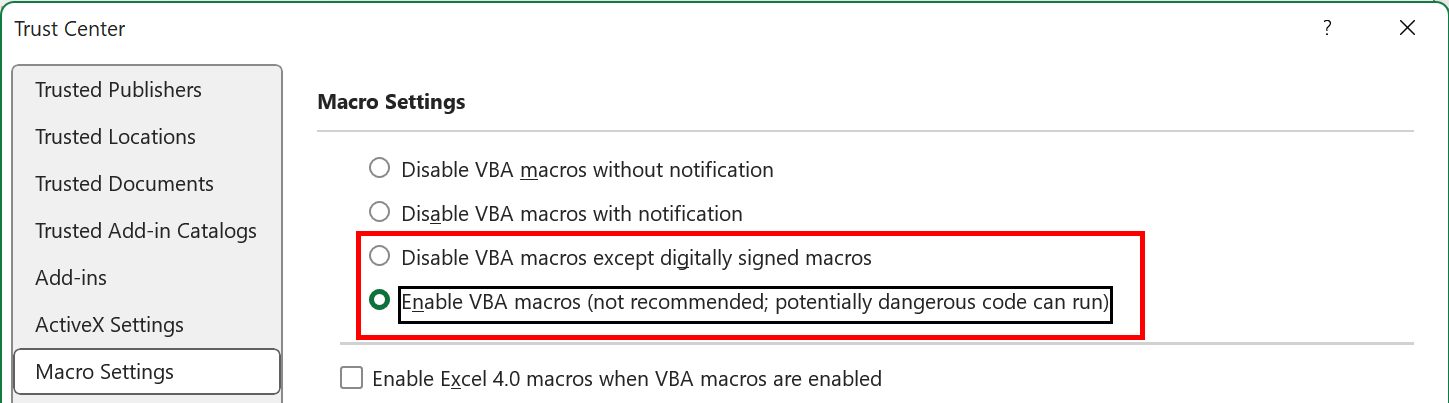
- Check the Trusted Locations to add the folder holding your XLS/XLSX file if it isn’t listed.
Solution 3- Disable the Privacy Options
As already specified in the causes section, enabled privacy settings for personal information can even trigger this error. Try disabling this feature to tackle the situation.
- Click File menu > Info.
- Select Check for Issues > Inspect Document.

- Run the inspector & uncheck Remove personal information if selected.
- Click OK to save the changes you have made.
Solution 4- Disable Add-ins
Many users have reported in the forums sites that disabling the faulty Excel add-ins resolves this error for them. Therefore, let’s check for the faulty add-ins & disable them immediately.
- Open MS Excel >> Go to Options.
- Choose Add-Ins under the ‘Excel Options’ window.
- Now, select the COM Add-ins by expanding a ‘Manage’
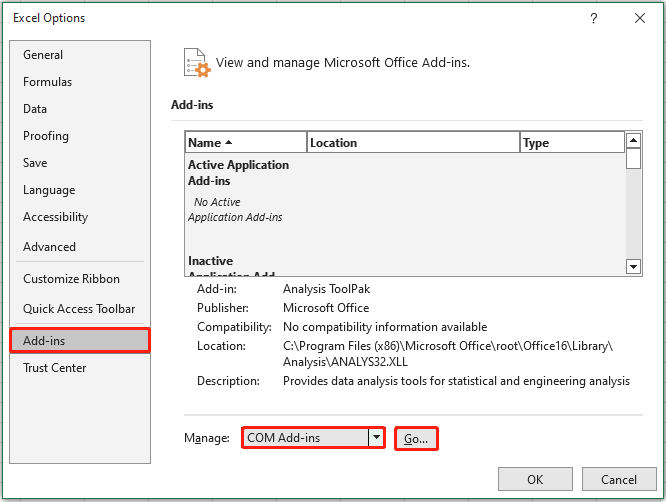
- After that, hit on Go button & uncheck all the COM Add-ins, then hit OK.
Solution 5- Fix Excel Error This Workbook Cannot Be Shared Because Privacy Has Been by Updating Excel Software
If you are using an outdated version of Microsoft Excel software, you can likely experience this error while sharing your workbook. So, update your Excel version to solve this workbook sharing error. To know the comprehensive steps, Click Here.
Solution 6- Pick Open & Repair Utility
You can use Excel’s built-in Open and Repair feature if this error occurs due to file corruption. To use this utility, follow these instructions carefully:
- In Excel, go to File tab >> click Open.
- Click Browse option to select a corrupted .xls file.
- Now, in an Open dialog box, click on the exact file or all files that are corrupted.
- After this, click on the arrow next to the Open button >> click on Open and Repair.
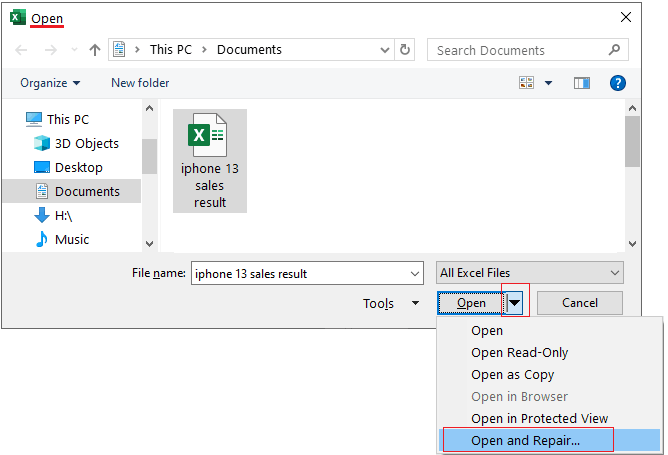
- Finally, click on a Repair.
Solution 7- Use Excel Repair & Recovery
While fixing this error, unfortunately, you lose your Excel workbook data. Try the sophisticated Excel Repair & Recovery Tool.
This professional software can solve Excel file corruption issues and errors frequently come across by users. Moreover, it allows for easy restoration of all the data, including charts, cell comments, worksheet properties, etc.
You can even try the free demo version of this program.
Also Read: Fixed- The Workbook Cannot Be Opened or Repaired by Microsoft Excel Error (8 Ways)
Frequently Asked Questions:
If your workbook is in XML map format, it cannot be shared.
To turn off the Shared Workbook feature in Excel, follow the steps below:
If the Protect Workbook is highlighted, you have to click it to disable protection. After this, enter the password if prompted. If possible, eliminate restricted access. Navigate to File, then Restrict Permissions > No Restrictions.
To remove the XML map, select the XML map you need to delete. Then, click on the Delete >> hit OK. Why Is Excel Not Allowing Me to Share My Workbook?
How Do I Turn Off Shared Workbook Protection?
How Do I Unlock a Shared Workbook?
How to Remove XML Mapping in Excel?
Wrapping Up
The “this workbook cannot be shared because privacy has been enabled for this workbook” error can be fixed by removing restrictions, adjusting trust center settings, and saving the file in a different format. With these simple steps, you can easily fix it & get back to work and collaborate freely in Excel.

Priyanka Sahu

Priyanka is a content marketing expert. She writes tech blogs and has expertise in MS Office, Excel, and other tech subjects. Her distinctive art of presenting tech information in the easy-to-understand language is very impressive. When not writing, she loves unplanned travels.