
Are you facing the frustrating issue of the green triangle in an Excel spreadsheet cell? If so, you’re not alone. This warning can interrupt your vital tasks & make it hard to complete them. Well, in this helpful guide, I’ll cover the major factors and provide easy solutions on how to remove green triangle in Excel & resume your work.

So, let’s get started…
To repair corrupted Excel file data, we recommend this tool:
This software will prevent Excel workbook data such as BI data, financial reports & other analytical information from corruption and data loss. With this software you can rebuild corrupt Excel files and restore every single visual representation & dataset to its original, intact state in 3 easy steps:
- Try Excel File Repair Tool rated Excellent by Softpedia, Softonic & CNET.
- Select the corrupt Excel file (XLS, XLSX) & click Repair to initiate the repair process.
- Preview the repaired files and click Save File to save the files at desired location.
What Causes the Green Triangle in an MS Excel Sheet?
The green triangle typically appears in the top-left corner of a specific cell. It’s Excel’s way of warning you about a possible inconsistency. This could include:
- Inacceptable data types
- Inconsistent formula
- Error in the cell
- Data validation errors
- Leading zeros (Number stored as text)
- Corrupted workbook.
After extracting the reasons, let’s proceed to know the ways to fix the green triangle in Excel.
How to Remove Green Triangle in Excel?
Try the following troubleshooting steps to solve the error:
Method 1: Use ‘Convert to Number’ Feature
Most probably, you will see green triangles in the worksheet when the numbers are stored as text. This happens when data is imported from other sources or numbers are formatted erroneously. Fortunately, converting the text to numbers is straightforward. So, let’s try this:
- Select the MS Excel cells you want to convert to the number format.
- After that, you will see a green triangle sign near a selection.
- Next, click on the dropdown >> choose ‘Convert to Number’ option.

- Now, your text will be converted to a number.
Also Read: How to Remove Scientific Notation in Excel? – No More Confusion!
Method 2: Change Error Checking Options
You can even remove the green triangle in Excel by running the error checking feature. So, here are the complete steps to use the Error Checking option:
- Go to the File tab >> click Options.
- Under Excel Options window, choose Formulas from the list on the left.

- In the Error Checking section, you will see the list of rules. Uncheck the boxes for errors you don’t need to be flagged with the green triangle.
- Click OK and save your changes.
Method 3: How to Remove Green Triangle in Excel by Protecting Formulas
In the protected worksheets, unprotected Excel formulas can also lead to green triangle error. While protecting your Excel formulas is the best idea for error-free spreadsheet.
Here’s how you can do so:
- Firstly, select the cell(s) holding formulas that you need to protect.
- Next, make a right-click to choose the Format Cells.

- Navigate to Protection tab >> check a Locked
- Then, click OK.
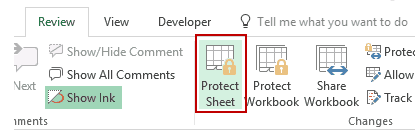
- Now, protect the worksheet via a Review tab by tapping Protect Sheet.
Method 4: Use the Excel’s Open and Repair Tool
Many users have reported that a corrupted Excel workbook or worksheet can even cause green triangles. Well, you can easily fix the file corruption as well as the error by running the “Open and Repair” utility. To run this feature, you have to:
- Ensure to close all the Excel files.
- Open the Excel application.
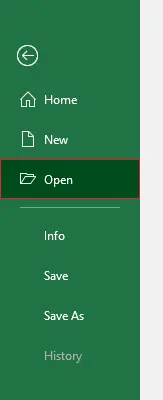
- Navigate to File > Open.
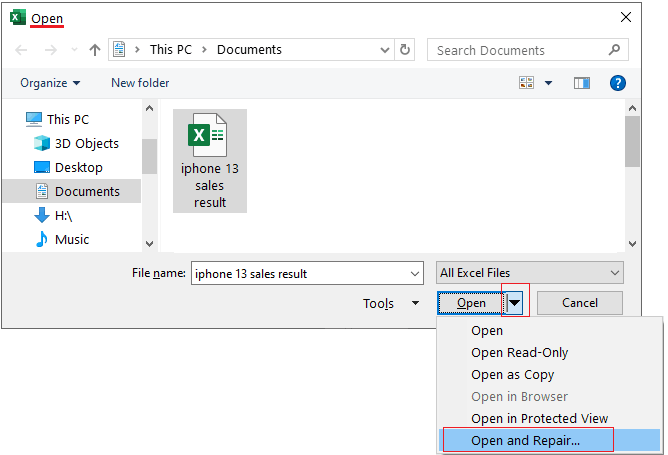
- In the dialogue box opens, choose Browse to select a faulty Excel file that is displaying this error.
- After this, click on a small dropdown arrow next to an Open button >> choose Open & Repair >> Repair.
Method 5: Try an Advanced Excel Repair and Recovery Tool
If your Excel workbook is lost or gets corrupted, you must opt for the professionally suggested MS Excel Repair Tool. It can easily repair corrupt, unresponsive sheets as well as errors in Excel files. Moreover, this program allows you to restore all corrupt Excel files, including the charts, worksheet properties, cell comments, and other important data.
Simply download and install this tool on your PC to know how it works.
Steps to Utilize MS Excel Repair Tool:







Also Read: How to Remove Blank Rows in Excel Sheet? – 6 Ways!
Frequently Asked Questions:
A green triangle appears in the upper-left corner of a cell in an Excel sheet specifying that the value in a specific cell is in plain text format.
To put a green triangle in an Excel cell, simply format the cell content as text.
If the number is stored as text in the cell, it will display a triangle in the Excel spreadsheet. What Is a Green Triangle?
How to Put a Green Triangle in an Excel Cell?
Why Is There a Triangle in My Excel Cell?
Summing Up
The green triangle in Excel is sometimes helpful, but it can be annoying as well. Luckily, it’s easy to solve or disable. By applying the solutions mentioned above in this post, you will be able to fix green triangle in Excel and make your spreadsheet clean, accurate, and error-free.
Important Note: Don’t ignore those green marks — use them to improve your Excel skills.

Priyanka Sahu

Priyanka is a content marketing expert. She writes tech blogs and has expertise in MS Office, Excel, and other tech subjects. Her distinctive art of presenting tech information in the easy-to-understand language is very impressive. When not writing, she loves unplanned travels.