
When you’ve various worksheets in an Excel workbook, you can activate a worksheet manually so that you can easily see the content in that specific worksheet & can work in it. Well, in this blog, I will explain how to activate Excel sheet with VBA or other methods.
To repair corrupt Excel workbook, we recommend this tool:
This software will prevent Excel workbook data such as BI data, financial reports & other analytical information from corruption and data loss. With this software you can rebuild corrupt Excel files and restore every single visual representation & dataset to its original, intact state in 3 easy steps:
- Try Excel File Repair Tool rated Excellent by Softpedia, Softonic & CNET.
- Select the corrupt Excel file (XLS, XLSX) & click Repair to initiate the repair process.
- Preview the repaired files and click Save File to save the files at desired location.
Things To Check Before Activating A Workbook
If you are trying to activate such a workbook that is not opened, then VBA will throw the error. To fix this issue, just check the workbook name first after then activates it.
Sub vba_activate_workbook()
Dim wb As Workbook
For Each wb In Workbooks
If wb.Name = “Book3.xlsx” Then
wb.Activate
MsgBox “Workbook found and activated”
Exit Sub
End If
Next wb
MsgBox “Not found”
End Sub
Well by using the above-given code, you can easily specify the workbook name. After that, it will check for that specific workbook in all the opened workbooks. Once the is workbook fetched, it will activate it.
Notes
- When you are using the name of the workbook, make sure to use the correct file extension
- If you want to activate a workbook that is not yet saved, then you need to use only the name of that workbook without suffixing the file extension.
How To Activate Excel Sheet?
Trick 1# Workbook.Activate method
You can use this method to activate a worksheet or workbook only if you are pretty sure about the workbook name. Suppose, the name of your excel workbook which you need to activate is “Book2” and it has a sheet with the name “Sheet1”.
Then by using the following code you can select the required workbook and sheet and the n activate it using the Excel VBA.
Syntax
expression.Activate
Here expression is a variable that represents the Excel Workbook object.
Remarks
This activates workbook method won’t execute any Auto_Activate or Auto_Deactivate macros which is attached to Excel workbook. In order to run these macros, you need to use the RunAutoMacros method.
Code To Use:
Sub Activate_Workbook()
‘Activate Workbook
Workbooks(“Book2.xls”).Activate
‘Activate Worksheet
Workbooks(“Book2.xls”).Sheets(“Sheet1”).Activate
End Sub
How To Use:
- At first, open your Excel workbook.
- After that, press the Alt+F11 button on your keyboard. This will open the VBA Editor.
- Now go to hit the Insert tab from the menu bar and insert new module.
- Copy the above code and then paste it into this opened code window.
- Press the F5 button on your keyboard to see the output.
- After that, just save this file as a macro-enabled workbook.
Trick 2# Activate Workbook or Worksheet Using Object
Another method to activate the workbook in Excel is by using the object. For this, you need to create an object for the worksheet and workbook first. After then assign the workbook to any object and choose the workbook having the VBA to execute the following procedures using the Excel macros.
Code:
Sub Activate_Workbook_Using_Object()
‘Variable Declaration
Dim WrkBk As Workbook
Dim WrkSht As Worksheet
‘Create Object for Workbook
Set WrkBk = Workbooks.Add
‘Create Object for Worksheet
Set WrkSht = WrkBk.Sheets(“Sheet1”)
‘Activate Sheet
WrkSht.Activate
End Sub
Explanation:
- In the above, I have declared 2 objectives for the worksheet and workbook.
- Added a new workbook and assigned it to the workbook object.
- Also, set the Worksheet to the worksheet object.
- Activate the Excel worksheet by referencing the worksheet object.
Instructions:
- At first, open your Excel workbook.
- After that, press the Alt+F11 button on your keyboard. This will open the VBA Editor.
- Now go to hit the Insert tab from the menu bar and insert new module.
- Copy the above code and then paste it into this opened code window.
- Press the F5 button on your keyboard to see the output.
- After that, just save this file as a macro-enabled workbook.
Trick 3# Activate A Workbook By Using The Number
If you have opened multiple workbooks, then all those Excel workbooks are components of the workbook collection. Each workbook in this collection has a number, which you can easily reference in the activate method. Here is the code that you can use.
Sub vba_activate_workbook()
Workbooks(2).Activate
End Sub
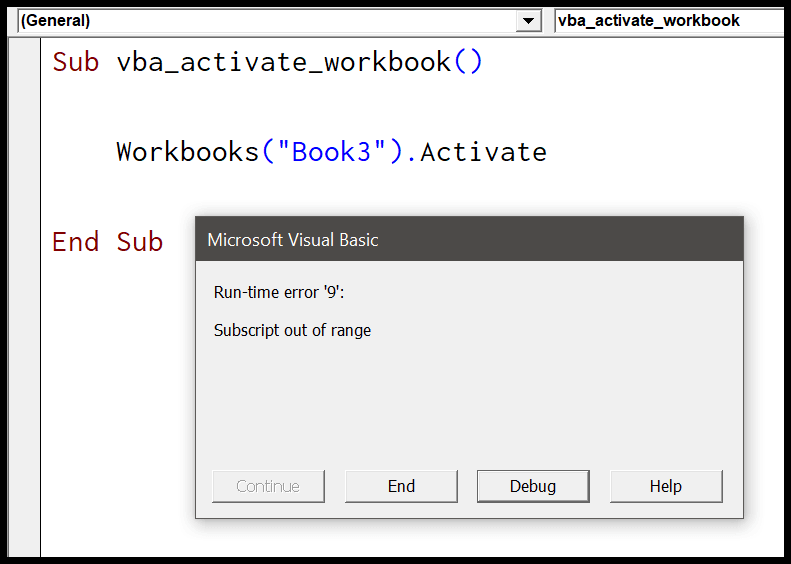
If in case you are trying to activate such workbook using the number which doesn’t exist, then VBA code will throw Subscript out of Range: Run-time error ‘9’.
Trick 4# Activate workbook using ThisWorkbook property
Another method of activating the Excel workbook is by using ThisWorkbook property.
Suppose you have opened 5 workbooks simultaneously but you are working only on the “Book1.xlsm”. Thus, when you execute the below-mentioned code, it will activate only the “Book1.xlsm”.
Sub vba_activate_workbook()·
ThisWorkbook.Activate·
End Sub
Trick 5# VBA to Select Workbook or Worksheet in Excel
You have multiple worksheets in your excel workbook then you can make a selection for the sheet you need by using VBA.
You can also choose the required workbook in case several workbooks are opened.
Well, it’s a good trick to set the required worksheet or workbook to the object and refer to it whenever you need it. This works great in accessing the workbook or worksheet without activating or selecting it.
Code:
Sub Activate_Workbook_Using_Object()
‘Variable Declaration
Dim wbAs Workbook
Dim wsAs Worksheet
‘Select any Workbook and assign to an Object
Set wb= Workbooks(“Book1.xlsm”)
‘Create Object for Worksheet
Set ws= wb.Sheets(“SheetName”)
‘VBA to Select or Activate the required Workbook
wb.Activate
‘VBA to Select or Activate the required Sheet
ws.Activate
End Sub
Difference Between Active Workbook and ThisWorkbook In Excel VBA
Many VBA coders use the text ThisWorkbook and Active Workbook very frequently in their coding.
Being a learner or reader, it’s very important to know the basics between these two. Here some of the differences outlined so just check it out.
Active Workbook:
- The active workbook is not compulsorily the workbook in which you are writing the code at that time. If several workbooks are opened but only the workbook which is appearing currently on your screen is counted as Active Workbook.
- Use active in the VBA coding results in several errors and confusion. We don’t know which workbook is active until and unless we mention the name of the workbook just before the word Active Workbook.
ThisWorkbook:
- Whereas ThisWorkbook is necessarily that workbook where you are writing the code.
- ThisWorkbook never goes wrong because this doesn’t matter which workbook is active. It takes workbook reference in the code section.
Frequently Asked Questions:
Why Is My Excel Not Activated?
Your Microsoft Excel software might not activate due to subscription has expired.
How Do I Activate an Already Open Workbook In VBA?
To activate an already open workbook in VBA, you need to use the Activate method. This method will help you to specify the workbook name using a Workbook object.
How Do I Enable Macro Workbook in Excel?
To enable macro workbook in Microsoft Excel, you have to navigate to File >> Options >> find ‘Macro Settings’. After this, click on ‘Trust Center Settings’ >> ‘Macro Settings’ option. Now, under the Macro Settings, click ‘Enable all macros’ >> hit ‘OK’ to enable all macros.
What Is the Shortcut Key to Enable Excel?
Alt is the shortcut which you can press after opening the Excel application to enable macro.
How to Resolve a Corrupted Excel File?
To resolve a corrupted Excel file, go to the File >> Open. Next, choose the corrupted Excel file >> click on Open and Repair. Finally, to recover as much of your workbook data, hit on the Repair button.
Time to Conclude
So, this is all about how to activate Excel sheet with ease.
You can opt for any of the above-listed approaches to activate Excel workbook. According to me, using the activate method in VBA to choose the required worksheet or workbook through VBA coding and perform your required tasks is the easiest one.
I hope you enjoyed reading this post!
External References:

Priyanka Sahu

Priyanka is a content marketing expert. She writes tech blogs and has expertise in MS Office, Excel, and other tech subjects. Her distinctive art of presenting tech information in the easy-to-understand language is very impressive. When not writing, she loves unplanned travels.