
Are you facing the frustrating issue of error checking being greyed out in MS Excel? If so, you are not alone. This problem can interrupt your crucial tasks and make it hard to identify & fix errors in your spreadsheets. Well, in this helpful blog, we will cover the reasons behind the Excel error checking greyed out issue and provide working solutions to solve this & get your Excel error checking back to working state.
To fix Excel file corruption, we recommend this tool:
This software will prevent Excel workbook data such as BI data, financial reports & other analytical information from corruption and data loss. With this software you can rebuild corrupt Excel files and restore every single visual representation & dataset to its original, intact state in 3 easy steps:
- Try Excel File Repair Tool rated Excellent by Softpedia, Softonic & CNET.
- Select the corrupt Excel file (XLS, XLSX) & click Repair to initiate the repair process.
- Preview the repaired files and click Save File to save the files at desired location.
Why Is Error Checking Greyed Out in Microsoft Excel?
Before addressing this problem, it is important to extract the factor behind it for better resolution. Here, I’ve shortlisted the common causes for causing the error checking feature not to work.
- Error Checking option is disabled.
- Due to protected Excel worksheet or workbook.
- When calculation mode in Excel is set to manual.
- Corrupted file.
- Faulty or corrupted Add-ins installed in Excel.
- Outdated Excel software.
After extracting the major factors, it’s time to know the possible ways to troubleshoot it.
What to Do to Fix Excel Error Checking Greyed Out Problem?
Try the below solutions one by one until the error checking greyed out Excel issue gets fixed.
Way 1- Remove the Protection from Worksheet or Workbook
As already mentioned in the causes, a protected worksheet or workbook can also trigger this glitch. So, consider removing the protection by following the below steps:
- Open the Excel sheet, go to the Review
- Next, click on Unprotect Workbook or Unprotect Sheet.

Also Read: Why Does Excel Track Changes Greyed Out?- Get Fixes Here!
Way 2- Calculation Settings Are Set to Manual
When the calculation mode in Microsoft Excel is set to manual, it may disable the error checking or other features. So you can try changing this setting to make the error-checking option work again.
For this, follow the below instructions carefully.
- Go to the Formulas
- Then, click on Calculation Options.
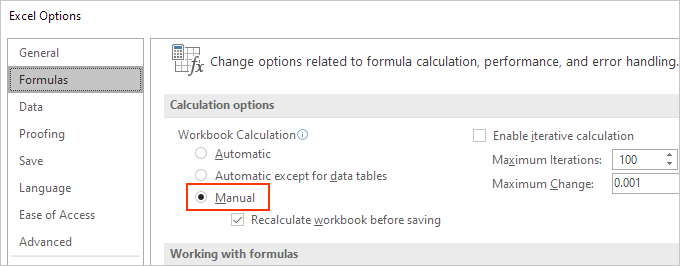
- Set it to Automatic.
Way 3- Disable Faulty Excel Add-ins
The next method you can try to solve error checking option greyed out by disabling faulty installed add-ins in Excel. Consequently, let’s check for the faulty add-ins & disable them immediately.
Here is how you can do so:
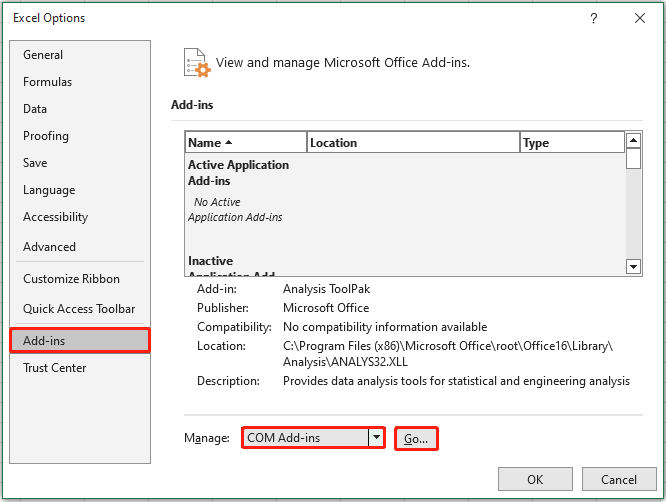
- Open MS Excel >> click Options.

- Choose Add-Ins under the ‘Excel Options’ window.
- Click on the COM Add-ins by expanding a ‘Manage’
- After that, click on Go button & uncheck all the COM Add-ins >>click OK.
Way 4- Fix Excel Error Checking Greyed Out by Updating the Excel
Running an outdated Excel software is another foremost reason for experiencing this problem. In such a case, opt for updating the application and get a seamless workbook experience.
Steps to be followed to update the Excel application:
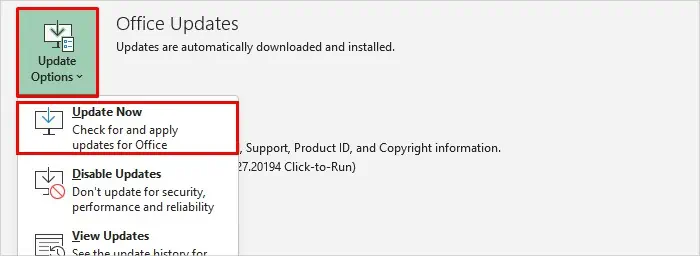
- Open Excel >> click Account.
- Now, click Office Updates >> Update Now.
Way 5- Use Excel’s Buit-in Open and Repair
If the workbook becomes corrupted or damaged, you may face this problem. All you need to do is to repair your corrupted Excel file and fix it by using the Open & Repair feature.
Follow the below steps carefully:
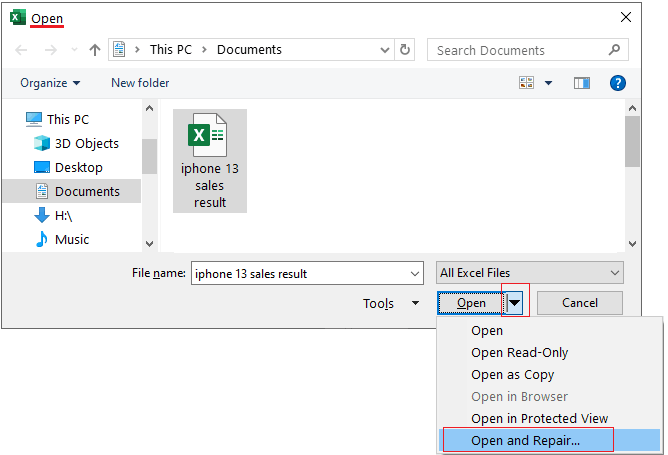
- Open Excel >> go to the File > Open.
- Navigate to a folder that holds a corrupted file.
- In an Open dialog box, choose a corrupted workbook.
- Now, click the arrow next to an Open button >> Open and Repair >> Repair.
Also Read: Excel Macro Settings Greyed Out- Fix with 7 Ways!
Use Sophisticated MS Excel Repair Tool
If you’re facing Excel error checking greyed out issues due to file corruption, use the MS Excel Repair Tool. It is a brilliant software that helps in repairing a corrupted Excel file & recovering all its data, including charts, cell comments, worksheet properties, etc., with 100% integrity.
You can even download the free demo version of this program.
Frequently Asked Questions:
In Microsoft Excel, Error Checking is an excellent feature that helps to detect and correct the errors that arise during data transmission or storage.
If you want to activate error checking in Excel, go to the File > Options then choose Formulas & check ‘Enable background error checking’.
Error checking is crucial to avoid having corrupted data in the file.
Alt+Shift+F10 is the keyboard shortcut for error checking in Excel.
To remove error checking triangles, navigate to Excel menu, click Preferences >> clear the ‘Enable background error checking’ check box. What Is Error Checking in Excel?
How to Activate Error Checking in Excel?
Why Is Error Checking Important?
What Is the Shortcut for Error Check in Excel?
How Do I Remove Error Checking Triangles in Excel?
Summing Up
Fixing the Microsoft Excel error checking greyed out issue requires disabling add-ins, repairing the corrupted workbook, or repairing the Excel application. Try each solution to see what works best for your situation.
If the manual solutions fail, you can go for the advanced solution Excel Repair to tackle the situation effectively. If you found this blog helpful, don’t forget to share it with others facing the same problem!

Priyanka Sahu

Priyanka is a content marketing expert. She writes tech blogs and has expertise in MS Office, Excel, and other tech subjects. Her distinctive art of presenting tech information in the easy-to-understand language is very impressive. When not writing, she loves unplanned travels.