
Many users have reported that Excel freezes in between when copying and pasting large amounts of data from one sheet to another. This issue is common but solvable with a few troubleshooting methods. In this blog, I will explore the possible causes & provide some working solutions to fix Excel not responding when pasting problems.
To recover damaged Excel file data, we recommend this tool:
This software will prevent Excel workbook data such as BI data, financial reports & other analytical information from corruption and data loss. With this software you can rebuild corrupt Excel files and restore every single visual representation & dataset to its original, intact state in 3 easy steps:
- Try Excel File Repair Tool rated Excellent by Softpedia, Softonic & CNET.
- Select the corrupt Excel file (XLS, XLSX) & click Repair to initiate the repair process.
- Preview the repaired files and click Save File to save the files at desired location.
Why Does Excel Not Respond When I Copy and Paste?
There are many reasons that cause Excel 2016 to Freeze when copying and pasting, some of the common causes are mentioned below. Pay attention to them:
- Running an outdated Excel version.
- Excel might be running in the background which causes freezing.
- Due to large data sets.
- An earlier installed add-in can be intrusive with Excel.
- Corrupted MS Office suite or Excel file.
- Cached files.
How to Solve Excel Not Responding When Pasting Issue?
Try the following steps one by one to resolve Excel freezes when copying and pasting the data.
Quick Methods:
Method 1: Check for Large Data Sets
Pasting large amounts of data in the spreadsheet may cause this problem. To solve this, try to break your data into smaller sections and pasting them one at a time. However, this action will reduce the memory load & can prevent Excel from crashing.
Method 2: Clear Conditional Formatting
Many a time it happens that Excel file slows down or freezes while working. So, to speed up the work in Excel and stop it from freezing again you can try clearing the conditional formatting. Below are the steps that are given to perform conditional formatting:
- Open Excel
- Click on Home>conditional formatting>clear rules>clear rules from an entire sheet

- At the bottom of the Excel sheet select any extra tab and redo the first step.
- Now, select file>save as.
- Make a copy of that spreadsheet in new.
If you did not experience any Excel not responding when pasting then narrow down the section that is causing the problem and apply the conditional formatting again.
Also Read: Excel “You Can’t Paste This Here Because the Copy Area” Error!
Method 3: Close the Background Processes
As mentioned in the causes, running too many background processes can affect Excel’s performance when trying to paste data. You can overcome this situation by following the below steps:
- Press Ctrl + Shift + Enter keys to open Task Manager.
- In the Process tab, right-click on the unusable apps >> hit End task.

Method 4: Delete Cache Files
Excel starts to freeze whenever the cache gets overloaded. Trying to clear the cache files will lose the burden on Excel and it won’t freeze. Below are the steps to delete cache files go through them one by one:
- Click on the Windows icon
- Go to Microsoft Office Tool
- Click on Office 16 upload center
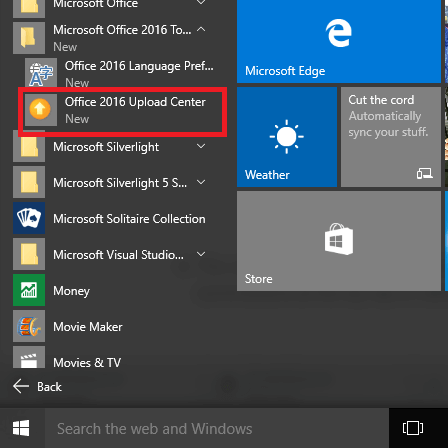
- Under Office 16 upload center, go to settings

- A box will appear where Display options and Cache settings
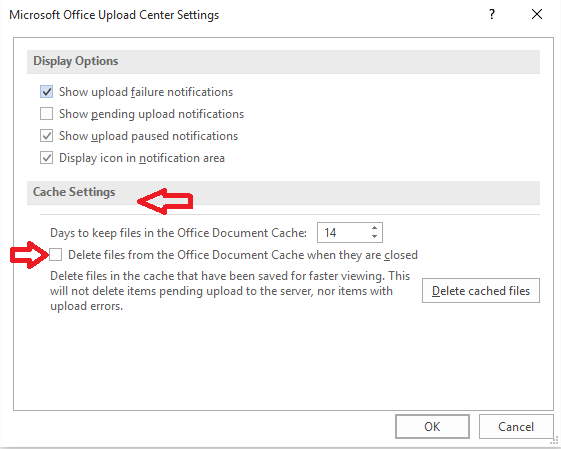
- Below Cache, settings select Delete files from Office document cache when they are closed
- Now, click on Delete Cache files

Your cache files are now deleted. Open Excel and try copying and pasting and see if Excel still freezes or not.
Method 5: Update the Excel
Sometimes, outdated Excel software can lead to bugs and performance issues. Therefore, to ensure smooth Excel performance, you need to update the program to the latest version. For this, navigate to the “File” menu >> choose “Account,” and check for updates by clicking on Update options >> Update Now.

Method 6: Repair Office Installation
Excel 2016 sometimes needs to be repaired to fix certain issues like Excel hangs on copy paste. This issue might have started when you upgraded Excel. Follow the steps to repair Excel.
For Windows 10
- Click on the Windows icon
- Click on Settings>Apps> Microsoft Office
- Click on “Modify”.
- Now select “Quick Repair” or “Online Repair”.

Windows 8 / 8.1/7
- Click on the start icon
- Go to settings
- Select Programs and Features> Microsoft Office
- Click on “Change”.
- select “Quick Repair” or “Repair” (Windows 7)
The easiest way to repair the installation is to go to the Microsoft Office Website.
Method 7: Disable & Enable Add-ins
Sometimes, add-ins can be a problem in freezing Excel when copying and pasting. To check whether the problems in add-ins, restart your application into safe mode and see if the issue is solved or not.
To start your application in safe mode, follow the below-given steps:
- Hold the CTRL key and then click on the application until ask for safe mode confirmation and then release the CTRL-key.
- Open Excel
- Click on File>Option>Add-ins
- A Manager: Excel Add-ins will be shown, besides it click on GO.
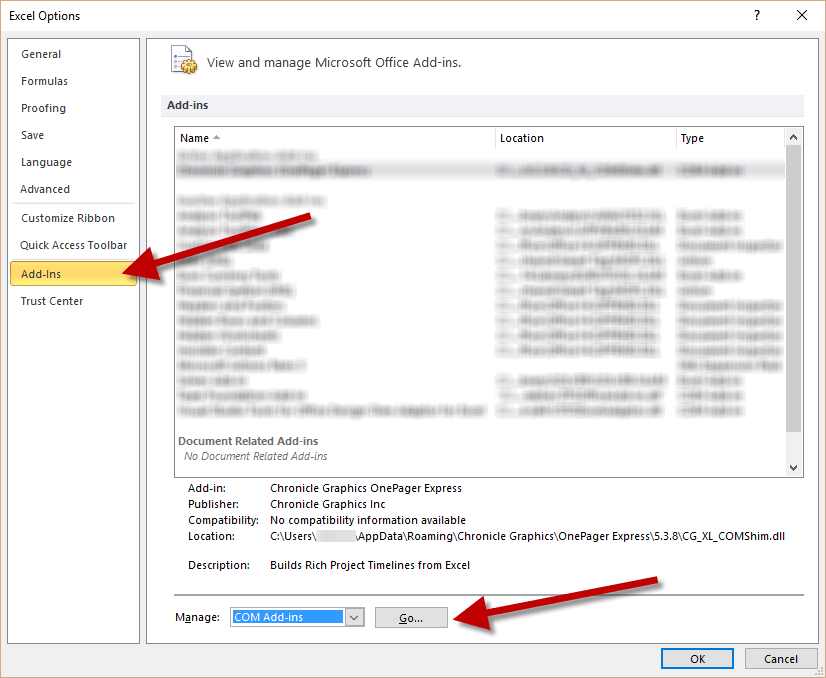
- Uncheck Add-ins to disable them and then afterward Enable it.
Also Read: Microsoft Excel Cannot Paste the Data Error: Easy Solutions!
Method 8: Disable Hardware Graphic Acceleration
Try Disabling Hardware Graphic Acceleration and see if it fixes the Excel 2016 freezes when copying and pasting issue or not. Follow the steps to disable Hardware Graphic Acceleration:
- Open Excel
- Click on the File>options
- Go to Advanced tab
- Under the Display section, click on the ‘Disable hardware graphics acceleration’ box

- Click on Ok and restart your Excel
Method 9: Scan For Virus
In some cases, due to virus infection, the Excel file freezes and sticks your work in between. If you see any third-party viruses installed in your system, close them one after the other to check if it solves your issue is solved or not.
Scan your system with a good antivirus and start in safe mode then reopen your Excel. Now try to perform the copy-paste operation to verify whether the Excel keeps freezing when copy and paste problem is fixed or not.
Method 10: Use Open & Repair Tool to Fix Excel Not Responding When Pasting
An Excel file corruption can also lead to this issue. You can tackle this situation and fix the corruption by using a free Open and Repair tool.
If you are eager to run this feature, follow these steps:
- Open Excel >> click Open.
- Browse and choose the corrupted Excel workbook.
- In an Open dialog box, choose a corrupt .XLS or .XLSX file.
- Now, click Open arrow >> click Open and Repair.
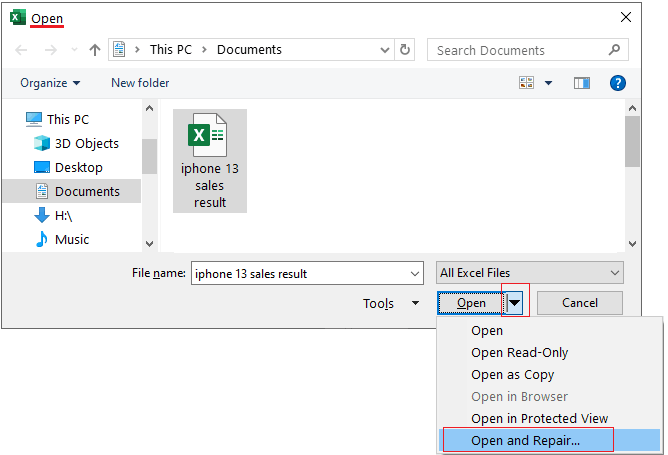
- At last, click on the “Repair” button. This will recover as much of your workbook data.
Automatic Solution: MS Excel Repair Tool
Even after trying the above-given methods, you are unable to fix this error, it is recommended you use MS Excel Repair Tool. This Tool is advanced that allows repairing, corrupt inaccessible files in Excel, and some kind of Excel errors.
This tool not only recover data, chart sheet, formula, etc. but also help Excel to work without freezing. It is very easy to use and supports all Excel versions.
Steps to Utilize MS Excel Repair Tool







Related FAQs:
Why Is My Excel Lagging When I Copy and Paste?
Most probably it happens when trying to copy and paste a large amount of Excel spreadsheet data, it starts lagging.
What Is the Fastest Way to Copy Large Amounts of Data in Excel?
CTRL+C is the fastest way to copy a large amount of data or select a cell or a cell range.
How Do I Fix Copying and Pasting Error?
You can fix copying and pasting error by restarting your PC, clearing the clipboard data, updating the Windows, or checking for 3rd-party software conflicts.
Conclusion
If Excel hangs on copy paste, there are numerous ways to fix it, from updating software to disabling add-ins and adjusting. By trying these simple methods or other workable solutions mentioned above, you can troubleshoot this issue & ensure a smoother experience when working with Excel.
If you have any questions, suggestions, or queries regarding this article then feel free to contact us and ask in Facebook.

Priyanka Sahu

Priyanka is a content marketing expert. She writes tech blogs and has expertise in MS Office, Excel, and other tech subjects. Her distinctive art of presenting tech information in the easy-to-understand language is very impressive. When not writing, she loves unplanned travels.