
If you’re working with a Microsoft Excel spreadsheet and encounter the message, “upload failed you are required to sign in to upload your changes to this location,” you’re not alone. Many users are experiencing and reporting the same problem. This warning message typically arises when Excel cannot sync your file with the cloud storage.

Well, in this blog, I will discuss why Excel upload failed you are required to sign in error occurs and how to fix it in easy ways.
To fix corrupted Excel files, we recommend this tool:
This software will prevent Excel workbook data such as BI data, financial reports & other analytical information from corruption and data loss. With this software you can rebuild corrupt Excel files and restore every single visual representation & dataset to its original, intact state in 3 easy steps:
- Try Excel File Repair Tool rated Excellent by Softpedia, Softonic & CNET.
- Select the corrupt Excel file (XLS, XLSX) & click Repair to initiate the repair process.
- Preview the repaired files and click Save File to save the files at desired location.
Why Does the ‘Excel Upload Failed You Are Required to Sign in’ Occur?
Before fixing this problem, it is important to extract the common causes. Let’s take a look:
- Due to weak internet connection or server.
- If your login session has expired, it can lead to this error.
- Using multiple Microsoft accounts.
- Running too many applications.
- Corrupted Excel workbook.
So, these are the most common reasons for the occurrence of upload failed errors in Excel.
Methods to Fix Upload Failed You Are Required to Sign in To Upload Your Changes Error
Follow the step-by-step methods to overcome this situation.
Method 1- Close Background Running Apps
If too many unnecessary applications are running in the system’s background, then it can trigger an Excel upload failed you are required to sign in error. All you need to do is to close the applications that are no longer needed to be run.
Here is how you can do so:
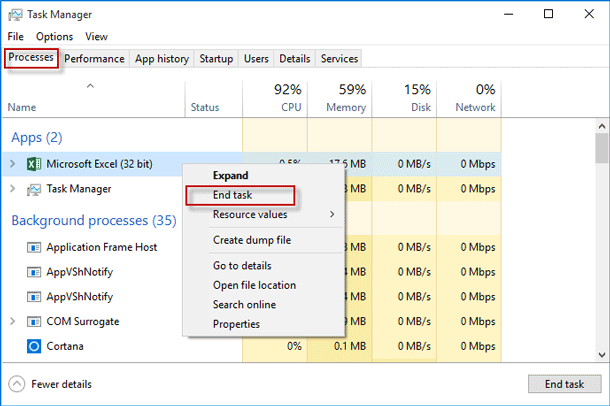
- Open Task Manager by pressing the keyboard Ctrl + Shift + Enter keys.
- Under the Process tab, you have to right-click on the useless apps >> hit End task.
Also Read: 5 Ways for “Failed to Parse the Corrupted Excel File” Error- Discover the Fix NOW!
Method 2- Check Your Network Connection
Sometimes, a weak or unstable network connection can fail the file upload process. Thus, if you suspect this is the case, ensure you are using the speed internet when uploading your file. Also, restart your router if necessary.
Method 3- Update the Excel Version
Running an outdated version of MS Excel software can lead to updated failed errors. Therefore, ensure to update your Excel application to fix this error.
Follow the below steps to do so:
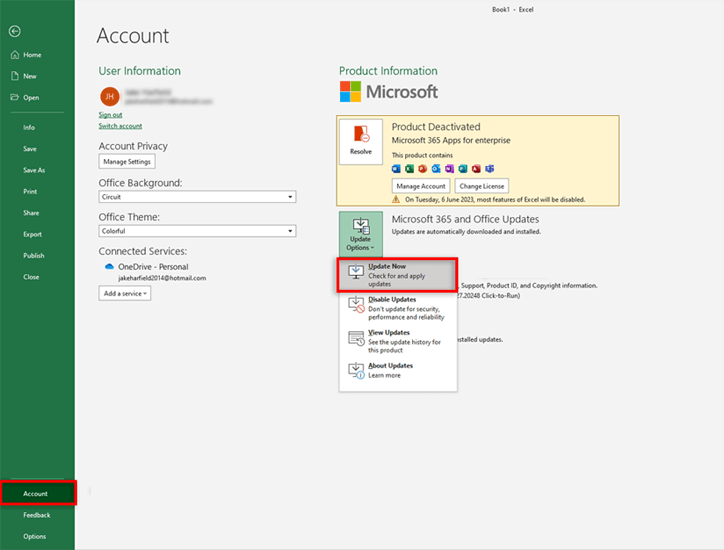
- Open Excel app >> go to File menu>> click Account
- After this, locate & click on Update Options >> Update Now.
Method 4- Fix Excel Upload Failed You Are Required to Sign in Error Using Credential Manager
Another effective method for this problem is managing the credential manager. For this follow the steps below taken from this site:
- Open Excel program
- Go to Account >> sign out all the existing accounts in User Information.
- Exit the Office program.
- After this, open the Control Panel >> User Accounts
- Then, click on Credential Manager >> Windows Credentials.
- In the Generic Credentials, you have to expand the Office credentials
- After this, click on a Remove link to remove them from Windows Credentials Manager.
- Lastly, open Excel > File menu > Account.
- Log in with your MS Office 365 credentials.
That’s it.
Method 5- Check the File Format or Location
Most of the time, an incorrect file format that you are trying to upload can cause Excel upload failed you are required to sign in error. If your file is saved in another file format then consider converting it to.xlsx or .xlsm. After that, you can try uploading it to OneDrive or SharePoint.
Moreover, check if the Excel file is saved in the folder that is synced with your cloud account.
Method 6- Repair Corrupted XLS/XLSX File
Various errors and issues are triggered in Excel due to a corrupted Excel workbook. In such a situation, you can opt for the Open and Repair tool to repair the corrupt workbook.
Follow the below steps carefully to use this tool:
- Open Excel >> click Open.
- Then, browse to choose the corrupted Excel sheet.
- After that, click on an arrow next to “Open” button >> click Open and Repair>> Repair.
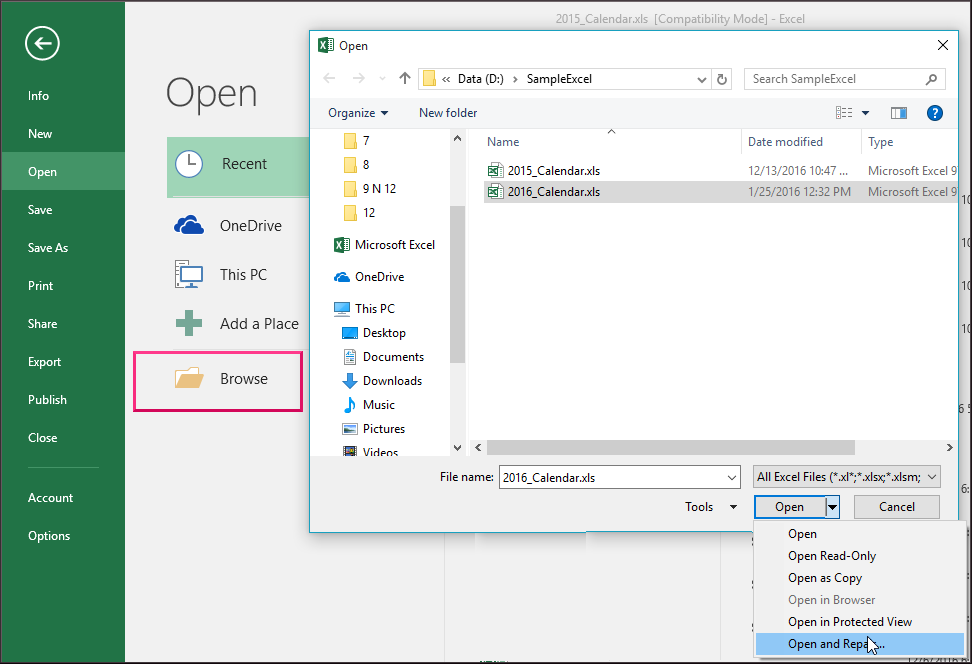
- In case, if the Repair button isn’t able to fix and recover your data, click Extract Data.

If your file gets severely corrupted and can’t repaired using the Open and Repair tool, you can use the most reliable solution to repair corrupt Excel files like the Excel Repair Tool.
Steps to Run Excel Repair Software







Related FAQs:
Why Does Uploading a File Fail for Any Reason?
File uploading most likely fails due to insufficient server storage space, network connectivity issues, file size limitations, or incompatible file formats.
How to Fix Excel Upload Failed?
To fix the upload failed problem, try these tricks:
- Ensure you have strong internet.
- Check the file size.
- Ensure the server storage space is sufficient.
Bottom Line
Excel upload failed you are required to sign in to upload your changes to this location error can be annoying but it can be easily fixed with some patience & workable solutions.
Nevertheless, by understanding the roots and knowing the quick resolutions specified above, you can tackle this situation and enjoy error-free experiences in your worksheet.
That’s all…

Priyanka Sahu

Priyanka is a content marketing expert. She writes tech blogs and has expertise in MS Office, Excel, and other tech subjects. Her distinctive art of presenting tech information in the easy-to-understand language is very impressive. When not writing, she loves unplanned travels.