
Undoubtedly, Excel is a useful application, but there are many cases when Excel keeps crashing, freezes, and even locks up. This not only happens when opening the Excel file, but also crashes when copying and pasting or saving the file. No matter in which situation you are facing this problem, it can be easily fixed by trying some easy ways. In this blog, I will mention the common causes and some quick methods to fix Excel keeps crashing when opening file or saving file.
To repair corrupted Excel file data, we recommend this tool:
This software will prevent Excel workbook data such as BI data, financial reports & other analytical information from corruption and data loss. With this software you can rebuild corrupt Excel files and restore every single visual representation & dataset to its original, intact state in 3 easy steps:
- Try Excel File Repair Tool rated Excellent by Softpedia, Softonic & CNET.
- Select the corrupt Excel file (XLS, XLSX) & click Repair to initiate the repair process.
- Preview the repaired files and click Save File to save the files at desired location.
Why Does Excel Keep Crashing?
Incidents like Excel crashes when opening file or a frequent Excel workbook keeps crashing, itself indicate that either the problem is in the application or in the particular Excel workbook.
Check out the reason why does Excel keep crashing so that you can work accordingly to fix the issue:
- The problem may be due to the outdated MS Excel version.
- Excel application is conflicting with the anti-virus tools or other programs in your PC.
- Improper combination or usage of Excel styling and Cell formatting.
- MS Office application is not installed properly, or maybe it needs to be repaired.
- Incompatible Excel Add-Ins
- Excel crashing issue is also encountered when the Excel file gets corrupted or damaged.
- If the Excel file is created using some third-party software, then the same crashing, freezing, and slow responding issues are faced.
How to Fix Excel Keep Crashing Issue?
Take a quick precape at the fixes which we are going to use for the easy fixing of Excel keeps crashing problem:
Let’s know how to apply each of these solutions.
Fix 1: Remove COM add-ins
The COM add-ins are very bad, and this causes several issues in the Excel file, so the best is to disable it.
The COM add-ins fight over the memory and cause Excel to freeze and crash.
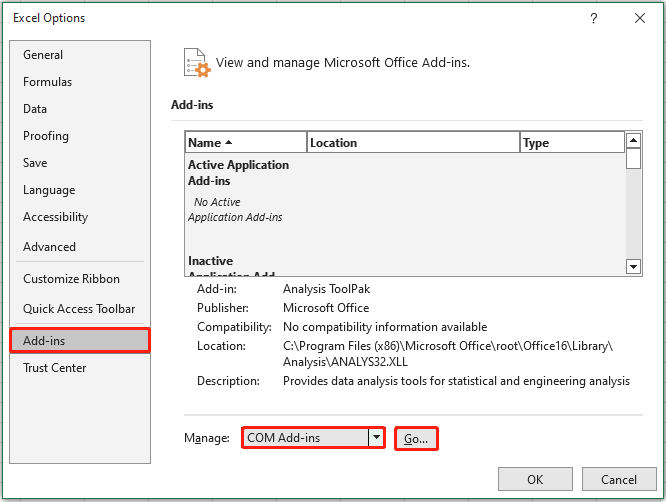
So, the best is to disable the COM add-ins, follow the steps to do so:
- Choose File then go to Options and Add-ins.
- Then at the bottom of dialog box > modify the Manage drop-down to COM add-ins > choose Go.
- After that clear checkbox for the enabled COM add-ins > click OK.
Fix 2: Remove Microsoft Excel Animation
Among several causes of Excel crashing issue, animation is also one very common reason.
The Excel animation is automatically turned ON and is found to be causing several issues, which commonly makes the Excel perform slow and even crash.
So the best is to turn OFF the animation.
Follow the steps to turn off animation in Excel:
- Select File > Options.
- Tap to the Advanced tab and uncheck the ‘Disable hardware graphics acceleration’ option.
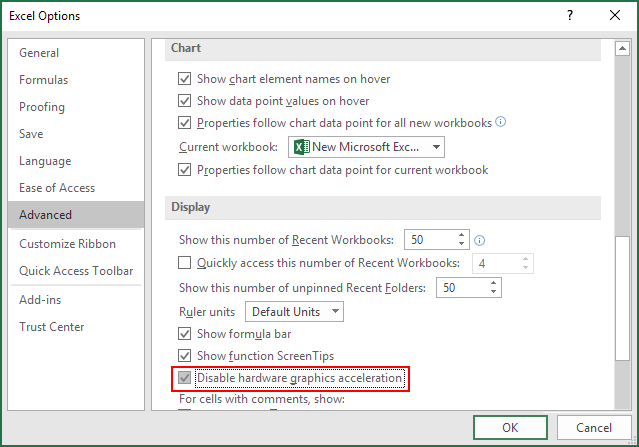
- After that hit the OK button and restart your Excel application.
Also Read: Fix Excel Not Responding When Pasting Issue!
Fix 3: Explore Excel File Details and Contents
The Excel files have existed for a long period in computers and they are upgraded from version to version.
This often travels between the users, and the users take over the Excel file, but don’t know what is included in it.
Below are the areas that cause Excel keeps freeze:
- The formulas that reference entire columns.
- More than thousands of hidden or 0-height and width objects
- The array formulas reference an uneven number of elements in the arguments.
- Unnecessary styles are caused due to regular copy-paste between the workbooks.
- Invalid and unnecessary defined names
Check the areas to know what is causing Excel workbook keeps crashing or not respond to issues.
Fix 4: Excel Keeps Crashing When Opening File by Running Excel in Safe Mode
Safe mode enables users to safely utilize Excel without any issues, commonly, the startup programs.
So, the best is to try once to start Excel in Safe Mode.
- Press and hold CTRL when you start the program, or else use the “/safe” (excel.exe /safe) option while starting the program from the command line.

- Now, while running Excel in safe mode, this avoids functionality and settings like the alternative startup location, toolbar changes, the xlstart folder, and even the Excel add-ins.

Hope by starting Excel, in safe mode Excel crashing issue is fixed, but if not, then it is recommended to make use of the automatic MS Excel Repair utility to fix Excel issues, errors, corruption, and others.
Fix 5:Reinstall And Repair MS Office
Most of the time, it is seen that repairing the MS Office program suite fixes the Excel crashing issue. Mainly, the problem is caused by a damaged Excel program or MS Office file.
Try the following steps to perform this method:
- Make a right-click on the “Start” button and choose the Control Panel.
- Follow the path “Programs“> “Program & Features“.
- Search the “Microsoft Office” program on the list. Once you get it make a right-click on the icon and choose the “Change“ option.

- Hit the “Quick Repair” and after that click the “Repair“option.
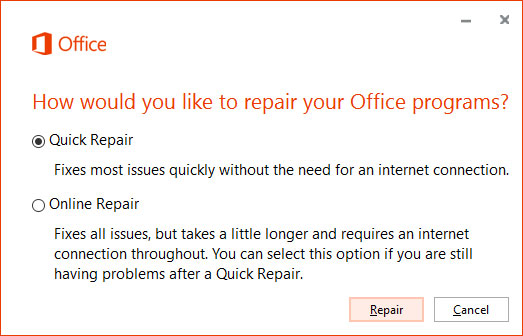
- After the repair process gets over. Launch the excel application again to check whether the excel workbook crashing issue was resolved or not.
- If the problem still persists then immediately approach the “Online Repair” option.
Fix 6: Excel Freezes in Only One Spreadsheet
If you are facing this Excel crashing issue only in a specific Excel spreadsheet. Then the chances are high that your file has some conditional formatting issues.
So, to resolve it, follow the steps:
- Open your problematic Excel file.
- After that go to the “Home” > “Conditional Formatting” > “Clear Rules” > “Clear Rules From Entire Sheet“.
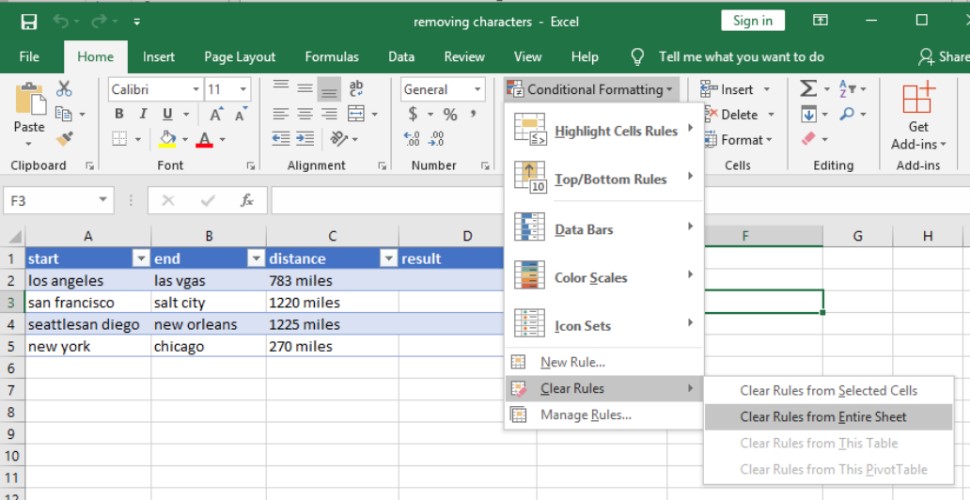
- You can apply the above steps in any of your Excel spreadsheets.
- Choose the “File” > “Save as” option. This will make a fresh copy of your Excel spreadsheet. Assign a different name to this new file so that it won’t get overwritten with the old one. The old one will exist if you need to revert to it due to lost data.
Fix 7: Check For Conflicting Programs or Processes
At the time of Windows booting, many processes automatically start executing in the background. So chances are also that these programs are conflicting with your Excel application.
You can either perform a clean boot or make a selective startup to stop the conflicting application. Here are the steps outlined to perform this task.
- On your PC sign in as Administrator.
- Press the +X keys from your keyboard.
- Choose the Run option and in the opened window type the msconfig.

- After this, you will see System Configuration dialog box open on your screen.
- Now go to Services tab, and put a checkmark across the option Hide all Microsoft Services.
- Select the Disable all>Apply>OK option.

- After then, go to the Startup tab and choose the Open Task Manager.

- In the open dialog box of Task Manager, tap to the startup tab. Now make a right-click over the item that you want to disable and choose Disable.

- Close the Task Manager.
- On the Startup tab present in the System Configuration of the dialog box. Hit the OK option and restart your PC.
Automatic Solution: MS Excel Repair Tool
If all the aforementioned fixes fail to resolve the Excel keeps crashing when opening file problem, then it means that the problem is in the Excel file. Maybe your Excel file got corrupted or damaged somehow.
For easy handling of such situations, always go with the professional recommended MS Excel Repair Tool to repair corrupt, damaged as well as errors in Excel files. This tool allows to easily restore all corrupt Excel files, including the charts, worksheet properties, cell comments, and other important data. With the help of this, you can fix all sorts of issues, corruption, and errors in Excel workbooks.
This is a unique tool to repair multiple Excel files at one repair cycle and recover the entire data in a preferred location. It is easy to use and compatible with both Windows as well as Mac Operating Systems. This supports the entire Excel version, and the demo version is free.
Steps to Utilize MS Excel Repair Tool:







Related FAQs:
What Slows Down Excel the Most?
Microsoft Excel slow down when:
- Your data is too big for Excel.
- Using too many formulas.
- Complex/volatile Excel functions & formulas.
- Unnecessary formatting & conditional formatting.
- Unused rows and columns or full column references.
- Connectors, add-ins, plugins, and external links.
- Too many worksheets.
Why Does Copy and Paste Crash Excel?
Most probably copying and pasting crash Excel due to an overloaded cache.
How Do I Stop Excel from Crashing with Large Files?
To stop Excel from crashing with large files:
- Remove too much formatting.
- Remove Conditional Formatting or Unused Styles.
- Eliminate Calculations & Formulas.
- Examine the Computer RAM Issue.
How Do I Clear the Excel Cache?
To clear the MS Excel cache, go to the File > Options > Save option. Choose Delete Cache Files under Cache Settings. You can also optionally select to delete files when closed & adjust the cache duration.
Conclusion
Excel keeps crashing when opening file or saving it is a frustrating problem, but often fixable. Start with updates, test in Safe Mode, and disable add-ins. If the issue persists, repair or reinstall Office. Use Excel Online as a last resort to access data quickly.
I hope you liked this post.
External References:
- https://support.microsoft.com/en-us/office/repair-an-office-application-7821d4b6-7c1d-4205-aa0e-a6b40c5bb88b
- https://support.microsoft.com/en-us/office/excel-not-responding-hangs-freezes-or-stops-working-37e7d3c9-9e84-40bf-a805-4ca6853a1ff4
- https://support.microsoft.com/en-us/office/open-office-apps-in-safe-mode-on-a-windows-pc-dedf944a-5f4b-4afb-a453-528af4f7ac72

Priyanka Sahu

Priyanka is a content marketing expert. She writes tech blogs and has expertise in MS Office, Excel, and other tech subjects. Her distinctive art of presenting tech information in the easy-to-understand language is very impressive. When not writing, she loves unplanned travels.