
For many Excel users, writing formulas in a spreadsheet is a really challenging task due to their complex syntax, which often includes functions, cell references, and mathematical operators. A Single mistake in the formula can result in peculiar errors and lead to spreadsheet data loss. Fortunately, with the help of ChatGPT, you can create Excel formulas & become an Excel formula expert. In this blog, I will explain complete steps for how to use ChatGPT to write Excel formulas along with other vital info related to Excel formulas.
So, let’s begin…
To fix corrupted Excel files, we recommend this tool:
This software will prevent Excel workbook data such as BI data, financial reports & other analytical information from corruption and data loss. With this software you can rebuild corrupt Excel files and restore every single visual representation & dataset to its original, intact state in 3 easy steps:
- Try Excel File Repair Tool rated Excellent by Softpedia, Softonic & CNET.
- Select the corrupt Excel file (XLS, XLSX) & click Repair to initiate the repair process.
- Preview the repaired files and click Save File to save the files at desired location.
Quick Navigation:
- What Are MS Excel Formulas?
- Understanding The Role of ChatGPT Tool in MS Excel
- Why Use ChatGPT for Excel Formulas?
- How to Use ChatGPT to Write Excel Formulas?
What Are MS Excel Formulas?
MS Excel formulas are expressions that execute calculations on values in the range of spreadsheet cells. They allow you to perform mathematical calculations like addition, subtraction, division, and multiplication.
Apart from that, you can easily calculate percentages (%) and find averages in the Excel for a range of cells, arrange date & time values, and do many other tasks successfully.
Understanding The Role of ChatGPT Tool in MS Excel
ChatGPT (Chat Generative Pre-trained Transformer) is an artificial intelligence tool which is developed by OpenAI to generate human-like text responses to questions & word prompts. Using this AI tool, you can streamline the process of writing Excel formulas.
It can offer stepwise guidance, explanations, and make perfect Excel formulas for you by reducing the complexity & confusion.
Why Use ChatGPT for Excel Formulas?
Using ChatGPT, you can generate both simple and complex Excel formulas. Apart from that, generating formulas using it can save your precious time and effort too.
Also Read: Open Excel in Safe Mode: The Lifesaver for Excel Spreadsheets
How to Use ChatGPT to Write Excel Formulas?
So, now you are in the most important section of this post. All you need to do is to follow the below stepwise process of writing Excel formulas using the ChatGPT.
Step 1- Open Excel Spreadsheet
First of all, you have to open the spreadsheet that you need to use.
In the spreadsheet below, we will calculate the differences between a projected price & actual price for each product in the (Column D), & the subtotals of B, C, and D Columns.

Step 2- Search for the ChatGPT & Sign Up or Log In
For New User:
- Open your web browser and search for “ChatGPT”. Click on the first result. Now, you are on the official ChatGPT page to sign up. Follow the on-screen instructions, like providing your mobile number, Gmail ID, etc.
- If you want to use ChatGPT with your Gmail ID then provide the mail ID and confirm the mail received by OpenAI.
User Already Have Account:
- If you have already an OpenAI account, then simply log in using your registered Gmail ID.
After completion of these steps, you will get a new chat screen for the ChatGPT.
Step 3- Enter Your Request for Excel Formula (Subtraction)
In this step, you have to enter your request for the Excel formula in “Send message” … text box which you can see at the bottom middle of your screen. Hit Enter.

In our case, we will ask ChatGPT to write the Excel formula for subtracting the cell C2 from a number in the B2 cell.
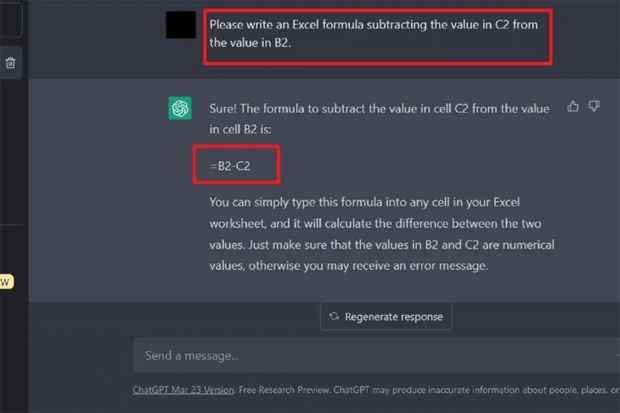
For instance- Please write an Excel formula by subtracting the value of C2 cell from value of B2 cell.
Note: Ensure that your wording of the request is clear and precise, otherwise, ChatGPT tool could misunderstand and give you an incorrect formula.
Step 4- Copy the ChatGPT’s Formula
- In this instance, you will see that the AI will provide the formula for you and a brief description of how to use that in your Excel spreadsheet.
- Press CTRL + C keys together to copy the formula from the chat screen.
Step 5- Paste the Copied Formula
- Go to your spreadsheet & select a cell in which you need the formula to be.
- Next, press CTRL + V keys together to paste the formula into a cell. Now, you will get the accurate answer to your formula in a specific or selected cell.
In our case, ChatGPT given the formula:
=B2-C2
Once we copied & pasted the given formula into the desired cell of the spreadsheet (D2), we got the correct result. If you want the difference of B2-C2 in each row, select a corner of the resulted cell and drag your cursor to select the rest of the rows until the last row.

Step 7- Again, Enter Your Request for Excel Formula (Addition)
Now, we want to know the SUM means total of all values in the (Column B) Projected Price.
Therefore, we will return to the ChatGPT screen & again send a request for the Excel formula to add the values in the column B (from B2 to B11).
We will type: Please write the Excel formula to all the values in the Column B, from the B2 to B11 cell.
Step 8: Copy & Paste the ChatGPT’s Formula
- In this instance, you will see that the AI will provide the formula for you and a brief description of how to use that in your Excel spreadsheet.
- Press CTRL + C keys together to copy the formula from the chat screen and then paste it into the B2 cell.
For our case, ChatGPT generated the below formula to add all cells in Column B (from B2 to B11):
=SUM(B2:B11)
After pasting this addition formula, you will get the accurate answer that should appear in a specific cell. If you want subtotals of columns C and D in the last rows, select a corner of the resulting cell and drag your cursor to select the rest two columns until the last column.
Finally, you will get the correct subtotals of B, C, and D columns.

So, these are the complete steps for chat gpt create Excel formula.
Also Read: How to Transpose Data in Excel? – A Step-By-Step Guide
Related FAQs:
The answer is Yes, ChatGPT is compatible with all MS Excel versions. In simple words, it can be used with both older and newer versions of Excel.
No, ChatGPT cannot directly interrelate with the Microsoft Excel spreadsheet.
ChatGPT tool offers a limited free trial, for extensive use, you have to go for subscription or paid plan.
No, ChatGPT cannot work offline for Excel formula writing. It requires a stable internet connection to work efficiently.
Frankly speaking, ChatGPT is a secure tool, but it is advisable to evade sharing sensitive data with it.
Not always, ChatGPT sometimes may help you with VBA code generation. It mainly focuses on the formula writing & data manipulation in Microsoft Excel. Is ChatGPT Compatible with All Excel Versions?
Can ChatGPT Edit an Excel File?
Is ChatGPT Free to Use for Excel Formula Writing?
Can ChatGPT Work Offline for Excel Formula Writing?
Are There Any Security Concerns When Using ChatGPT with Excel?
Can ChatGPT Help Me with Excel VBA Programming?
Bottom Line
ChatGPT is an artificial intelligence tool, which can generate human-like content by following human commands and queries. So, if you also want to use this tool or want to know how to use ChatGPT to write Excel formulas, follow the outlined stepwise process in this guide.
That’s all…

Priyanka Sahu

Priyanka is a content marketing expert. She writes tech blogs and has expertise in MS Office, Excel, and other tech subjects. Her distinctive art of presenting tech information in the easy-to-understand language is very impressive. When not writing, she loves unplanned travels.