
Receiving the Microsoft Excel error “This file type is not supported in protected view” can be frustrating, especially when you need to access important workbook data. Well, this blog provides an in-depth exploration of this warning message, covering its major factors, and effective workarounds in resolving this error for smooth calculations and operations.

So, without further ado, let’s get started…
To fix corrupt Excel file, we recommend this tool:
This software will prevent Excel workbook data such as BI data, financial reports & other analytical information from corruption and data loss. With this software you can rebuild corrupt Excel files and restore every single visual representation & dataset to its original, intact state in 3 easy steps:
- Try Excel File Repair Tool rated Excellent by Softpedia, Softonic & CNET.
- Select the corrupt Excel file (XLS, XLSX) & click Repair to initiate the repair process.
- Preview the repaired files and click Save File to save the files at desired location.
Why Am I Getting Excel This File Type Is Not Supported in Protected View Error?
For better resolution, it is always necessary to identify the root cause behind the current problem. Similarly, this peculiar Excel error can be triggered due to various reasons, including:
- Unsupported or mismatched file extension
- Excel workbook corruption
- Corrupted MS Office installation
- Files downloaded from an unreliable source
- Faulty or corrupted add-ins
- Using an outdated Excel program
- Incorrect settings in MS Excel’s Trust Center.
How to Fix This File Type Is Not Supported in Protected View Excel Error?
Follow the below step-by-step techniques to solve the protected view error when opening Excel spreadsheet.
Solution 1- Rename the File
The first crucial step that you can take is renaming the Excel file. This will eventually fix the minor issues and problems that you are currently facing.
To do so:
- Open the File Explorer and go to the faulty Excel file location.
- Next, make right-click on the file & Rename it.
Solution 2- Change the Extension of the File
An unsupported file format or extension could also cause this file type is not supported in protected view when opening Excel. However, changing the file extension from .xls to .xlsx (or vice versa) can assist you in dealing with this issue.
For this:
- Open the faulty XLS/XLSX file.
- Navigate to the File tab >> Save As >> Select the location to save your file.
- Under Save as type list, choose the file format (xls or .xlsx) you want >> click Save.

- Now, check for the error.
Solution 3- Disable the “Protected View” Settings
Since the error is related to the protected view, therefore, you should check whether the protected view settings in Excel is enabled or not. If it is enabled, simply disable it by:
- Opening Excel application.
- Click on File >>Options >> Trust Center.
- In the opened window, click on Trust Center Settings >> Protected View.
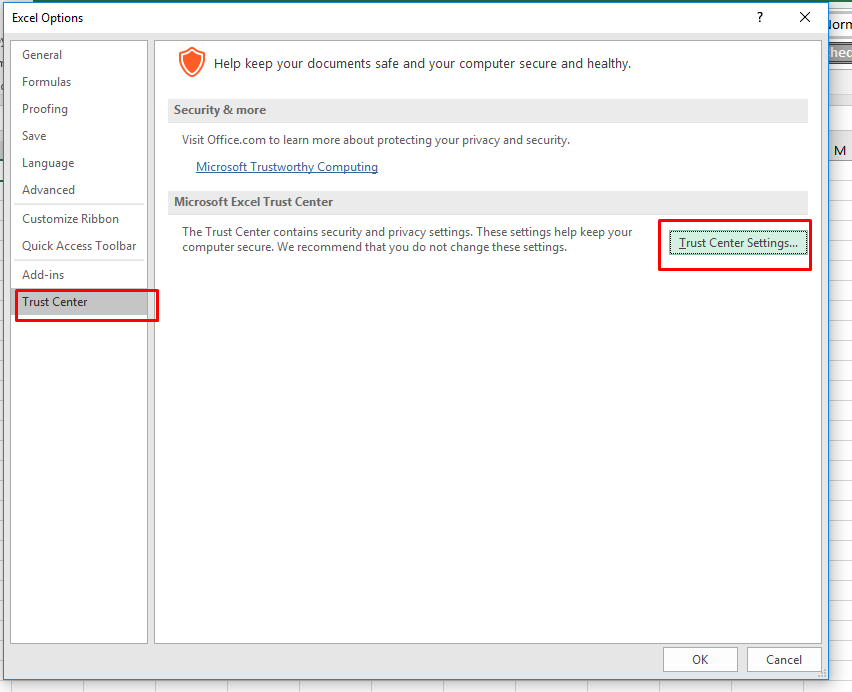
- Under the opened protected view window, deselect the below options and hit OK:
- Enable Protected View for files originating from the Internet.
- Enable Protected View for files located in potentially unsafe locations.
- Enable Protected View for Outlook attachments.

Also Read; Fix Protected View Office Has Detected A Problem With This File Excel 2016
Solution 4- Updating Excel Software
Another workable solution to tackle this annoying message is to check if the Excel software is updated or not. If the program is outdated, consider updating it by following the below steps:
- Open the Excel application >> click on Account.
- After that, Office Updates >> Update Now.
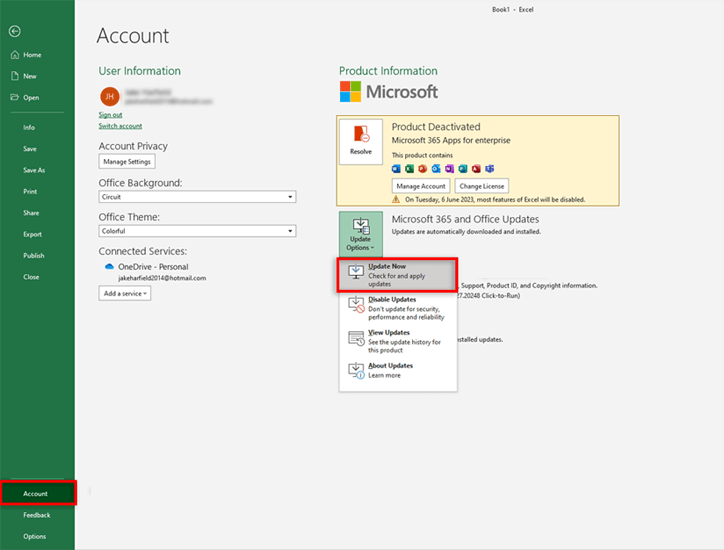
If the error persists, try further solutions.
Solution 5- Disable Faulty Add-ins to Fix Excel This File Type Is Not Supported in Protected View
Temporarily disabling the corrupted add-ins within Excel can help you to overcome this situation. So, let’s follow the below instructions carefully to identify and disable the add-ins one by one if found culprit.
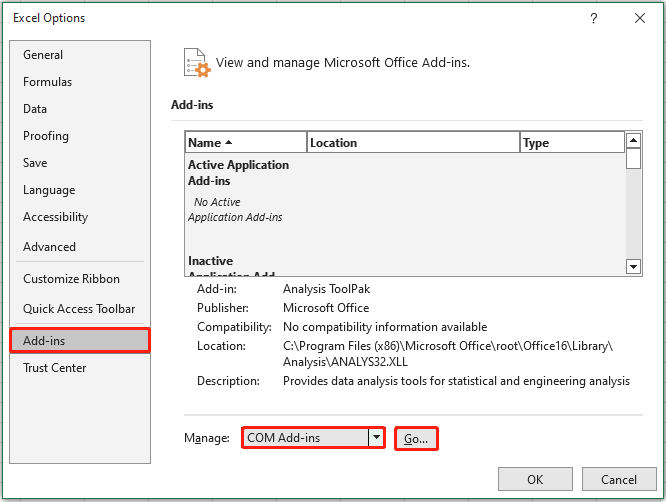
- Open Excel >> click Options.
- Then, choose Add-Ins in the ‘Excel Options’ window.
- Now, select the COM Add-ins by expanding a ‘Manage’ dropdown.
- At last, click Go button & uncheck all the COM Add-ins then click OK.
Solution 6- Repair XLS/XLSX File Corruption
If the Excel this file type is not supported in protected view error has occurred due to a corrupted workbook, pick the inbuilt Open and Repair utility. This tool can fix the Excel file corruption for free and solve the error message.
To do so, follow the below steps:
- Open Excel
- Then, click File > Open option.
- Choose the faulty file to repair it.
- After that, click on ‘Open’ >> ‘Open and Repair’ >> Repair option.

In case, the Open and Repair utility fails, you can go for sophisticated Excel Repair Software. This program will not only solve the Excel workbook corruption but also recover all the objects such as a worksheet, a cell, a chart, a form, or a report saved within the workbook.
Steps to Use MS Excel Repair Tool:







Solution 7- Repair MS Office Installation
Even after trying the above DIY fixes, if the error persists, then try repairing your Microsoft Office installation and check if it solves the issue.
- Go to Start and type Control Panel in the search box then click to open it.

- Next, click on Programs and Features>> under Uninstall a program find and right-click on Microsoft Office program.

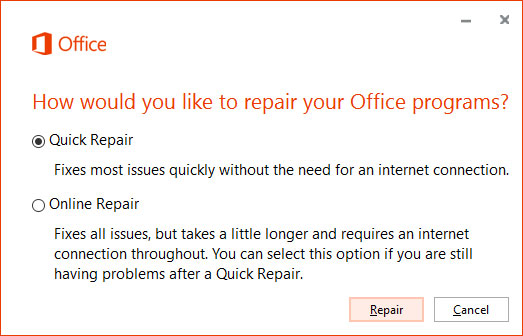
- Now, click the Change option.
- choose the Repair option, and click Continue.
That’s it…
Also Read: Fixes for Excel “The File Couldn’t Open in Protected View” Error!
Related FAQs:
Protected View in Microsoft Excel is a security feature that is designed to protect your files from unauthorized access.
When Excel file is not opening in protected view, you have to follow the below steps:
Your Excel sheet might suddenly turn protected due to harmful antivirus programs.
To unlock a protected Excel file, open the locked file >> click on the Review tab > Changes > Unprotect Sheet. If prompted, enter the password to unprotect the sheet. What is Protected View in Excel?
What to Do When Excel File Is Not Opening in Protected View?
Why Is My Excel Sheet Suddenly Protected?
How Do I Unlock a Protected Excel File?
Time to Conclude
Whether you are a business proficient or a new user, by applying the wide-ranging solutions discussed in this blog, you can easily fix this file type is not supported in protected view when opening Excel and accessing your spreadsheet data.
For further queries related to this topic, contact us via our Facebook & Twitter accounts.

Priyanka Sahu

Priyanka is a content marketing expert. She writes tech blogs and has expertise in MS Office, Excel, and other tech subjects. Her distinctive art of presenting tech information in the easy-to-understand language is very impressive. When not writing, she loves unplanned travels.