
Excel users often come across the “Cannot open the specified file” error when trying to access a hyperlink in the spreadsheet. This message typically occurs due to various factors, including incorrect file paths, broken hyperlinks, or system restrictions. Regardless of the reasons, this error can be easily solved with some quick fixes.

Here, you will learn every aspect of cannot open specified file error in Excel along with the best fixes to overcome it easily.
To fix corrupted Excel files, we recommend this tool:
This software will prevent Excel workbook data such as BI data, financial reports & other analytical information from corruption and data loss. With this software you can rebuild corrupt Excel files and restore every single visual representation & dataset to its original, intact state in 3 easy steps:
- Try Excel File Repair Tool rated Excellent by Softpedia, Softonic & CNET.
- Select the corrupt Excel file (XLS, XLSX) & click Repair to initiate the repair process.
- Preview the repaired files and click Save File to save the files at desired location.
Why Excel Cannot Open a Specific File?
Several culprits can cause this message. Some of the common causes are listed below:
- Incorrect File Path or URL
- File Location Has Changed
- External Drive or Network Issues
- Unsupported File Type
- Security Settings in Excel
How to Solve Cannot Open Specified File Error in Excel?
Let’s start following the techniques below to solve this error.
Fix 1- Check the Hyperlink Path
The incorrect hyperlink path is the major factor for this error. Therefore, it is important to ensure the path is correct.
- Right-click on the hyperlink.
- Choose Edit Hyperlink.

- Copy the link & paste it into the File Explorer or your browser.
- Make corrections if needed.
Fix 2- Check Macros Settings to Solve Cannot Open Specified File Error in Excel
Another working method you can try is to check the macro settings and ensure they’re correct.
To check this, follow the steps below:
- Navigate to File >> Options >> Trust Center.
- Next, click on the Trust Center Settings.
- Now, click the Macro Settings.
- After this, select an option “Enable all macros” checkbox.
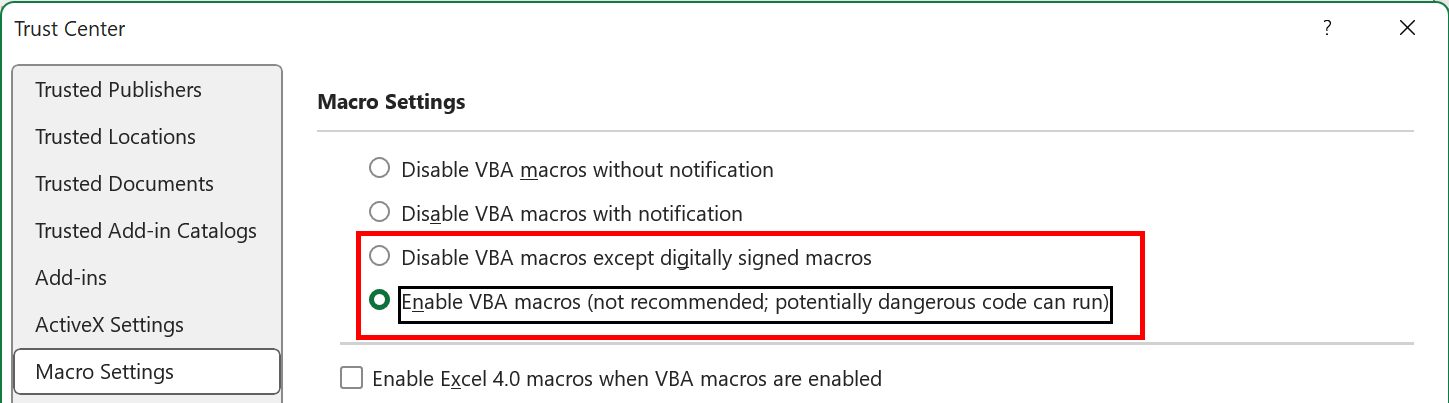
- Finally, check the Trusted Locations and add a folder holding your file if it isn’t listed.
Also Read: Fix ‘Excel Cannot Open the File Because the File Format or File Extension Is Not Valid’ Error!
Fix 3- Recreate the Hyperlink
Many users have reported in the forum sites that re-adding the hyperlink solves Excel hyperlink cannot open the specified file same workbook error.
For this, follow the instructions below carefully:
- Open the spreadsheet.
- Right-click on the cell.
- Choose the Remove Hyperlink.

- Insert a hyperlink again using an Insert > Link
Fix 4- Unblock the Excel File
Sometimes, Excel files downloaded from the internet may be blocked, thus causing this error.
To unblock the file:
- Go to the file location.
- Then, right-click the file.
- Click on the Properties.
- Now, you have to check the Unblock option at the bottom >> click Apply.

Fix 5- Fix the Corrupted Workbook
As already said, corruption in the XLS/XLSX workbook is another foremost reason for not opening the specified file. You can easily repair your corrupt Excel file by using the Open and Repair tool.
Here’s how you can utilize this tool:
- Open the Excel >> click File > Open.
- Go to the location that contains the corrupted file.
- Now, under an Open dialog box, select a corrupted workbook.
- Finally, click the arrow next to an Open button, then Open and Repair.
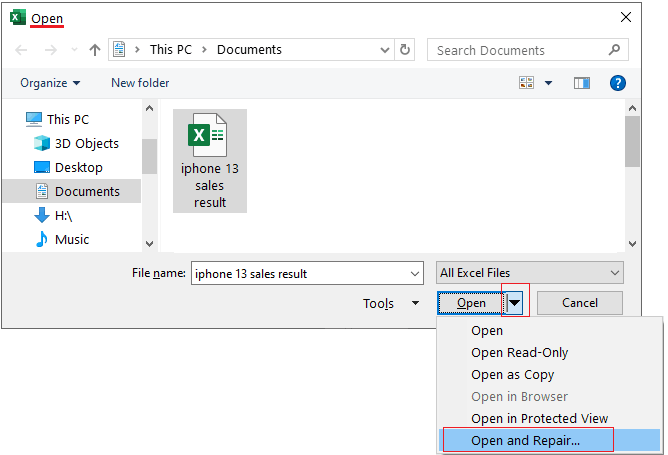
If your workbook is severely damaged, then immediately opt for an advanced Excel Repair Tool. It can repair a damaged or corrupted workbook and recover all the data saved within it.
Fix 6- Repair MS Excel Installation
Last but not least, if the MS Excel installation gets corrupted, it may behave unexpectedly.
To repair this:
- Go to Control Panel > Programs > Programs and Features.

- Choose the Microsoft Office.
- Finally, click Change option, then choose Quick Repair >> Repair.
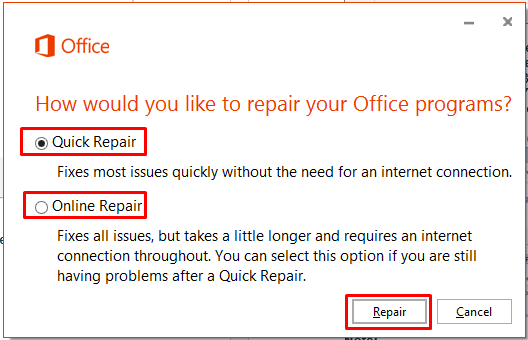
And you’re done!
Frequently Asked Questions:
The HYPERLINK function in MS Excel creates a shortcut that redirects to another location in a current workbook or opens a document on the Internet.
Most likely, hyperlinks are not opening due to a broken or incorrect link, security settings, or file corruption.
To open all links in Excel, follow the steps below:
You might be unable to open certain links due to a mistyped URL or the webpage no longer being online. What Is the Hyperlink Function in Excel?
Why Is My Hyperlink Not Opening?
How Do I Open All Links in Excel?
Why Am I Unable to Open Certain Links?
Also Read: Excel “We Can’t Update Some of The Links in Your Workbook” Error!
Closure
Experiencing errors while trying to access hyperlinks in an Excel spreadsheet is quite common. But with patience & the right solution, you can simply fix them.
Similarly, by following the approaches for how to fix cannot open specified file error in Excel outlined in this post, you will be equipped to solve it more efficiently.
Thanks for reading!

Priyanka Sahu

Priyanka is a content marketing expert. She writes tech blogs and has expertise in MS Office, Excel, and other tech subjects. Her distinctive art of presenting tech information in the easy-to-understand language is very impressive. When not writing, she loves unplanned travels.