
The error “We can’t open the workbook in the browser because it uses these unsupported features • Workbook protection” appears when trying to open the Excel workbook in the web browser. Undoubtedly, the error is quite annoying and is important to fix it ASAP. This blog aims to reveal this particular error, offering its causes & quick resolutions to solve it.

To fix corrupted Excel files, we recommend this tool:
This software will prevent Excel workbook data such as BI data, financial reports & other analytical information from corruption and data loss. With this software you can rebuild corrupt Excel files and restore every single visual representation & dataset to its original, intact state in 3 easy steps:
- Try Excel File Repair Tool rated Excellent by Softpedia, Softonic & CNET.
- Select the corrupt Excel file (XLS, XLSX) & click Repair to initiate the repair process.
- Preview the repaired files and click Save File to save the files at desired location.
Why Excel Can’t Open the Workbook in the Browser?
Recognizing the root causes can help users fix the issue promptly. Therefore, let’s take a look at the reasons for this message:
- The file format isn’t compatible with Excel Online.
- The Excel file contains unsupported features.
- SharePoint or OneDrive permissions are misconfigured.
- The file is large or corrupted.
Let’s explore how to troubleshoot this error message efficiently.
How to Fix We Can’t Open the Workbook in the Browser Excel Error?
Try the following fixes to resolve this warning:
Method 1- Check the File Compatibility
Many of you are unaware of the fact that Excel Online supports restricted file types. So, make sure your file is saved in .xlsx, .xlsb, or .xlsm, format. But if it is in older formats such as .xls or .xml, then convert it by following the steps below:
- Launch the file in desktop Excel.
- Next, click on the File menu > Save As.
- Select .xlsx.

- Then, save & re-upload that file.
- Now, try launching it in the web browser again.
Also Read: Fix Excel Error: This Workbook Contains One or More Links That Cannot Be Updated!
Method 2- Repair a Corrupted Excel Workbook
Microsoft Excel file corruption can lead to We can’t open the workbook in the browser Excel error. In such a situation, you can use run Open and Repair feature to fix the document for free.
To use this tool:
- Open the MS Excel >> navigate to File>Open.
- Click on Browse button to choose the faulty file.
- Now, click on Open button arrow >> Open and Repair.
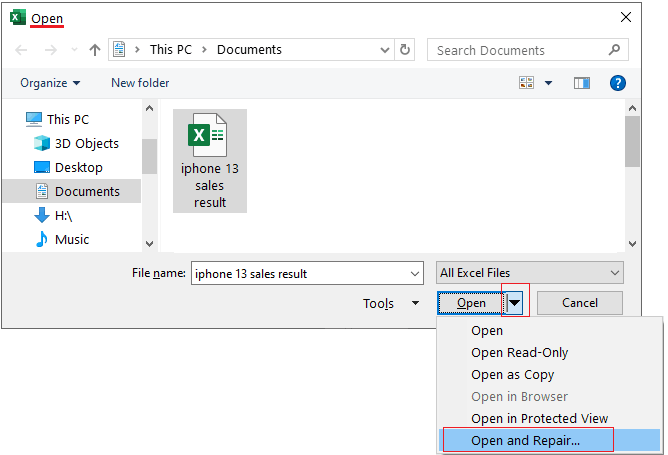
- After this, click on Repair.

In case Open and Repair fails to repair the corrupted file, you can opt for the 3rd-party MS Excel Repair Tool. It mainly fixes the corrupted or damaged .xls or .xlsx files and recovers all the components stored within them.
Method 3- Removing the Unsupported Features
Excel Online doesn’t support advanced features like Macros, ActiveX controls, embedded objects, or Data connections. Thus, if your file contains any of these, check and remove them:
- Launch a file in Excel desktop.
- Navigate to File menu >> Info.
- After that, click on Check for Issues >> Inspect Document.

- Now, remove the unsupported content and save the cleaned file.
- Finally, try reloading a workbook in your default browser.
Method 4- Upload the Smaller Version of File
Sometimes, large-sized workbooks may cause different issues when opening the Excel file online. If your Excel document has thousands of rows or columns, do the following:
- Delete needless data.
- Shift the data to distinct workbooks.
- Compress a file by saving it in .xlsx
Method 5- Fix We Can’t Open the Workbook in the Browser Excel Error by Clearing the Browser Cache
Corrupted or excessive browser cache and cookies can cause file loading problems. In such a case, consider clearing the cache data:
- Open the default browser settings.
- Locate and click on Privacy or History.
- Then, click on the Clear browsing data.
- Choose Cache and Cookies to confirm.
- Now, reload the web browser & open a file again.
Method 6- Try a Different Browser
If none of the above solutions worked, then switch to another web browser. Such as:
- Google Chrome
- Microsoft Edge
- Mozilla Firefox
Ensure your web browser is updated to the latest version.
Also Read: Fixed- The Workbook Cannot Be Opened or Repaired by Microsoft Excel Error (8 Ways)
Frequently Asked Questions:
How Do I Open the Workbook in Excel for the Web?
To open the workbook in Excel for the Web, you have to sign in to office.com/signin. >> choose Excel. After that, choose New blank workbook >> open the Recent file, or choose one of the templates.
How to Open XML File in Excel Online?
To open XML file in Excel online, follow the steps below:
- Firstly, click on File > Open.
- Under the Open dialog box, you have to click a drive, folder, or Internet location that has a file you want to open.
- Choose the file & click Open.
Can You Edit Excel in a Browser?
Yes, with Excel for the web, you can easily use your web browser to create, view, or edit your workbooks.
How to Recover a Corrupted Excel File Using CMD?
To recover an Excel file that is corrupted using CMD:
- Press the Win+R keys to open the Run box.
- Type ‘CMD’ and hit Enter to run as administrator.
- Now, enter a drive location where an Excel file is saved, ‘F’ >> press ‘Enter’ key.
- After that, enter the following command: ‘ren Filename’.
- Launch the fixed file in Excel.
Final Thoughts
Although the Excel error ‘We can’t open the workbook in the browser because it uses these unsupported features’ can be solved using various methods. However, you can implement all the techniques discussed in this post to troubleshoot it without any data loss.
That’s all…
External References:
- https://support.microsoft.com/en-us/office/repair-a-corrupted-workbook-153a45f4-6cab-44b1-93ca-801ddcd4ea53
- https://community.fabric.microsoft.com/t5/Power-Query/We-can-t-open-the-workbook-in-the-browser-Excel-Online/td-p/746664
- https://answers.microsoft.com/en-us/msoffice/forum/all/were-sorry-we-cant-open-the-workbook-in-the/d904e725-fb7a-42bc-be20-a113278aa4b5

Priyanka Sahu

Priyanka is a content marketing expert. She writes tech blogs and has expertise in MS Office, Excel, and other tech subjects. Her distinctive art of presenting tech information in the easy-to-understand language is very impressive. When not writing, she loves unplanned travels.