
In Microsoft Excel, macro settings can be greyed out or inaccessible due to numerous reasons, such as administrative restrictions, inappropriate file extension, incorrect security configurations, faulty add-ins, or file-specific settings. Regardless of the reasons, it can be easily fixed with some working tricks. In this blog, I will mention why Excel macro settings greyed out and how to fix this annoying problem in no time with less effort.
To fix corrupt Excel files, we recommend this tool:
This software will prevent Excel workbook data such as BI data, financial reports & other analytical information from corruption and data loss. With this software you can rebuild corrupt Excel files and restore every single visual representation & dataset to its original, intact state in 3 easy steps:
- Try Excel File Repair Tool rated Excellent by Softpedia, Softonic & CNET.
- Select the corrupt Excel file (XLS, XLSX) & click Repair to initiate the repair process.
- Preview the repaired files and click Save File to save the files at desired location.
Why Are Macro Settings Greyed Out?
A wide variety of reasons can hinder the functionality of macro settings in Excel and lead to greyed-out issues. Some of the common reasons are shortlisted here.
- Incorrect macro (Trust Center Settings).
- Inappropriate file format or extension.
- Faulty Excel add-ins.
- If the workbook is protected, it can cause the macro setting to be greyed out.
- Corrupted XLS/XLSX file
- Outdated Excel software.
After extracting the roots now it’s time to solve macro settings greyed out in Excel 365 or other versions of Excel successfully.
What to Do When Excel Macro Settings Greyed Out?
Follow the below step-by-step methods to overcome this situation.
Method 1- Check Trust Center Settings
Since the issue is associated with trust center settings, it is important to first check for the macro settings and ensure to correct them.
Here is how you can do so:
- Navigate to File menu > Options > Trust Center. Click on Trust Center Settings.
- Under the Trust Center, you have to click Macro Settings. Make sure to select the option “Enable all macros“.
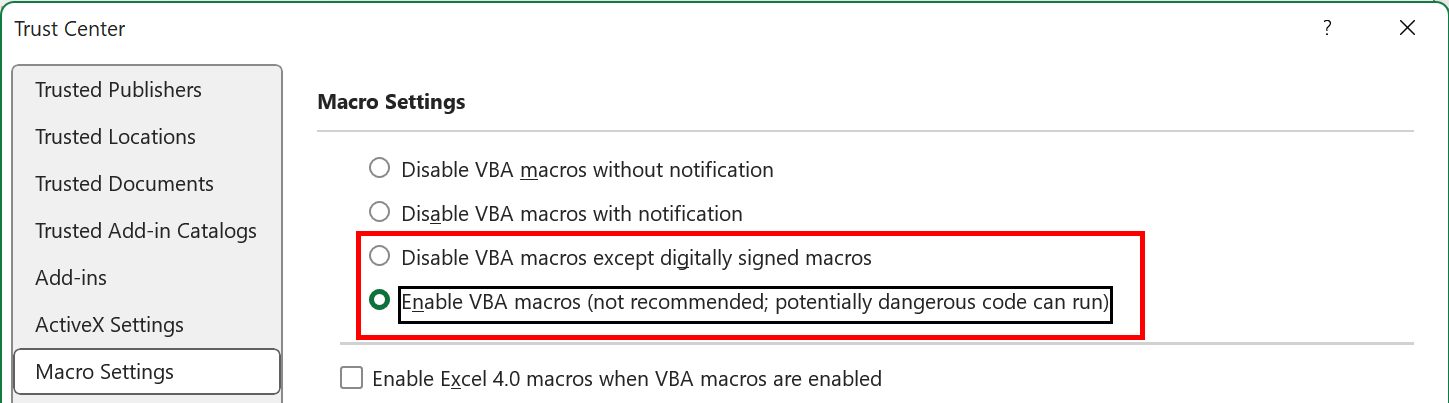
- Check the Trusted Locations Add the folder containing your file if it isn’t listed.
Method 2- Change the File Extension
An incorrect file format or extension can also trigger this problem. However, changing the file extension can help you in dealing with this problem.
For this:
- Open the faulty Excel document.
- Go to File tab >> Save As>> choose the location where you need to save your file.
- In the Save as type list, you have to choose a file format (xls or .xlsx) you want >> click Save.

- At last, check for the issue.
Method 3- Ensure the Workbook Is Unprotected
Sometimes, a protected workbook can also restrict certain functionalities along with macro settings greyed out in Excel 365. To check and correct this:
- Navigate to Review tab > Protect Workbook.
- If protection is active, click on the Unprotect Workbook >> enter the password if required.

Method 4- Disable Add-ins
Faulty installed add-ins in Excel often cause errors and issues when handling the spreadsheets. So, let’s check for the faulty add-ins and disable them immediately.
Follow the below steps:
- Open Excel >> Go to Options.
- Then, select Add-Ins in the ‘Excel Options’ window.
- Choose the COM Add-ins by expanding a ‘Manage’
- Now, click the Go button and simply uncheck all the COM Add-ins then click OK.
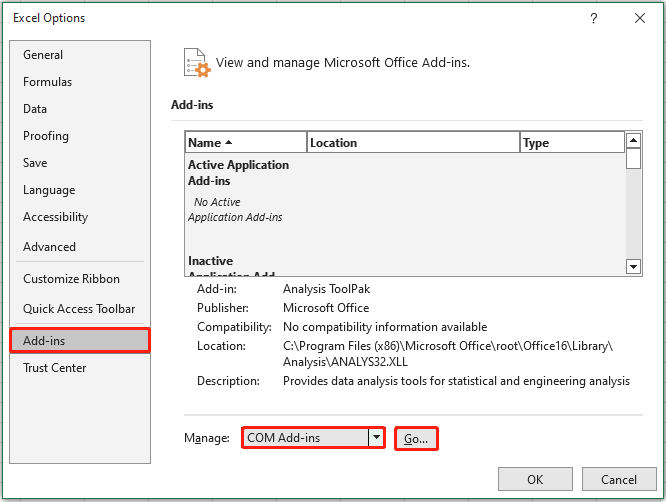
Apart from this, you can even try restarting Excel in a safe mode to automatically disable all the plugins and add-ins installed in Excel.
Method 5- Fix Excel Macro Settings Greyed Out by Updating Excel
The next working solution you can try is updating the Excel software. Running outdated software is another foremost reason for facing this problem.
Consider following the below steps to update the Excel application:
- Open the Excel >> click on Account.
- Next, click Office Updates >> Update Now.
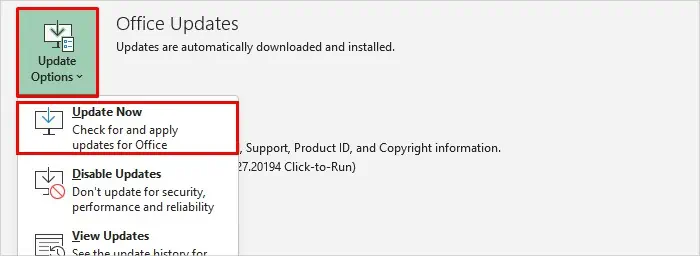
If the problem persists, try further solutions.
Method 6- Contact Microsoft Support
Even after trying these methods, if you are still unable to access the macro settings, you can contact Microsoft Support for other troubleshooting help.
Go For It: Excel Repair Tool
If you are facing Excel trust centre macro settings greyed out issues due to workbook corruption, you can opt for the MS Excel Repair Tool. It is an excellent software that can assist you in repairing the corrupted Excel file and recovering all its data, including cell comments, charts, worksheet properties, etc., with 100% integrity.
Related FAQs:
You might be unable to change Trust Center settings in Excel due to group security policies in their organizations.
You can enable the macro settings in Excel by following the below steps:
From an opened Excel document, you can press Alt+F11 to check whether Macros have been enabled. Why Can't I Change My Macro Settings in Excel?
How Do I Enable the Macro Settings in Excel?
How to Check If a Macro Is Enabled in Excel?
Verdict Time
Microsoft Excel macro settings greyed out is a common hiccup that many users face. Nevertheless, by applying the solutions mentioned above in this blog, you can troubleshoot this hectic problem and seamless Excel usage. Moreover, if you’ve any queries, ask us on our Facebook & Twitter.
That’s it!

Priyanka Sahu

Priyanka is a content marketing expert. She writes tech blogs and has expertise in MS Office, Excel, and other tech subjects. Her distinctive art of presenting tech information in the easy-to-understand language is very impressive. When not writing, she loves unplanned travels.