
Broken links in Excel appear when the file refers to an external workbook that is moved, deleted, or renamed. However, it occurs due to various unforeseen reasons, and therefore, it should be fixed as soon as possible. In this helpful guide, you are going to learn how to find broken links in Excel and how to fix Excel broken links in no time with less effort.
Ways to Find Broken Links in Excel |
Step-By-Step Solutions Guide |
|
Method 1: Using Find And Replace Method |
Open your Excel sheet >> press CTRL + F to open the Find and Replace dialog box…Complete Steps |
|
Method 2: Through Cell Relationship Diagram |
From the menu bar choose the Files > Options tab…Complete Steps |
|
Method 3: Using Excel VBA |
For using the code, you have to add a reference Microsoft XML V3…Complete Steps |
|
Method 4: Using Edit Links Command |
Open your Excel sheet >> go to the Data ribbon >> select Edit Links…Complete Steps |
To fix Excel corrupt files, we recommend this tool:
This software will prevent Excel workbook data such as BI data, financial reports & other analytical information from corruption and data loss. With this software you can rebuild corrupt Excel files and restore every single visual representation & dataset to its original, intact state in 3 easy steps:
- Try Excel File Repair Tool rated Excellent by Softpedia, Softonic & CNET.
- Select the corrupt Excel file (XLS, XLSX) & click Repair to initiate the repair process.
- Preview the repaired files and click Save File to save the files at desired location.
Those who don’t know what breaking links in Excel are or what causes this problem in detail, they can simply check out the below subtopics.
What Is Breaking Links In Excel?

Excel sheet cells are often linked with several different files that are having relevant data like formulas, codes, etc. for one or many reasons. When these source files are gets deleted, relocated, removed, or corrupted then the link related to a specific workbook cell will automatically break down.
After that, these broken links can’t perform the targeted function anymore.
How To Find Broken Links In Excel?
Method 1- Using Find And Replace Method
The easiest way to find Excel broken links is by using the Find and Replace method of Excel.
When the link is created with the source file each worksheet cell obtains a unique file extension. This extension signifies that the source file is linked with that respective cell.
So when the source file is relocated or deleted from the device then the worksheet starts troubling you with the broken link issue.
Follow the below-given steps to find broken links in Excel:
- First of all, open your Excel sheet which is showing broken link issues.
- After that press the Ctrl+F button from your keyboard. This will open the Find and Replace dialog box.
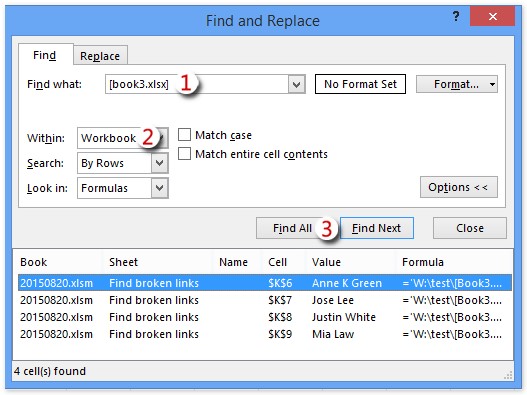
- In the opened dialog box of find and replace go to the Find what box. Here you have to enter your respective file extension which is linked with the cell.
- Now in the “within” box option, choose the option “Workbook”.
- After that in the box of Look in you have to choose the “Formulas” option.
- At last press the find all button.

After performing these steps, you will easily get Excel broken links.
Now you have to replace the problem having a link with the functional or correct new link.
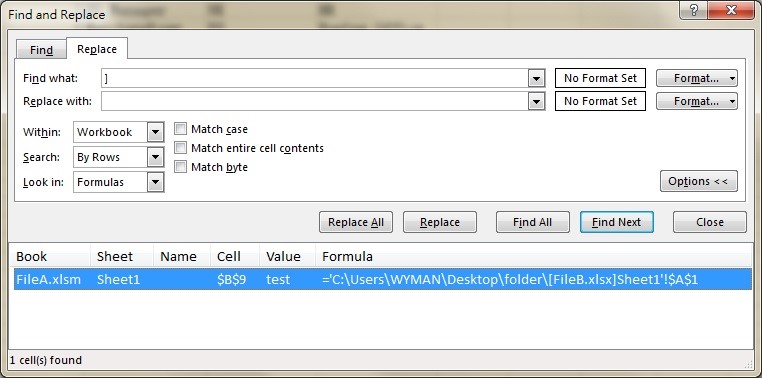
Also read: 8 Tricks to Fix Excel Break Links Not Working
Method 2- Through Cell Relationship Diagram
Excel Cell relationship diagram is mainly used to elaborate links association of any particular worksheet cells with other cells, worksheets, or any workbook.
To find the broken links using the cell relationship diagram, you need to add a specific add-in within your Excel workbook. After then only the cell relationship diagram will show you the cell link-up detail.
Here are the steps to find broken links in Excel using the cell relationship diagram:
- From the menu bar choose the Files > Options tab.
- In the opened window of Excel options hit the Add-ins tab.
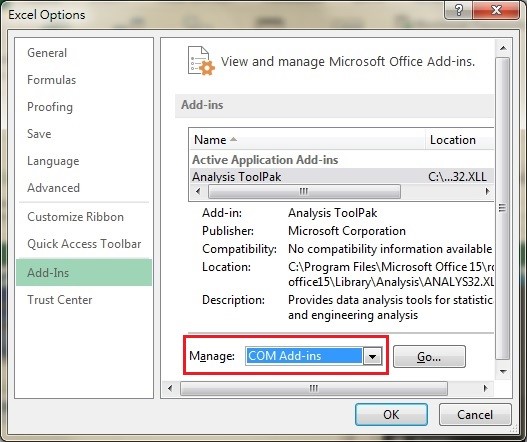
- Now from the drop-down choose the COM add-in and press the ok button. In the opened com Add-in dialog box choose the “Inquire”.

- After that, you will see that the tab of Inquire will get added in the Excel Ribbon.
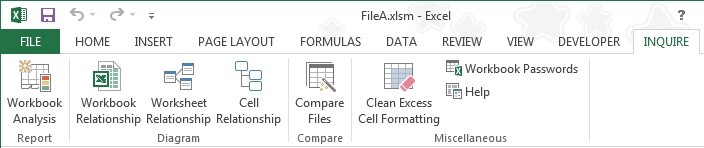
- From the diagram group, you have to choose Cell Relationship.
- The next window of the cell relationship diagram will appear on the screen.
- Choose the options as per your desire from the opened dialog box and then press the OK button.
- Very soon you will see the diagram will start appearing on your Excel screen.
- You can zoom in to see the links between one cell to another cell, or one cell to another worksheet.
- Here you will see the entire cell relationship diagram having all the included links. In this diagram, you can also check the broken links present in your Excel workbook.
I found this method as the best way to find the cell having the broken Excel links.
Method 3- Using Excel VBA
Another method to find Excel broken links is by using the Excel VBA. In this method, we will use the massive code to track the broken link related to any Excel workbook cell.
You can also restore the return value of the accessing source links to find whether links are actually broken or not.
For using the code, you have to add a reference Microsoft XML V3:
Private Function CheckHyperlink(HypelinksCell As Range) As String
On Error GoTo ErrorHandler
Dim oHttp As New MSXML2.XMLHTTP30
oHttp.Open “HEAD”, HypelinksCell.Text, False
oHttp.send
CheckHyperlink = oHttp.Status & ” ” & oHttp.statusText
Exit Function
ErrorHandler:
CheckHyperlink = “Error: ” & Err.Description
End Function
Sub Test()
Debug.Print CheckHyperlink(Range(“A1”))
End Sub
Using the above-given code you can easily track the broken link detail of any worksheet cell.
Also Read: How To Fix Excel Error “We Can’t Update Some Of The Links”?
Method 4- Using Edit Links Command
Apart from the above three effective methods, there is another yet option to find broken links in Excel cells which is to use the edit links command.
Here is how you can do so:
- Open your Excel sheet that contains broken links >> go to the Data ribbon then select Edit Links. Now, a dialog box will seem on your screen.

- In a Source tab, you will find all workbooks associated with the cells in your current workbook.
- After this, press on Check Status which you can see on the right side.

- Here, if the status is showing ‘Source is open’, it simply means that a consistent workbook is active & open it right now.
- After that, click on the option “Change Sources.”
- Now, a File Browser gets opens up.

- Choose a source file of a consistent workbook >> press OK.
- At this time, click on the option Check Status again & now you will see no error under a Status bar which is in an Edit Links dialogbox.
What Causes Broken Links in Excel?
Important:
Always keep in mind that Linked objects are completely different from hyperlinks. So, the following procedure won’t help you to fix broken hyperlinks in Excel.
Main there are two possible reasons associated with broken links problems in Excel:
- The source folder is get deleted: After the deletion of the source folder, it’s impossible to track data that is linked with the cell.
- Files/folders shifted to another location: This Excel broken link issue also arises when the location of the linked file or folder is relocated.
How To Fix Broken Links In Excel?
Caution: This step can’t be reversed, so it will be better if you keep the backup copy of your Excel workbook before starting up the procedure.
- Open your Excel workbook having the broken link issue.
- Go to the Data tab and tap to the Edit Links option. If you won’t get the Edit Links option then it means your workbook doesn’t contain any links.
- Now from the Source file box, choose the broken link which you need to fix off.
- Hit the Change Source option.
- Search the location of the Excel file having the source of your linked data.
- Now choose the new source file and hit the Change Source option.
- Tap to the Close option.

How To Remove Broken Link In Excel?
When you break any link in Excel, all the formula referring to that particular source file automatically gets converted to its current value. Suppose, if you have used the formula =SUM([Budget.xls]Annual!C10:C25) and your result is 45 then your formula will get converted to 45 after breaking the link.
Follow the below steps for how to remove broken links in Excel:
- Open the Excel workbook showing the broken link.
- Now go to the Data tab, hit the Edit Links button.
- Within the Source file box, choose the broken link which you need to remove.
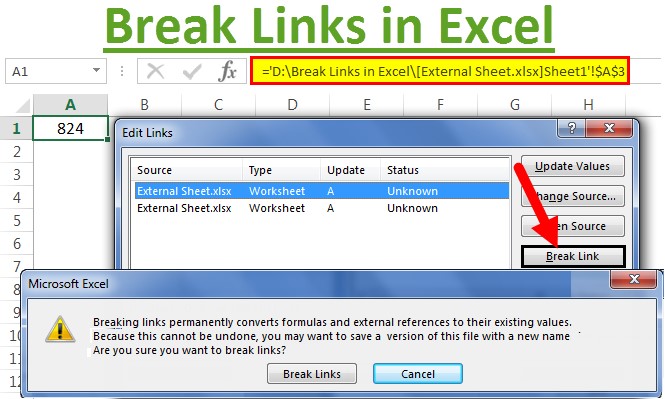
- Hit the Break Link button.
- Tap to the Close option.

Also Read: 3 Ways To Fix Excel Hyperlinks Not Working Problem
How to Repair Corrupt Excel File?
If somehow your Excel file gets corrupted then you can use the best & recommended Excel File Repair Tool. It has the ability to repair & recover corrupted, or inaccessible Excel files.
Even though it can solve different Excel-related issues & errors and restore entire data such as charts, worksheet properties cell comments, etc.
So, once download this tool on your PC and follow the below steps to know how to repair corrupt Excel files easily.







Frequently Asked Questions:
How to Fix Linking in Excel?
To fix linking in Microsoft Excel, open the Workbook Links pane, choose Data tab then Queries and Connections >> Workbook Links.
Why Won't a Link Break in Excel?
Some installed add-ins or plugins can interfere with hyperlinks.
How to Find Missing References in Excel?
To find missing references in Excel:
- Display the References dialog box.
- Choose the missing reference.
- Launch the Object Browser.
- Then, use a Browse dialog box to locate the missing reference >> hit OK button.
- Repeat the previous steps until all the missing references are fixed.
What Happens If You Break an Excel Link?
If you break an Excel link, then the chart data that displays on the slide becomes static.
How to Save Excel Without Links?
To save Excel file without hyperlinks, go to File >> Save as type drop-down menu, choose the file format >> click ‘Save’ to save the sheet as a values-only file.
Wrapping Up
Broken links in Excel are frustrating but easy to fix. Use the Edit Links feature or manual search methods. Regular maintenance and smart file management will prevent future issues. With the right approach, you can ensure seamless data connection every time.
I hope you enjoyed reading this post!

Priyanka Sahu

Priyanka is a content marketing expert. She writes tech blogs and has expertise in MS Office, Excel, and other tech subjects. Her distinctive art of presenting tech information in the easy-to-understand language is very impressive. When not writing, she loves unplanned travels.