
Stuck with “Microsoft Excel file error: data may have been lost.” message? If yes, do not worry, you are in the correct place. Well, this error appears when trying to open an Excel sheet in a higher version of MS Excel while it was created in an earlier MS Excel version. However, the message does not always mean permanent data loss.
Screenshot of the error:

Luckily, this error can be easily solved by applying the fixes mentioned in this blog. So, let’s check out this post.
To fix corrupted Excel files, we recommend this tool:
This software will prevent Excel workbook data such as BI data, financial reports & other analytical information from corruption and data loss. With this software you can rebuild corrupt Excel files and restore every single visual representation & dataset to its original, intact state in 3 easy steps:
- Try Excel File Repair Tool rated Excellent by Softpedia, Softonic & CNET.
- Select the corrupt Excel file (XLS, XLSX) & click Repair to initiate the repair process.
- Preview the repaired files and click Save File to save the files at desired location.
Is It Important to Solve Excel Data May Have Been Lost?
Yes, it is important to solve MS Excel data may have been lost error promptly. Ignoring this warning can restrict you from accessing important features within Excel & hinder your ability to complete tasks efficiently.
Nevertheless, it is vital to understand the underlying causes for better resolution.
Why The Excel File Error: Data May Have Been Lost Occurs?
There are many unpleasant reasons due to which the Excel files get corrupted and start showing this error message. A few of the common causes are as follows:
- Faulty Excel add-ins
- Excel workbook corruption
- Incompatibility between the Excel version and the file format you are trying to open.
- Insufficient storage space
- Abrupt system shutdown
- Improper XLS or XLSX file closing
- Virus attacks.
As you have extracted the major reasons now it’s time to implement the possible solution to overcome this problem.
Workarounds to Fix File Error Data May Have Been Lost Excel
Follow the step-by-step methods to solve it.
Workaround 1- Restore Data from Backup

If you have the most recent backup of the faulty Excel document, you can restore data easily from that backup. But in case you do not have a recent backup, proceed to try further solutions to fix the Excel file error data may have been lost.
Also Read: Fix Microsoft Excel Cannot Paste Data Error
Workaround 2- Renaming the Excel File
It is one of the basic troubleshooting tricks to overcome file opening issues in Excel. Therefore, consider renaming your Excel document and try opening it to check if the file still results in the same error.
Besides, you can change the file format to make it accessible.
Workaround 3- Close Unnecessary Running Apps
Running too many apps in the system’s background can lead to this error. All you need to do is close the needless applications to tackle this situation.
Follow the steps below to do so:
- Press Ctrl + Shift + ESC keys to launch the Task Manager.
- In the Process tab, make right-tap on the useless apps >> click End task.

Workaround 4- Check the File Compatibility
Another crucial step that can assist you in fixing this issue is ensuring that the file format is supported by your current Excel version. However, if the file was created in an older version, consider downgrading your Excel software or vice versa.
Workaround 5- Repair Corrupted XLS/XLSX Workbook
Corruption in the workbook can also lead to file error: data may have been lost. You can repair your corrupt Excel file with the help of Microsoft’s built-in Open and Repair tool.
Follow the below steps to run this tool:
- Open Excel application.
- Click on the File > Open.
- Go to the folder that holds the corrupted Excel document.
- In an Open dialog box, you have to choose a corrupted workbook.
- Then, click an arrow next to an Open button >> Open and Repair.
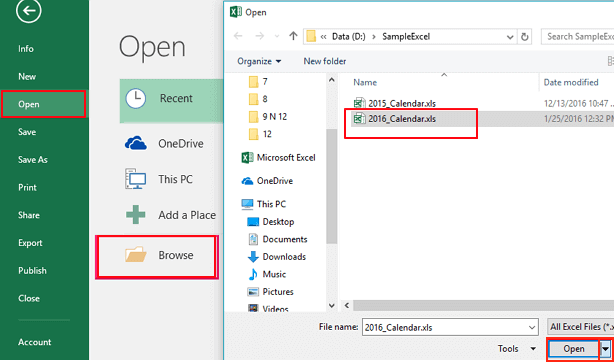
- Now, do one of the following methods:
- To recover workbook data, click Repair.
- Or to extract values and formulas from the workbook when the repair attempt workbook is not workable, click Extract Data.

If the Open and Repair fails to work, you can use an advanced MS Excel Repair Tool. This software proficiently fixes the errors that have occurred due to file corruption. Moreover, it allows easy restoration of corrupt Excel file data such as charts, rows, columns, worksheet properties, cell comments, etc.
Steps to Utilize MS Excel Repair Tool:







Workaround 6- Check for System Storage to Fix Excel File Error: Data May Have Been Lost
Insufficient system storage can also trigger this frustrating message. All you need to do is to ensure that your system’s hard disk has sufficient space to access the file properly.
Workaround 7- Updating Your Excel Version
This issue usually appears when trying to open a workbook in a higher version of MS Excel. To solve this error, check & install the latest Excel version. Here are the steps to be followed:
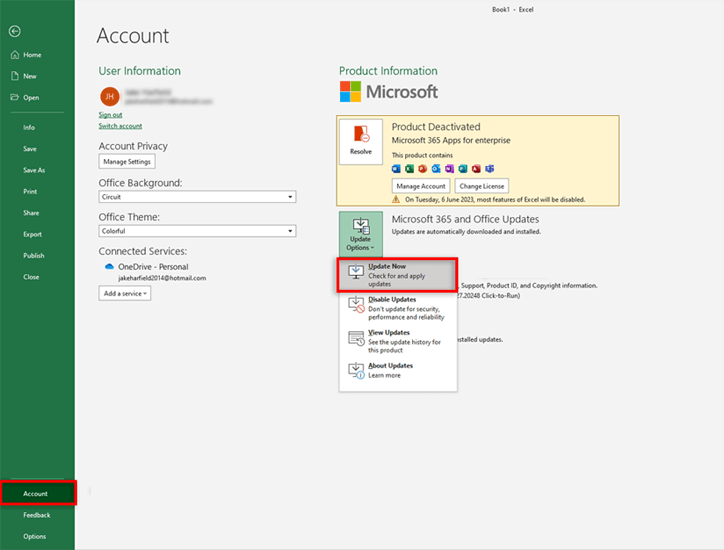
- Open Excel, click on File menu >> Account.
- After that, click on Office Updates >> Update Now.
Workaround 8- Turn OFF the Faulty Add-ins
Many users have reported that they fixed data may have lost issues by temporarily disabling the faulty add-ins in Excel. So, you can also consider disabling the add-ins one by one to identify the culprit.
Steps to be followed to do so:
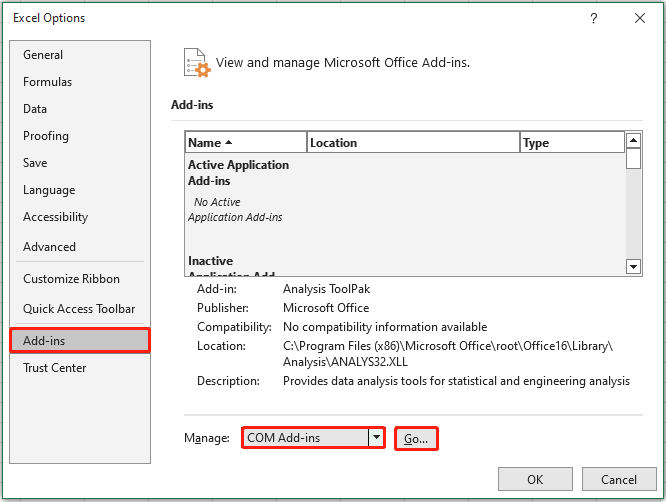
- Open Excel, and click “File” tab >> Options.

- Select Add-Ins under ‘Excel Options’ window.
- After that, choose the COM Add-ins by expanding a ‘Manage’ drop-down.
- Finally, click Go & uncheck all the COM Add-ins >> click OK.
Now, check if the error is fixed or not.
Also Read: [9 Fixes] Excel This Value Doesn’t Match The Data Validation Error
Workaround 9- Disable “Hardware Graphic Acceleration” Option
Last but not least, if none of the above solutions worked for you, try disabling the Hardware Graphics Acceleration. This will help you to check if the issue is fixed. Follow the instructions below carefully to do so:
- Open MS Excel >> click Options.
- Go to the Advanced
- Scroll down to the Display section and check ‘Disable hardware graphics acceleration’ box.
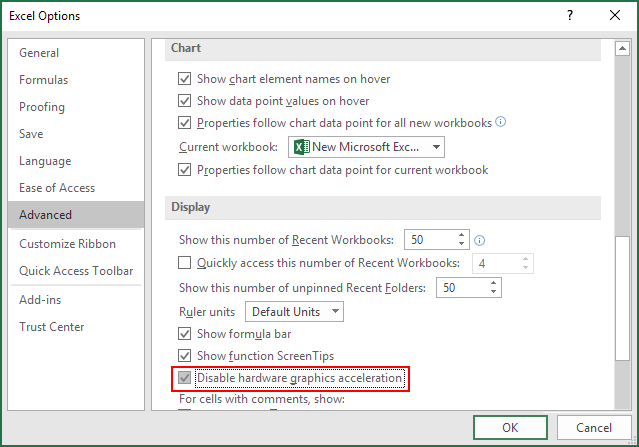
- Then, click OK.
Frequently Asked Questions:
Why Some Data Is Not Showing in Excel?
It might possible that the rows or columns containing your data accidentally hidden that’s why Excel file isn't displaying the data properly.
How Do I Remove Error Data In Excel?
To remove error data in Excel, you can use the IFERROR() function.
Can Data Loss Be Recovered in MS Excel?
Yes, if you have a recent backup of your Excel file then the lost data can be recovered successfully.
How to Restore Excel File History?
To restore an Excel file history version, open the document, click on the File >> Info >> Version History, choose an earlier version to preview. Then, click Restore (or Save a Copy) to bring it back as your current file.
How Do I Repair & Recover Lost Data in Excel?
With the help of Excel Repair and Recovery software, you can repair the corrupted Excel workbook and recover all the data stored within it.
Final Verdict
Whether you are a business professional or a new user, by following the inclusive solutions provided above, you can easily troubleshoot Excel data may have been lost challenge and present your data in a way that suits your needs.
Furthermore, for any queries related to this topic, contact us via our social media accounts, such as Facebook & Twitter.

Priyanka Sahu

Priyanka is a content marketing expert. She writes tech blogs and has expertise in MS Office, Excel, and other tech subjects. Her distinctive art of presenting tech information in the easy-to-understand language is very impressive. When not writing, she loves unplanned travels.